Deleted messages are not immediately lost – they move to the Trash folder and can be restored within a limited time.
When you delete a message, it moves to Trash automatically. Emails remain in Trash for up to 30 days, then get permanently deleted.
If a message was deleted more than 30 days ago or manually deleted from the trash folder, it cannot be restored anymore 💡
Recover deleted emails in webmail
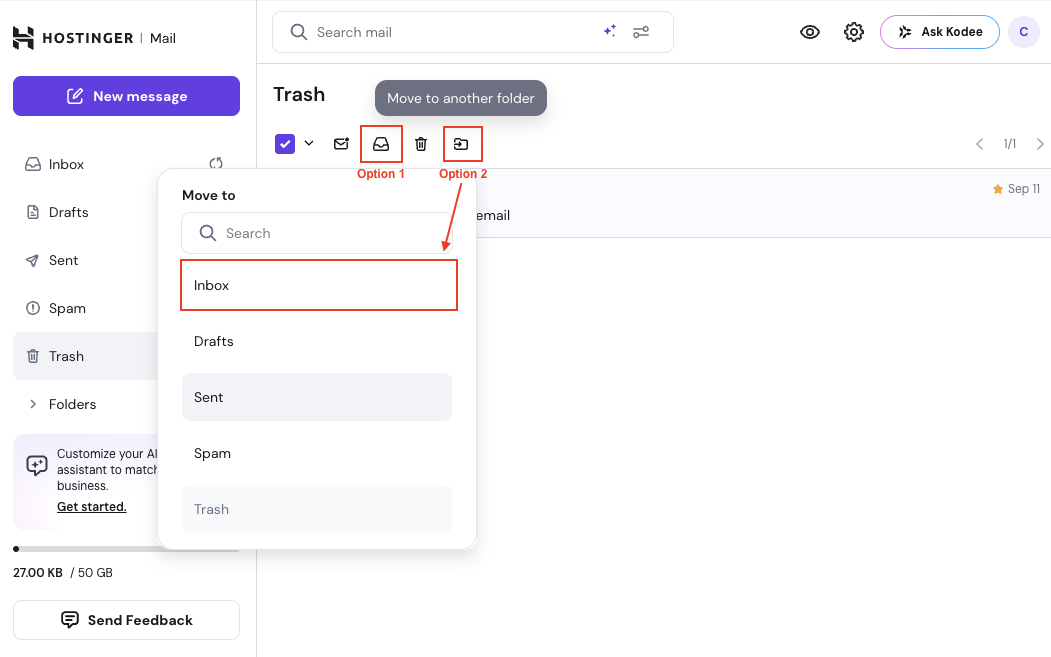
This applies when you use the Hostinger webmail interface — the UI shown in your screenshot.
Steps to restore emails
-
Click Trash In the left sidebar.
-
Select each message(s) you want to restore by using checbox
-
Option 1:
- Click the Restore icon in the tool bar
- Option 2:
-
Click the Move Icon in the tool bar
-
Choose the Destination Folder other than Trash, usually Inbox
-
-
Recover deleted emails in email client
If you use an email client and don’t leave copies on the server, you can try to recover deleted messages by following any of the corresponding guides:
To prevent data loss, it’s recommended to regularly create email backups 💡