Change a database password in Hostinger to update MySQL access credentials directly from Hostinger dashboard.
Change a database password
You can change your database’s password by navigating to Websites → Manage site, search for Databases Management on the left sidebar, and clicking on it:

In front of the database in question, click on the Options button (⋮) and choose Change Password:

There is also an option to generate a strong password automatically.
NOTES
-
Changing your database password may disconnect it from your website. To fix it, refer to this article: How to fix “Error establishing a database connection”
-
If your List of Current MySQL Databases And Users section is empty, you need to create a MySQL database first
Change a database password in Hostinger Agency Hosting
Change your database password on an Agency Hosting plan directly from Hostinger dashboard.
- Navigate to Websites → Manage site
- Search for Databases in the sidebar search and click it.
- Next to the database’s MySQL user, click the arrow (›) to open the MySQL Users panel.
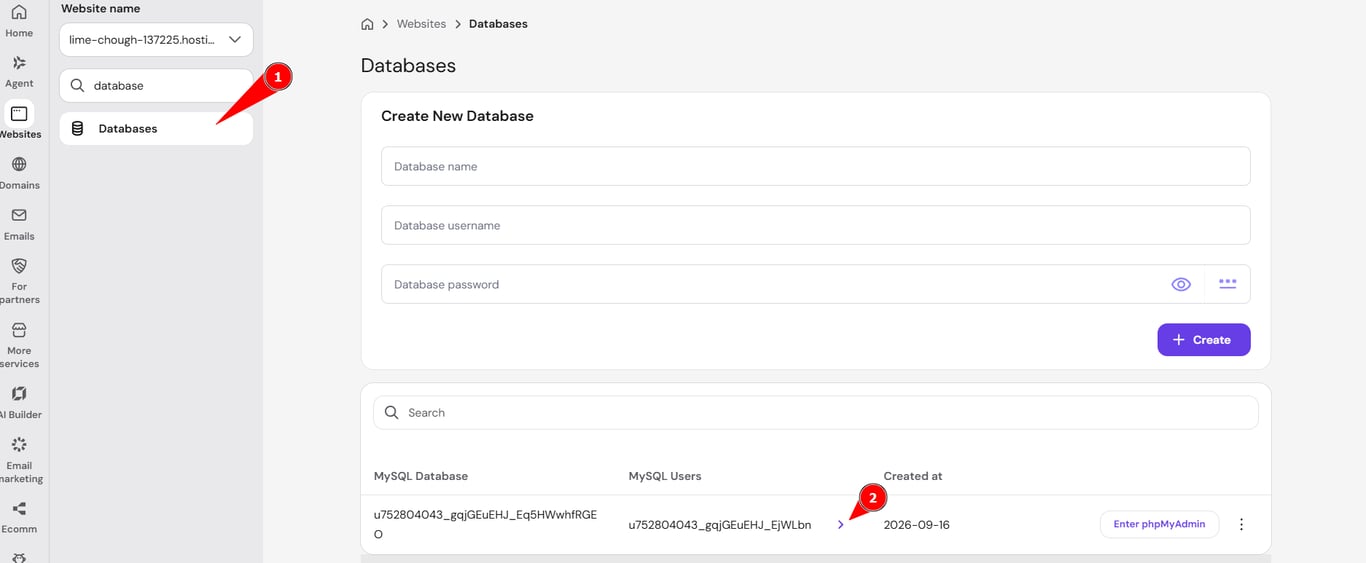
- Click the Options button (⋮) next to the username and choose Change password.

- Enter a new password, or generate one automatically.
- Click Confirm.

NOTE
- Changing the password here does not automatically update your configuration files. Update your config file with the new password afterward to avoid connection issues.