You can personalize your experience by changing the display language of the Hostinger dashboard. This adjustment updates the interface labels and navigation menus to your preferred language, making it easier to manage your hosting services and websites.
Before you start
- Disable any browser translation extensions before changing the language, as they can interfere with the Hostinger dashboard interface.
Your selected language is saved to your Hostinger account and applies across all devices and browsers you use to log in. No need to re-select it when switching devices. If no language has been selected, Hostinger dashboard defaults to the brand’s default language.
Change your Hostinger dashboard language
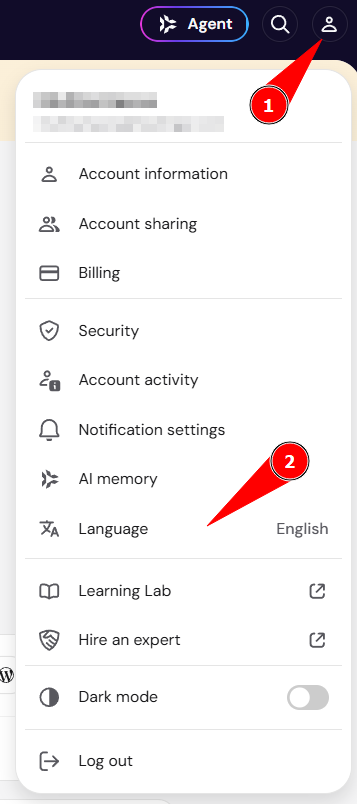
- Click on the profile icon located in the top-right corner of the Hostinger dashboard.

- Select the current language displayed in the dropdown menu to show all available options.
- Choose your preferred language from the list.
Available languages in Hostinger dashboard
The Hostinger dashboard is currently available in the following languages:
Arabic, Bengali, Chinese, Dutch, English, French, German, Hebrew, Hindi, Italian, Indonesian, Japanese, Korean, Lithuanian, Polish, Portuguese, Romanian, Spanish, Thai, Turkish, Ukrainian, and Vietnamese.
Once selected, the Hostinger dashboard interface will instantly refresh to display your chosen language. You can now continue managing your Hostinger services in the language that suits you best.