Upload backups with File Manager in Hostinger when your website backup is a compressed archive smaller than 100 GB, such as .zip, .tar, or .tar.gz. Upload the archive to the public_html folder, then extract it into a folder of your choice.
NOTE
-
The file manager is not available for websites created with Hostinger AI Builder
How to access the file manager
In your Hostinger account, go to Websites, find the website in question, and click on Dashboard. Then, search for File Manager on the left sidebar, and click on it:

Then, select the option to access files of the particular website:

How to upload backup in file manager
Open the public_html folder, and click on the upload icon in the top-right:

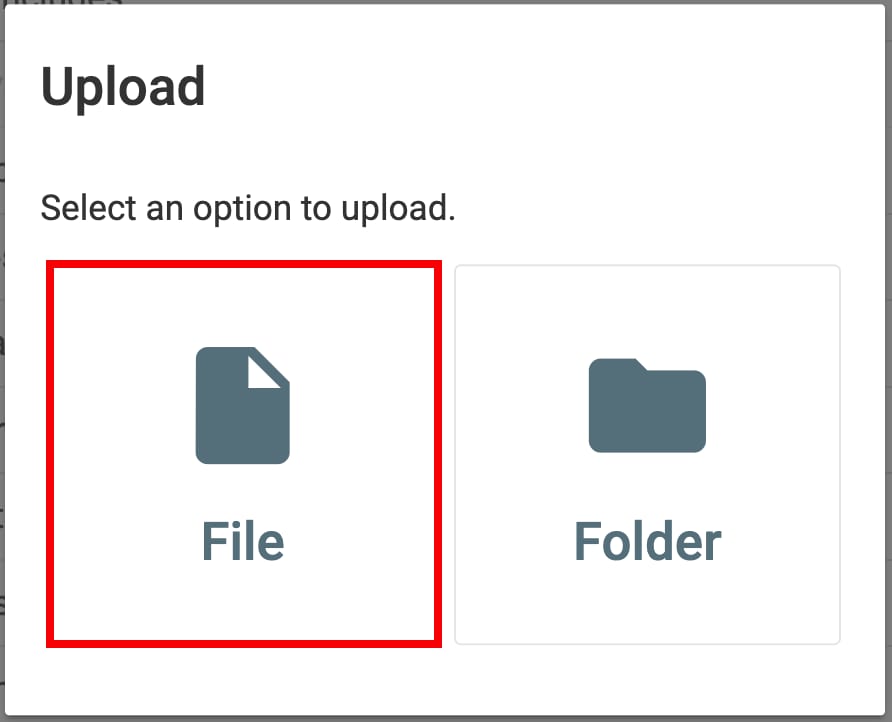
Now, upload your backup file:
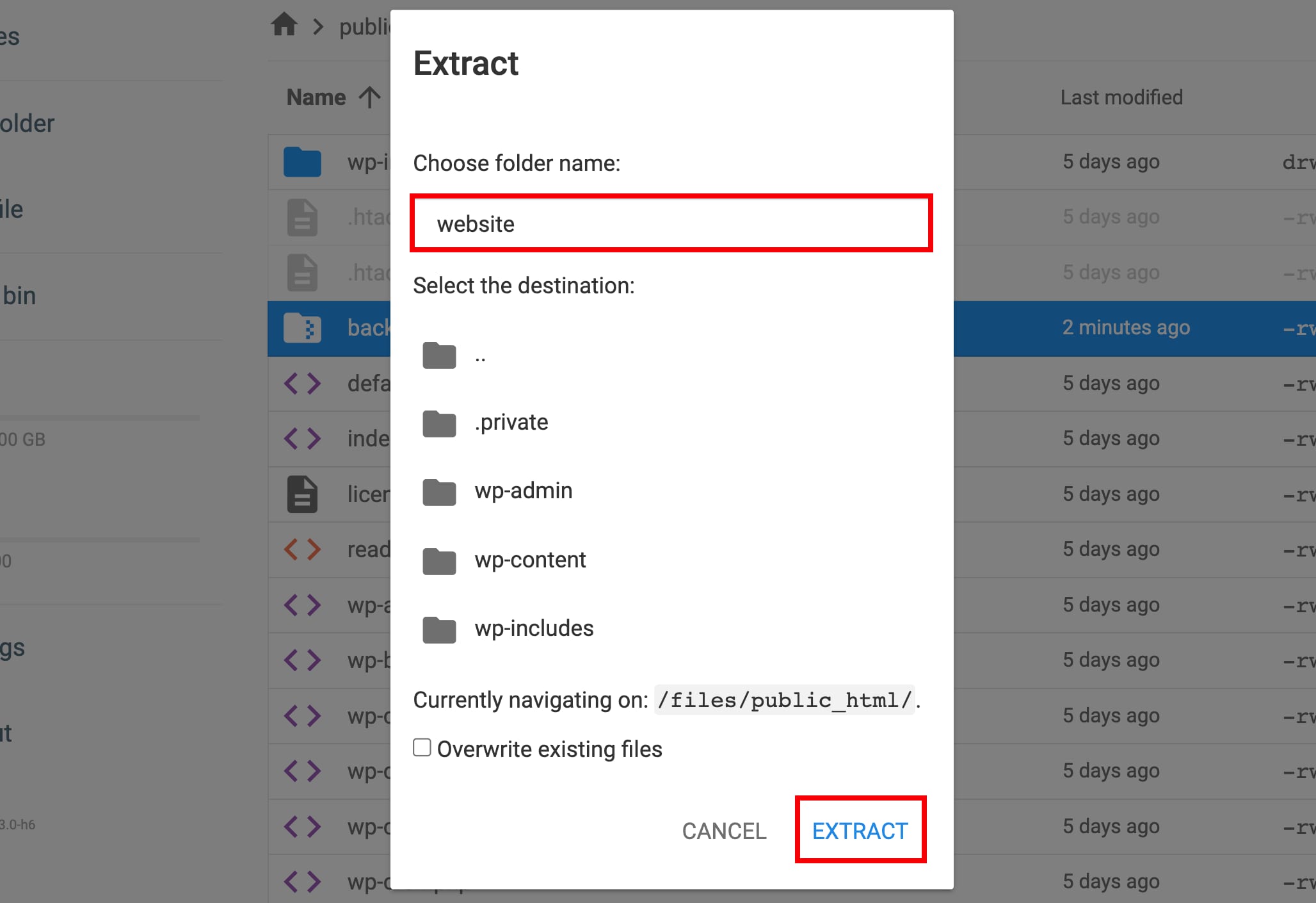
Once you do that, right-click on the uploaded backup file, and select Extract:

Insert the name of the folder into which you want to unarchive the backup files, and click on Extract:
And that’s it:

Your backup files are now extracted into the folder you named inside public_html. For other upload methods, such as FTP or SSH, see How to upload backups at Hostinger.