At Hostinger, you can restore a backup by logging into your cPanel account.
See how to create a full backup in cPanel at Hostinger if you want to create backup instead. If you want to restore a backup onto a different cPanel hosting plan instead of the same account, see how to restore a backup on a different cPanel hosting plan at Hostinger.
Restore a backup
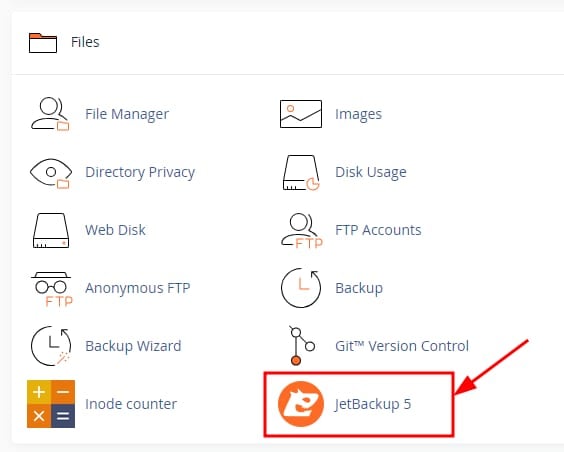
Navigate to Files → JetBackup 5 section:
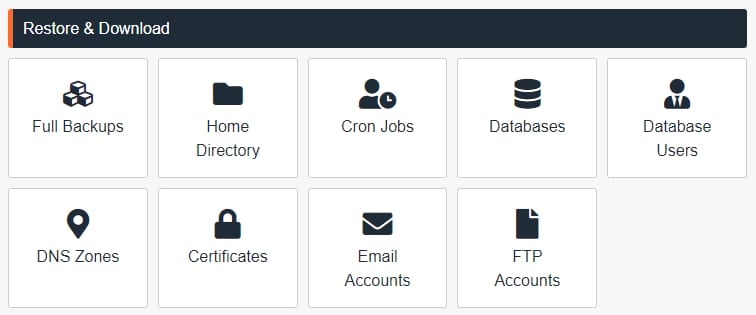
Once there, click on the desired option:
-
Full Backups
-
Files
-
Cron Jobs
-
Database
-
Database Users
-
DNS Zone
-
Certificates
-
Email
-
FTP Accounts
Select the available backup and click on Restore:
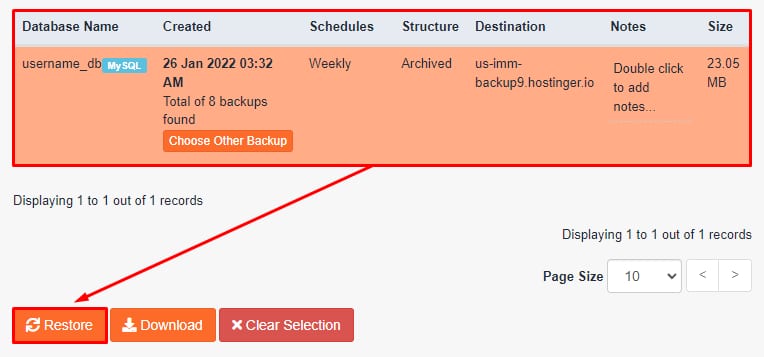
After a few minutes, depending on the size of the selected backup, the restoration will be completed.
For cPanel reseller plans, you can also use this feature to restore backups for your cPanel customers.