Create and manage domain redirects in cPanel to send visitors from one URL to another.
Set up a redirect
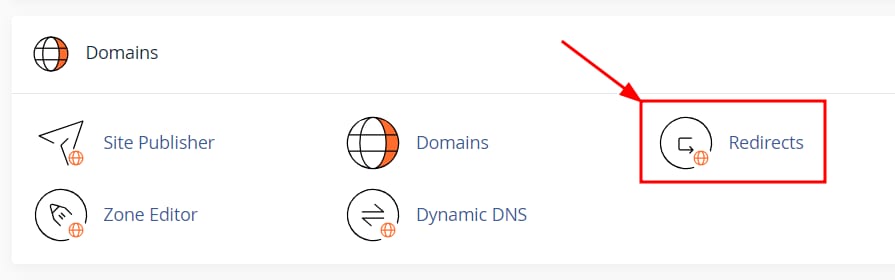
To create and manage domain redirects on cPanel, go to Domains → Redirects:
Next, select the redirect type, the domain, specify a custom path to be redirected if applicable, and choose between redirecting the www or root domain:
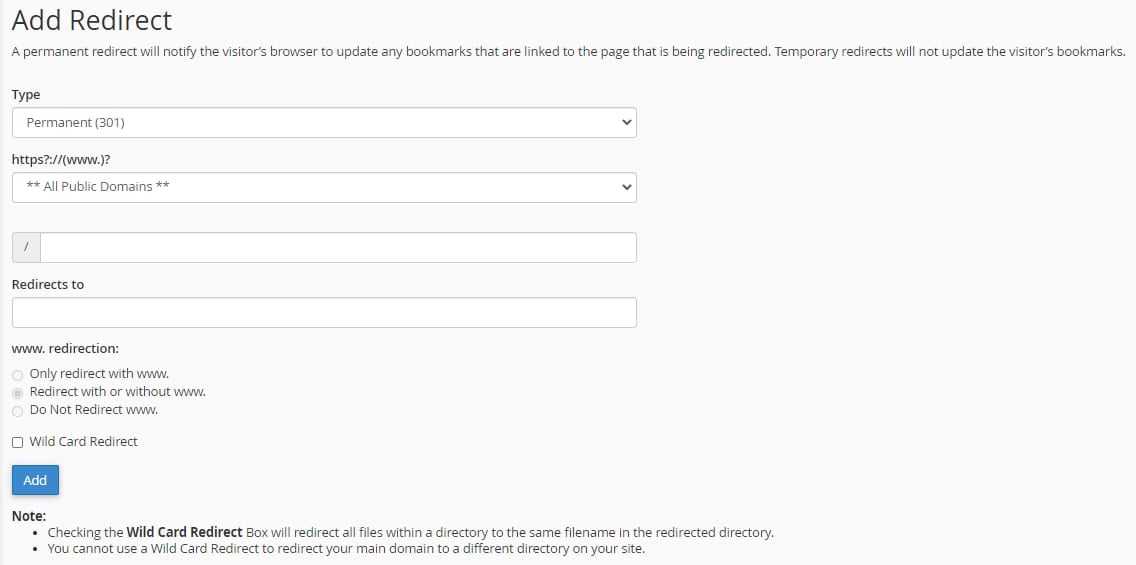
For the redirect type, consider the following:
-
Permanent 301 – Use if the original URL will no longer be in use. It is the recommended option for SEO, since you can keep the search ranking of the previous domain
-
Temporary 302 – You can use this redirect if the redirect is temporary, eg. when your website is under maintenance
-
Wild Card Redirect – will redirect all files within a directory to the same filename in the redirected directory
Manage an existing redirect
Once created, the redirect will appear on the bottom of the page, where you will be able to delete it if needed:
