Get shared access to another account at Hostinger by sending an access request from the Account Sharing page. Once the account owner approves it, the shared websites and domains appear in your own Hostinger dashboard under Shared with you, and you can manage them without knowing the owner’s login credentials.
How to request access
To request access, click on the Account Sharing in the top right of the Hostinger dashboard:
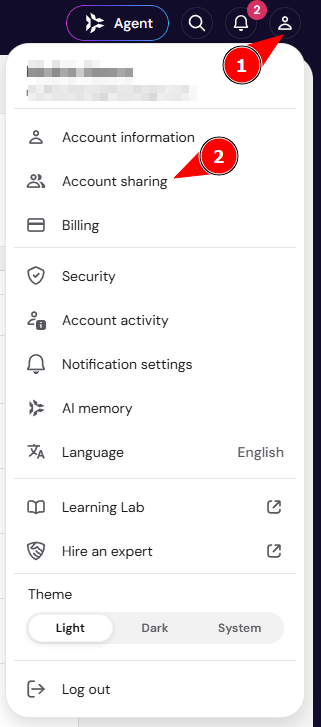
Next, select the Request access tab and click on the Request access button:

There, you will need to insert the email address of the account you want to request access to and choose the access level. After this, the account owner will receive a notification and have the option to authorize the request. Account owners can also grant access directly, as described in How to share access to your account at Hostinger.
Once the account owner approves the request and grants you access, the requested account’s email address will appear in the Account Sharing section of your Hostinger account with an Active status, and the button to manage their services.

What actions can the user with granted access perform on the account?
There are two Access Level options:
-
Collaborator – as a user with granted access, you will be able to make changes to the managed account, such as modify files and websites, manage VPS, if any, and change other hosting-related settings
-
Admin – as a person with granted access with this level, in addition, you will be able to purchase new hosting plans or domains with an already added payment method
What you cannot do in the managed account:
-
Manage or add payment methods to your account
-
Invite others to access the account
-
View or change profile information (for example, change email, name, phone, address, and password)
-
Do the following tasks with domains: transfer or unlock domains, change domain’s contact details, manage auto-renewals, sell domains in the aftermarket, respond to a domain buying service, or manage backorders
-
Add websites
- Set up new hosting or email plans
- Claim a free domain and a free email
- Create separate access for free email plans. It is now only possible for paid email plans.
-
Delete the account
Manage services shared with you on Hostinger
Services shared with you appear directly in your own Hostinger dashboard, so you don’t need to switch accounts to manage them. Go to the page of the product type that was shared with you, and the shared services appear in the Shared with you section, labeled with the account owner’s email address. For example, shared domains appear on the Domains page, and shared hosting plans and websites appear on the Websites page.

To check the current accounts you have been granted access to, go to the Account Sharing → Request access tab, where the email addresses, access type, and status will be listed.

If you no longer want to have access to an account, click on ⋮ → Remove access.