The Transfer website ownership feature allows you to develop a WordPress site on your account and move it to your client’s hosting plan. This process moves the website files and databases while excluding the domain name and emails.
Availability by hosting plan
The availability of this feature depends on your hosting plan.
- Web hosting/Cloud Startup: Available for purchase.
- Cloud Professional and Cloud Enterprise: Included for free.
- Agency hosting: Currently not available.
Before you start
Ensure the following requirements are met before initiating a transfer:
- The website must be created using WordPress.
- The website status must be active (not suspended).
- No other migration requests are currently in progress for the website.
- The original hosting plan must have at least 7 days remaining before expiration.
- The recipient must have a user account at Hostinger and an active hosting plan. If the hosting plan is pending setup, complete that first.
Step 1 – Initiate the website transfer
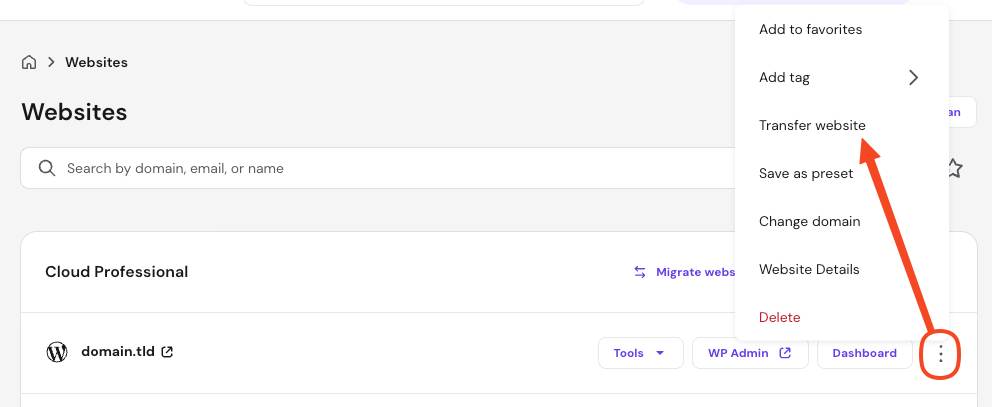
Start the process from the Hostinger account where the website is currently located. Log in to Hostinger dashboard and go to Websites, then follow the steps according to your hosting plan.
- Click the options button ( ⋮ ) next to the website and select Transfer website.

- Proceed to Step 2
Step 2 – Set up the website transfer
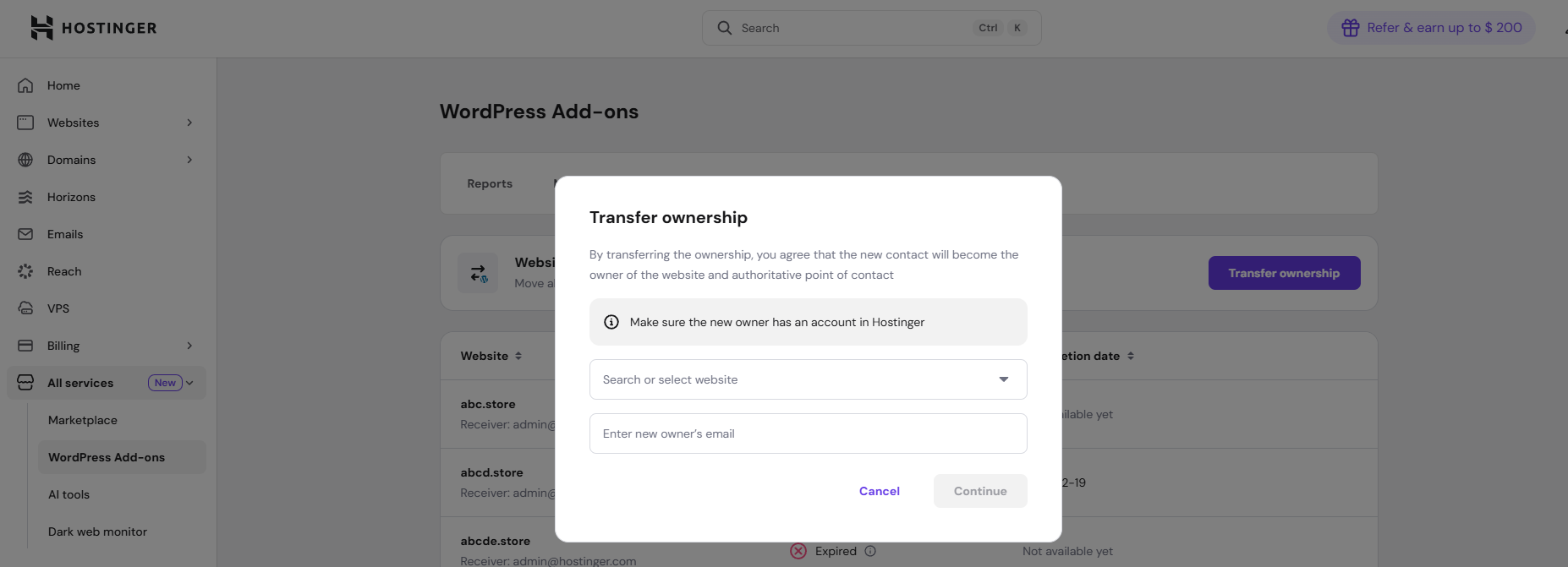
- If needed, select the website name from the dropdown list.

- Enter the email address associated with the recipient’s Hostinger user account and click Continue.
- Confirm the details, check the box to accept the removal of the website from your account, and click Transfer ownership.
Step 3 – Accept the transfer
The recipient will get an email notification of the transfer attempt. The request is active for 7 days.
- On the recipient’s Hostinger account, go to the Your to-dos section on the Hostinger dashboard Home and click Accept on the pending ownership transfer request.

- If the request is not displayed, click on Show more to expand.
- Alternatively, the recipient can click the link provided in the automated email.
- Select the destination hosting plan for the transferred website.

The process usually completes within 30 minutes. Both parties will receive an email notification once completed, and the recipient will also get a notification on Hostinger dashboard. After completion, the website is permanently removed from the original account.
Step 4 (Optional) – Connect the domain
Since domain names can only be associated with one website at a time, the website is first transferred to a temporary domain. Once the original website is removed from the source account, it can be connected to the new destination.
- To transfer the ownership of the domain name to the new account, follow these steps: Move domain. After the domain is moved, connect the domain.
- If the domain name remains in the original account, you must verify it using a TXT record to connect it to the website on the new account.
- Make sure to update the domain’s DNS records to point to the IP address of the new hosting plan.
- After performing any changes to the domain’s DNS records, allow up to 24 hours for propagation.
Step 5 (Optional) – Move email content
If the domain has associated mailboxes, they will not be transferred automatically. To move the email data:
- Export the mailbox data from the original Hostinger account.
- Set up a Hostinger email order on the new account.
- Create the same mailboxes.
- Import the email content per mailbox.
Once all steps are completed, the website will be fully manageable on the new owner’s Hostinger account.
NOTES
- If the request is not accepted within 7 days, it will expire and a new request must be created.
- For Agency hosting, or as an alternative to the automated website ownership transfer, you can move websites manually using backups.
- Websites created using Hostinger AI Builder cannot be transferred to a different Hostinger account.
Additional resources
- To move a WordPress website between hosting plans in the same user account, refer to this guide: Move WordPress website.