Import emails from a full cPanel backup to Thunderbird at Hostinger with the ImportExportTools NG extension, which loads the email files from the backup’s mail folder into your mailbox. The imported emails then sync to the server via IMAP.
Step 1 – Install an email import extension in Thunderbird
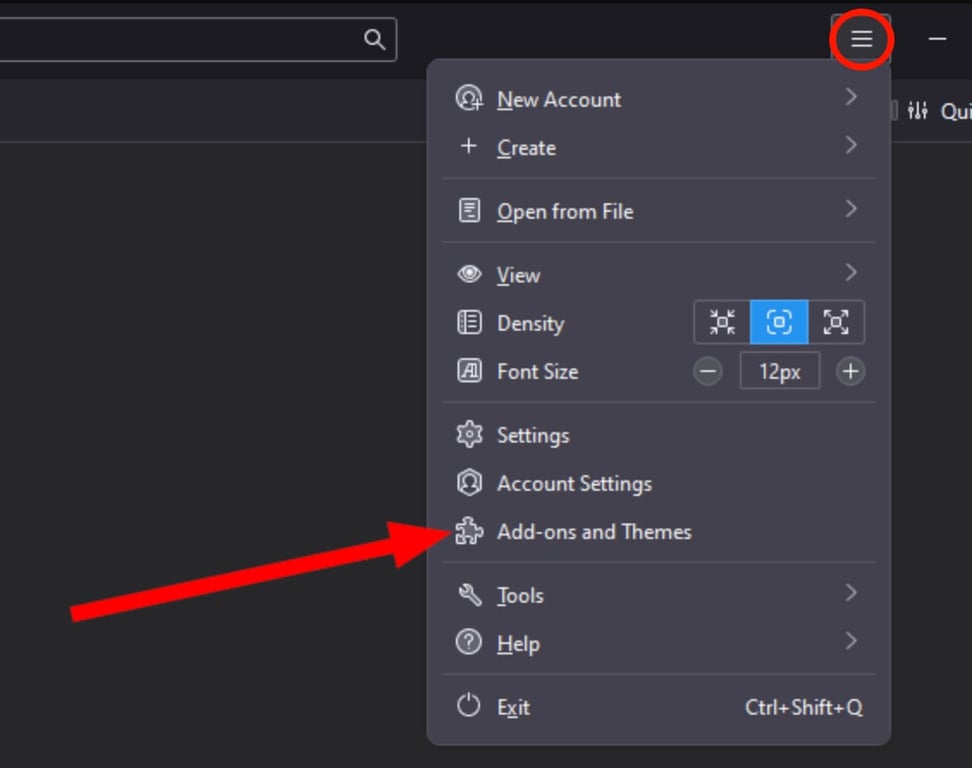
In Thunderbird, click on the triple bar ≡ in the top-right and select Add-ons and Themes from the menu:
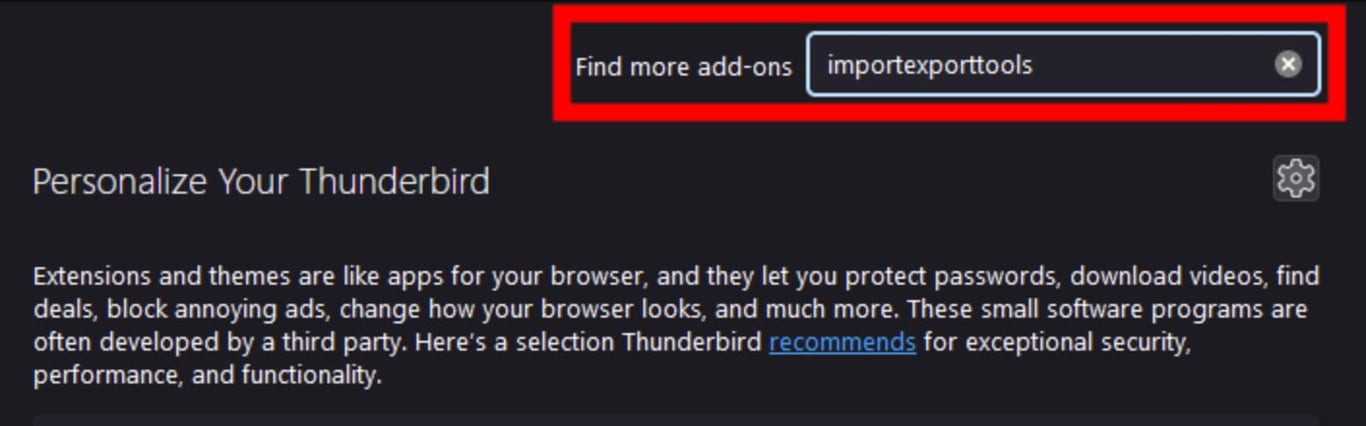
Search for the extension ImportExportTools NG:
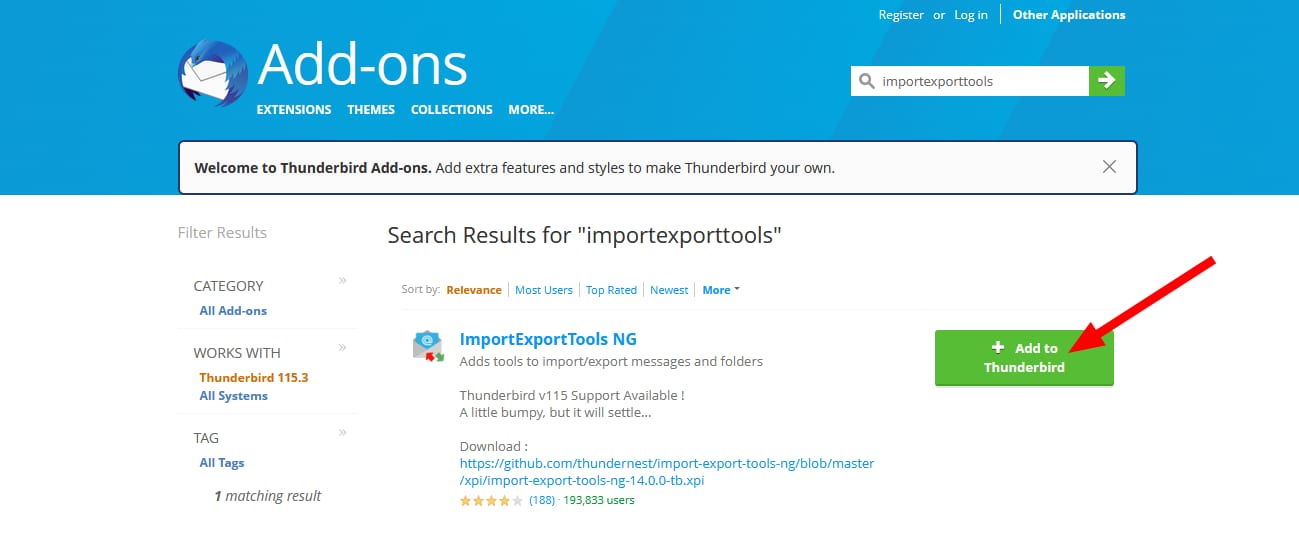
Click on Add to Thunderbird:
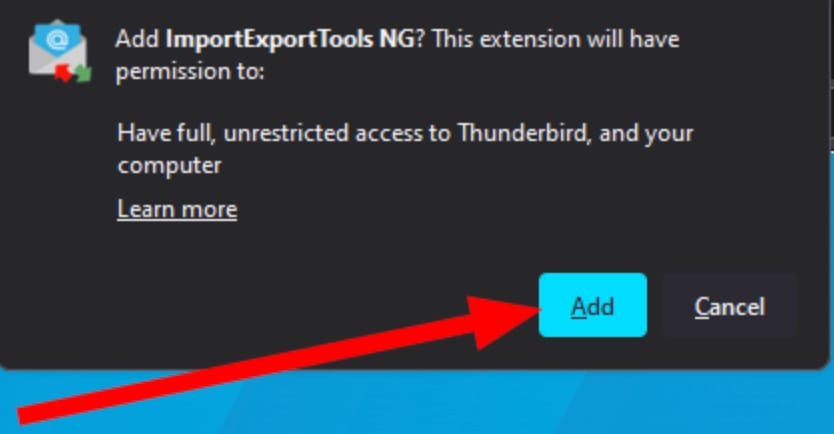
Finally, confirm the addition:
Step 2 – Start the import process
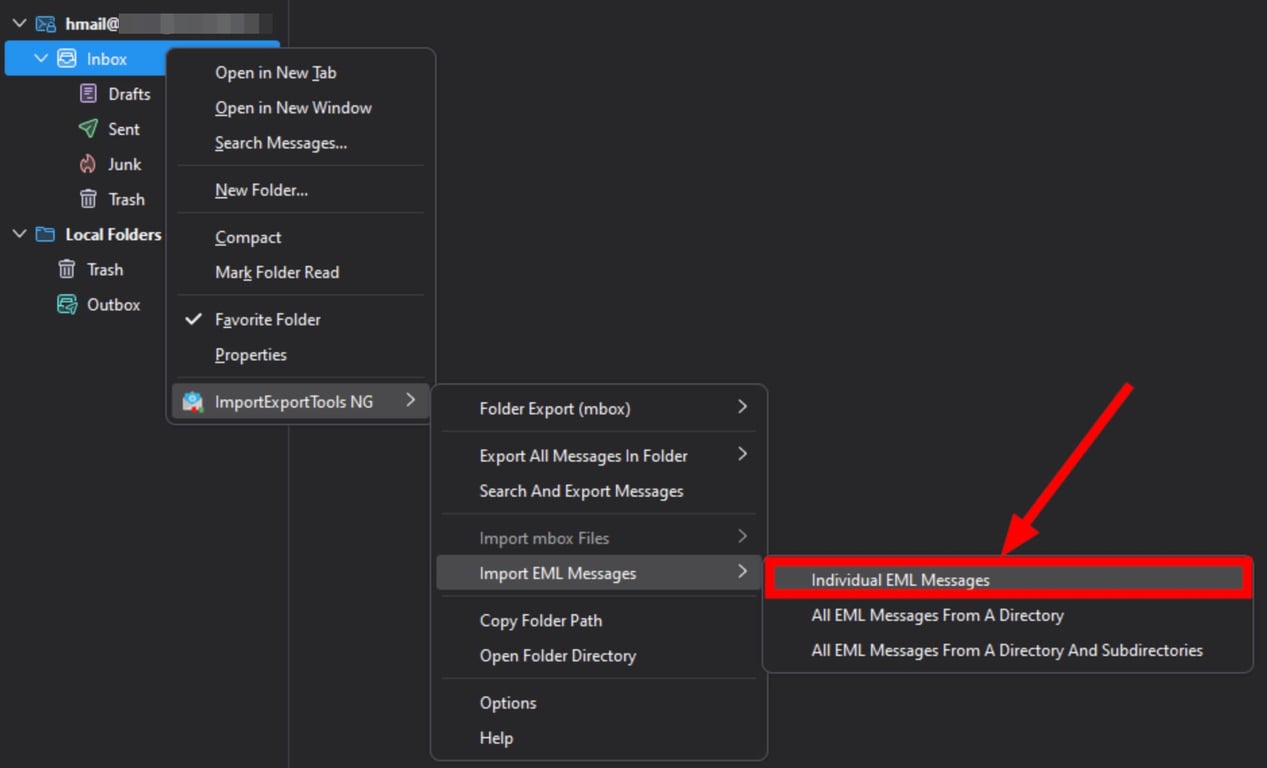
In Thunderbird, find the email account into which you wish to import emails. Right-click on Inbox and select ImportExportTools NG → Import EML Messages → Individual EML Messages:
Step 3 – Find email files in the full backup
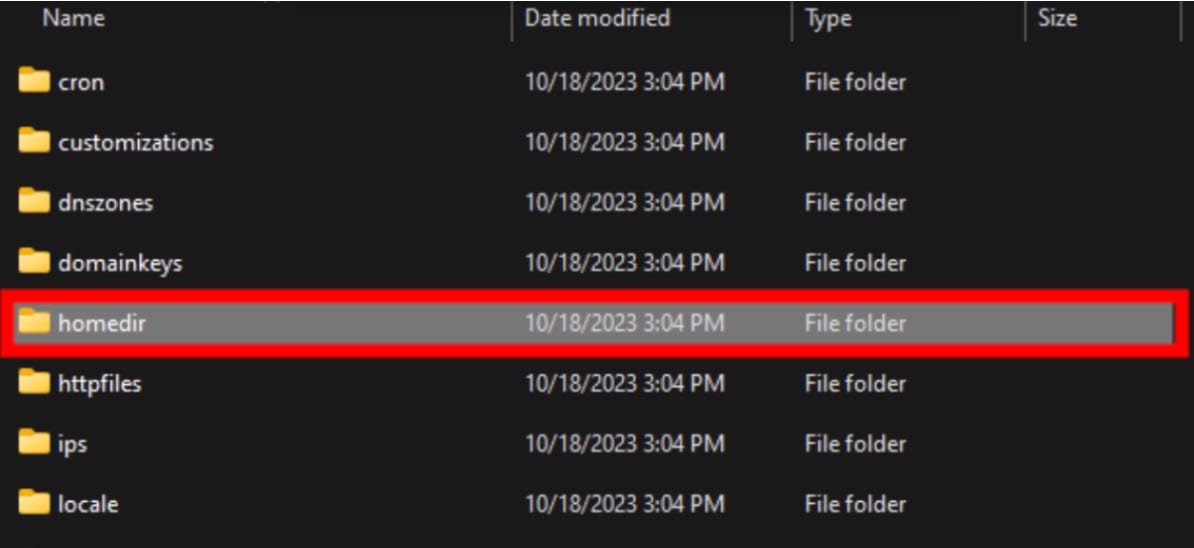
Now, within the full backup, locate the email backup folder. First, open the homedir folder:
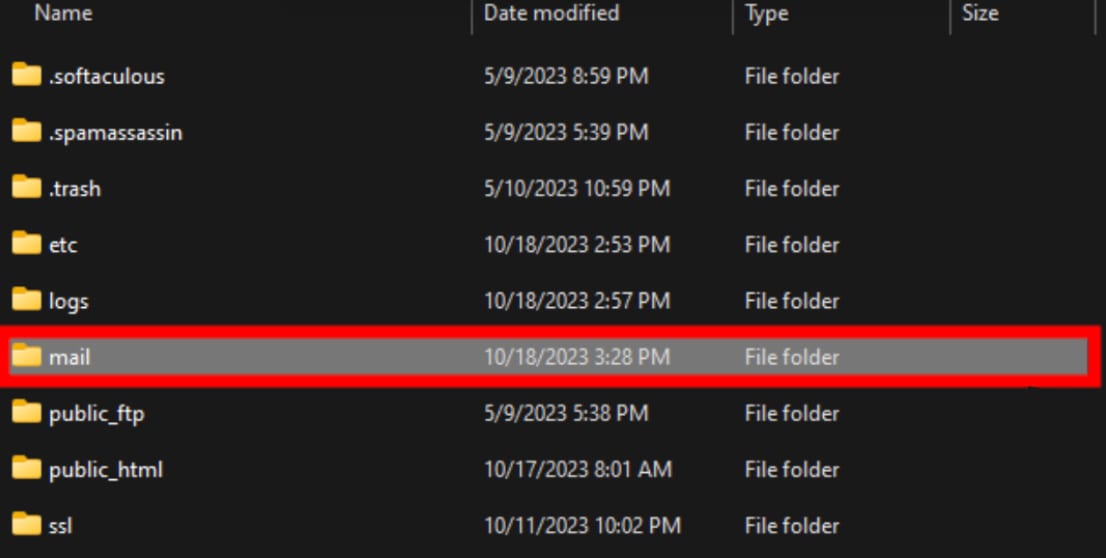
Then, open the mail folder:
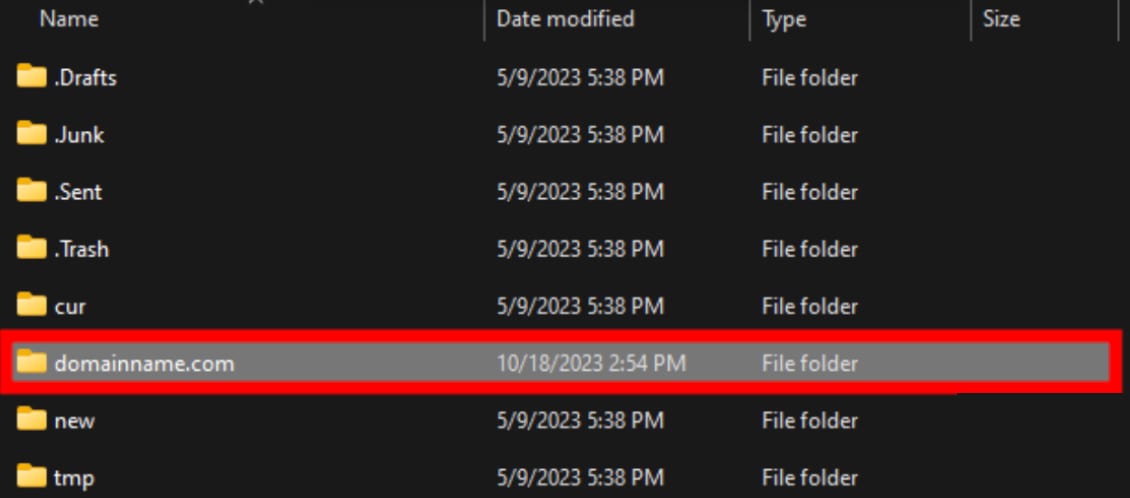
Select the folder that has the domain name of the backup in question:
Select the name of the email you want to import:

Finally, go to the cur folder of that email:
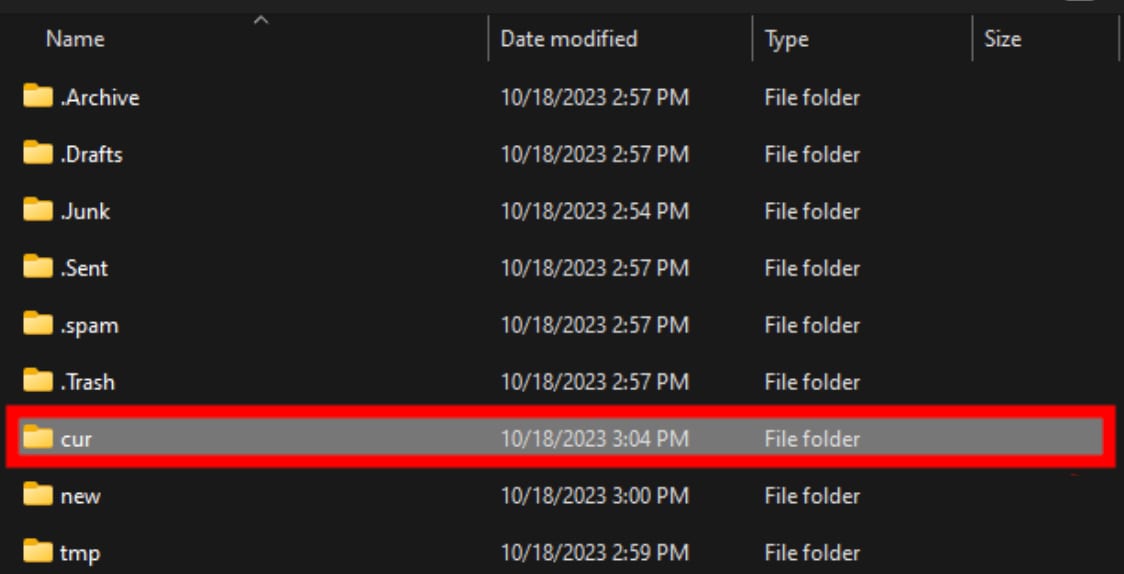
Step 4 – Finish the import process
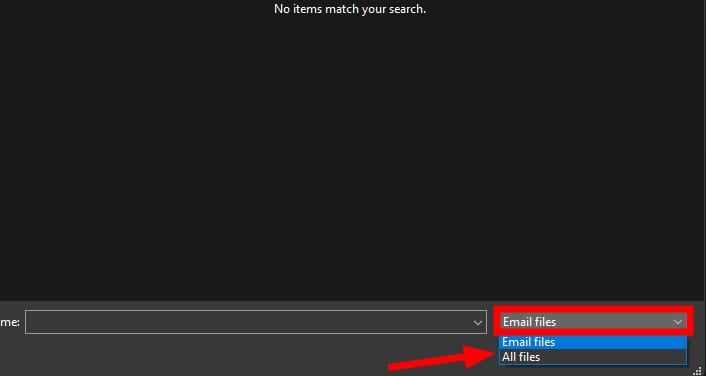
The cur folder will be empty. To view files within, select All files (instead of Emails files) here:
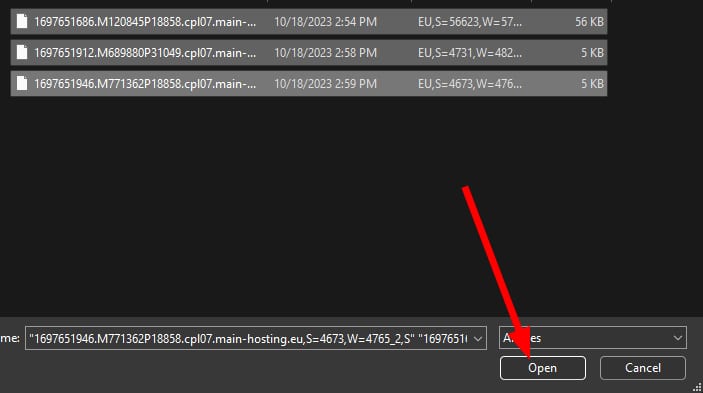
Now, select the email files and then click on Open:
Finally, the extension will import all emails, and they will be synchronized via IMAP on the server:
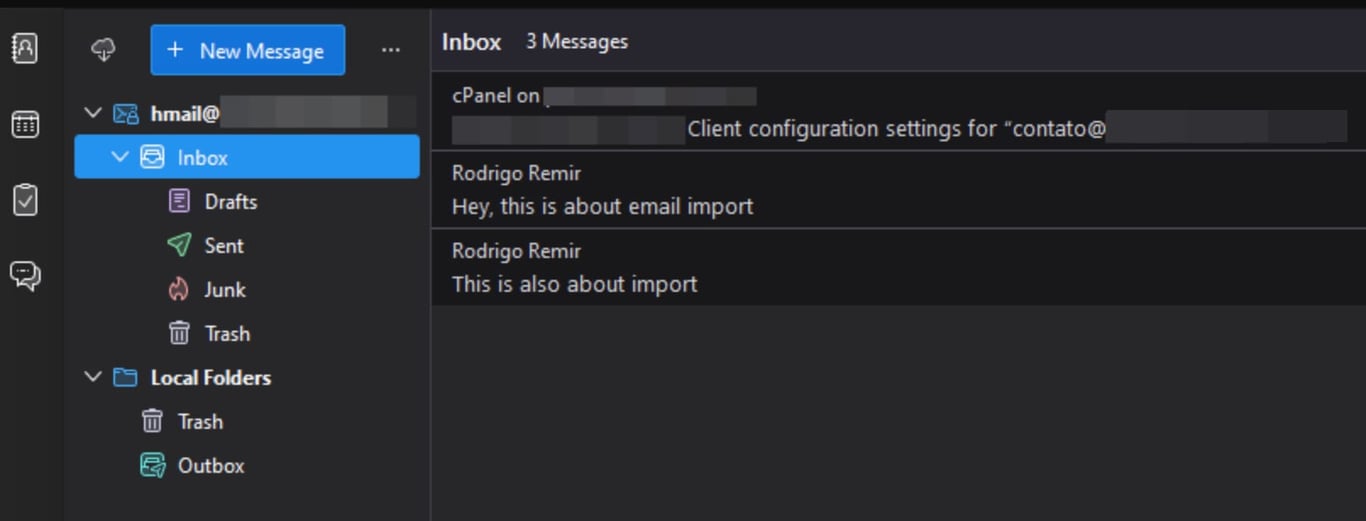
The imported emails now appear in your Thunderbird mailbox and sync to the server via IMAP. To move all mailboxes to another cPanel account instead, see How to migrate emails between two cPanel accounts at Hostinger.