If you use Hostinger AI Builder to run your online store, you can easily set up shipping options based on order price or weight.
Shipping options based on order price
- In the store management area, go to Settings → Shipping and open the shipping zone in question (or create a new one).
- In the Shipping options section, click on Add option or open the particular shipping option you wish to edit:
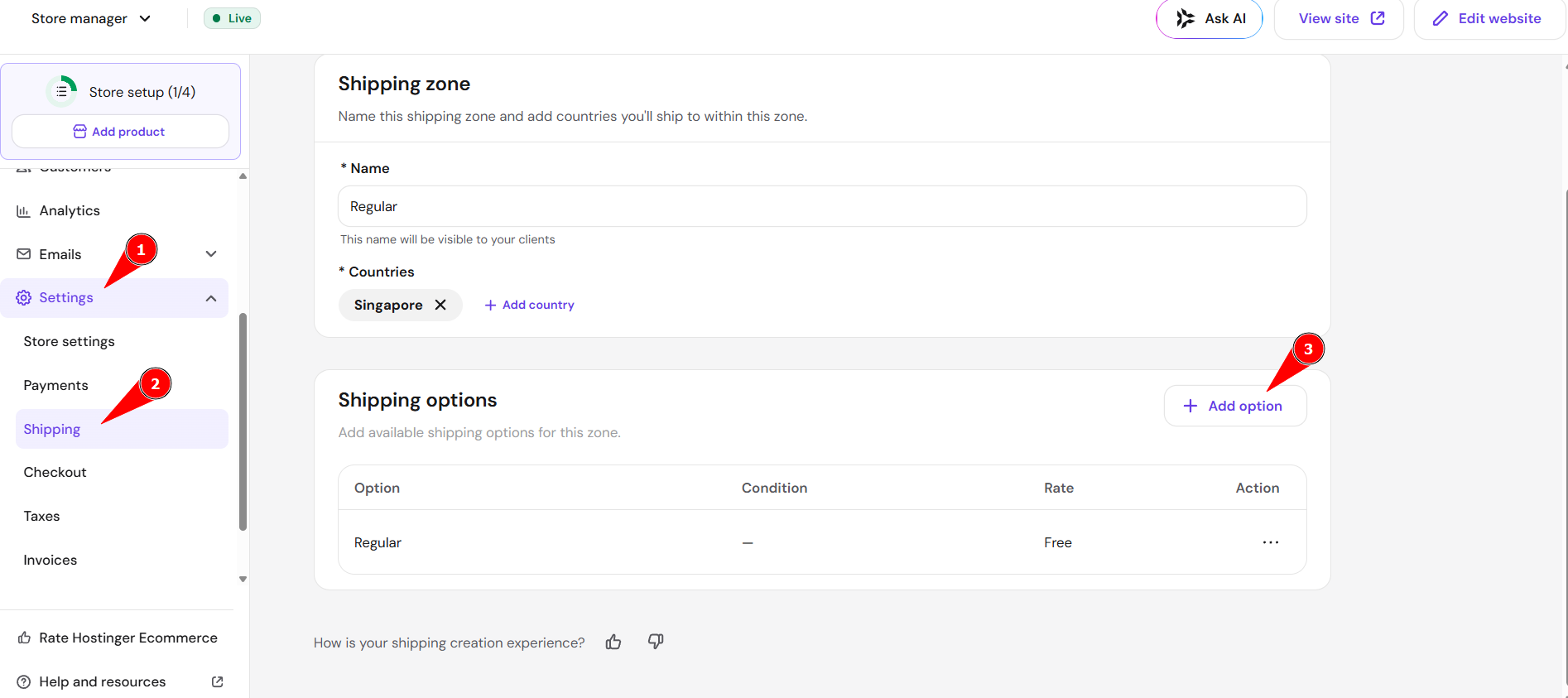
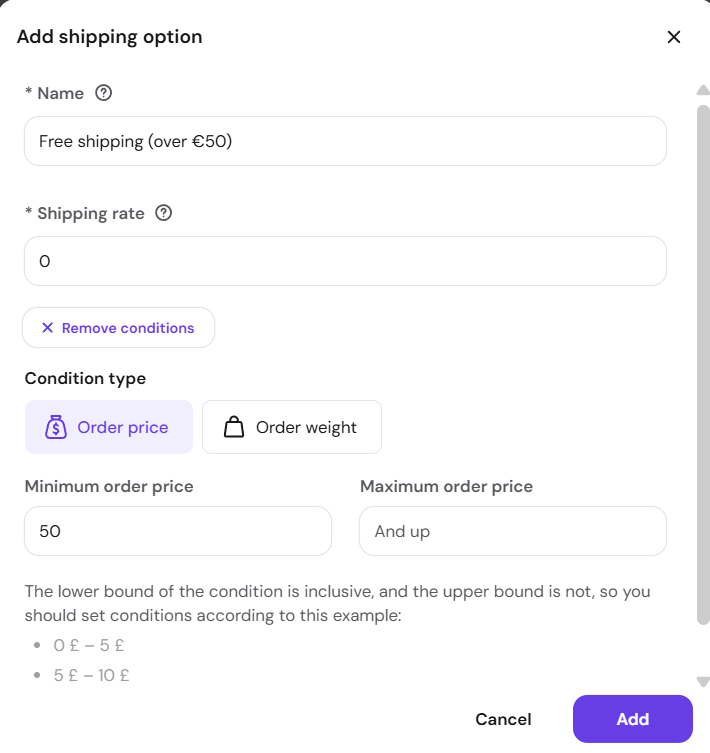
- Specify the shipping option name. Let’s say you want to offer free shipping for those who spend at least €50 in your e-store. This way, the shipping option could be named Free shipping (over €50) or similar.
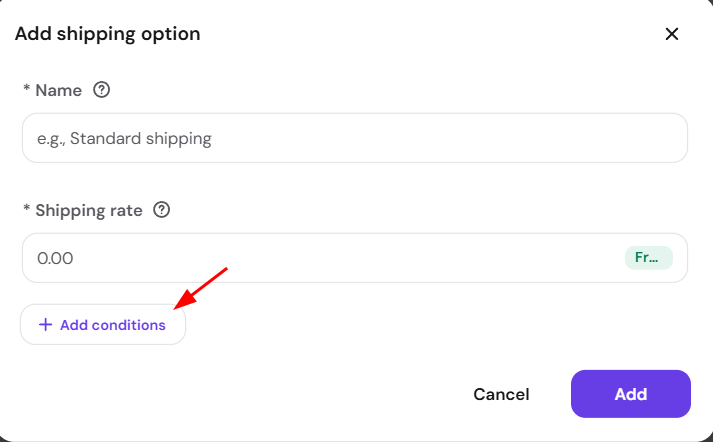
- Specify the shipping rate. It’s a flat rate that’s charged for a customer’s entire order (not per product).
- Click on Add conditions
- Select Order price as the condition type. Then, specify the minimum and/or maximum order value. For example, to offer free shipping for those who spend at least €50 in your e-store, you only need to specify the minimum order value of €50:
- Finally, click on Add to save the changes.
The lower bound of the condition (minimum order price) is inclusive, and the upper bound (maximum order price) is not inclusive. For instance:
To apply a €10 shipping charge to orders up to €30 (€30 not included):
-
Minimum order price: €0
-
Maximum order price: €30 (not inclusive; if the order total is €30, the shipping would cost €5)
To apply a €5 shipping charge to orders between €30 and €50:
-
Minimum order price: €30 (inclusive)
-
Maximum order price: €50 (not inclusive)
To offer free shipping with orders from €50, you only need to specify the minimum order value of €50
This way, you can set up more condition-based shipping options. One shipping zone can have up to 25 shipping options.
Shipping options based on order weight
- In the store management area, go to Store settings → Shipping and open the shipping zone in question (or create a new one).
- In the Shipping options section, click on Add option or open the particular shipping option you wish to edit:
- Insert the shipping option name. Let’s say you want to create these shipping options:
- For orders up to 5 kg, shipping costs €5
- For orders between 5–10 kg, shipping costs €10
- For orders of 10 kg and up, shipping costs €13
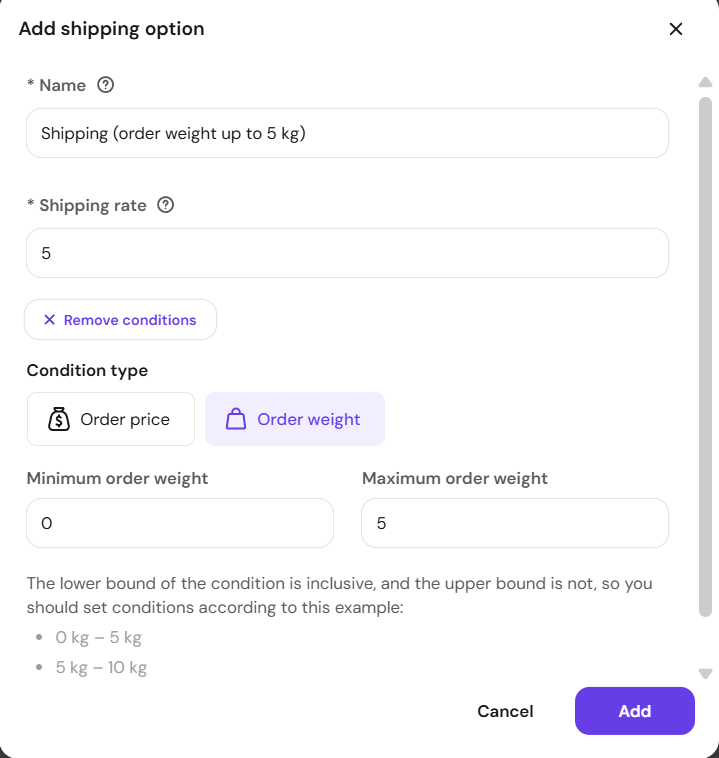
So, the first shipping option could be named Shipping (order weight up to 5 kg) or similar.
- Specify the shipping rate; it’s a flat rate that’s charged for a customer’s entire order (not per product):
- Click on Add conditions
- Select Order weight as the condition type. Then, specify the minimum and maximum order weight.
- Finally, click on Add to save the changes.
The lower bound of the condition (minimum order weight) is inclusive, and the upper bound (maximum order weight) is not inclusive. For instance:
To apply a €10 shipping charge to orders up to 5 kg (5 kg included):
-
Minimum order weight: 0 kg
-
Maximum order weight: 5.001 kg (not inclusive; if the order weighs 5 kg, the shipping would still cost €10)
To apply a €5 shipping charge to orders between 5 kg and 10 kg:
-
Minimum order weight: 5.001 kg (inclusive)
-
Maximum order weight: 10.001 kg
To apply a €3 shipping charge to orders that weigh more than 10 kg, you only need to specify the minimum order weight of 10.001 kg
This way, you can set up more condition-based shipping options. One shipping zone can have up to 25 shipping options.
If your shipping options are based on order weight, remember to specify product weight for all your products, including their variations; you can do that in the product management area