Create, send, and customize invoices in your Hostinger AI Builder online store.
Create and send invoices
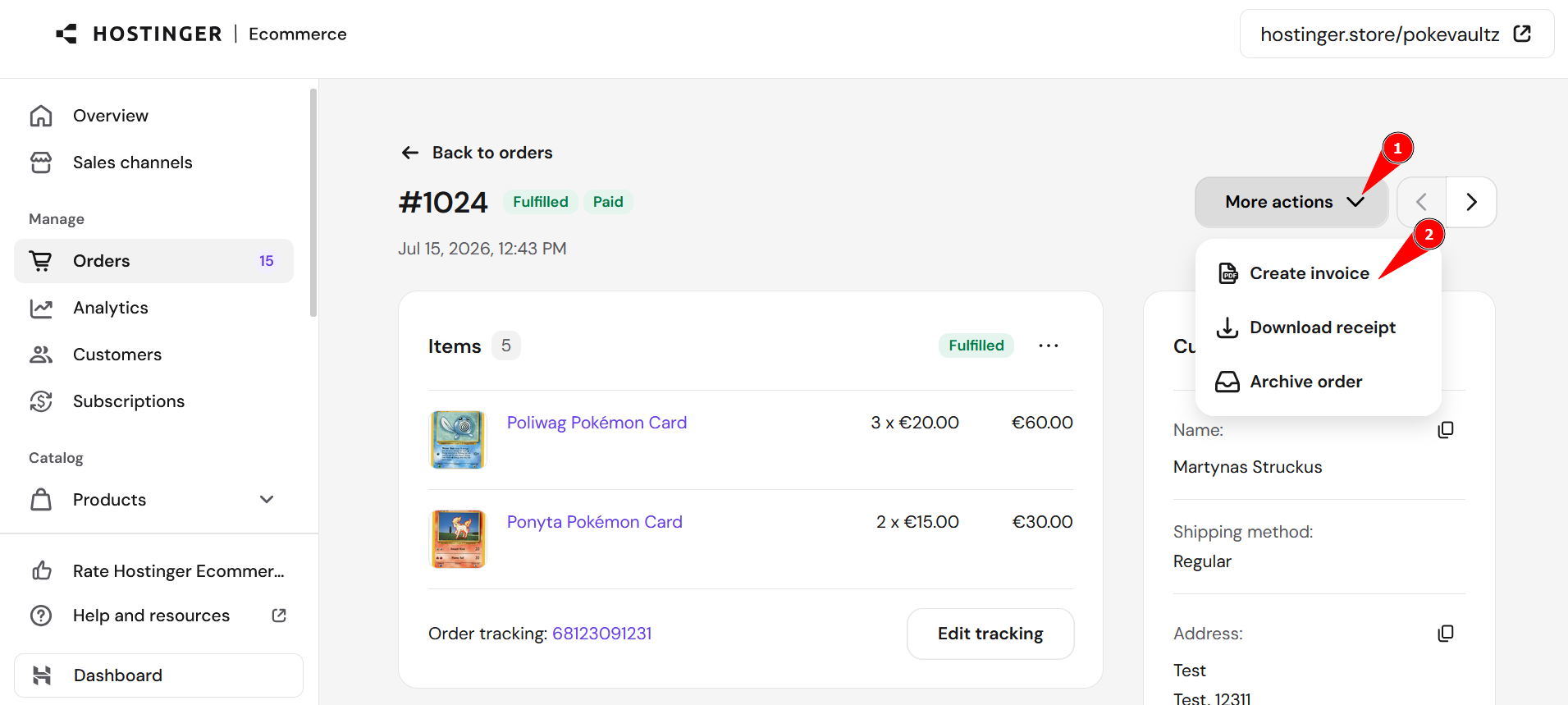
In the store management area, go to Orders, open the order in question, and click More actions then Create invoice:
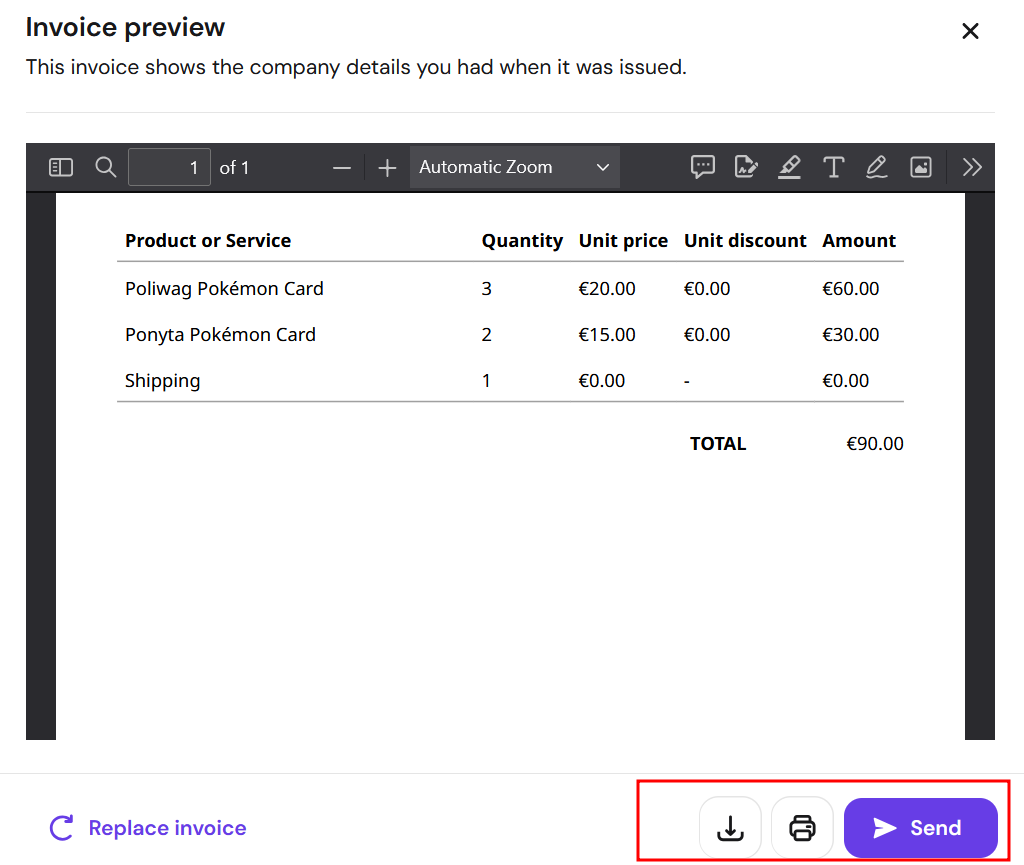
Now you may download, print, or send the generated invoice:
NOTE
- This is not a tax invoice
Manage invoice settings
In the store management area, go to Settings → Invoices. Here you can preview the invoice template and customize its settings.
General
-
Change the title; by default it’s Invoice
-
Set the next invoice number
Company
These details are fetched from the Settings → Store settings.
Additional information
Add any additional details that you’d like to provide in invoices, e.g., your company code or tax ID. You can add up to two fields, and edit or remove this information anytime.
Other
Show or hide the following details:
-
Logo
-
Contact email address
-
Contact phone number
These details are fetched from the Settings → Store settings.