The purpose of a cookie banner is to inform website visitors about the cookies used on your website.
The Hostinger AI Builder manual mode cookie banner supports granular consent — visitors can choose to allow or block specific tracking categories independently. If no consent is given, or the banner is not enabled, no tracking is loaded by default.
Enable and customize the cookie banner
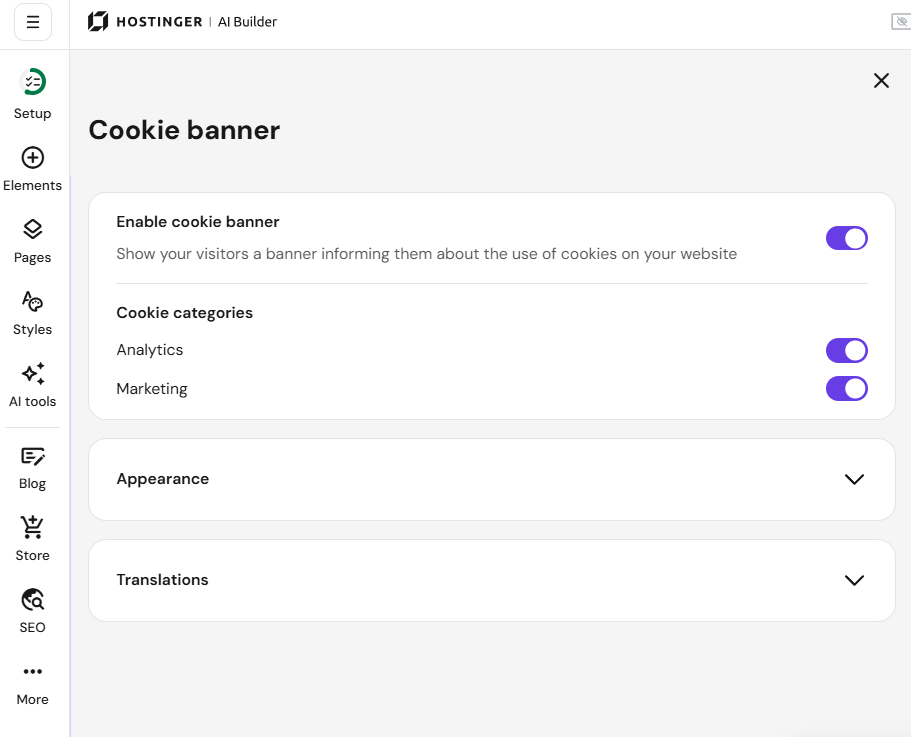
If you use Hostinger AI Builder manual mode, you can customize the banner’s appearance and translations in your website’s cookie banner:

Consent options
Once the cookie banner is enabled, visitors can choose to accept all, decline all, or select which tracking categories to allow:
- Analytics (e.g., Hotjar)
- Marketing (e.g., Meta Pixel)
Integrations are only loaded based on the visitor’s choice. This includes Hostinger’s own Amplitude tracking, which is also loaded conditionally based on visitor consent. You can also customize the banner’s appearance and translations from the same settings.
If you had a previous cookie banner enabled, it will be automatically upgraded. The new banner will appear to visitors after you republish your site.
If your website is available in multiple languages, you can easily customize the cookie banner text. In the editor, access your website’s version in the preferred language:

Open the general settings and edit the cookie banner text for each language individually:

Finally, update your website for the changes to reflect online.