Display your Instagram feed on your Hostinger AI Builder manual mode website. New content you upload to your Instagram account reflects automatically on your website.
To use the Instagram feed element, you must have a business or media creator account:
Adding Instagram feed
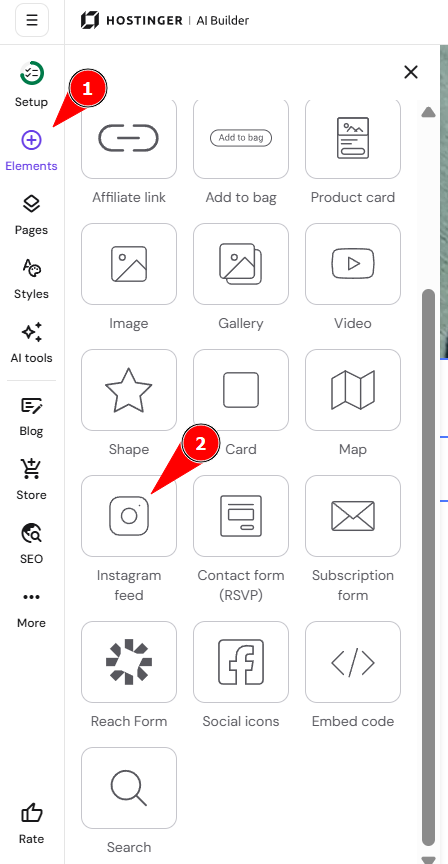
- Within the builder, open the Add elements panel on the left.
- Select the Instagram feed element, and drag and drop it to where you want it on your web page:
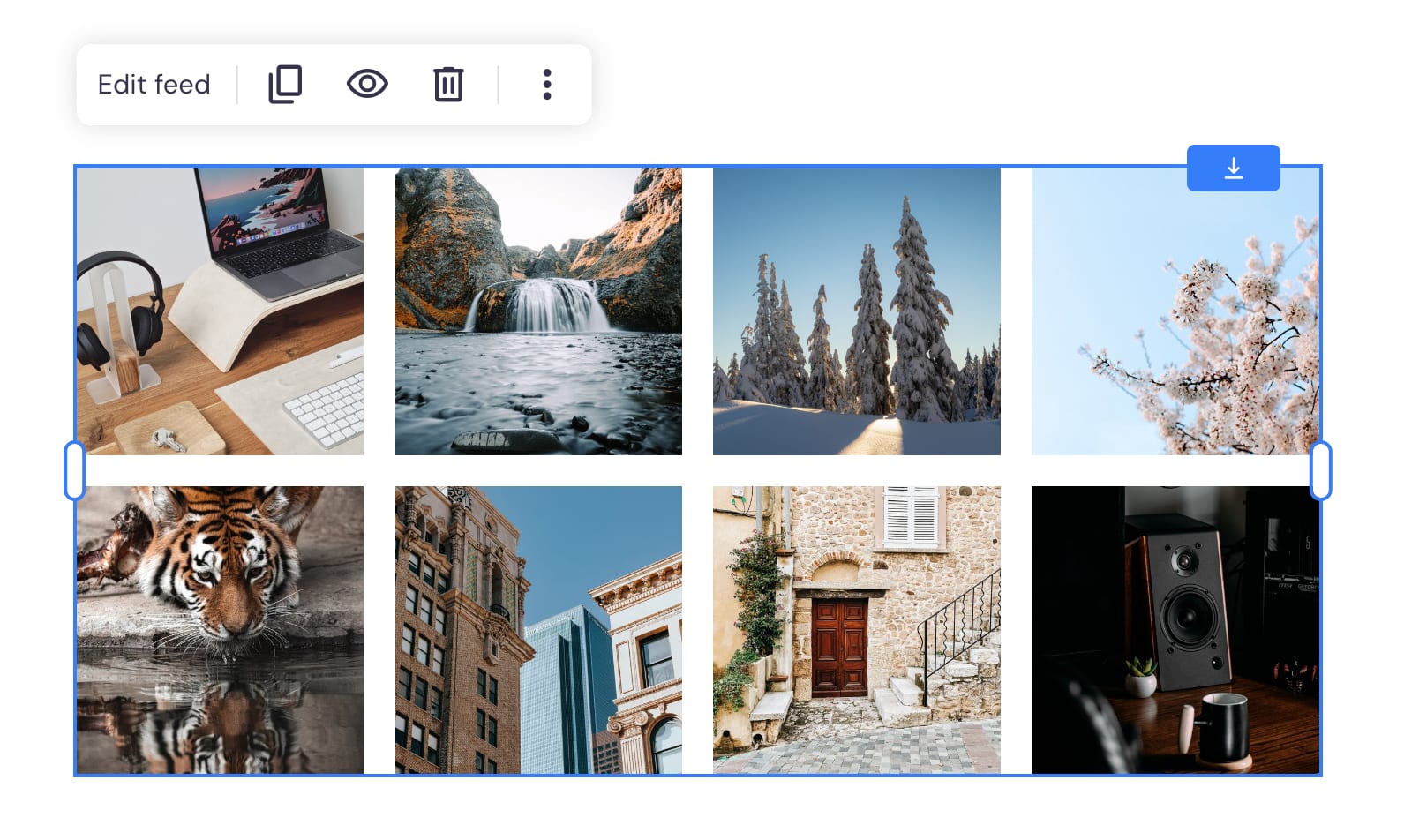
- Click on the element to see more options – edit, duplicate, change the visibility, delete, resize, etc.:
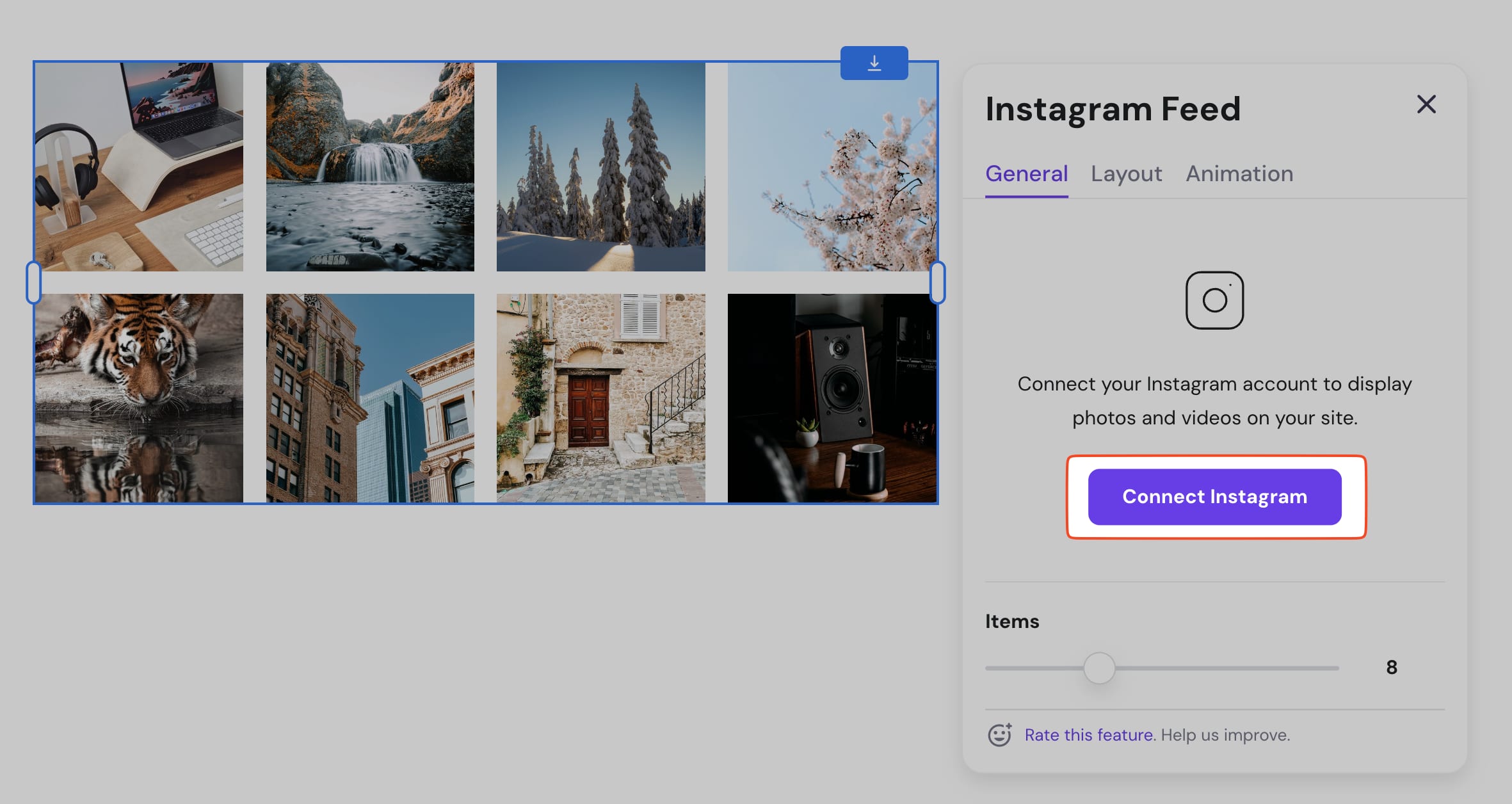
- Click Edit feed, then click Connect Instagram, and enter your IG account login details:
Settings
To open the settings, click on the Instagram feed element and click on Edit feed. There, you’ll find the following settings:
|
General |
Layout |
Animation |
|
Connect or disconnect your Instagram account |
Items per row: change the number of posts per row |
Enable animations |
|
Items: change the number of posts displayed on your website |
Gaps between photos: change the size of the gaps between photos |
|
Troubleshooting
If you’re struggling to connect your Instagram account to the Instagram feed element, make sure that the Off-Facebook Activity setting is enabled in your Facebook account:
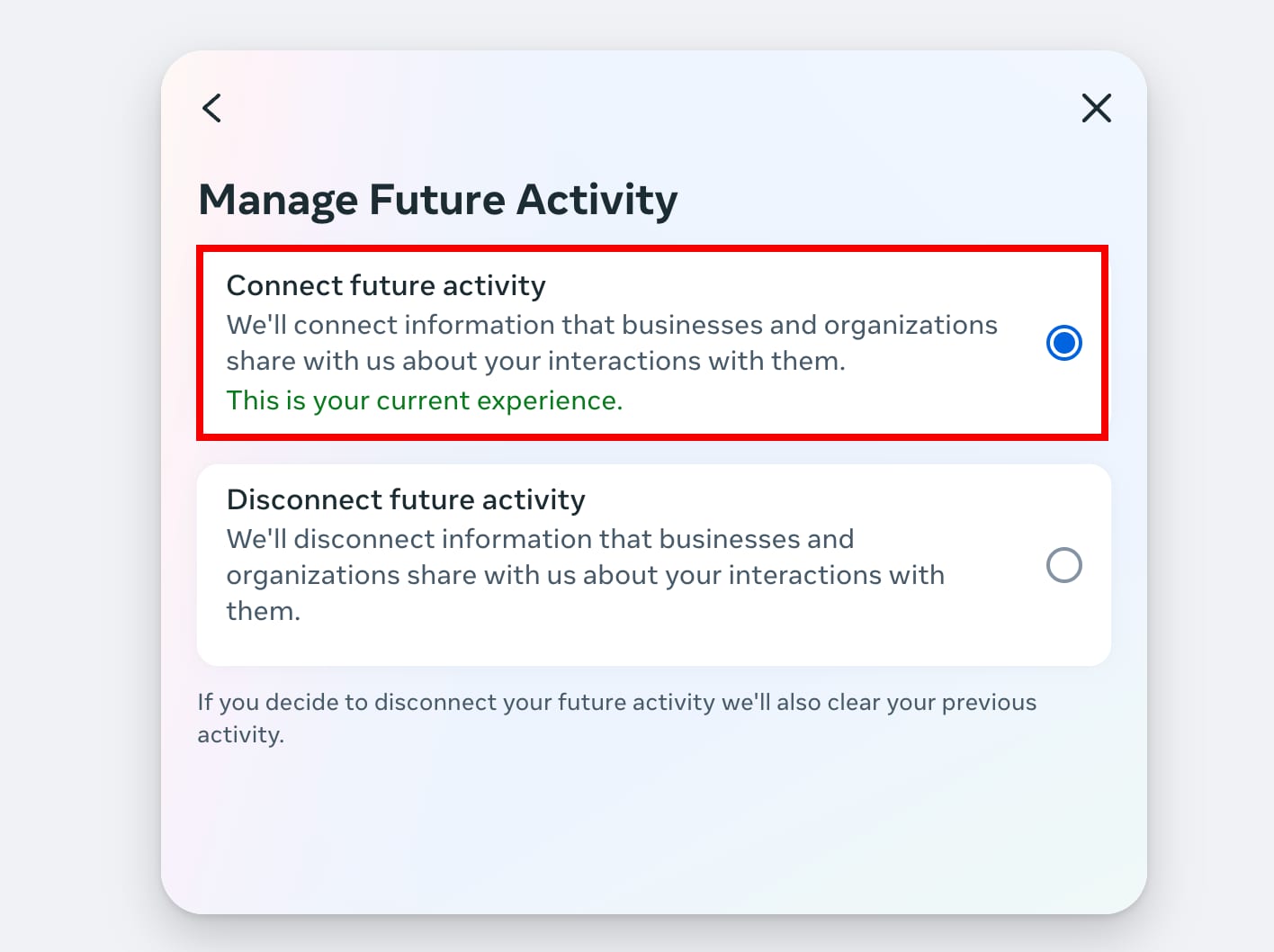
While this feature allows you to control what website data Facebook tracks, it can also prevent other platforms you’re integrated with from accessing the data needed to connect to your accounts.