Connect WhatsApp to your Hostinger AI Builder manual mode website using a floating chat bubble, a linked icon, or a product page chat button.
Add a floating WhatsApp chat bubble
- Within the builder, open the integrations settings
- Find the WhatsApp field.
- Insert your phone number and a default message there:

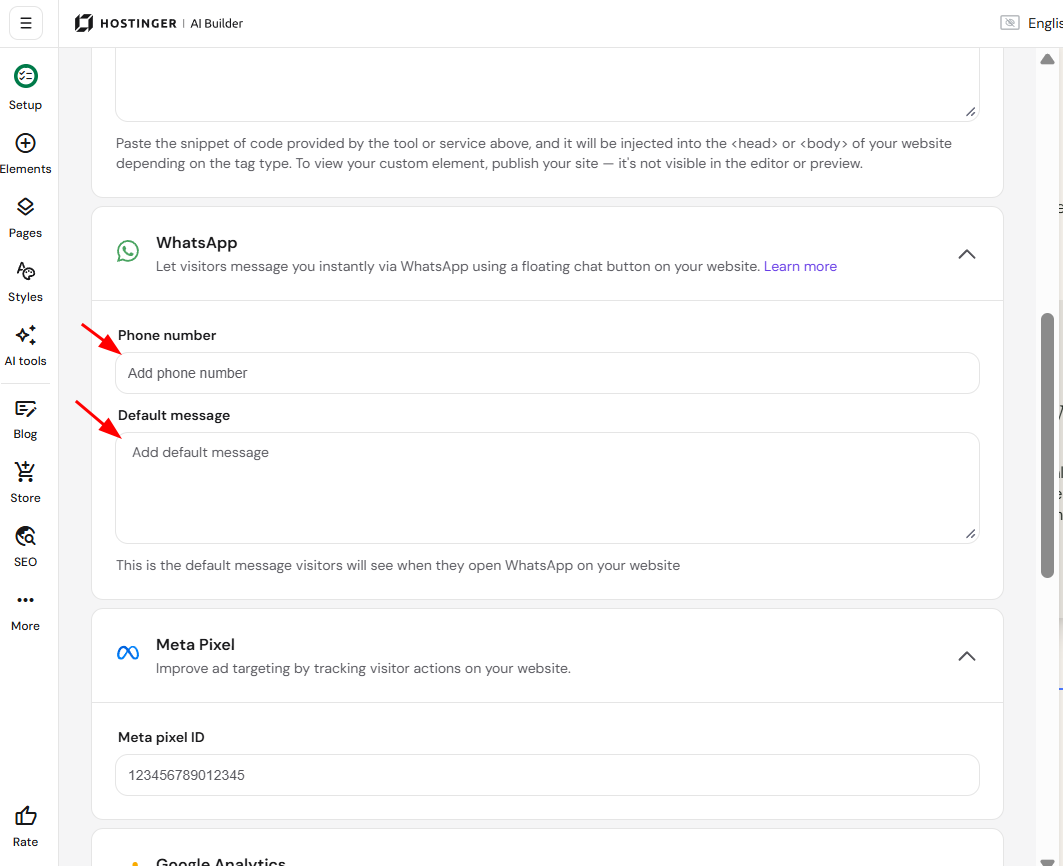
In the phone number field, insert numbers only, including your country code (e.g., 37061234567, where 370 is the country code). No extra symbols are needed. The WhatsApp field accepts a phone number only. To show other contact details on your website, such as a WhatsApp username, add a link to your social media channels, see Hostinger AI Builder: How to add links in manual mode.
Finally, save the changes and update your website.
NOTE
- By default, it is not possible to replace the WhatsApp icon to a personalized image.
Add the WhatsApp icon
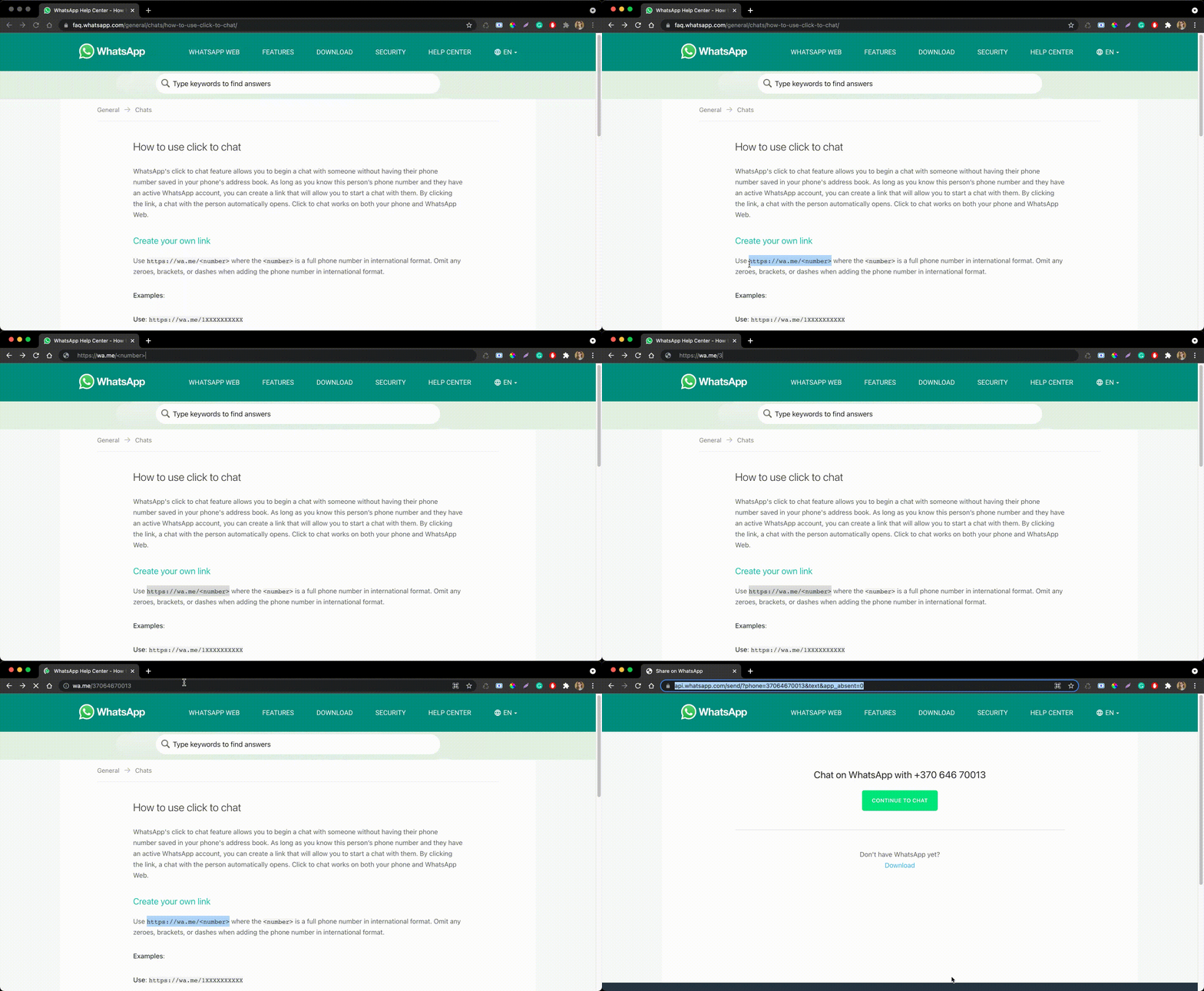
Create a WhatsApp link following these instructions:
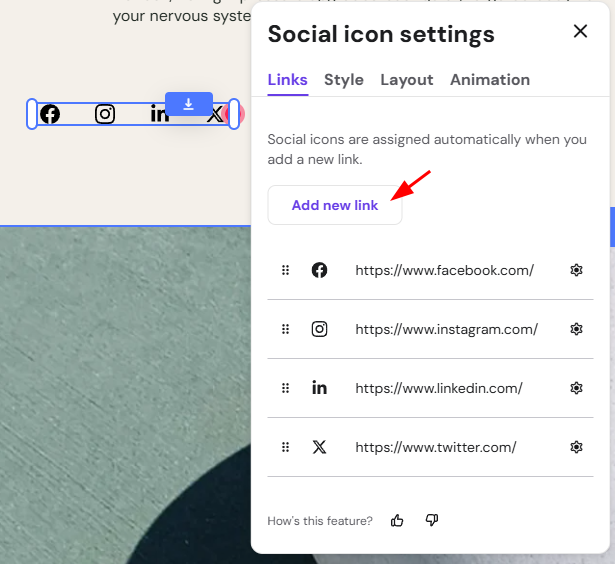
Add a social icons element to your website:
- Click on the element
- Select Edit social icons.
- Click on Add new link and insert your WhatsApp link there:

- Once you’re done, update your website.
With the help of custom code, you can also integrate other third-party widgets into your website. For example, these widgets are free or have free trials:
Chat on WhatsApp button on product pages
Store owners can add a Chat on WhatsApp button to all product pages. When enabled, the button appears next to the Add to Bag button on every product page.
When a customer clicks the button, WhatsApp opens with a pre-filled message containing the product title, selected variant, and a link to the product page.
How to enable
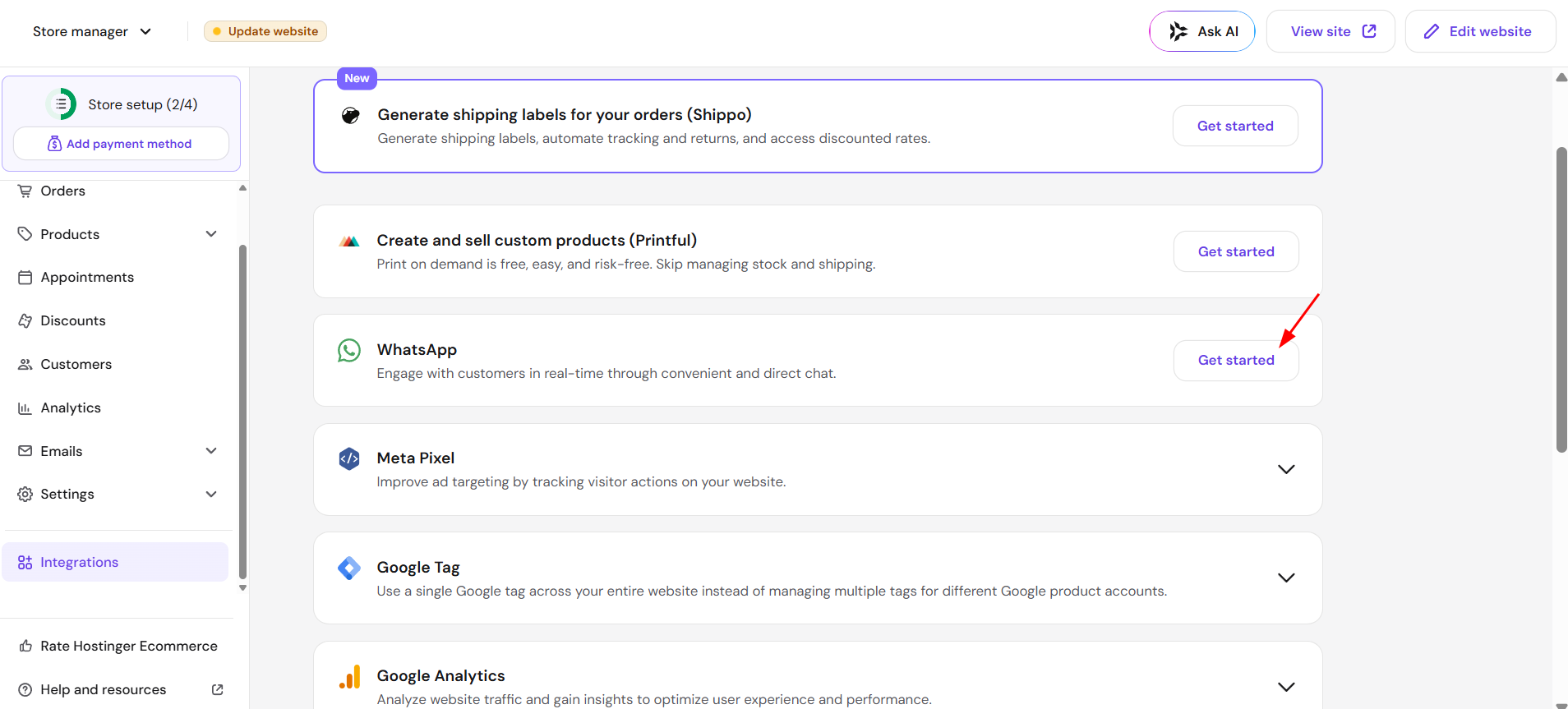
Go to Store Manager → Integrations and configure the WhatsApp number in the store settings.
This feature is available to all customers globally.