With the Delivery Logs feature for Hostinger Email, you can easily get detailed information about the delivery of the messages sent from your email accounts.
View your email delivery logs
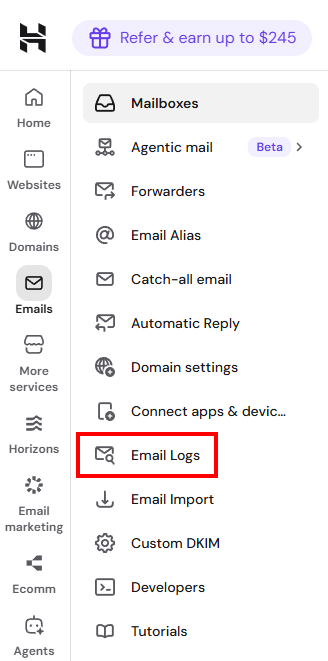
Navigate to the Email Accounts section and choose Email Logs on the left sidebar:
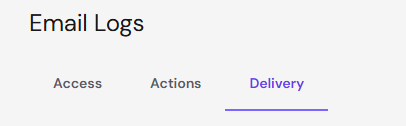
And select the Delivery tab:
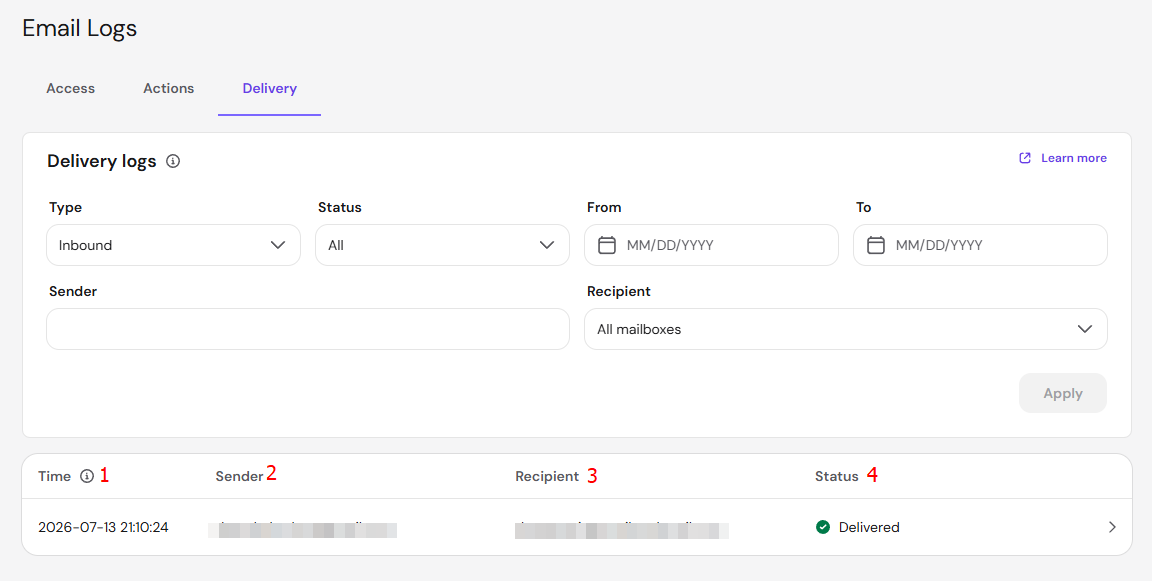
There, you will find a table showing the email messages, when they were sent or received, when it happened and the delivery status.
Logs are available for 30 days and you can filter them by:
-
Type: Inbound (incoming), or outbound (ougtoing)
-
Status: Successful or failed
-
Sender: enter a specific email address
-
Recipient: select any your emails from the dropdown list
-
Date range
The log contains the following sections:
-
Time – when the message was sent/received
-
Sender – the sender’s email address
-
To – the recipient’s email address
-
Status – the status indicating if the email was delivered or not
Click on the rightward arrow to for additional information:

If the email was sent to more than one recipient, it would show the status of each, and the result from the mail server, including any error message.
Now you know how to check all the information on your email delivery logs!