Solve the most common errors in SSH at Hostinger, such as Connection closed, Permission denied, Connection refused, and Connection timed out. Most SSH errors come from disabled SSH access, incorrect credentials, the wrong port, or network restrictions on port 65002. SSH access is available on Premium or higher hosting plans.
Connection closed
If you encounter a message indicating that the connection to your hosting IP closed right after trying to connect:
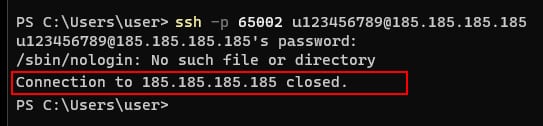
This is usually caused by a disabled SSH access. Enable SSH Access and try to connect again.
The terminal closes right away
If your terminal closes immediately after entering your SSH password, disable and re-enable SSH Access – the next connection should be successful.
Permission denied or access denied
If you get a “Permission denied, please try again” message:
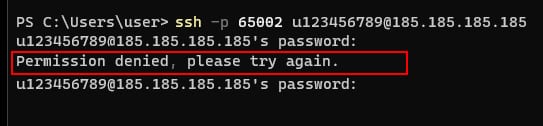
It means that you are using incorrect SSH credentials. Verify your SSH password:
-
When you first set up your hosting plan, the SSH password is the same as the FTP password of your main domain
-
Double-check if you have set an SSH-only password
-
If you are not sure about the password value, set a new password for both FTP and SSH or create an SSH-only password
If you want to connect via SSH without a password, you can set up an SSH key instead.
Connection refused
This error is usually caused by using the wrong port. Make sure to set the connection port to 65002.
You can check more possible causes and their solutions in the following video or follow this article: SSH connection refused: 6 effective methods to fix it.
Connection timed out
This error typically occurs due to one of the following common reasons:
-
Network connectivity issues: check that your internet connection is working. Try restarting your router and verifying with your internet service provider that incoming or outgoing connections on port 65002 are allowed
-
Firewall blocking SSH: A firewall, antivirus, or network security settings could be preventing the SSH connection from being established. Double-check all the related settings to ensure connections on port 65002 are allowed
-
Your hosting’s IP is temporarily inaccessible due to a DDoS attack or a server maintenance
Command not found
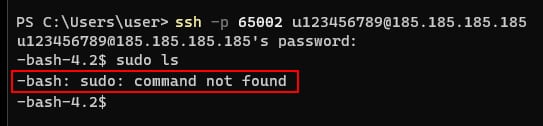
For security reasons, elevated permission commands, such as sudo, are disabled on Web and Cloud hosting plans. For the commands you can run on your hosting plan, see Common SSH commands at Hostinger. In case you require these types of commands, you can consider a VPS self-managed hosting.
Unfinished processes
If you are experiencing unexpected termination of commands or processes after successfully connecting via SSH, it is important to check your Order Usage. This is because each action on SSH utilizes the resources of your hosting plan, and if there are insufficient resources available, the process will fail. To resolve this issue, you can either explore alternative methods to achieve your desired outcome or consider upgrading your hosting plan.
Once the cause is fixed, your SSH client connects to your hosting plan on port 65002 and runs commands normally.