SSH (Secure Shell) is one of the basic tools for managing your VPS, allowing for secure remote access to the server resources. However, your SSH connection to a Hostinger VPS can occasionally time out. This can happen due to various reasons, ranging from client-side or network issues to server-side configurations. To troubleshoot SSH connection timeout issues on a Hostinger VPS, check your internet connection, confirm the VPS is running and reachable with a ping test, review the SSH daemon settings in /etc/ssh/sshd_config, and make sure your firewalls allow port 22.
To find out the cause, it is recommended to perform checks on the following:
Your internet connection
Unstable or slow connections from user side are a common cause of SSH timeouts. Try accessing other websites or services to confirm your internet stability. If you identify issues with your local network, troubleshoot these first before attempting to reconnect via SSH.
Server status and network issues
Ensure that your VPS is up and running on the VPS → Overview section of your Hostinger dashboard:
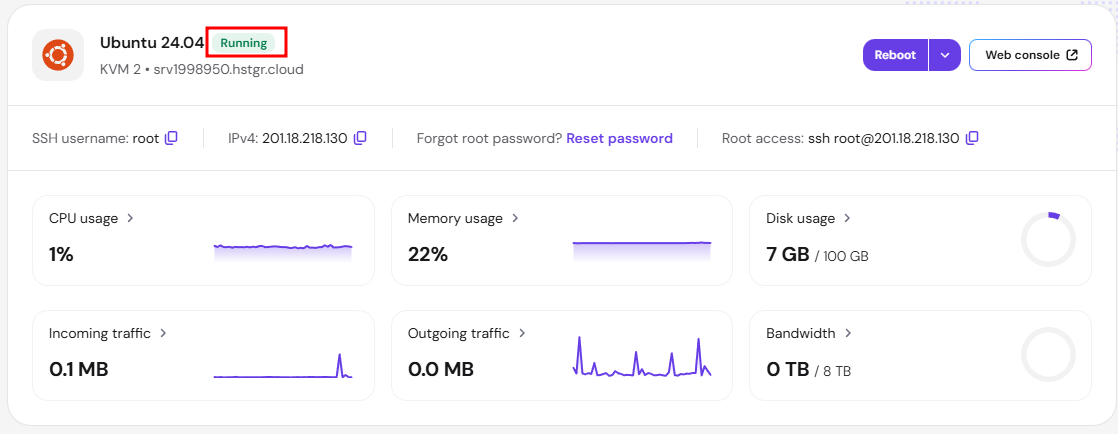
If the server is operational, the issue might be network-related. Perform a ping test to your server’s IP address to check for packet loss or high latency.
SSH configuration settings
If the network is stable, the next step is to review the SSH configuration settings on your server. This involves checking your server’s SSH daemon settings located in the following path:
/etc/ssh/sshd_config Pay attention to the following configurations:
-
ClientAliveInterval – the interval in seconds between the server’s check for client activity
-
ClientAliveCountMax – the maximum number of client checks that can occur before the server terminates the connection
-
TCPKeepAlive – this feature enables the periodic transmission of KeepAlive messages to detect if a connection is still active
These determine how long the server waits before disconnecting an idle session and might need adjustment to prevent premature timeouts.
Firewall settings
Firewalls, both on your local machine and on the server, can interfere with SSH connections. Ensure that your firewall settings allow for SSH access. On the server side, check that the SSH port is open and not restricted by the server’s firewall. The default port for SSH is 22. Hostinger’s firewall can also block your current IP address after repeated failed login attempts, which makes SSH connections time out. Follow How to check if your IP is blocked by Hostinger firewall to confirm your IP and request an unblock.
Troubleshooting SSH connection timeouts requires a methodical approach, starting from basic checks to more in-depth. This way, you can diagnose and resolve most SSH connection issues, ensuring reliable and secure access to your VPS. It’s important to note that consistent monitoring and maintenance of your network and server settings are key to preventing future SSH timeouts.
Once you correct the cause, your SSH connection to your Hostinger VPS no longer times out.