Export a database with phpMyAdmin in Hostinger to back up your data locally or move your website. This applies to custom PHP or HTML websites on Hostinger web, cloud, and Agency hosting plans. Open the database in phpMyAdmin from your website’s dashboard, click Export, and download the SQL file.
Before you start
This guide applies to databases associated with custom PHP or HTML websites on web, cloud, and agency hosting plans.
- Hostinger AI Builder does not support databases and phpMyAdmin; it utilizes an integrated backend instead.
Step 1 – Open the database in phpMyAdmin
- Go to Hostinger dashboard Websites, hover over the website, and click Manage site.
- On the side menu, select Databases → Management.
- Click on Enter phpMyAdmin.
For additional methods to reach phpMyAdmin, refer to this guide: How to access phpMyAdmin.
Step 2 – Initiate the export
- Click the Export button on the phpMyAdmin top bar.

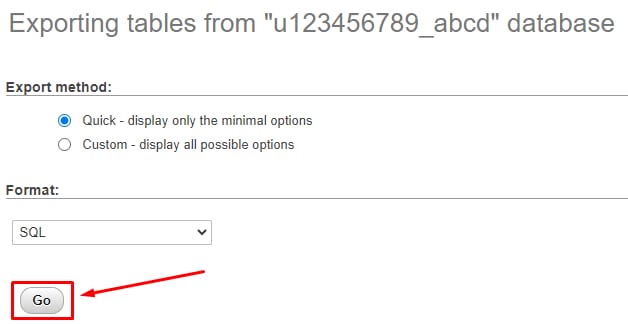
- To export your database in SQL file format, which is the standard format for moving databases, scroll down and click Go.

-
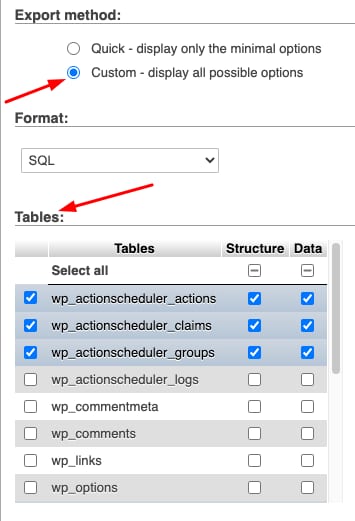
If you have specific requirements, such as a different file format or exporting only selected tables, select the Custom export method, adjust the settings, and click Go.

- A copy of your database will download to your local device automatically.

Your exported SQL file is ready to keep as a local backup or to import into another database.
NOTE
- If you encounter issues using phpMyAdmin, you can try exporting your database via SSH.