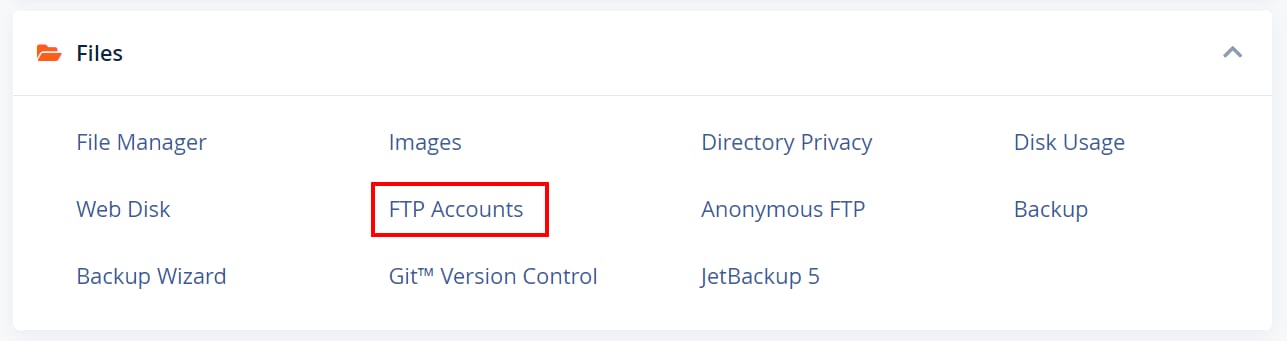
Find your FTP details in cPanel to connect to your account via an FTP client. You can do this by opening your cPanel and clicking FTP Accounts.
Check your FTP details
You can easily find your FTP details by opening your cPanel and clicking on FTP Accounts:
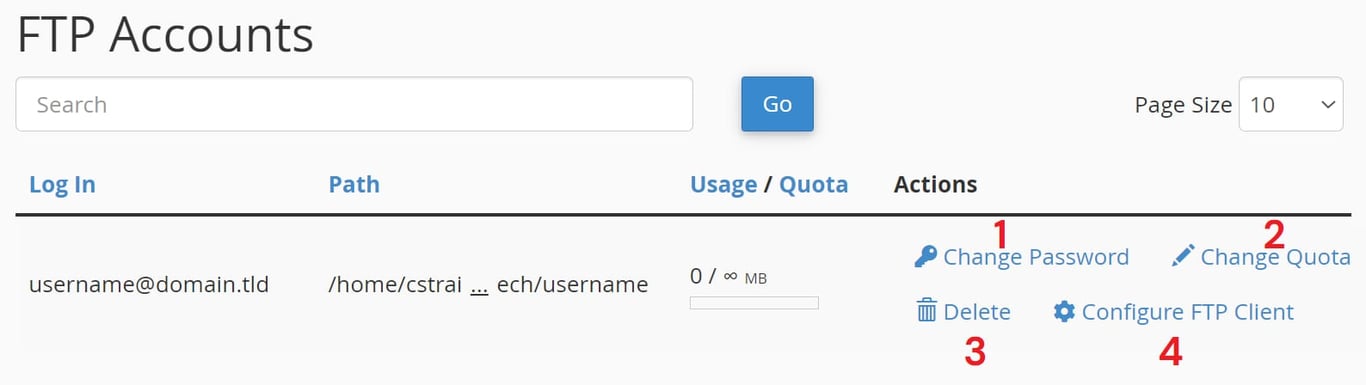
If you created an FTP account before (it can be done on the same page above; see how to create additional FTP accounts on cPanel at Hostinger), in the FTP Accounts section you will see presented with these buttons:
-
Button to change FTP account password
-
Button to change FTP account quota
-
Button for deleting your FTP account completely
-
Button for checking your FTP details
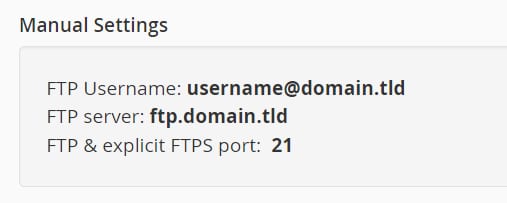
Your FTP details should look similar to these:
NOTES
-
If your domain is not pointing to Hostinger by nameservers, the FTP server address will not work as a host for an FTP connection. Replace it with your account’s IP address
-
FTP is not available for websites created with Hostinger AI Builder