We are truly sorry to hear that you are considering refunding your services.
Before initiating the refund process, we recommend downloading all the necessary data since your services will be canceled as soon as you submit the refund request. Your files, databases, and emails will be deleted permanently. Learn more:
Find the payment ID to refund
Once you download all the data you want to keep, open your Hostinger dashboard, click the profile icon in the top-right corner, and select Billing → Payment History. This page lists all payment IDs from the last 30 days.
If the Payment ID is refundable, you’ll find the Refund button:
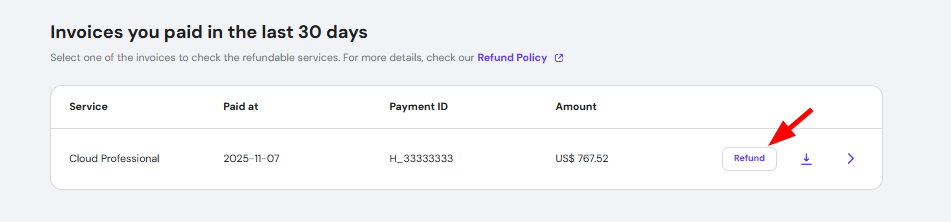
You can also click on the downward arrow to see the Payment ID details. If the service has auto-renewal enabled, you can disable the auto-renewal or proceed with the refund.
NOTES
- Invoices paid using Hostinger credits can also be refunded back to your Hostinger Balance directly through this flow, without needing to contact support. A refund to balance can only be issued once every 12 months per invoice. If you’ve reached this limit, you’ll see an error message explaining why.
- If the refund button is missing, it means that the Payment ID is not eligible for a refund as per our Refund Policy.
- Refund eligibility depends on the product and on the transaction date, which includes the date a renewal is processed. For example, domain name renewals are listed as not available for refund in the Refund policy.
- Refund is available only if you request it within refund eligibility period based on the transaction date. To stop future charges without a refund, see How to stop auto-renewal.
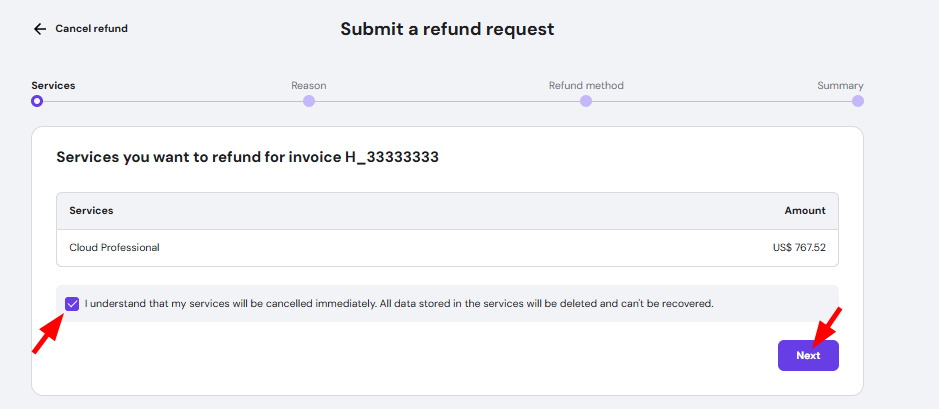
Confirm refundable services
Confirm refundable services, mark the checkbox below to confirm you understand that related data will be permanently lost, and click on Next to select the reason of refund:
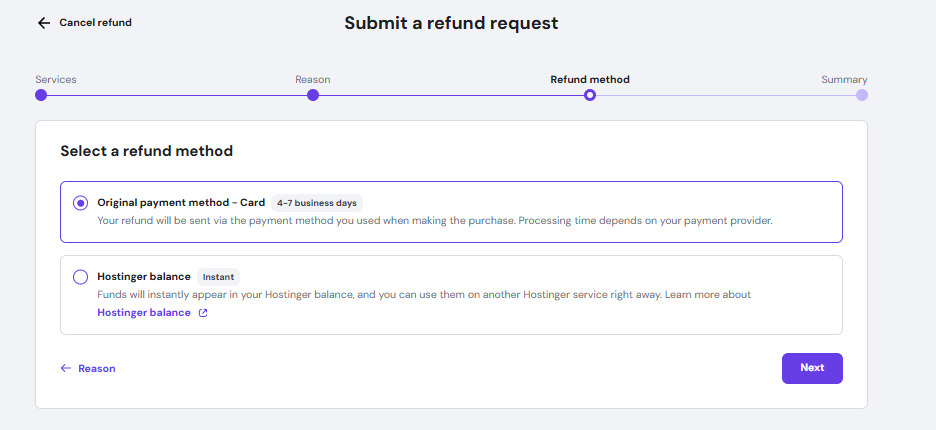
Select the refund method
You may choose whether you want to get funds back to your Hostinger Balance or the original payment method:
|
Hostinger Balance |
Original Payment Method |
|
|
Once you select the preferred refund payment method, click on Next:
Submit the request
Finally, review your refund request and click on Submit request. You will shortly receive an email confirmation.
:
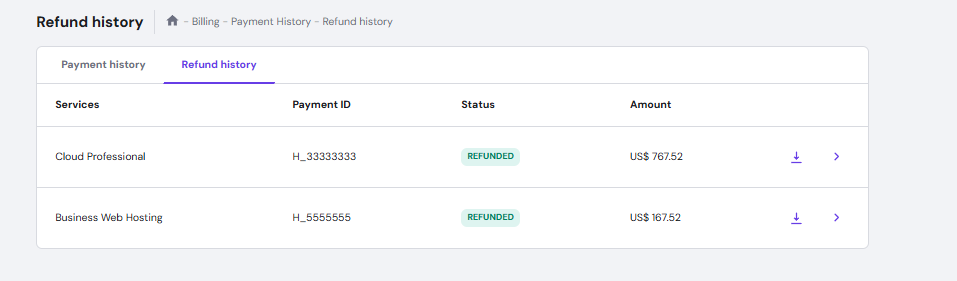
After the email confirmation, you will receive the refund in a few hours or up to a few days, depending on the payment method used for the purchase.
NOTES
-
Products purchased using cryptocurrencies, tokens, or digital assets are not refundable. Before you file a chargeback with your card issuer, contact Hostinger support. See the Chargebacks section of the Refund policy.
-
The refund request is not reversible: all files, databases, emails, and any configuration are permanently lost; if you change your mind after requesting the refund, you will need to purchase a new service and restore the backups
-
Backups of websites created with Hostinger AI Builder cannot be downloaded, but as an alternative, you can export the content to WordPress: Website AI Builder: How to export content to WordPress
-
If your original payment method does not support direct refunds, we will require you to provide the details of an alternative refund method
- If you do not recognize a payment on your statement, see How to identify and handle unauthorized payments from Hostinger.