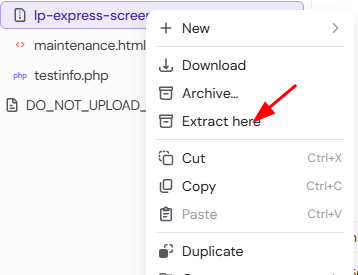
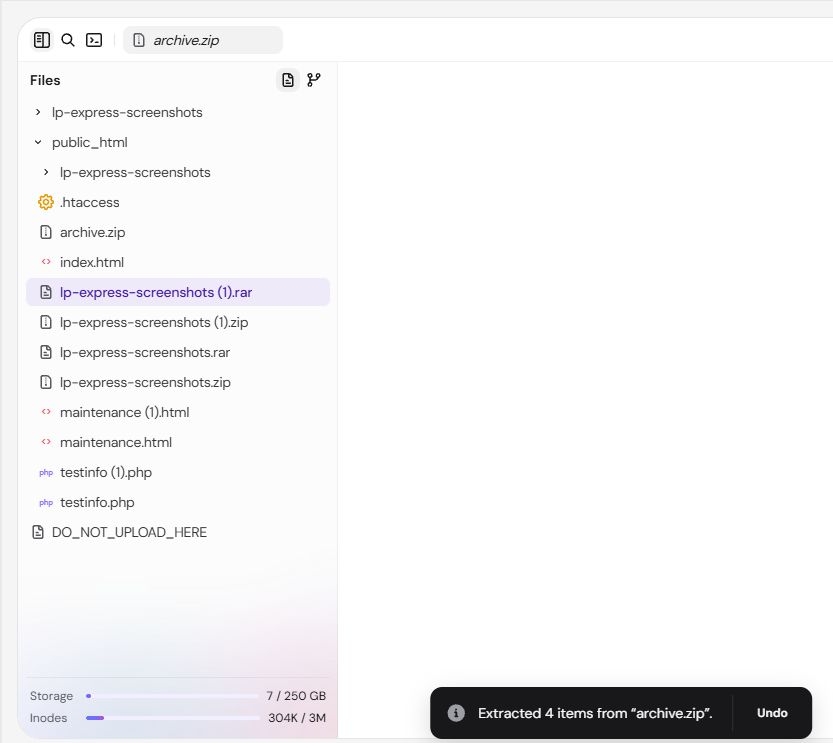
To extract archives in Hostinger File Manager, right-click the archive and select Extract here. The files are unpacked into the same folder as the archive and go live right away, without the Deploy step. Hostinger File Manager supports .zip and .tar archives, including .tar.gz, .tar.xz, .tar.bz2 and .tar.zst, but not .rar files.
Available archive formats
Hostinger File Manager can extract 10 file extensions, which cover six archive formats:
|
Format |
Extensions |
|
ZIP |
|
|
Tar (uncompressed) |
|
|
Tar + gzip |
|
|
Tar + xz |
|
|
Tar + bzip2 |
|
|
Tar + Zstandard |
|
NOTE
-
The file manager is not available for websites created with Hostinger AI Builder
Extract an archive
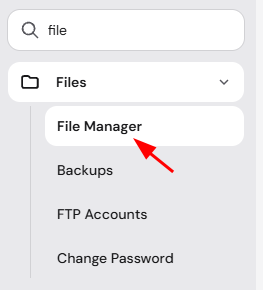
To extract an archive, go to Websites → Manage site, search for File Manager on the sidebar, and click on it:
Find the archive file, right-click it, and choose Extract here:
The extracted files appear in the same folder as the archive:
Additional resources: