The Password Protect Directories feature allows you to set a password to limit access to your website, or parts of it.
If you use Hostinger AI Builder, refer to this article instead: How to Password-Protect a Page
How to set up a password protect directory
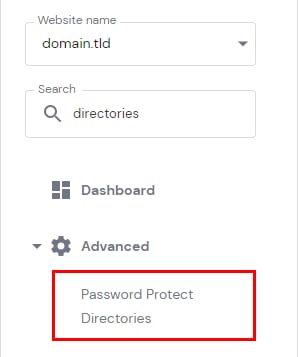
To access this feature, go to Websites → Dashboard, search for Password Protect Directories on the left sidebar, and click on it:
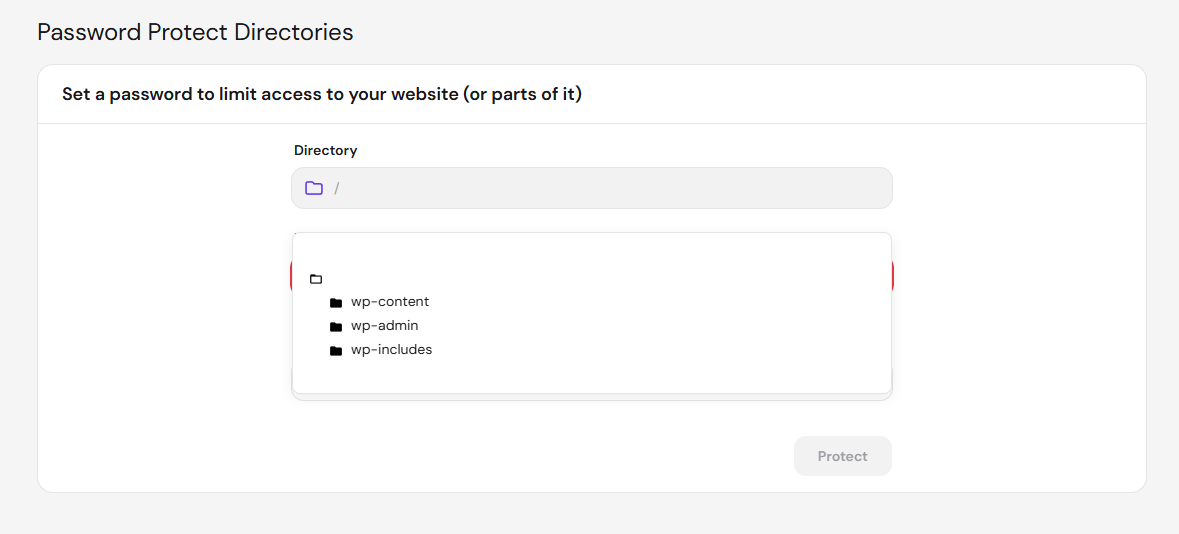
Once in there, select which directory you would like to protect:
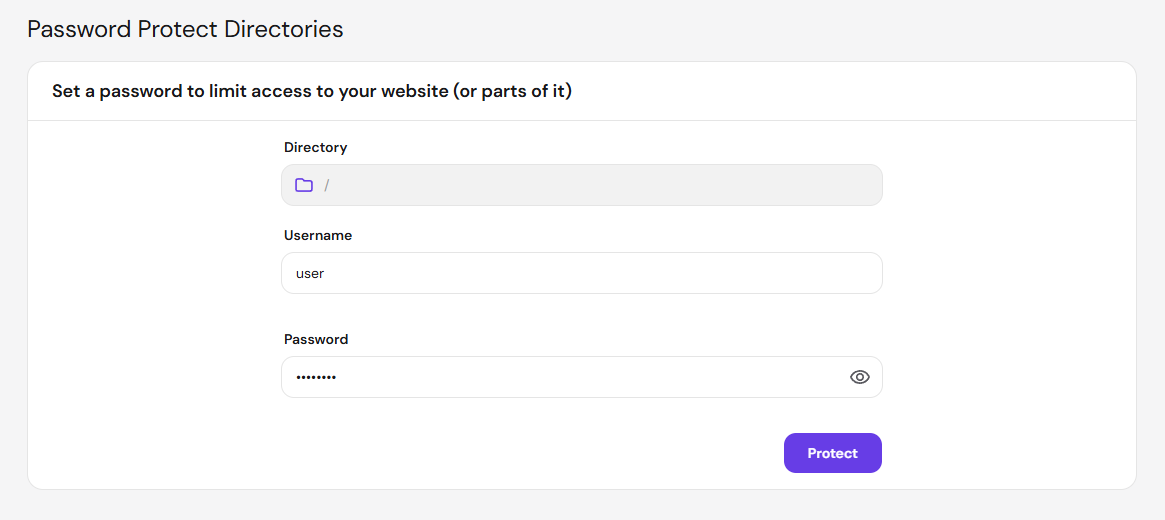
Assign a username and a password for it, and click on Protect:
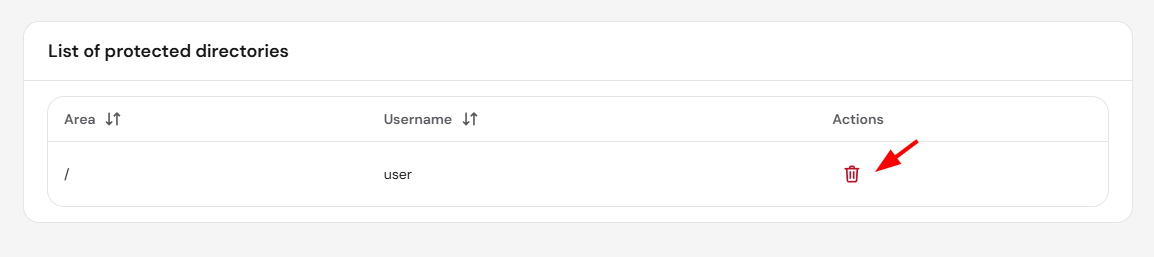
All the password-protected directories will be listed on the same page below, where you will have the option to remove the protection by clicking on the bin icon:
That’s it! Now you know how to password-protect your website or a part of it.
NOTE
-
In case of a forgotten password, remove the password protection on the directory and create it again
- If you’re seeing the password prompt appear twice, see why does a password-protected directory ask for the password twice.
- If you’d rather build a custom login experience for your visitors instead of a basic password prompt, see how to add a login form to a website in Hostinger.