Change your Hostinger account password in the Account settings section of the Account information page. If you log in with a social account, unlink it first to create a dedicated Hostinger password.
In case you are using social login (Google account, Facebook or GitHub) and want to change your login method to email and password for your Hostinger account, make sure to first unlink your social account. You will be required to generate a new dedicated password for your Hostinger account, which can be later changed by following this procedure.
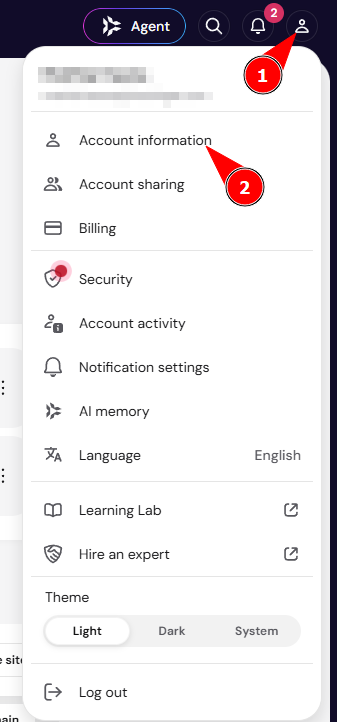
If you are already using email and password to log in, change the password by clicking on the profile icon and choosing Account Information:
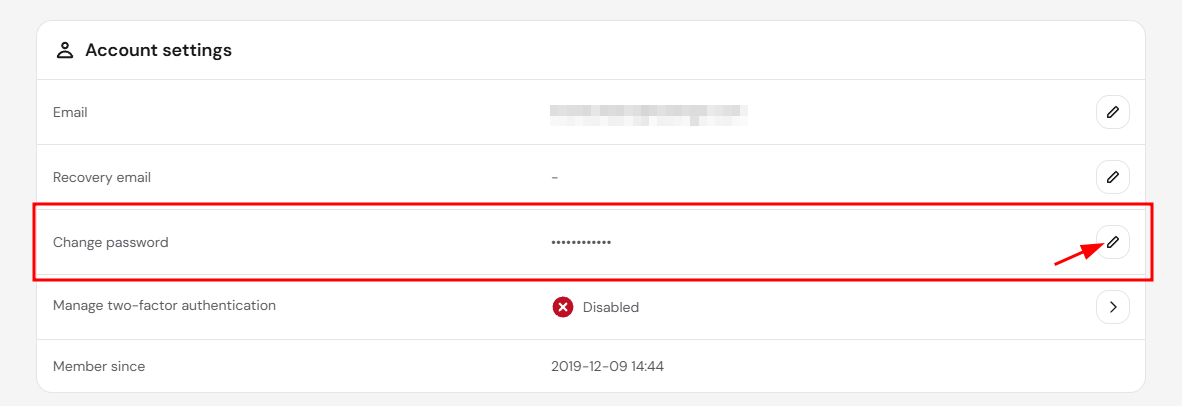
Next, scroll down to the Account settings section and click the pencil icon next to Change password:
In the next window, enter your current password, create a new password, and click on Confirm. If you don’t remember your current password, reset your Hostinger account password instead.
How to create a strong password
Make sure that your password:
-
Is not being used on other websites
-
Contains more than 8 characters
-
Includes different characters, that is, a mix of numbers, letters and special characters
-
Does not include elements that can easily recognize you, such as important dates, a pet’s name, etc.
With a strong password, you ensure your account will be as secure as possible. You may also use a password manager – there are several great options around.
For increased security, you can consider using social login or adding two-factor authentication (2FA).