Change the PHP timezone setting for your website in Hostinger by editing the date.timezone value on the PHP Configuration page, or by adding the date_default_timezone_set PHP function to your website code. The server’s global time configuration can’t be changed.
Setting up timezone via Hostinger dashboard
Open Websites → Manage site → PHP Configuration page. There, open the PHP options tab and edit the date.timezone value:
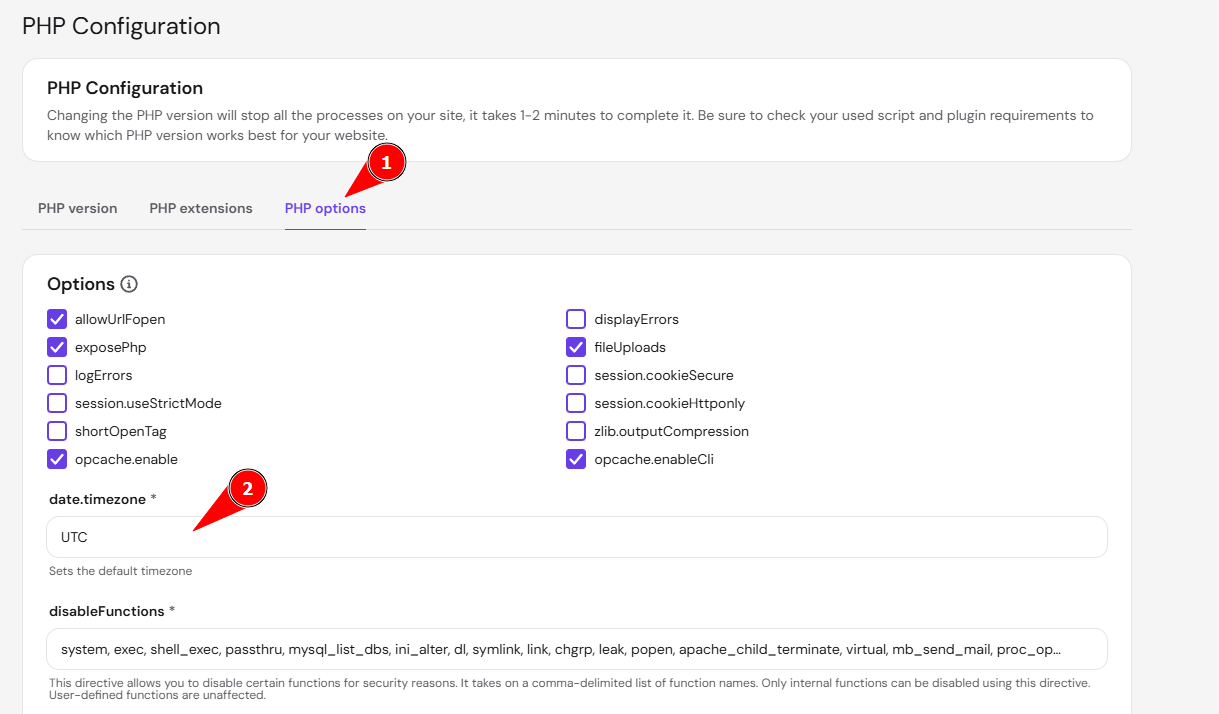
If you are not sure which time zone to insert, check the Time Zone Map.
Save the changes at the bottom of the page, and the timezone will be updated.
Setting up timezone via PHP function
As an alternative, you can set the timezone using the date_default_timezone_set PHP function. Just check the List of Supported Timezones, find the one which you need, and insert the following code to your website (in most cases, on your index.php file):
<?php
date_default_timezone_set("Asia/Bangkok");
echo date_default_timezone_get();
?>
Replacing “Asia/Bangkok” with the desired timezone.
Your website now uses the timezone you set, while the server’s global time stays unchanged.
Additional resources