Add images to a Hostinger Reach email template in four ways: generate one with AI, upload from your device, pick a free image from Unsplash, or add an image from a URL. Open your template, click Edit, select an image, and click Change image to start.
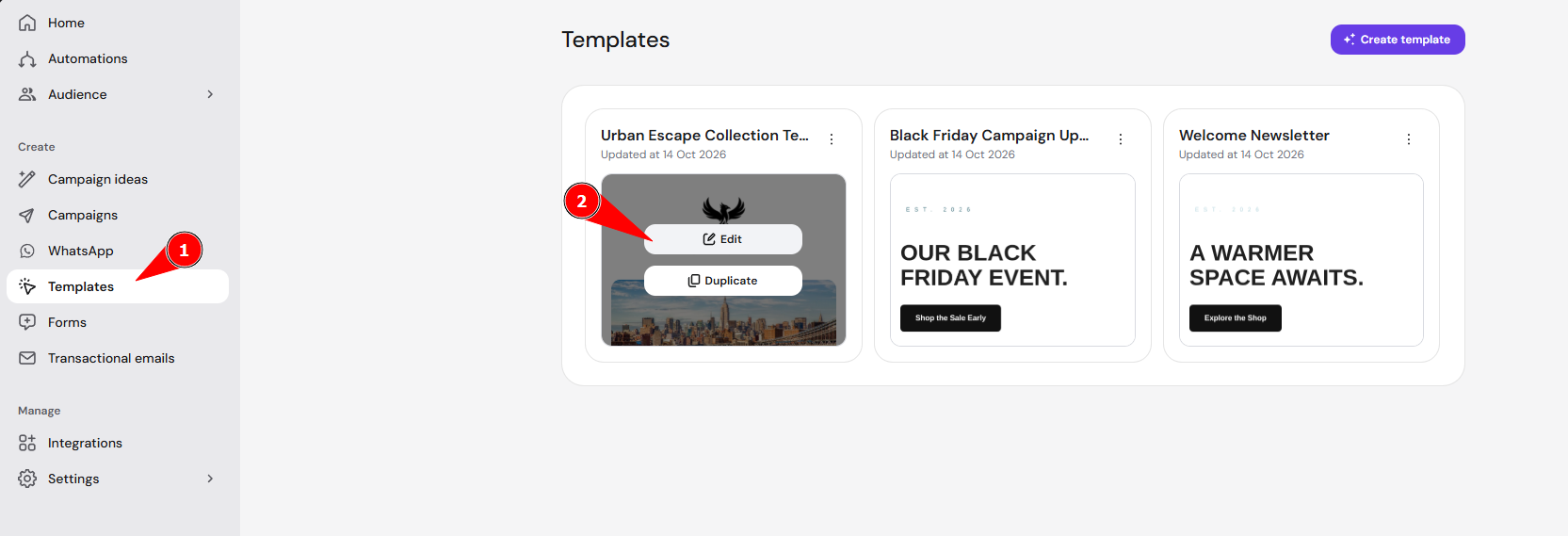
To upload images, access your email campaign template, and click on Edit inside the preview screen:
After that, you will click the specific image you would like to edit and click on Change image:
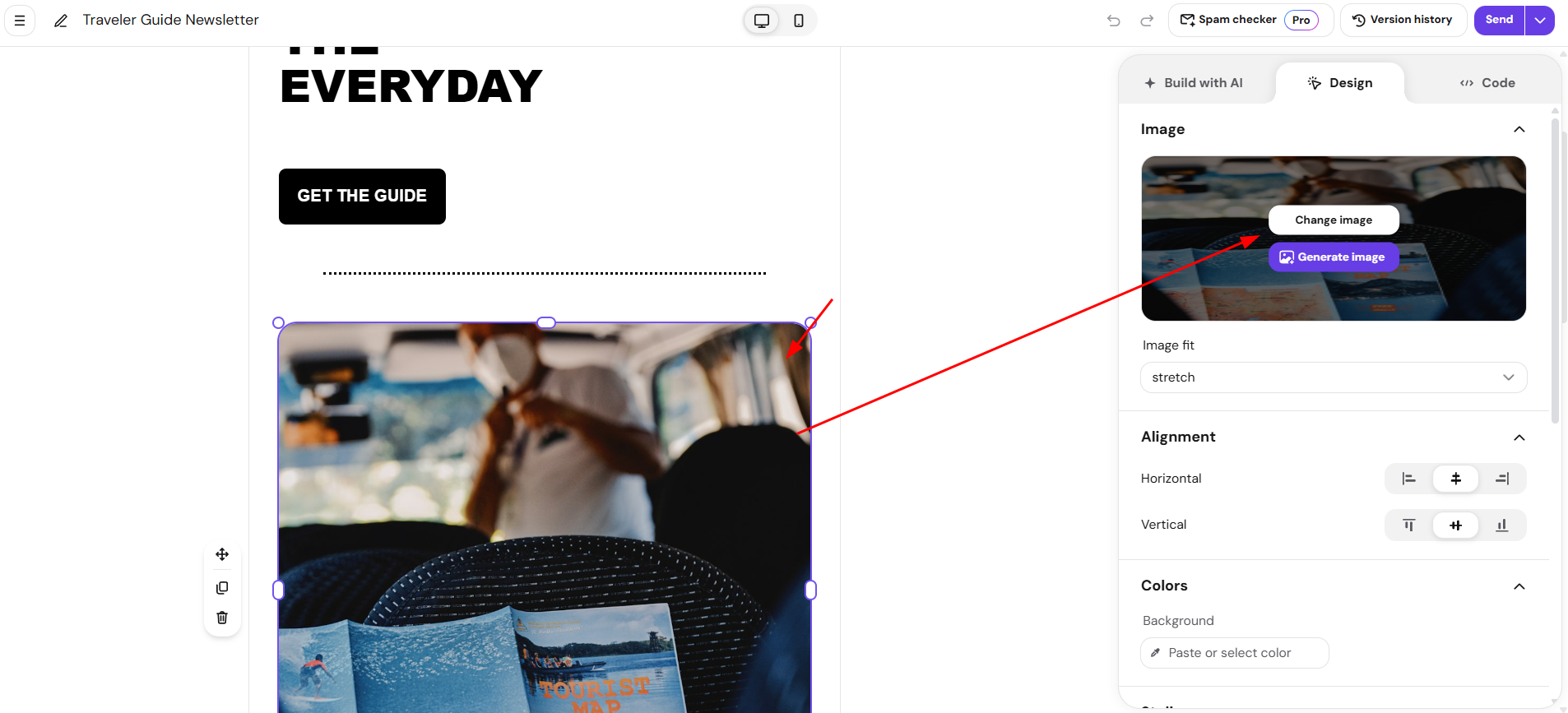
Now, you will be able to follow one of the several ways to upload images inside Hostinger Reach tool.
Upload image from local device
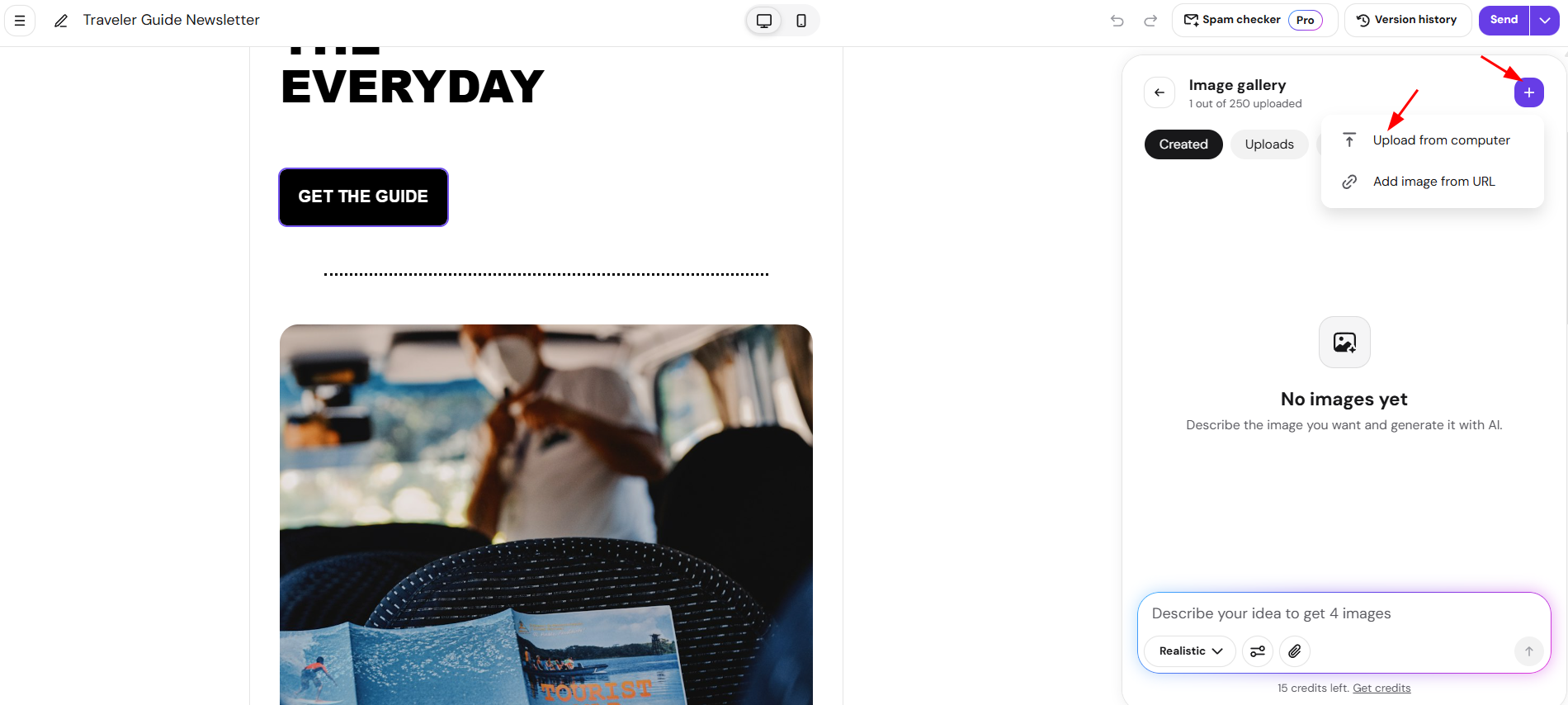
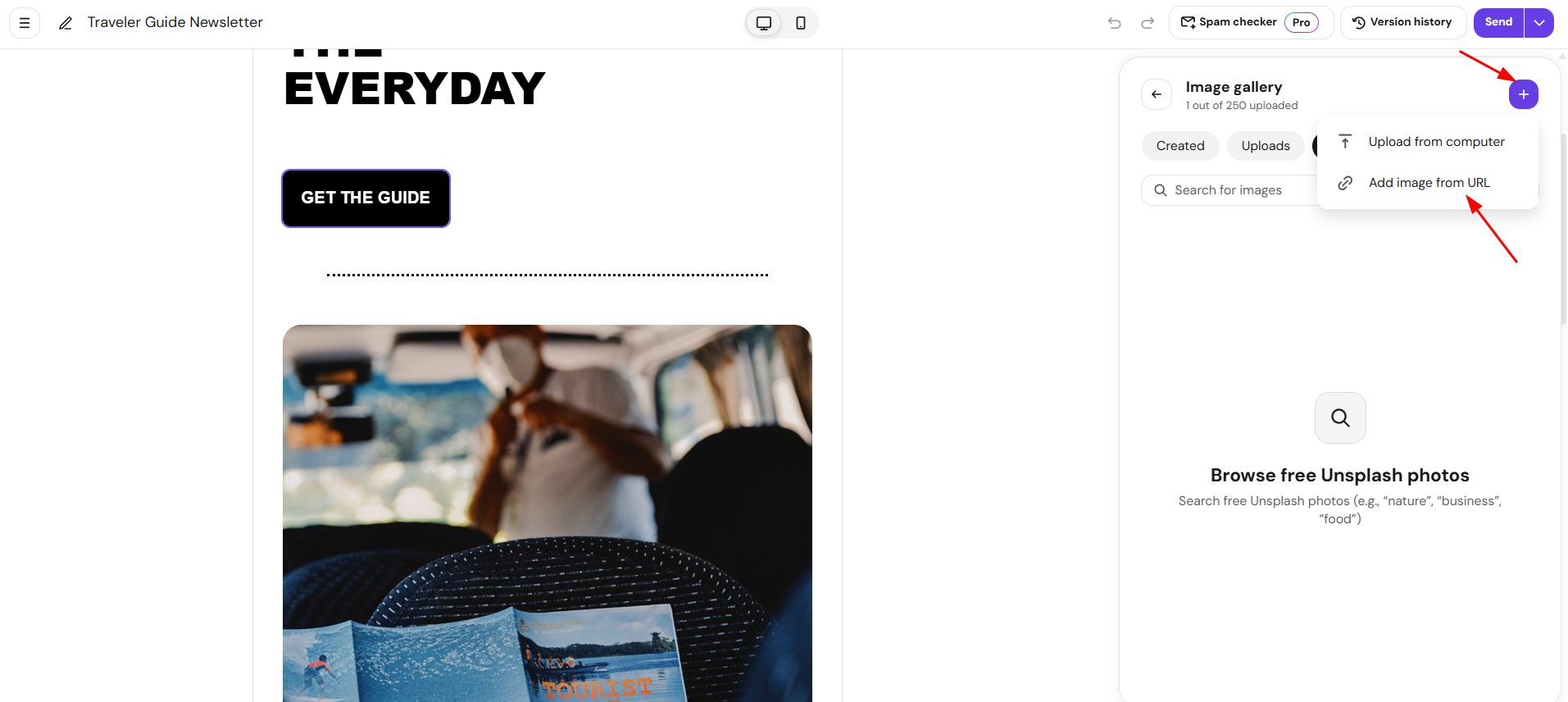
In this case, you can simply click on the “+” symbol, as in the image below, then choose Upload from computer:
Upload a free image from Unsplash
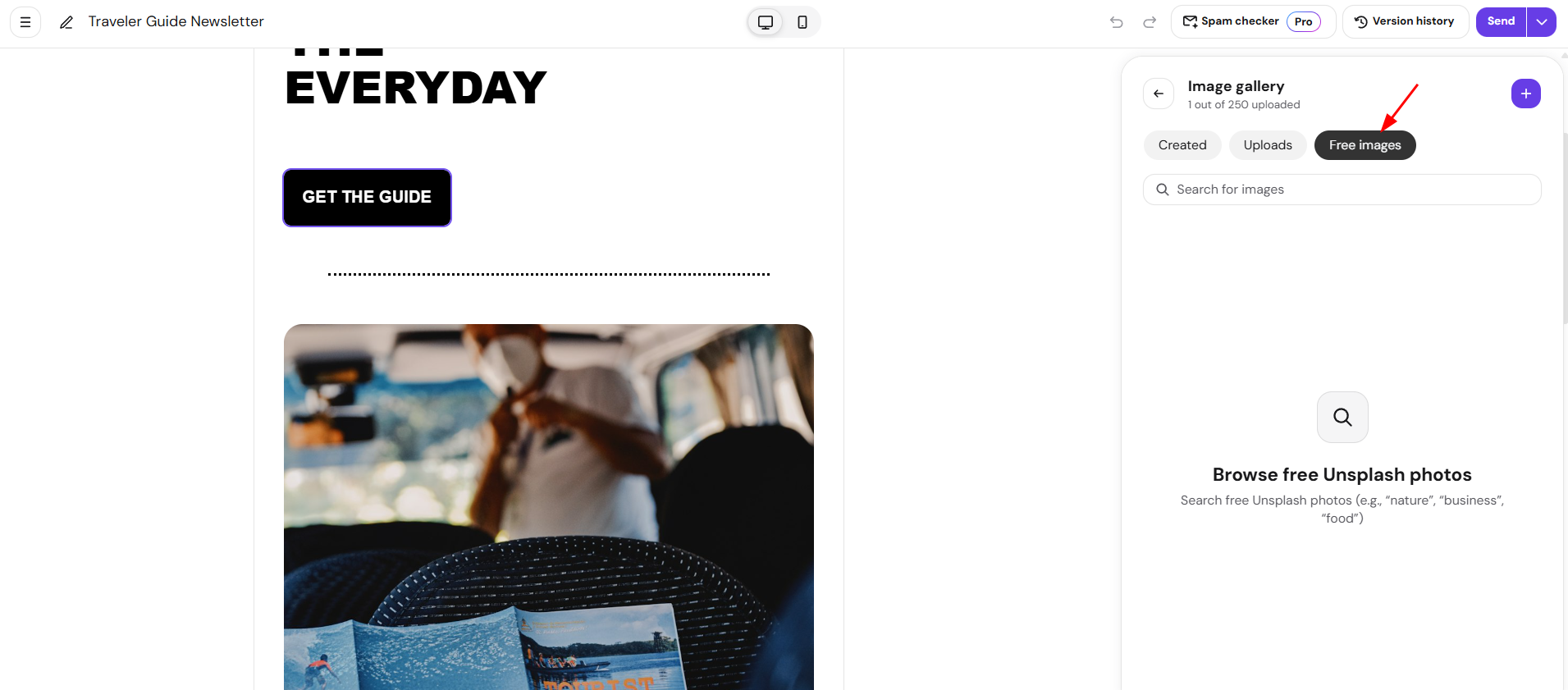
To use one of the professional free images from Unsplash, you would need to search for the specific keyword and select the desired image result, as shown below:
Upload a direct image URL from the web
To achieve this, you would need to copy the image URL from the live web by using the left-click. In Reach, you can simply click on the “+” symbol, as in the image below, then choose Add image from URL and then paste the copied URL into the field:
Generate an image with AI
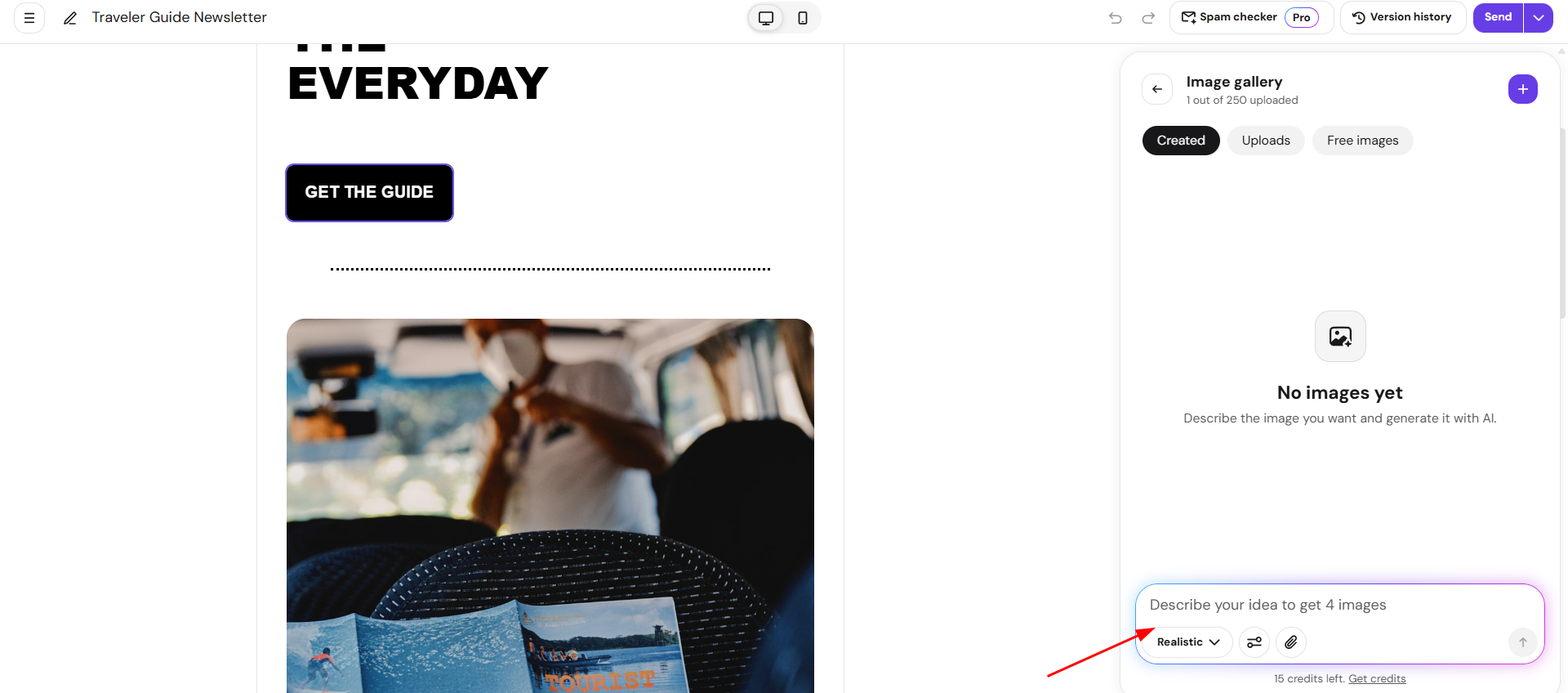
Describe the image you want, and AI generates it for you. You can optionally choose a style (Realistic, Illustration, Flat design, 3D render, Minimalist), a layout (Banner, Horizontal, Vertical, Square), and attach a reference image. Each generation returns 4 variations to pick from. Generated images are saved to your image gallery under Generated, so you can reuse them later.
Once your image is added, it appears in your Hostinger Reach email template, ready to resize, align, or link. See How to manually edit your email template in Hostinger Reach for more details about editing your email template content.