Hostinger Reach needs three types of DNS records on your sending domain: SPF, DKIM, and DMARC, which authorize Reach to send email and protect your emails from spoofing. Hostinger Reach adds these records automatically when your domain uses Hostinger nameservers. Add them manually in your DNS zone if your domain is managed at another provider or the records are missing.
Connect your domain in Reach
-
Go to your Reach dashboard.
-
Click your Settings.
-
Under Sender details, select the domain you want to connect.
-
Open your domain DNS Zone (either in Hostinger or with your external provider) and add the following records manually.
What these records do
Understanding these records helps ensure your emails are trusted by email providers like Gmail and Outlook:
|
Record |
What it does |
Why it matters |
|
SPF |
Authorizes specific email servers to send emails on your behalf. |
Helps prevent spoofing and improves email trust. |
|
DKIM |
Adds a digital signature to your emails. |
Proves your emails weren’t changed in transit and confirms they came from you. |
DNS Records to add
The records to be added would be:
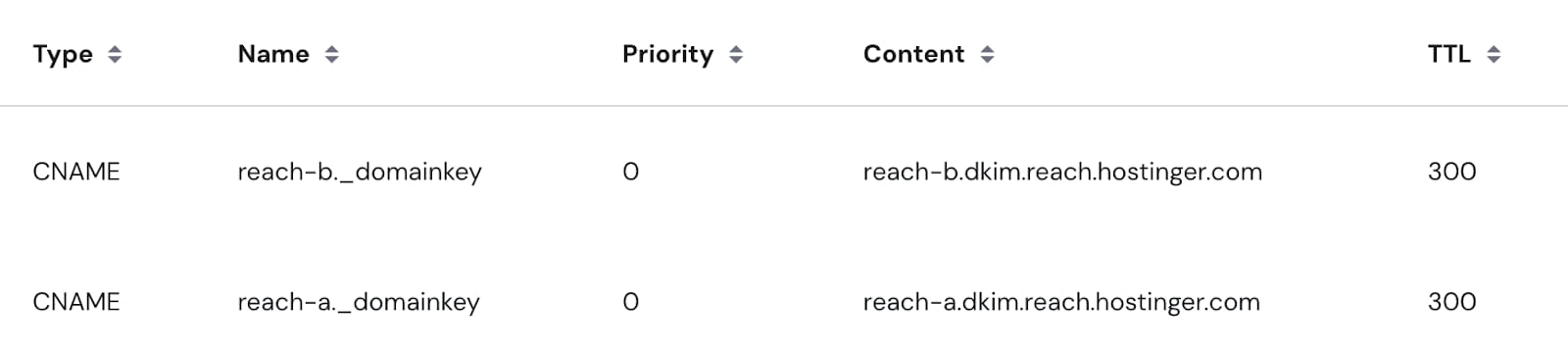
1. DKIM records that are under the CNAME format:
|
Type |
Name |
Content / Value |
|
CNAME |
reach-a._domainkey |
reach-a.dkim.reach.hostinger.com |
|
CNAME |
reach-b._domainkey |
reach-b.dkim.reach.hostinger.com |
The result expected should look as below inside your domain’s DNS:
2. DMARC records that are under the TXT format:
|
Type |
Name |
Content / Value |
|
TXT |
_dmarc |
“v=DMARC1; p=none” |
The result expected should look as below inside your domain’s DNS:

3. SPF records that are under the TXT format:
|
Type |
Name |
Content / Value |
|
TXT |
@ |
“v=spf1 include:_spf.reach.hostinger.com ~all” |
The result expected should look as below inside your domain’s DNS:

If you’re already using another email service that requires an SPF record (for example, Titan Email), the SPF record shown in your Reach dashboard is already properly combined and ready to use.
- There’s no need to merge or create additional records manually.
- Keep in mind that you should have only one SPF record per domain. The value provided in the Reach dashboard will not affect or break your existing email setup.
- Simply go to your domain’s DNS settings and replace the existing SPF record value with the one provided in Reach.
Propagation time
Once you add or update DNS records, it may take up to 24 hours for the changes to fully propagate across the internet.
If the records haven’t propagated yet, Reach won’t be able to send emails from your domain — messages will be declined until the records are fully recognized.
Need help?
If you’re unsure how to edit DNS records or are not sure if they were added correctly, our support team is here to help.
With SPF, DKIM, and DMARC records added and propagated, Hostinger Reach can send campaigns from your domain. See Email deliverability for new senders: Build your domain reputation with Hostinger Reach to keep improving inbox placement.