Export your Hostinger AI Builder agentic mode project code to use it outside the builder, access its backend, and make manual changes to your project.
Exporting the code
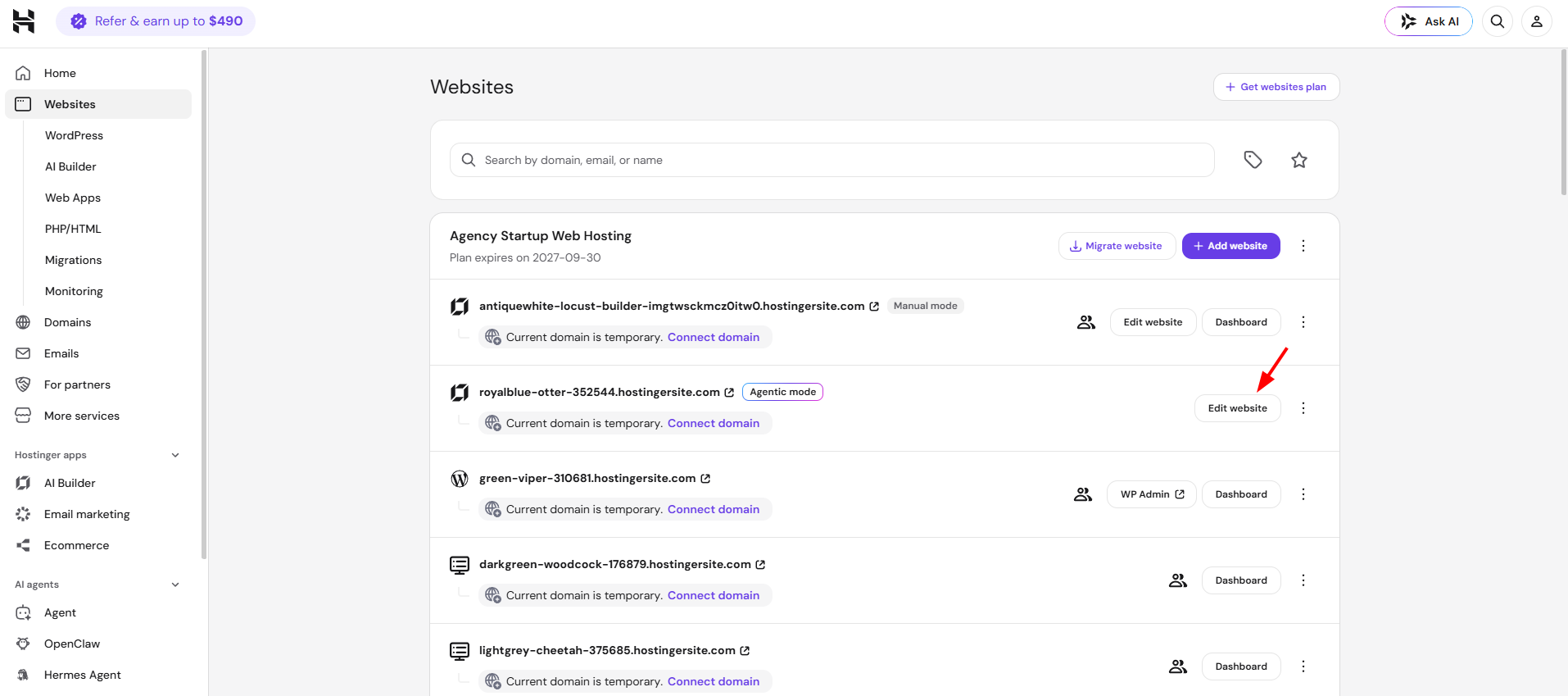
Inside your Hostinger dashboard, go to Websites List and open the project you wish to export:
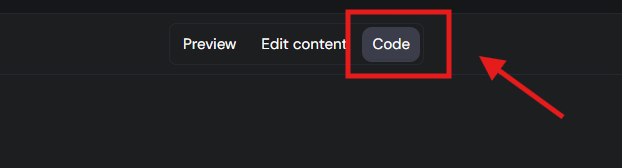
Inside Hostinger AI Builder, click on the Code tab at the top of the editor.
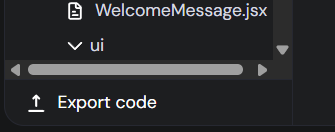
The exported code is a Node.js project built with React and Vite. At the moment, this is the only format available for export and is the default output.
Click Export to start generating the code. Once the process is complete, a .zip file containing your full project will be available for download. You can save it to your local device and extract the contents to see and access the complete codebase.
Remember that once you export Hostinger AI Builder project, there is no way to import the edited version back to Hostinger AI Builder and continue with prompting. You will need to proceed with manual edits or start a new project. Note that exporting the code only covers your project’s frontend and logic files — it does not include your integrated backend data, which remains managed separately within Hostinger AI Builder.
What can be done with the exported code
After exporting the code, you can:
-
Edit it manually: To do this, you’ll need coding knowledge and Node.js installed on your local machine. This is necessary to run and modify the project properly, as it is based on Node.js tooling (Vite/React).
-
Deploy to Business or Cloud hosting plans: You can now deploy Node.js applications directly to Business Web Hosting or Cloud hosting plans (Cloud Startup, Cloud Professional, Cloud Enterprise, or Cloud Enterprise Plus) using Hostinger’s Node.js Web Apps feature. For detailed instructions, check out our guide on how to deploy a Node.js website in Hostinger.
-
Import to a VPS: You can also upload the code to a VPS server where Node.js is available and configured. You can check more details about using Node.js on VPS in this guide here.
-
Convert it to static files: If you want to host the project on shared or cloud hosting plans, you must first convert the code into static files (HTML, CSS, and JS). You can do this by building the project using Vite (
npm run build), which outputs static assets that can be hosted on any web server.
To use the exported code inside Hostinger dashboard, you will need basic coding knowledge to be able to make the conversion to static files.
If you have the static files ready, you can import them back to your Hostinger dashboard by doing the following:
-
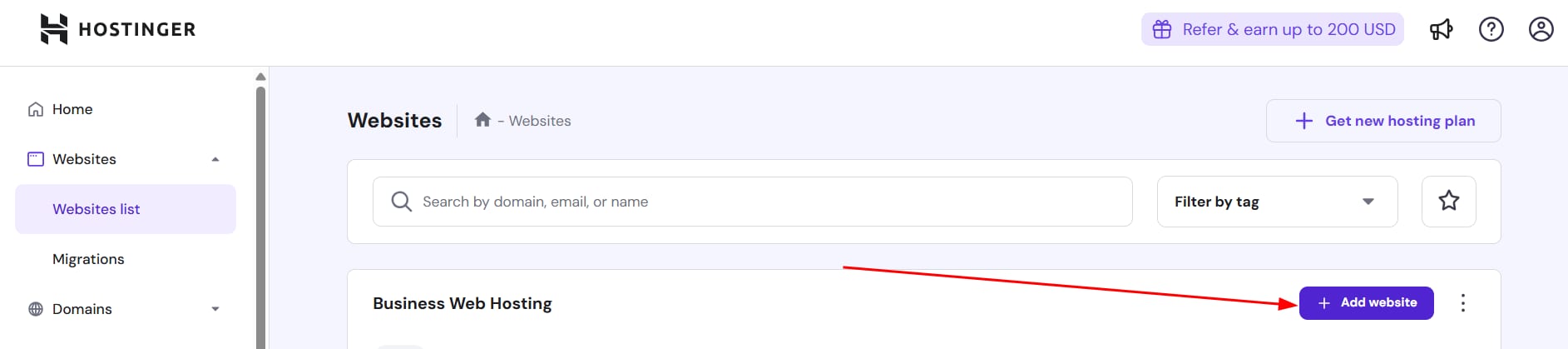
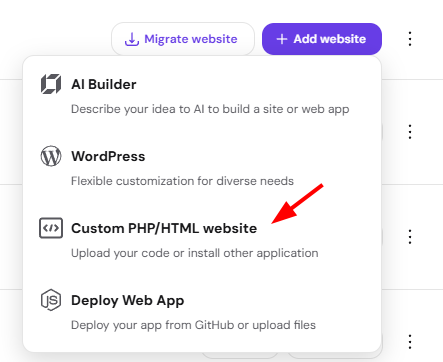
On Websites List, click on Add website:

-
On the dropdown menu, select Empty PHP/HTML website:

After that, you can go to your File Manager and import the static files. For more details, you can check our guide on how to upload backups manually.