Connect to your hosting plan using SFTP in Hostinger on Agency Hosting by turning on the SFTP only toggle on the Remote access page, then connecting with FileZilla on port 65002. SFTP is available on all hosting plans that include remote access.
Step 1 – Preparations
First, make sure that:
-
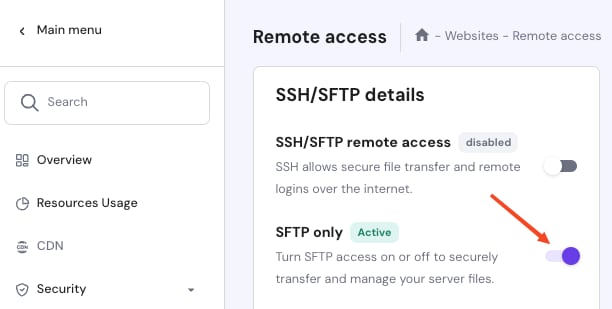
You have enabled remote access by going to the Remote access page on Hostinger dashboard and clicking on the toggle next to SFTP only:
-
You have installed the client version of FileZilla on your device.
Step 2 – Connecting
You can easily connect to SFTP by following one of the options below:
Option 1 – Direct Access
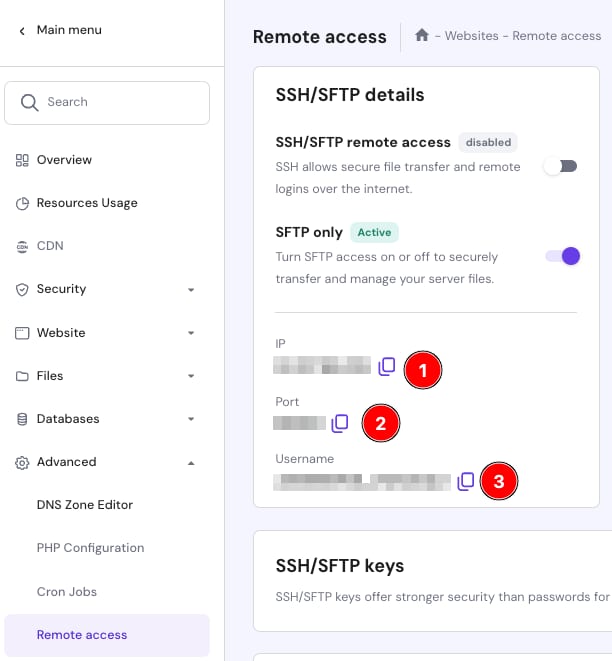
Open FileZilla and fill in the Quickconnect section with the configuration you got from the SSH Access section:
-
Host: The FTP IP from the Remote access section, using the sftp:// protocol.
-
Port: 65002
-
User: The FTP/SSH username
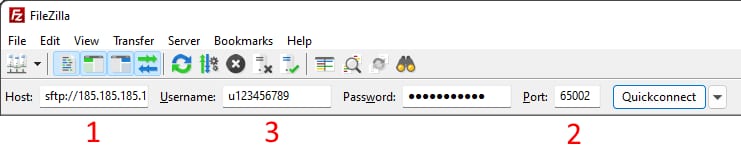
Click on Quickconnect, and you will be connected to FTP server.
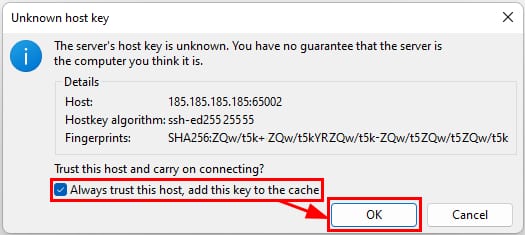
If you encounter an “Unknown host key” message, mark the checkbox for Always trust this host and click OK:
Option 2 – Site Manager
Unlike direct access, with Site Manager, you can save your previous connection details and change the encryption type.
Open Site Manager in FileZilla:

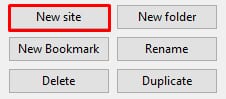
Click New site:
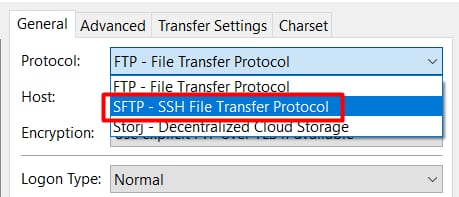
Select SFTP connection:
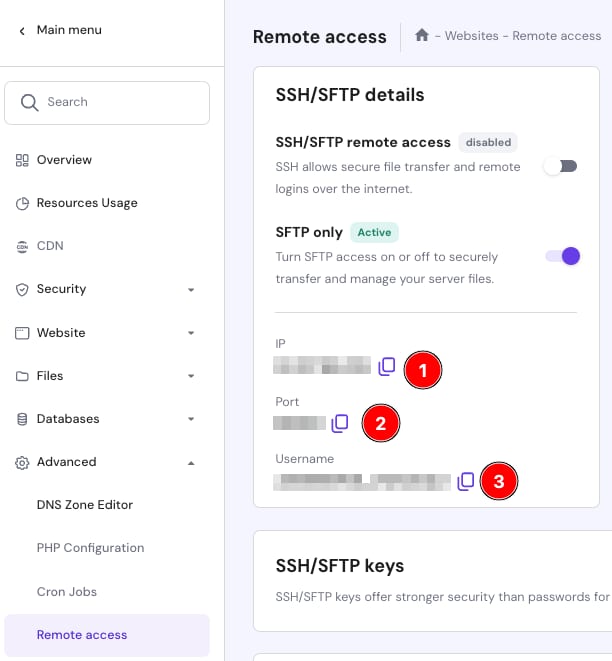
Set the configuration you got from SSH Access section:
-
Protocol: SFTP – SSH File Transfer Protocol
-
Host: FTP IP from the FTP Accounts section (for example, 185.185.185.185)
-
Port: 65002
-
Logon type: Normal
-
User: FTP/SSH Username
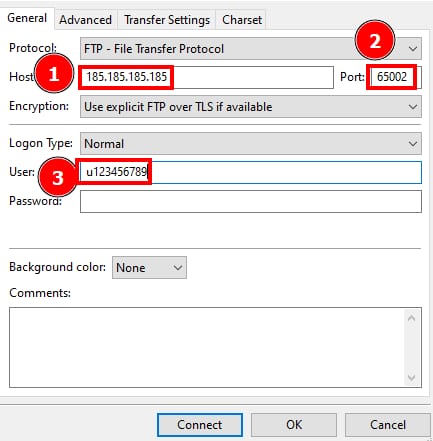
Click on Connect – and you will be connected to the server.
NOTE
-
The SFTP/SSH password is the same as the FTP password of your main domain. If you are not sure about the exact value, you can set a new password for both FTP and SSH or create an SSH-only password.