Connect to your hosting plan via SSH to access your account directly from the command line, using the login details found in Hostinger dashboard. SSH access is available on Premium Web higher plans — it isn’t available on Single Web plans.
Step 1 – Enable SSH access and copy the SSH command
The first thing you will need to do is enable SSH access. It can be done from your SSH Access page in Hostinger dashboard.
After this, copy the SSH Command:
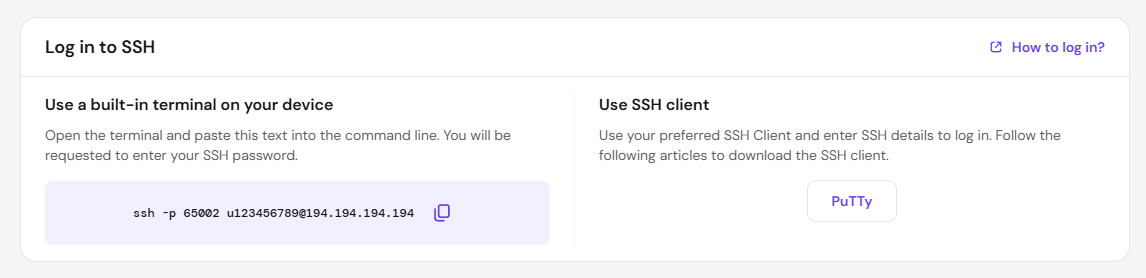
Step 2 – Choose an SSH client for your operating system
|
Linux |
macOS |
Windows |
|
You can use Terminal for SSH connection To run it, click Ctrl + Alt + T or Search → Terminal |
You can use Terminal for SSH connection To run it, search for Terminal in Spotlight |
You can use any SSH client available We recommend PuTTY (full tutorial), PenguiNet, or connecting via PowerShell |
Step 3 – Connect to your hosting plan via SSH
In the case of Terminal, insert the command you copied in the first step. For PuTTY, insert the parameters as described in the tutorial. In both cases, you will see the result like this:
The authenticity of host '[185.185.185.185]:65002 ([185.185.185.185]:65002)' can't be established.
ECDSA key fingerprint is SHA256:Eze2ImXw1MWfgAMbcWxfc2EQwAkgTHOEPsNwSnEAHAQ.
Are you sure you want to continue connecting (yes/no)?
This is an expected result; just type yes.
Then, you will be asked to insert the password:
u123456789@185.185.185.185's password:NOTES
-
For security purposes, the password won’t be displayed, even as •••••, but data is still inserted. Don’t worry about not seeing symbols; insert the password and press Enter
-
Password can be copied and pasted with the right-click of a computer mouse. On Windows, it inserts the password immediately; On Linux – opens a menu with actions
-
The SSH password is the same as the FTP password of your main domain. If you are not sure about the exact value, you can set a new password for both FTP and SSH or create an SSH-only password
As soon as you insert the password and press Enter, you will see this text from the next line:
-bash-4.2$It means that you successfully logged into your account via SSH!
NOTES
- Once connected, you can download a website’s backup via SSH or upload a backup using SSH if you need to manage backups directly from the command line.
- Use Composer via SSH to install and manage PHP dependencies for your website.
- If the terminal/console closes immediately after inserting the password, disable SSH access, enable it back, and try re-connecting
- You can check some basic SSH commands here: SSH cheat-sheet