Change the SSH password on Hostinger dashboard to set a separate password from your FTP login.
Before you start
- SSH access must be enabled first. See how to enable SSH access in Hostinger if you haven’t done so yet.
- SSH access is available on Premium Web hosting plans and above.
- By default, the FTP password you created when setting up your hosting plan is also your SSH password — if you change your FTP password, it’s automatically applied to SSH as well.
Set a separate SSH password
If you wish to have different SSH and FTP passwords, you may change only the SSH password on Hostinger dashboard by following these steps:
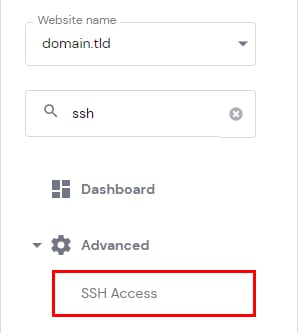
In the Websites section, click on Dashboard next to the site in question. Search for SSH Access on the sidebar and click on it:
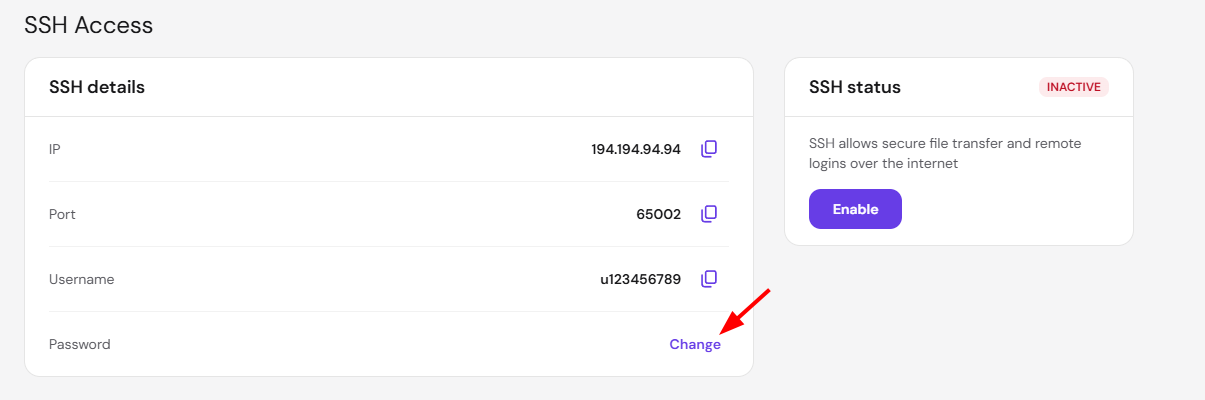
Click on Change next to Password:
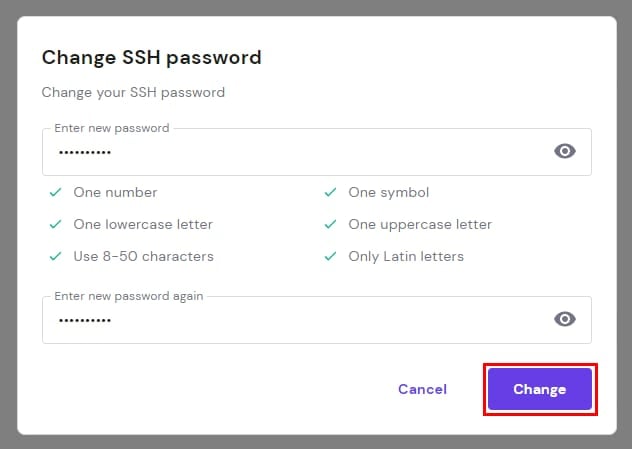
You will be prompted to generate a new password containing numbers, symbols, uppercase, and lowercase letters. Once done, click Change:
That’s it! Now, you have a new password to access all of your account’s files via SSH.