How to check disk space in Linux using df and du
Sep 15, 2026
/
By Domantas G.
/
5 min Read
To check disk space in Linux, run the df -h command. It shows the total, used, and available space for each mounted filesystem in an easy-to-read format.
If you need to find what is taking up that space, use the du command to check the size of specific directories and files. In this tutorial, you’ll learn how to use df and du to check Linux disk usage, find large files and directories, and troubleshoot common disk space issues.

How to check disk space in Linux
To check disk space in Linux, open a terminal and run the df -h command. If you manage a remote server, connect to it using SSH first.
The following methods show how to check available filesystem space, measure directory usage, and identify what is consuming storage using common Linux commands. We’ll also explain how Hostinger VPS users can check disk usage directly from Hostinger dashboard.
How to check disk space in Linux using the df command
The df -h command is the simplest way to check total, used, and available disk space on Linux filesystems.
Run:
df -h
The -h option displays storage sizes in a human-readable format, such as MB and GB. The output will look similar to this:
Filesystem      Size  Used Avail Use% Mounted on
/dev/sda1       100G   60G   40G  60% /
tmpfs           1.9G  1.2M  1.9G   1% /dev/shm
/dev/sda2       200G  100G  100G  50% /home
Here’s what each column means:
- Filesystem – the filesystem or storage device.
- Size – its total capacity.
- Used – the amount of storage currently in use.
- Avail – the space available for new data.
- Use% – the percentage of storage being used.
- Mounted on – the directory where the filesystem is mounted.
Pay particular attention to Use% and Mounted on. They show which filesystem is running low on space and where it is mounted.
You can also use df to check more specific information:
df -h /– check disk space for the filesystem containing the root directory.df -h /home– check the filesystem containing a specific directory.df -hT– show disk usage together with filesystem types, such as ext4 or xfs.df -ih– check inode usage instead of storage capacity.
For example, if you only want to check the filesystem containing the root directory, run:
df -h /
Once you identify a filesystem that is nearly full, use the du command to determine which directories are consuming its space.
How to check directory disk usage with the du command
The du command shows how much disk space a file or directory uses, making it useful for finding what is consuming storage on a full filesystem.
To check the total size of a directory, run:
du -sh /path/to/directory
For example, to check the size of the /var directory:
du -sh /var
The -s option displays only the total size, while -h formats it in readable units such as MB and GB.
To compare the size of directories one level below a location, use:
sudo du -h --max-depth=1 /var
The output may look like this:
4.0K    /var/local
180M    /var/log
1.2G    /var/cache
3.8G    /var/lib
5.2G    /var
This makes it easier to identify which directory you should investigate further.
Unlike df, which shows available and used space for entire filesystems, du measures the space consumed by specific files and directories. Use df -h first to locate a nearly full filesystem, then use du to find where its storage is being used.
How to check disk usage with ncdu
The ncdu utility provides an interactive way to browse directories and identify what is using disk space.
Unlike du, which prints results directly in the terminal, ncdu lets you navigate through directories and sort items by size.
Install it using your distribution’s package manager. On Ubuntu or Debian, run:
sudo apt install ncdu
Then scan a directory:
ncdu /var
To scan the root filesystem while staying on the same filesystem, run:
sudo ncdu -x /
Use the arrow keys to move through directories and press Enter to open the selected directory. This makes ncdu useful when you want to explore disk usage interactively instead of running multiple du commands.
For a quick disk-space check, use df -h first. Use ncdu when you need an easier way to investigate which directories and files are consuming that space.
How to check disks and partitions with lsblk
The lsblk command shows the block devices connected to your Linux system, including disks, partitions, and their mount points.
Run:
lsblk
The output may look like this:
NAME   MAJ:MIN RM   SIZE RO TYPE MOUNTPOINTS
sda      8:0    0   100G  0 disk
├─sda1   8:1    0    99G  0 part /
└─sda2   8:2    0     1G  0 part /boot
The SIZE column shows the capacity of each device or partition, while MOUNTPOINTS shows where it is mounted.
Use lsblk when you need to identify available disks or understand how storage is partitioned. To check how much free space a mounted filesystem has, use df -h instead.
How to check disk space in Hostinger VPS
Hostinger VPS users can check disk usage from Hostinger dashboard without running Linux commands.
- Log in to Hostinger dashboard with your Hostinger account and go to VPS → Manage.
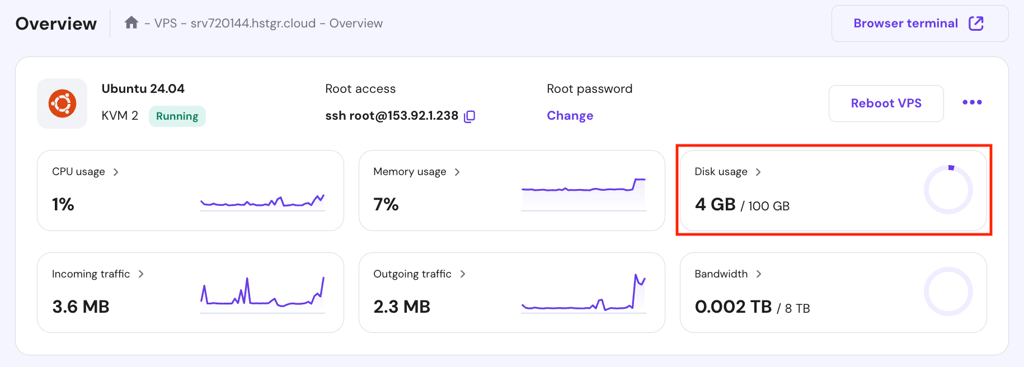
- On the Overview screen, locate the Disk usage panel to see an overview of free and total disk usage.
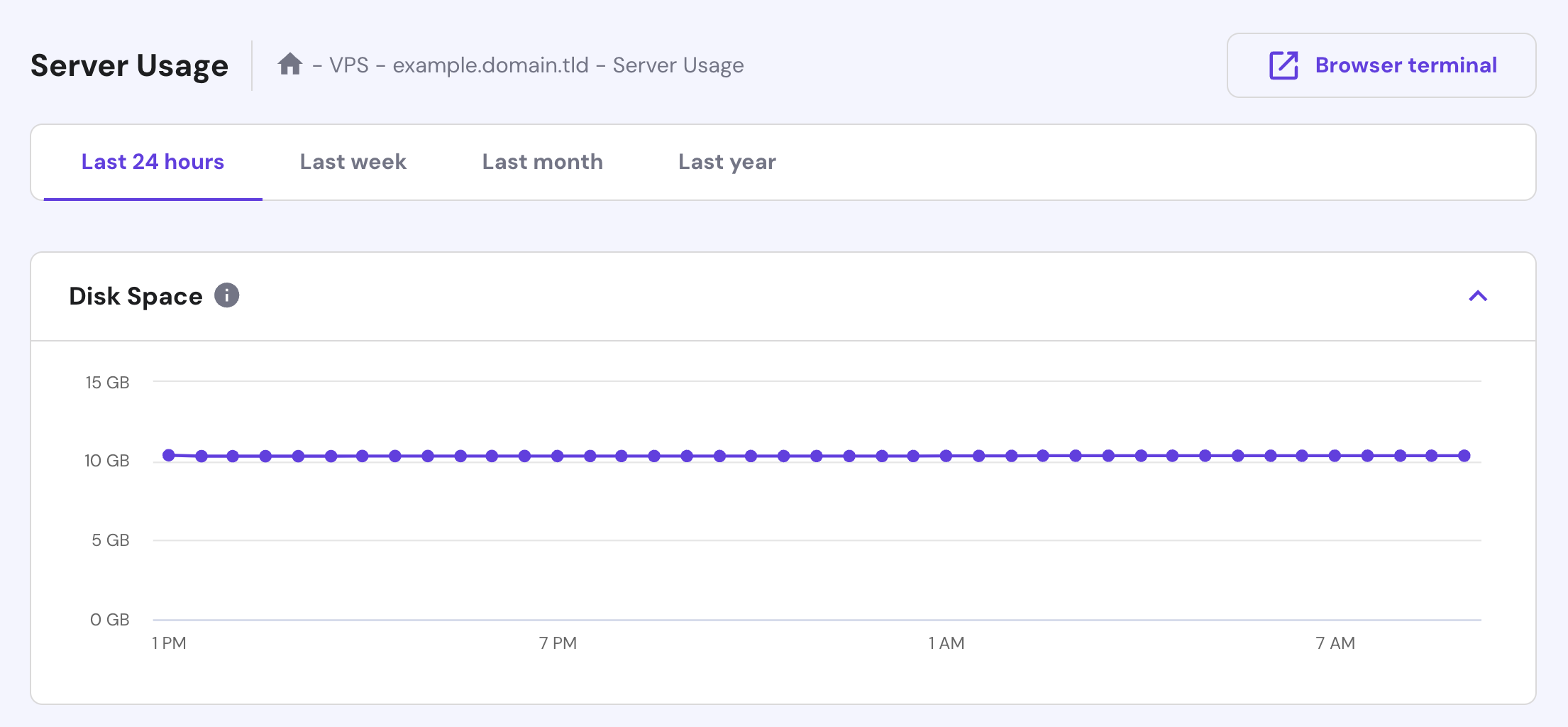
- Click the Disk Usage section to monitor disk space usage over specific periods, such as daily, weekly, monthly, and annually.
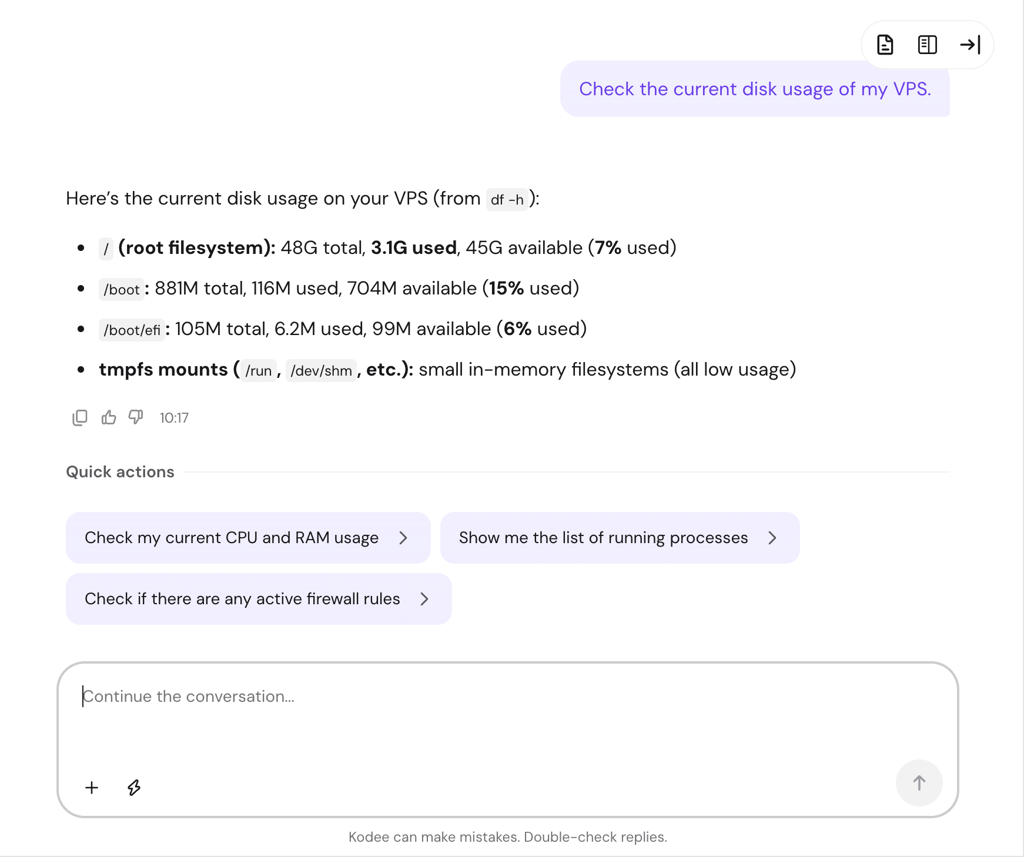
You can also ask Hostinger Agent questions like “Check the current disk usage of my VPS” or “Check the block devices on my VPS.” Should you need to clean up temporary files or data from your disk, you can also ask it, “Clean up system logs and temporary files from my server.”
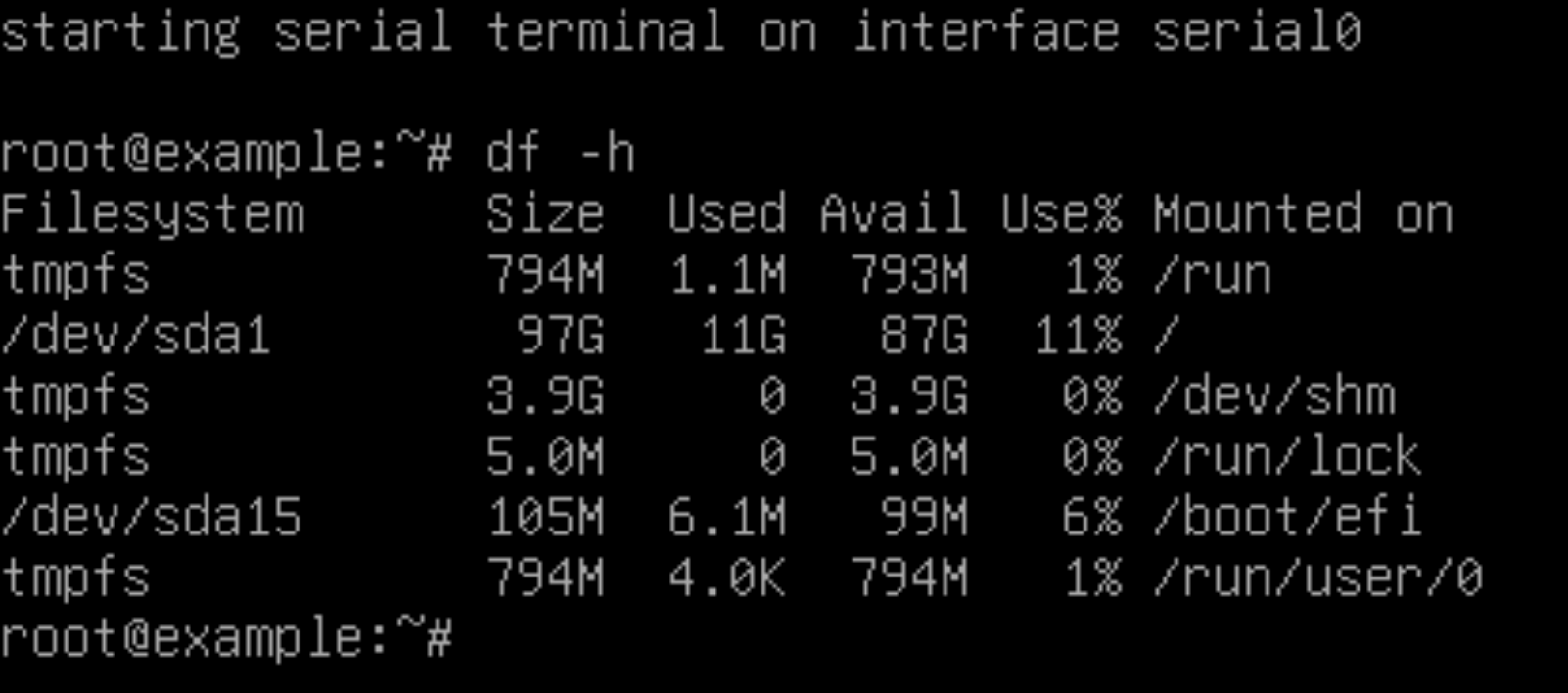
If you prefer to run Linux commands to check your server’s disk space, you can use our built-in Browser terminal. Here, you can execute commands similar to those used in Terminal or SSH applications.

To access it, click Browser terminal in your VPS dashboard. Then, log in using your SSH credentials and start executing the commands.
Monitor your VPS performance regularly to spot unexpected storage growth before the filesystem becomes full.

How to find what is using the most disk space
To find what is using the most disk space in Linux, sort directories by size and then inspect the largest ones.
For example, to compare the top-level directories in the root filesystem, run:
sudo du -xh --max-depth=1 / | sort -hr
The -x option keeps the scan on the same filesystem, while sort -hr orders the results from largest to smallest.
The output may look like this:
18G     /
9.4G    /var
5.2G    /usr
2.6G    /home
340M    /opt
If /var is using the most space, scan it in the same way:
sudo du -xh --max-depth=1 /var | sort -hr
Continue checking the largest directories until you identify where most of the storage is being used.
To find individual files larger than 1 GB on the current filesystem, use the find command with a size filter:
sudo find / -xdev -type f -size +1G -exec du -h {} + | sort -hrThis lists files larger than 1 GB and sorts them from largest to smallest.
Before deleting large files, confirm that they are not required by the operating system, an application, or an active service.
How to troubleshoot a full Linux disk
To troubleshoot a full Linux disk, first check which filesystem is full with df -h, then investigate its directories, files, and inode usage.
If a filesystem is close to 100% usage, use the du and find commands from the previous sections to locate the largest directories and files.
If Linux reports No space left on device even though df -h shows available storage, check inode usage:
df -ih
The IUse% column shows the percentage of available inodes being used. A filesystem can run out of inodes when it contains a very large number of small files, even if storage capacity remains available.
You may also notice that df reports more used space than du. One possible cause is a deleted file that is still open by a running process. To check for open deleted files, run:
sudo lsof +L1
If the command returns a large deleted file, identify the process using it before restarting or stopping the related service. Avoid terminating processes or deleting system files unless you understand their role.
In most cases, checking df -h, identifying large directories with du, and checking inode usage with df -ih will reveal why a Linux filesystem is running out of space.
What to do when your Linux disk is running out of space
If your Linux disk is running low on space, use df -h to identify the affected filesystem, then use du, find, or ncdu to locate the directories and files consuming the most storage.
Once you identify the cause, remove only files you no longer need, such as outdated backups, temporary files, or unnecessary logs. If the filesystem still has free storage but Linux reports No space left on device, check inode usage with df -ih.
For ongoing server maintenance, monitor disk usage regularly so you can address unexpected storage growth before it affects applications or services.
This article is a localized version of How to check disk space in Linux using df and du, originally published in English.
All of the tutorial content on this website is subject to Hostinger's rigorous editorial standards and values.

Domantas leads the content and SEO teams forward with fresh ideas and out of the box approaches. Armed with extensive SEO and marketing knowledge, he aims to spread the word of Hostinger to every corner of the world. During his free time, Domantas likes to hone his web development skills and travel to exotic places.


