Always within reach: inside our patented VPS web terminal

Every server has a front door. For most, it’s Secure Shell (SSH), and it works fine, at least until a firewall rule or a typo in a config file locks it from the inside. But the Web Console, the browser terminal on our virtual private server (VPS) hosting plans, keeps a second way in. When SSH can’t connect, it reaches your server through a different route.
U.S. Patent No. 12,609,823, granted in April 2026, now protects the mechanism behind it, from the connection fallback to the automatic login. It joins a growing set of Hostinger patents, including two others announced in August. Before any of that, the terminal needed a full rebuild, one that started with a much simpler problem.
“The terminal we used before didn’t have copy and paste or a safe auto-login,” says Algirdas Čičinskas, a backend developer on our VPS team who helped rebuild it, starting in 2024. “So anyone who wanted to use the Web Console had to type long, complex passwords by hand, and it was hard to reach their server from the browser.”
That’s more than an inconvenience. The U.S. National Institute of Standards and Technology’s digital identity guidelines recommend letting people paste passwords, since password managers help them choose stronger ones. Today, one click in the Hostinger dashboard opens the Web Console and logs you in automatically in most cases, so there’s usually nothing to type.
From click to prompt
A browser terminal is harder to build than it looks, because a browser can’t open an SSH connection on its own. It can only talk to web servers. So the Web Console has two halves. One is a terminal that runs in your browser, and the other is a service on our side that handles the actual connection. Your keystrokes travel from the tab to that service, which passes them to your server and streams the output back.
Here’s what happens when you click Web Console in the dashboard:
- Your request goes to our VPS management system – it records every server’s configuration and checks that you’re allowed to open this one.
- A secure session is set up – instead of asking you to log in, the system handles authentication for you.
- The terminal opens in a new browser tab, usually already logged in – no SSH client, no keys to set up, no IP address to copy.
To you, it’s one click. Behind it, there’s a system already working out how to reach your server, which is where the patented part comes in.
Finding a way in when SSH can’t connect
By default, the Web Console connects to your server over SSH, the standard way to manage a server remotely. SSH is a network protocol: on your server, a program called sshd listens on a port (22 by default), and your connection travels over the network to reach it.
That means your server’s network, firewall, and SSH service all have to work at once. If the network configuration breaks, the firewall blocks that port, or sshd stops running, there’s nothing on the other end to answer.
The Web Console doesn’t wait for a long timeout to notice. As it sets up the connection, it runs a series of checks: network connectivity, credential injection (placing temporary login credentials on your server), and authorization (your server accepting those credentials). Each one decides whether to carry on or switch to a serial console connection instead. If something fails, the switch happens in under five seconds.
“By the time the browser finishes loading the web terminal, there’s a good chance we already know the connection outcome,” says Čičinskas.
A serial console doesn’t use your server’s network at all. Your VPS runs as a virtual machine on a hypervisor, the software that manages virtual machines on our physical servers. The hypervisor gives each VPS a virtual serial port.
Linux can use a serial port as a console, much like the cable admins plug into a physical machine when nothing else works. The Web Console connects to that port from the hypervisor’s side, below your server’s networking, so it still reaches a login prompt when the network can’t.
When the terminal falls back to the serial console, the service on our side translates between the console and your browser, so your browser never needs to know which route is in use.
For you, it all happens in the same tab. The one difference: auto-login isn’t available over the serial console, so you’ll log in with your server’s username and password. If you only log in with SSH keys, set a root password ahead of time in the Hostinger dashboard under VPS → Manage → Settings → Root password. That way, the serial console’s login prompt won’t stop you when you need it most.
“It allows VPS users to connect seamlessly to their server, even if the server is unreachable on the internet,” says Čičinskas. In his words, the patent covers “the mechanism which detects server connectivity issues, selects the proper connection method, and applies auto-login and the session lifecycle in a safe manner.”
He co-invented it with Merkys Maliukevičius, a system engineer at Hostinger.
Why a second way in matters
Small changes can cut off SSH: a firewall rule that’s a little too strict, a typo in the SSH configuration, or a network setting that didn’t stick.
That’s normal, even for professionals. In Uptime Institute’s Annual Outage Analysis 2026, among operators who’d had a significant network-related outage, 41% named configuration and change management failures as a top cause, more than any other. Among operators who’d had a significant outage of any kind in the past three years, 92% said human error played at least a minor part.
Uptime concludes that managing human error is “less about eliminating mistakes and more about designing systems that anticipate and mitigate them.”
The Web Console works the same way. If a configuration change goes wrong, you can still get in and undo it.
Here’s a firewall lockout, step by step. You run sudo ufw enable but forget to allow SSH first. Your next SSH connection times out because the firewall is now blocking port 22. Open the Web Console, and it reaches your server over the serial console instead. Log in with your server’s username and password, run sudo ufw allow OpenSSH, and SSH works again.
Tip:
Before restarting SSH after a config change, run sudo sshd -t. This test mode checks your configuration for errors without touching the running service.
There are limits, too. The serial console reaches your server from below its network, but it still needs a running system on the other end. If your VPS is stopped, start it first; if the operating system itself won’t boot, there may be no login prompt to reach.
The most-used feature on our VPS plans
The Web Console isn’t an emergency tool you open once a year. According to our internal data, about 196,000 customers on our VPS hosting plans opened it in October 2026, more than twice as many as any other feature in the VPS dashboard. On average, each used it about seven times that month to manage their servers, install software, and change configurations.
“Currently it is the most-used feature on VPS,” says Valentinas Čirba, head of VPS at Hostinger. For Windows users especially, there’s nothing to set up locally, since a browser is all you need.
| VPS feature in the dashboard | Customers who opened it, October 2026 |
| Web Console | 196,000 |
| Server usage | 91,000 |
| Settings | 82,000 |
| Reboot | 59,000 |
| Firewall | 51,000 |
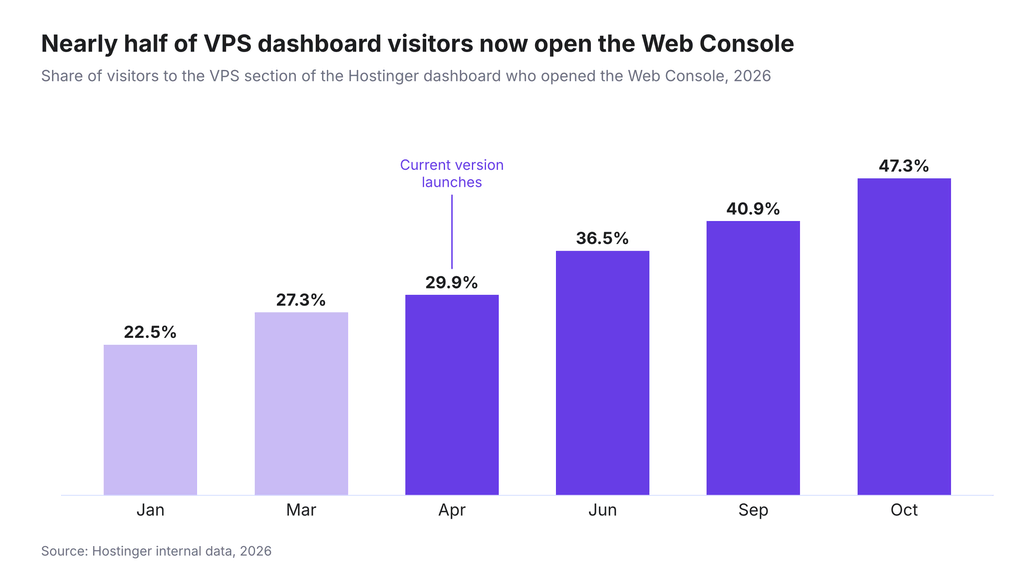
The share of people visiting their VPS in the dashboard who also open the Web Console has risen steadily through 2026, from about 23% in January to 47% in October. The current version of the terminal, launched in April, added Hostinger Agent, an AI assistant that works within the Web Console. At launch, the share stood at 30%.
Safe by design
All those 1-click logins only work if they’re secure, and our old terminal had no safe way to offer them. The patent covers this part too: how auto-login works and how each session is handled, from start to finish.
Stolen and reused login details are still a common way in. Credential abuse, the top entry point a year earlier, still accounted for 13% of breaches with a known initial access route, according to Verizon’s 2026 Data Breach Investigations Report. Each time you type them out, save them in a note, or reuse them to make them easier to remember, they get another chance to leak.
The Web Console’s auto-login cuts out most of those moments, because it doesn’t rely on a username and password at all. Instead, we place one-time credentials on your server for that session alone. We create them only when you open the Web Console from your own Hostinger dashboard, and people you share your account with need auto-login access to get them.
Each set is also short-lived. We delete them as soon as they’ve done their job, or soon after if the connection fails. In case anything slips through, a built-in expiry time makes your server reject any that are left. We designed them to be worthless after a single use.
The browser session works the same way. As soon as your browser connects, we destroy the data that could be used to open that session again. If your browser never connects, we delete it after a timeout, and when you disconnect, we clear whatever’s left in memory. A leaked session link is a dead end.
“The session is very fragile, but that’s what makes it secure,” says Čičinskas. “Any tampering with the session could trigger its termination and cleanup.”
Help inside the terminal
Getting back into your server is only half the fix. You still need to work out what went wrong, and many customers ask Hostinger Agent, which can run commands, read logs, and troubleshoot errors right in the terminal.
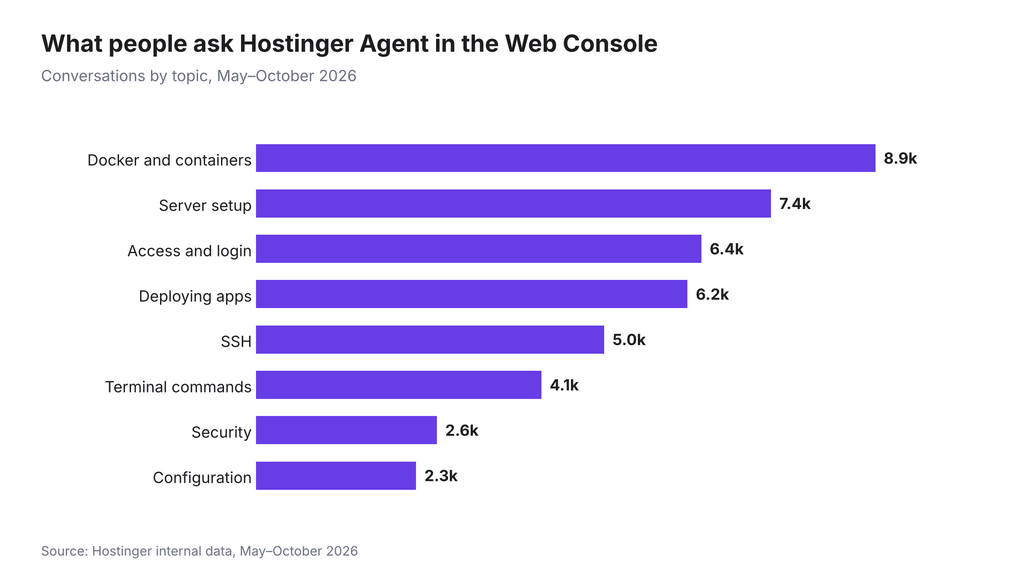
According to our data, about 16,800 customers (roughly 1 in 12 Web Console users) asked it for help on their own servers in October alone. Access and login is the third most common topic people bring to it, and SSH and configuration also make the top eight.
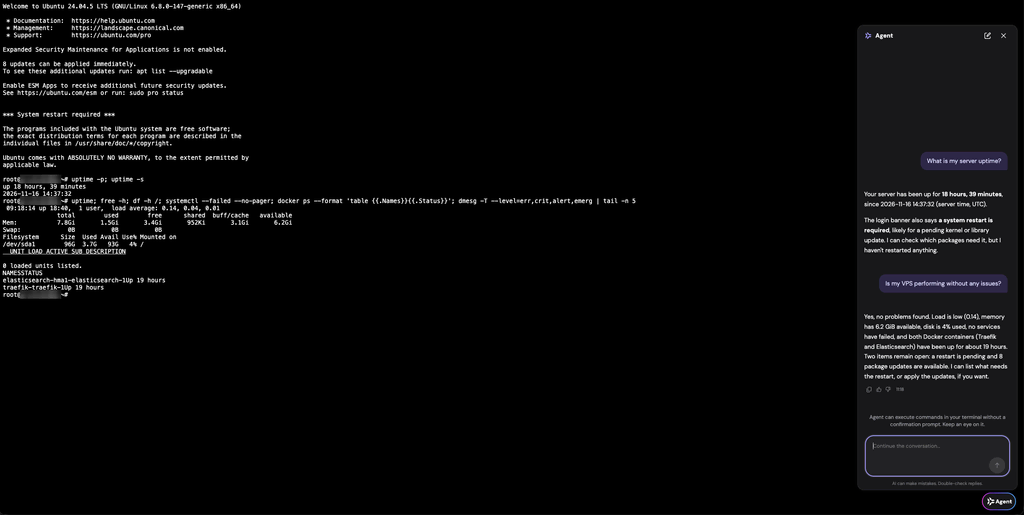
In the screenshot below, the agent checks a VPS’s load, memory, disk space, services, and Docker containers, then flags a pending restart and eight available updates.
For most developers, using AI to run a live server is still new. In Stack Overflow’s 2026 Developer Survey, 20% of developers who use AI said they apply it to deploying, operating, or troubleshooting production systems.
The guide to Hostinger Agent in the Web Console shows how to start.
Try it yourself
Before you change your firewall or SSH settings, make sure you know your server’s root password. You’ll need it if the Web Console falls back to the serial console, after you end a session with the exit command, or when you open a server through account sharing without auto-login access.
To open the Web Console, log in to the Hostinger dashboard and go to VPS → Manage → Web Console – our step-by-step guide walks you through it. It works best on a computer, since the layout isn’t designed for phones. Use it in one browser tab at a time. And if SSH stops responding, the Web Console can still get you a prompt.
We didn’t design the Web Console to prevent mistakes. We designed it so they don’t lock you out.

Karina is an award-winning journalist with over 13 years of experience in newsrooms and institutional communications across Latin America and Europe. Her work spans print and digital media, startups, NGOs, and EU-funded projects, with a focus on climate and science storytelling. As a Senior Content Writer at Hostinger, she digs into data, products, and the people behind them to find the stories and angles that matter most. Follow her on LinkedIn.


