I tested AI-managed VPS without any Linux experience – here’s how it went
Hosting a website or application on a virtual private server (VPS) has long been associated with needing to “know Linux.” It’s the kind of server that traditionally requires a certain level of technical knowledge, which can be intimidating for many people who want the extra power and flexibility.
I’m one of those people. My Linux experience is close to zero – I’ve never touched a command line to manage a server, and terms like “root access” or “sudo” have always felt like someone else’s job to understand.
Our VPS team set out to challenge that idea by integrating an AI assistant into VPS management. Behind the stack is Kodee, our in-house AI assistant powering Hostinger’s AI-managed VPS, which operates in two ways depending on the user’s request.
First, it can generate what we need based on our request, whether that’s a command, a configuration file, or an explanation. Second, it connects directly to our VPS via the Model Context Protocol (MCP), allowing it to inspect our server’s live state, diagnose issues, and run tasks on the machine itself rather than just telling us what to do.


I realized I was the perfect target user to put this to the test. So I set out to replace the Docker-based application on my VPS test account with a Ghost blog – with Kodee doing the heavy lifting.
I documented my setup process with Kodee heavily involved at every step. Along the way, you’ll see where it excelled and where I still needed to step in.
Switching the application on my VPS
The first thing I wanted to do was replace the application already running on my VPS with Ghost. I simply asked Kodee to switch my current setup to a Ghost installation.
Rather than leaving me to figure it out on my own, Kodee generated a clear, step-by-step guide that walked me through the process safely.
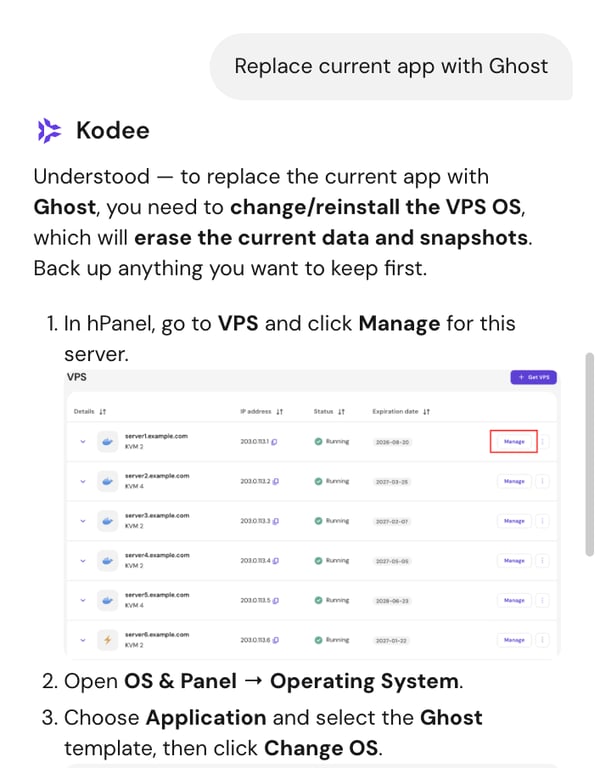
Kodee explained that switching to Ghost would require a full OS reinstall through Hostinger dashboard – a destructive action that would wipe my existing data and snapshots.
That’s not something Kodee performs directly, and honestly, it’s not something you’d want an AI agent doing on your behalf without you fully in the loop.
I simply followed the steps, and Ghost was installed after about 10 minutes.
Running a malware scan
As I explored the VPS dashboard, I noticed a purple prompt to install a malware scanner. I clicked Install, and it was set up in seconds. Once it was ready, I tried asking Kodee to scan my VPS for malware out of curiosity.
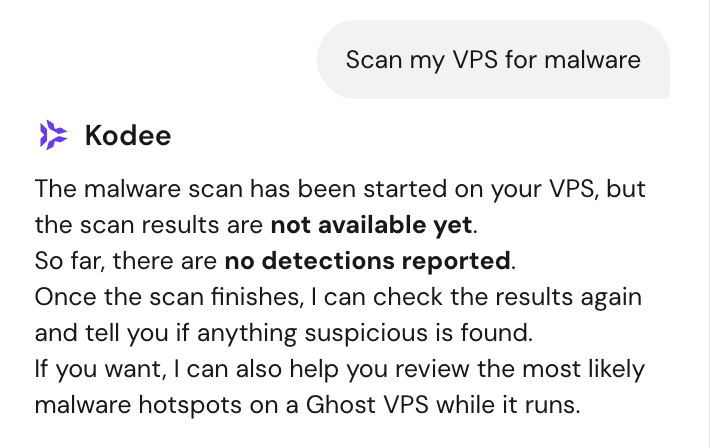
It handled the scan from start to finish without any extra input from me. The results came back clean, which wasn’t surprising given that the site was still brand new. Even so, seeing that conclusion backed by an actual scan rather than an assumption gave me confidence.
Securing my VPS with a firewall
Malware protection is only one part of securing a VPS, so I wanted to see how Kodee handled another common task: setting up a firewall.
I opened the Firewall menu in my VPS dashboard and clicked the Hostinger dashboard’s Nudge icon (the three little stars) to explore the available actions. I selected Secure my VPS with firewall.
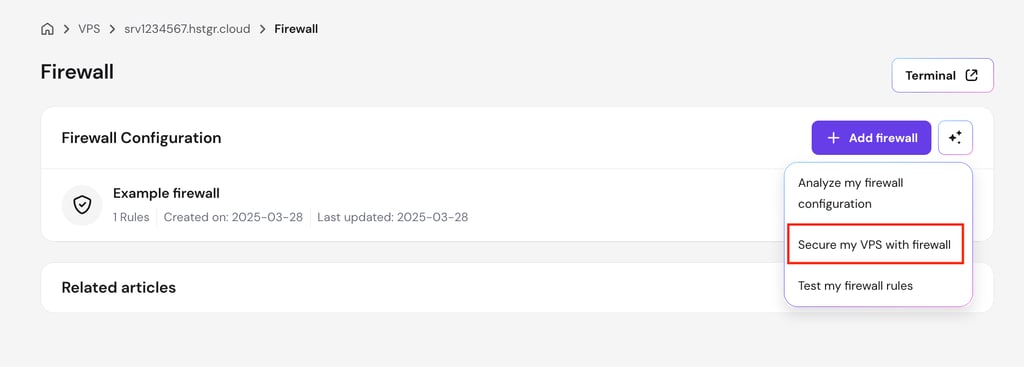
Kodee first got back to me with a step-by-step explanation of how to configure the firewall manually. It then asked whether I wanted it to apply the configuration for me instead.
After I confirmed, Kodee paused once more before making any changes. It asked for my confirmation whilst explaining the action it would take on my server.
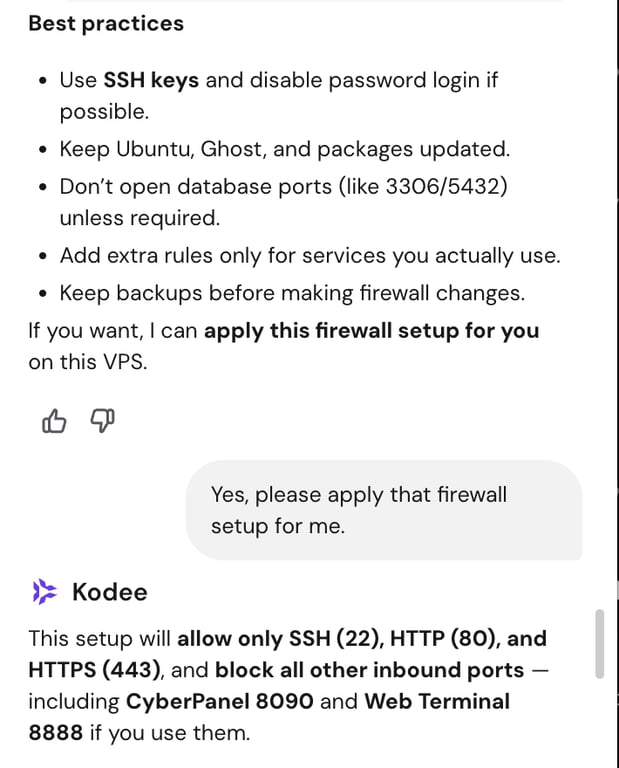
Once I confirmed that prompt, Kodee applied the firewall configuration successfully.
Connecting a domain name
Normally, connecting a domain name to a VPS means logging in to your domain registrar, navigating to the DNS settings, updating the necessary records, and making sure everything points to your VPS correctly. I wanted to see how much of that Kodee could handle for me.
All I had to do was give Kodee my domain name and tell it where the domain was registered, since it needed both to complete the Domain Name System (DNS) setup. I registered my domain with Hostinger, so Kodee could perform the steps directly, making the process straightforward. I assume the steps may differ slightly if yours is with another registrar.
Before making any changes, Kodee reviewed my existing DNS configuration and explained that it needed to remove the current records that would conflict with the new setup. It showed me exactly which records would be affected and asked for my confirmation before proceeding.
Once I approved that step, Kodee prepared the new DNS records needed to point my domain to the VPS. Again, it paused to explain the changes and asked for confirmation before updating anything.
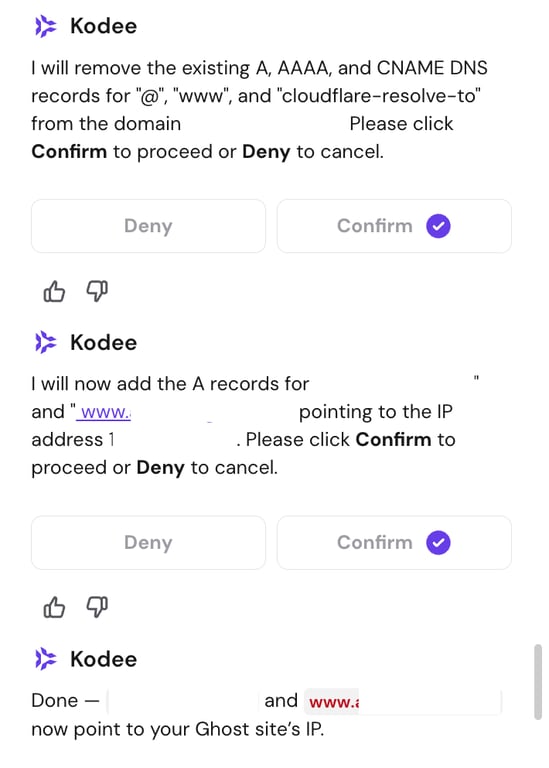
After I confirmed, Kodee applied the new DNS configuration, and my domain was successfully connected to the Ghost site. It only took me two confirmation clicks.
Installing an SSL certificate
With my domain connected, the next step was making sure the site could be accessed securely over HTTPS, which can be achieved by installing an SSL certificate.
Unlike managed web hosting, SSL isn’t preconfigured on a self-managed VPS. Without it, browsers will warn visitors that the connection isn’t secure – not exactly the first impression you want for a new website.
So I asked Kodee to set up SSL for my newly connected domain.
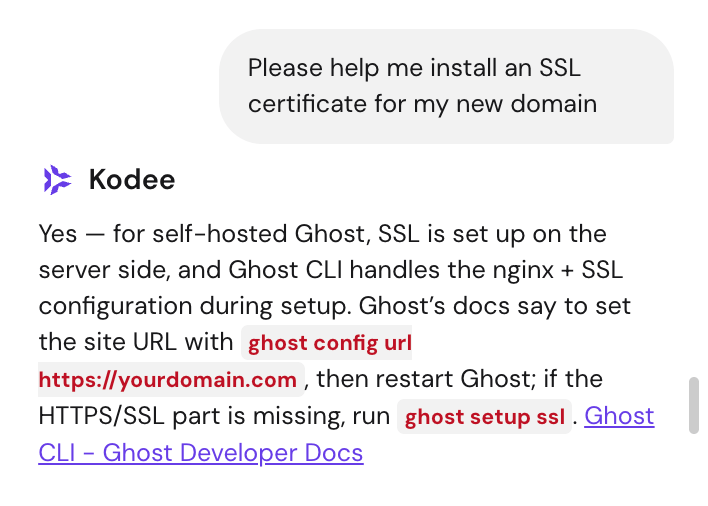
Kodee checked my Ghost configuration and identified the real issue: my installation was still pointed at the server’s default hostname rather than my custom domain. That had to be fixed first.
It walked me through three steps I should do manually – updating Ghost to use my domain, restarting the application, and running Ghost’s SSL setup command. Once those were done, Ghost CLI handled the certificate configuration automatically.
In this case, Kodee couldn’t perform the SSL installation directly, but it diagnosed the problem correctly and got me to the right solution.
Managing day-to-day server maintenance
Getting Ghost up and running was only half the experience. The other half is keeping a VPS healthy day-to-day, like checking server performance and monitoring resource usage.
For those day-to-day tasks, I found Hostinger dashboard’s AI Nudges especially useful. Based on my server’s current state, they surfaced recommendations for things like resource usage, connectivity, or outdated software.
Clicking a Nudge revealed a list of suggested questions I could send to Kodee. With a single click, the question was sent automatically, and Kodee retrieved my server’s live metrics, explained what was happening in plain language, and guided me through the next steps.
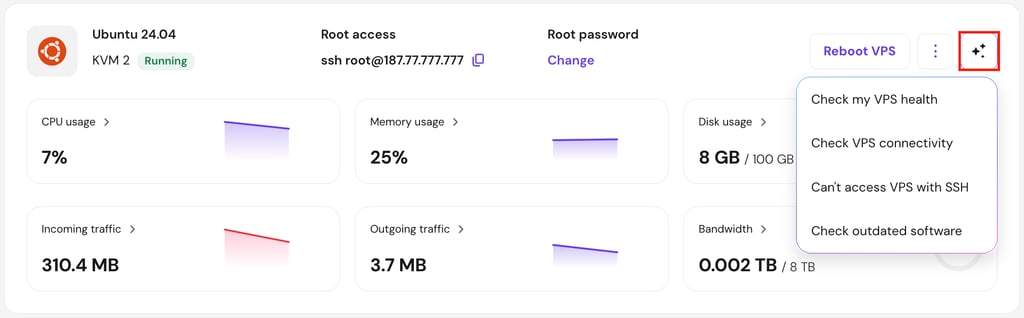
That’s another area where Kodee came in handy. Instead of digging through monitoring dashboards and trying to interpret unfamiliar metrics, I could simply ask questions to Kodee, which is already integrated into my VPS dashboard.

My honest take about the overall experience
I started this experiment to find out whether I could confidently set up and manage a VPS by relying on Kodee throughout the entire process. A few conversations later, my Ghost blog was live.
Instead of jumping between documentation, tutorials, and a terminal full of commands, I could simply ask Kodee what I needed and learn what was happening as I went.
The learning curve hasn’t disappeared, and that’s not really the point. AI-managed VPS doesn’t take control away from me. Kodee confirmed every action before making changes, and some things – like the OS reinstall – it won’t do at all. The decisions stayed mine throughout.
What it does remove is much of the friction that comes with getting started – the documentation rabbit holes, the unfamiliar commands, the guesswork.
I described what I wanted to accomplish, Kodee helped with the technical execution, and I stayed in control of every important decision along the way.
If you’ve been considering a VPS but kept putting it off because server management felt intimidating, this is exactly the kind of experience an AI-managed VPS was built for.
And if you’re curious about how Kodee performs beyond my own experience, my teammate analyzed more than 914,000 customer conversations with Kodee on VPS, exploring what it does well and where it still has room to improve.
For me, the biggest difference I felt from this experiment was that managing a VPS no longer felt intimidating.

Larassatti Dharma is a content writer with 5+ years of experience in the web hosting industry. She has populated the internet with over 100 YouTube scripts and articles around web hosting, digital marketing, and email marketing. When she's not writing, Laras enjoys solo traveling around the globe or trying new recipes in her kitchen. Follow her on LinkedIn