Email marketing automation uses predefined triggers and rules to send relevant emails when someone takes an action, such as signing up for your mailing list, or reaches a specific date, such as a subscription renewal. You decide who should receive each email and when, and your email platform handles the sending.
For a small team, this means welcome emails go out when someone subscribes, even when no one is working. Other automated workflows remind shoppers about unfinished purchases, follow up after orders, or reconnect with customers who haven’t engaged in a while.
To get started, choose one goal, decide what will start the emails and who should receive them, and plan a short series of messages with delays between them. Test everything before sending to your subscribers, then track whether people click your links or complete the action you want, such as making a purchase.
What is email marketing automation?
Email marketing automation is a type of email marketing that sends messages automatically based on rules you set in advance. Each email goes out when someone takes an action or meets a condition you’ve set, such as signing up for a mailing list or reaching a subscription renewal date. You set the rules and prepare the messages beforehand, and your email platform sends them when each subscriber qualifies.
A scheduled campaign works differently. You choose when an email goes out to a selected audience, such as a Black Friday announcement going out to all subscribers on the morning of the sale. With automation, the timing depends on each subscriber. For example, people who sign up on different days receive their welcome emails on different days.
A welcome email can also start a drip sequence, a series of emails sent at planned intervals after sign-up. Behavioral automation responds to actions, such as leaving a shopping cart unfinished. The two can also work together: an abandoned cart triggers a series of reminders sent over several days.
How does email marketing automation work?
Email marketing automation works by responding to actions people take, such as signing up or making a purchase, or to specific dates, such as subscription renewals. The platform follows the rules you’ve set to decide who receives each email, when to send it, and whether a follow-up is needed.
An automated workflow uses some or all of these components, depending on what you want it to do:
Trigger. The event that starts the workflow, such as a shopper leaving items in their cart, a subscriber going 30 days without opening or clicking, or a customer’s birthday.
Audience and conditions. Rules that determine who receives the emails and who doesn’t. Conditions often rely on segments, which are groups of contacts with something in common, such as buying from the same product category.
Actions. What the platform does next, usually sending an email.
Delays. How long the platform waits before the next action, such as two days before sending a follow-up.
Branches. Different paths based on what someone does. Subscribers who click a product link might receive a recommendation, while those who don’t receive a reminder.
Exit and suppression rules. Rules that stop emails when they’re no longer relevant. Exit rules remove contacts who reach the workflow’s goal, such as completing a purchase after abandoning a cart. Suppression rules block emails to contacts who no longer qualify, such as those who unsubscribe.
Measurement. Reports that show how subscribers respond to your emails, such as clicking links or unsubscribing. Tracking purchases requires suitable store analytics or conversion tracking.
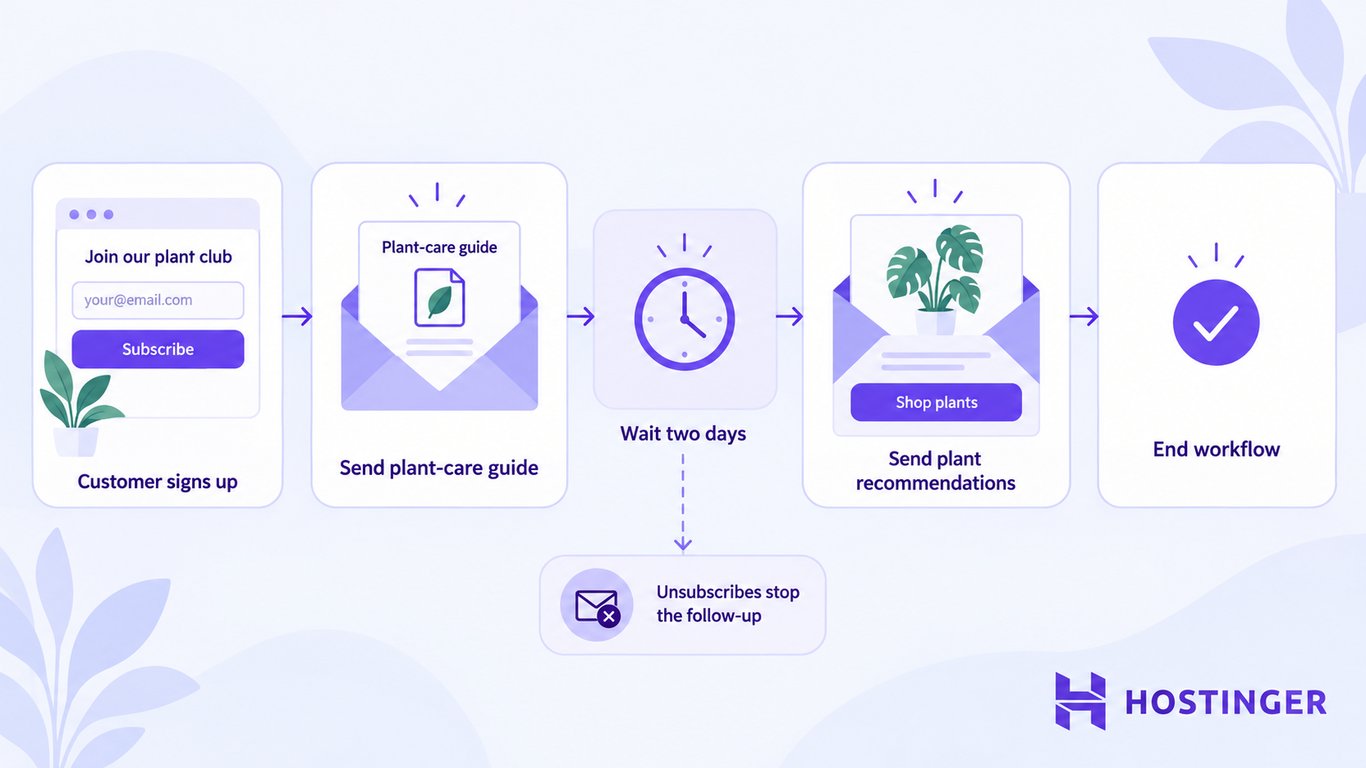
Say you run an online plant shop and offer a free plant-care guide to people who join your mailing list.
When someone signs up, that action starts the workflow (trigger). Only subscribers who have agreed to receive marketing emails are included (audience condition).
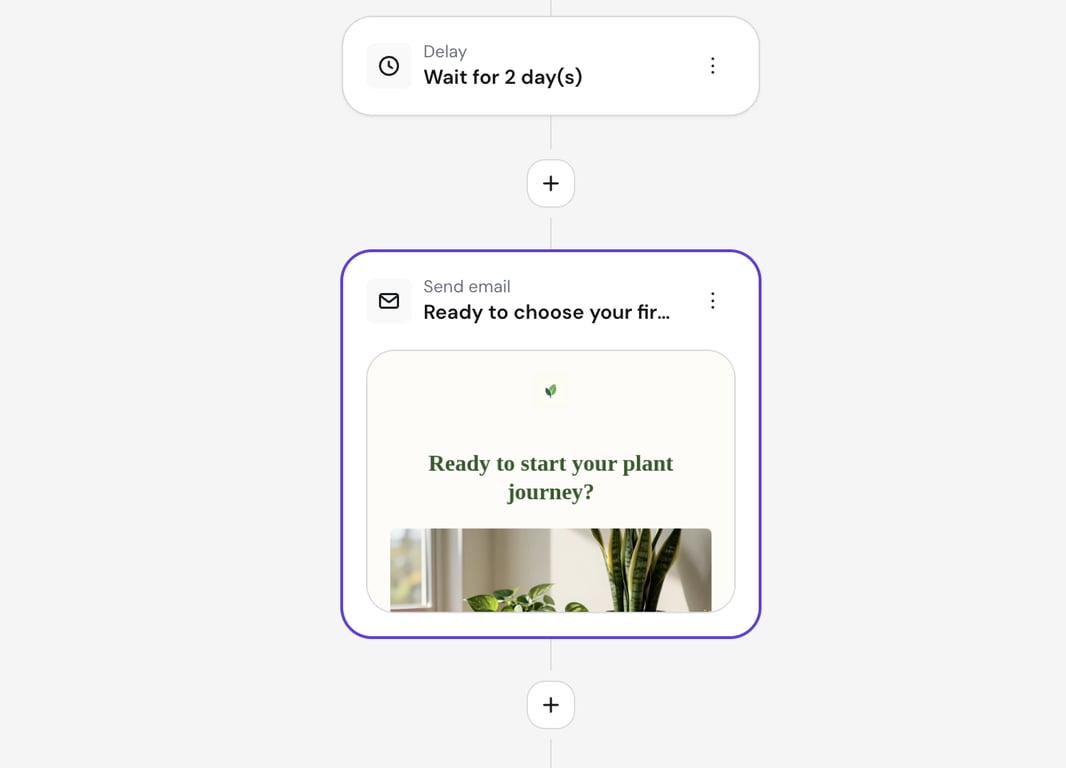
The workflow first sends the plant-care guide (action), waits two days (delay), then sends a second email (action).
The follow-up shares tips for choosing a first houseplant and links to your beginner-friendly plants.
Anyone who unsubscribes before the follow-up won’t receive it (suppression rule).
You then check how many subscribers clicked through to your store to see whether the emails encouraged people to browse your products (measurement).
Types of email marketing automation
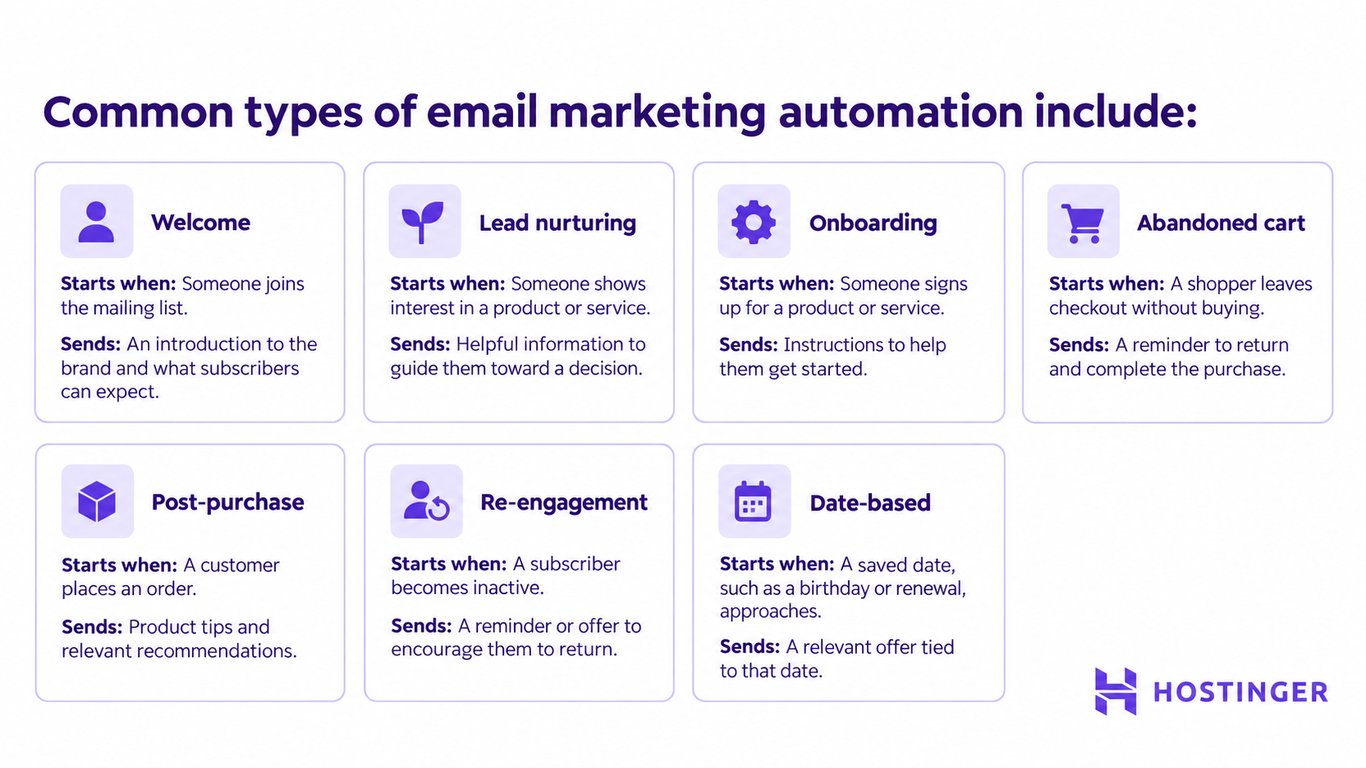
Common types of email marketing automation include welcome, lead nurturing, onboarding, abandoned-cart, post-purchase, re-engagement, and date-based emails.
Welcome automation. Starts when someone joins your mailing list and introduces them to your business. For example, at an online bookstore, signing up triggers a welcome email with a first-order discount. A few days later, the subscriber receives popular book recommendations.
Lead nurturing automation. Follows up with potential customers who have shown interest but haven’t purchased. For instance, as part of its lead nurturing strategy, a web design agency sends examples of completed projects after someone requests a pricing guide, then invites them to book a consultation.
Onboarding automation. Helps new customers or users get started with a product or service. For example, a project management app uses an onboarding email sequence to send setup instructions after sign-up, then remind users who haven’t created their first project to do so.
Abandoned-cart automation. Reminds shoppers about items they added to their cart but didn’t buy. Here’s an example: an online clothing store sends a reminder a few hours after someone leaves checkout, with a link to return to the store and finish shopping.
Post-purchase automation. Helps customers use what they’ve bought and encourages future purchases. For example, purchasing an espresso machine triggers an email with brewing tips, followed later by recommendations for compatible coffee beans.
Re-engagement automation. Encourages inactive subscribers or customers to return. For example, an online learning platform identifies students who haven’t taken a lesson in 30 days and emails them a link to continue where they left off.
Date-based automation. Sends emails based on dates saved in customer records, such as birthdays, renewals, or subscription anniversaries. For instance, a membership service emails customers two weeks before renewal with an offer to upgrade to a premium plan.
These marketing emails are different from transactional emails, such as order confirmations, password resets, and login alerts. Transactional emails use similar automated triggers but provide information about purchases or accounts rather than promoting products.
Benefits of email marketing automation
Email marketing automation saves time by sending emails after customers take specific actions, makes follow-ups easier to personalize, keeps communication consistent, and simplifies performance tracking.
Timely emails. A welcome workflow sends the requested guide as soon as a subscriber is eligible, without waiting for someone to send it manually.
More personalized messages.Personalized email marketing uses customer information, such as previous purchases or stated interests, to make emails more relevant. For example, customers who bought a monstera receive care tips for that plant.
Less repetitive work. Once you’ve set up a workflow, the platform sends emails and follow-ups automatically. This makes email automation for small businesses useful for teams that don’t have someone managing campaigns every day.
Consistent customer journeys. Every contact receives the same follow-ups in the same order. For example, every plant-care guide subscriber receives the guide before the product recommendations, regardless of when they sign up.
Easier performance tracking. The same workflow applies to every new contact, so comparing clicks, unsubscribes, and other metrics shows which emails need improvement. Store analytics also show whether those emails lead to sales.
How to set up email marketing automation
To set up email marketing automation, choose a platform, define your goal and audience, select a trigger, plan the workflow, create the emails, set the sending rules, and test everything before launch.
1. Choose an email automation platform
Choose an email automation platform that supports the workflows you want to create and connects to your website or online store.
Automation features. Look for ready-made workflows, triggers, delays, conditions, and an easy-to-use editor.
Integrations. Confirm that the platform connects to your signup forms and ecommerce tools.
Audience management. Check for subscriber segmentation, consent records, and unsubscribe management.
Reporting. Look for email performance and workflow progress reports.
Pricing. Compare contact and email limits, both for your current list and as it grows.
When checking pricing, make sure the plan includes automation, not just regular email campaigns. For example, Hostinger Reach includes automated workflows on its paid plans, while the free plan covers regular campaigns.
2. Define the goal and audience
Give your automation one main goal and identify who should receive its emails. Common goals include welcoming new subscribers, recovering abandoned carts, encouraging repeat purchases, nurturing leads, and re-engaging inactive customers.
Focusing on one goal keeps your messages relevant and makes it easier to measure the results.
For example, an online plant shop wants people who signed up for its free plant-care guide to browse its beginner-friendly plants. Its follow-up emails should target those subscribers rather than everyone on the mailing list.
The shop can identify that audience through the guide’s sign-up form or a contact segment of people who submitted it.
3. Choose the trigger
Choose the event that starts your automation, such as a sign-up, a purchase of any product or a particular product, an abandoned checkout, inactivity, or a subscription renewal date.
For the plant shop, the trigger is someone submitting the sign-up form for the free plant-care guide.
To set up this specific trigger in Hostinger Reach, open Email Marketing → Open Reach in your Hostinger dashboard, or sign in atreach.hostinger.com. Make sure your sign-up form has been created and activated under Forms.
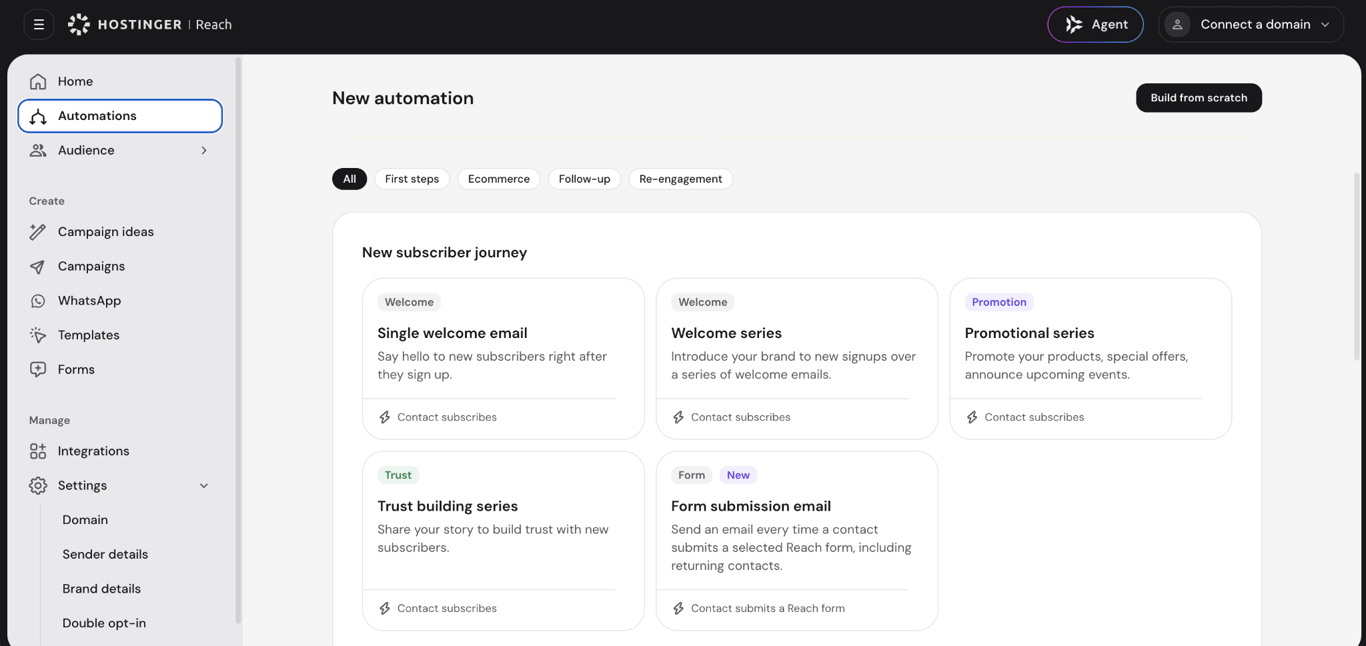
Then go to Automations → New automation. You have two options:
Use a template. Under First steps, select Form submission email. The Contact submits a Reach form trigger is already included.
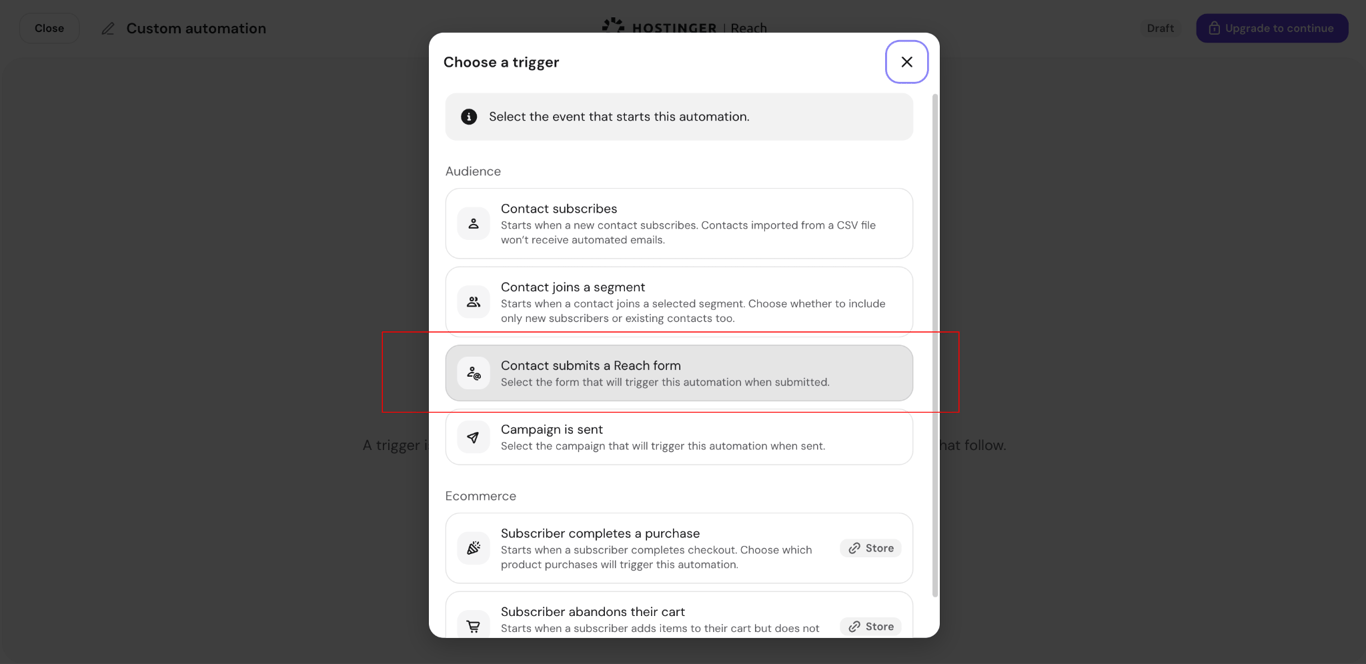
Build from scratch. Select Build from scratch → Choose a trigger → Contact submits a Reach form.
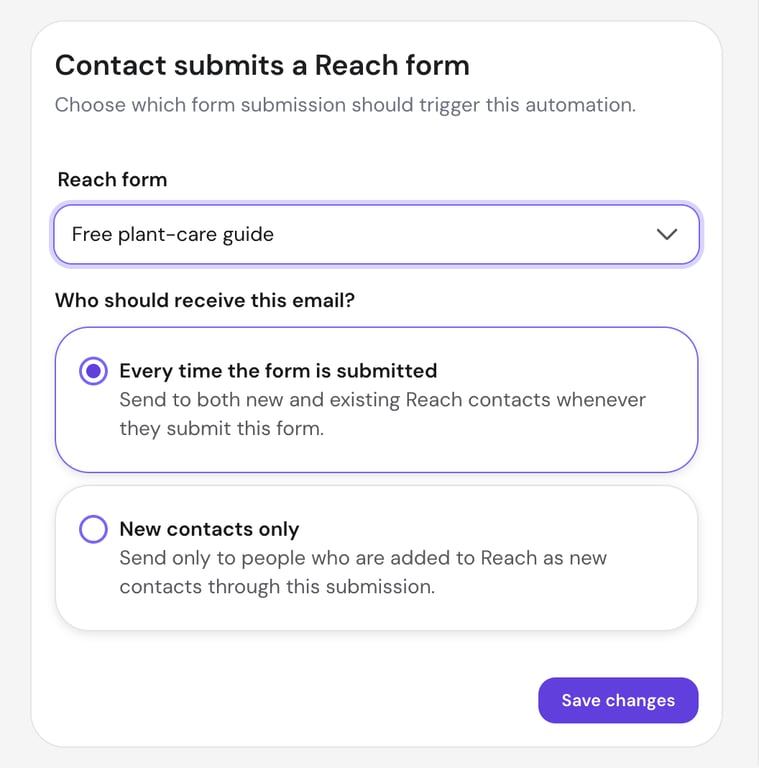
Next, select your form and choose whether the automation runs for new contacts only or every time the form is submitted. For the plant-care guide, choose the latter if existing subscribers should also receive the download.
The Contact submits a Reach form trigger only works with forms created in Reach. For forms built in WordPress or Hostinger AI Builder, choose the segment trigger and select the segment associated with the connected form instead.
Segment-based automations start only for contacts who join the segment after you activate the automation, so people already in it won’t receive the emails.
For purchase and abandoned-cart automations…
First, connect your online store to Reach. Under Integrations, connect your Hostinger Ecommerce store, including stores built with Hostinger AI Builder. For WooCommerce, connect through the Hostinger Reach WordPress plugin. This lets Reach detect purchases and unfinished checkouts.
4. Map the workflow and timing
Plan which emails to send, how long to wait between them, and when the workflow should end.
For the plant shop, the sequence is:
Someone requests the guide → Send plant-care guide → Wait two days → Send beginner-friendly plant recommendations → End workflow
With the trigger selected in Reach, add the steps in this order:
1. Add the first email. The Form submission email template already includes an email step. When building from scratch, click + below the trigger in the workflow and select Email.
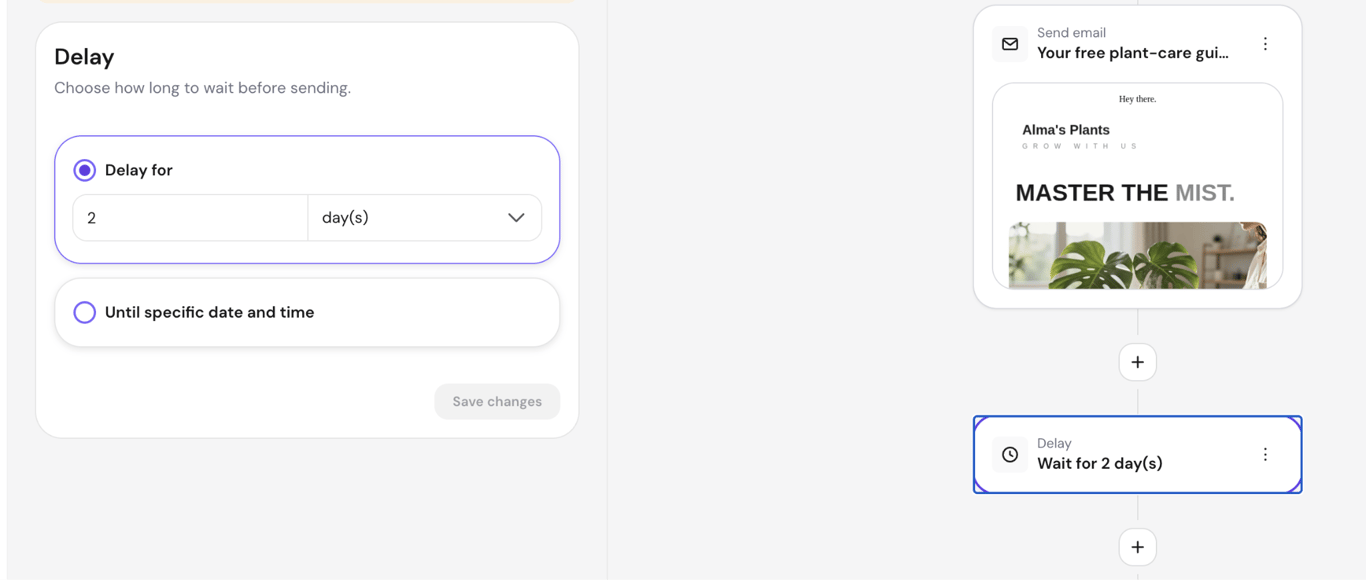
2. Set the delay. Click + below the first email, select Delay, and choose Delay for → 2 days. Save the step.
3. Add the follow-up. Click + below the delay and select Email again.
The Delay for setting makes sure each subscriber receives the recommendations two days after the guide, regardless of when they sign up.
Reach also supports Condition steps for different follow-ups based on subscriber behavior, such as whether someone clicked a link. Start with the simple sequence above and add conditions when you need them.
5. Create and personalize the emails
Write each email around one clear purpose and action. For the plant shop, the first email delivers the guide, while the second introduces beginner-friendly plants.
When writing a marketing email, check:
Subject line. Tell subscribers what to expect, such as “Your free plant-care guide is here.”
Content. Keep the message relevant and concise. The ideal marketing email length depends on what readers need to know.
Call to action (CTA). Include one main action, such as Download your guide or Browse beginner plants.
Personalization. Use subscriber details you’ve collected and set fallback text for missing information.
Branding and layout. Use consistent colors and branding, and make sure the email works on mobile.
In Reach, click the first Send email step in your workflow. Choose Generate template to create the plant-care guide email with AI, or Select template to use an existing design. Repeat for the plant recommendations email.
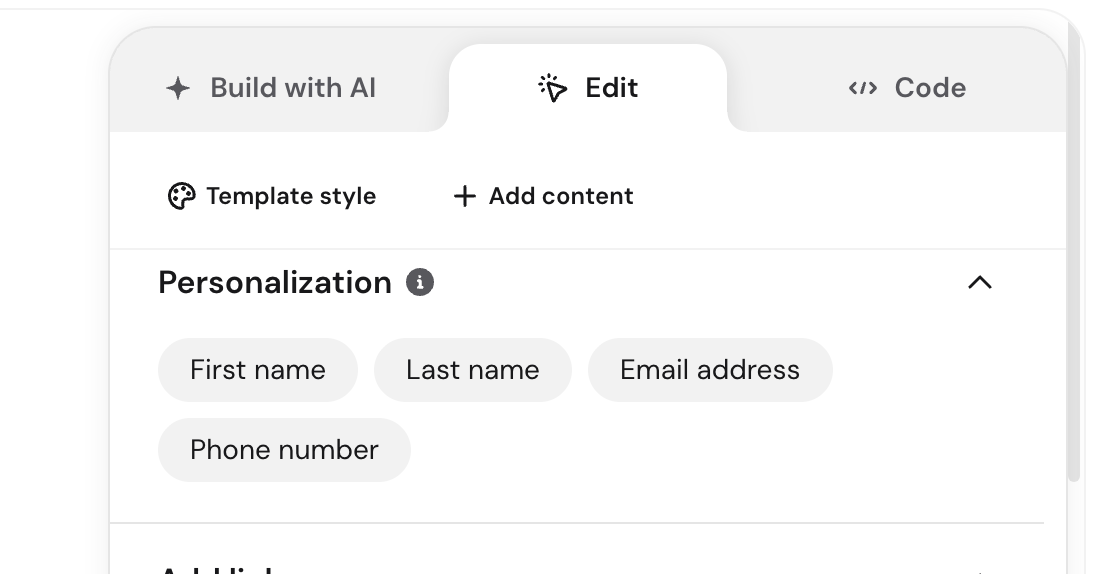
To personalize the greeting, open the template in Edit mode, select the greeting text, and go to Personalization. Personalization requires Reach 500 or higher.
Choose First name. For contacts without a saved name, the greeting uses There by default, as in “Hi There”. Edit it to there if you prefer lowercase.
Preview both emails to check their content, links, personalized greetings, and mobile layouts.
6. Set conditions, exclusions, and consent rules
Check who receives your emails, when follow-ups should stop, and whether subscribers can enter the workflow again. These rules help prevent irrelevant or repeated messages.
Before turning on your email automation, check:
Eligibility and exclusions. Make sure the workflow targets the right contacts. For example, a first-order discount should exclude customers who have already purchased if your platform supports exclusions.
Stopping rules. Decide when follow-ups should stop. For example, abandoned-cart reminders should stop after the customer completes their purchase.
Repeat entry. Decide whether contacts enter the workflow once or each time they meet the trigger. In Reach, you choose this when configuring a form-submission trigger.
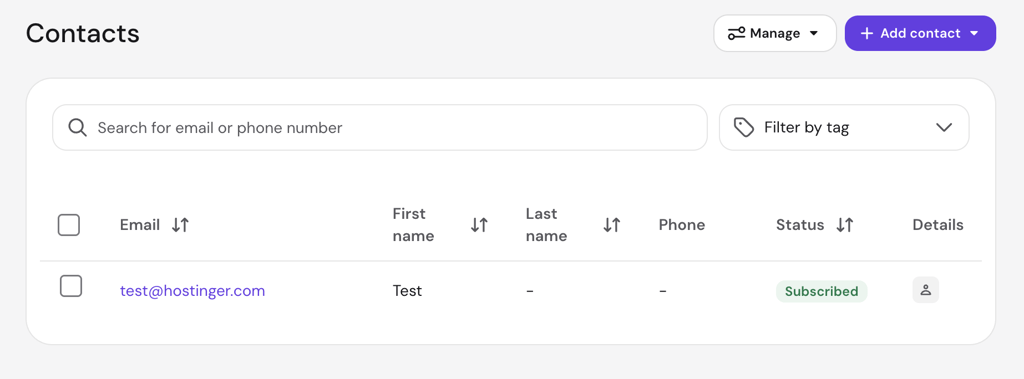
Marketing permission. Confirm that contacts have permission to receive promotional emails. Reach sends automations only to contacts marked Subscribed and automatically excludes those marked Unsubscribed.
For the plant shop, open Audience → Contacts in Reach to check subscribers’ status. Also review other active workflows to avoid sending overlapping messages, such as a first-order offer after someone has already purchased.
Follow the marketing laws that apply to your audience, including the General Data Protection Regulation (GDPR) and applicable ePrivacy rules in the EU and the CAN-SPAM Act in the US. Reach checks subscription status, but collecting appropriate marketing permission remains your responsibility.
Warning
Don't assume an abandoned-cart workflow automatically cancels reminders after a purchase. Test this by leaving checkout, completing the order before the reminder is due, and checking that no reminder arrives.
7. Test, activate, and measure the automation
Check your workflow, activate it, and test it with your own email address before making it available to customers.
First, review the setup. Make sure the correct form starts the workflow, the emails are in the right order, and the delays match your plan. Check that personalized greetings, links, buttons, and mobile layouts display correctly.
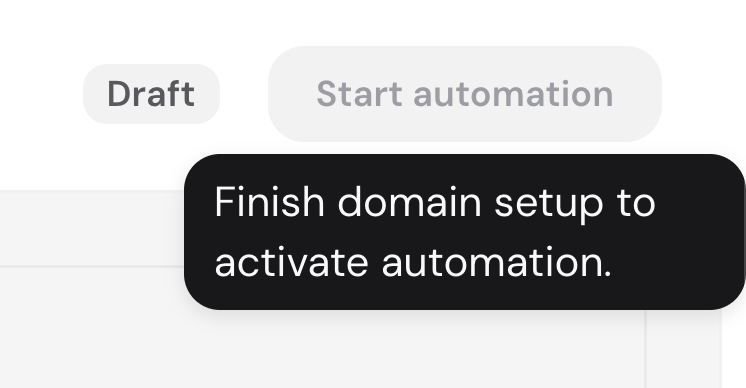
Click Connect Domain on the Reach dashboard or open Settings → Domain settings.
Reach automatically configures the required DNS records for domains managed by Hostinger. Follow the instructions to verify ownership and add the required records if your domain is managed elsewhere.
Once the domain is verified, activate your workflow.
To test the plant shop automation:
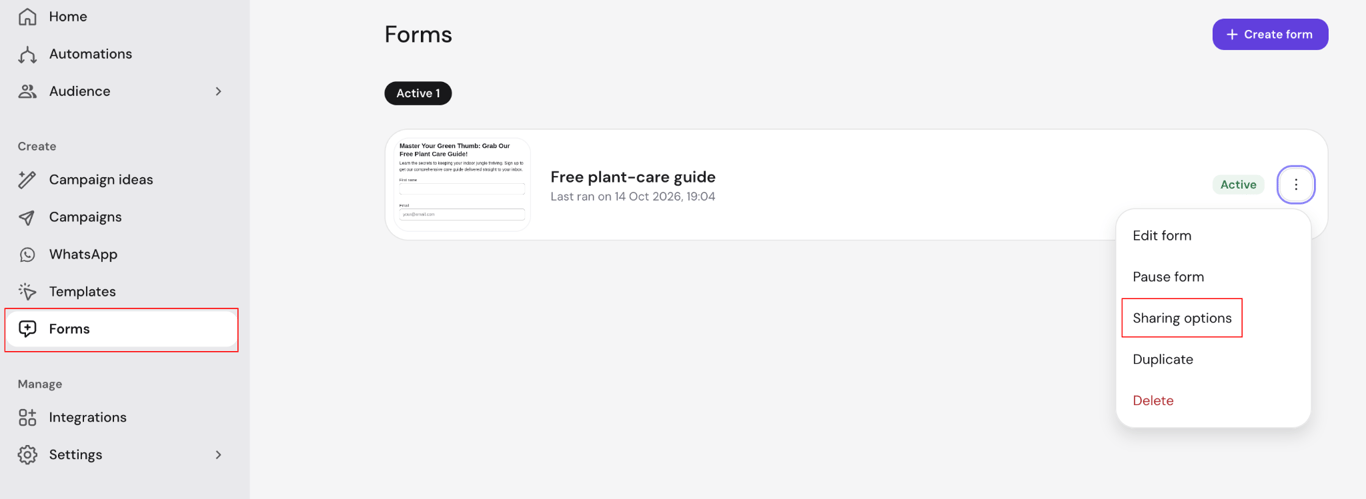
1. In Reach, access your form’s Sharing options and use the shareable link to open the form in your browser.
2. Submit the form using a separate email address you control.
3. Back in Reach, go to Audience → Contacts and check that your test contact is marked Subscribed.
4. Check your inbox for the plant-care guide email. Open its download link to make sure it works.
5. After the delay, confirm that the plant recommendations email arrives and its product links work.
Also, test the unsubscribe link using a separate email address, so your main test contact still receives the full sequence. After unsubscribing, that contact should stop receiving marketing emails.
Once the tests pass, add the sign-up form to your website if you haven’t already. For forms already live on your website, eligible new submissions can start the automation once the workflow is active, including during testing.
After launch, open Automations → View report in Reach. The Performance panel shows how many contacts have started, are still progressing through, completed, or failed the workflow. Under Step analysis, you can review clicks, bounces, and unsubscribes for each email.
For the plant shop, check click-through rate (CTR) on the beginner-friendly plants link. Use your store analytics to measure conversions and revenue if your automation aims to generate purchases.
Don’t rely on open rates alone. Some email apps load tracking images automatically, even when the recipient hasn’t read the message. Apple Mail does this by default when its Protect Mail Activity setting is on.
Email marketing automation best practices
Keep your email automations effective by controlling how frequently subscribers receive messages, maintaining accurate contact lists, and reviewing workflows after launch.
Start with one high-value workflow. Focus on an automation tied to a measurable business goal before creating more. This makes it easier to identify which messages are working and fix mistakes.
Keep your audience segments relevant. Review the data used to group subscribers as their interests or purchase history changes. Otherwise, people continue receiving recommendations that no longer match their needs.
Avoid sending too many emails. Receiving a welcome email, cart reminder, and promotion on the same day will overwhelm subscribers and increase unsubscribes. Check where your workflows overlap, then adjust their timing or exclusions to prevent too many messages from arriving close together.
Clean your subscriber lists regularly. Sending marketing emails to unsubscribed contacts ignores their preferences, while repeatedly emailing invalid addresses harms deliverability. Exclude unsubscribed contacts and hard bounces (addresses that permanently reject emails), and review inactive subscribers to decide whether to re-engage them or stop sending promotions.
Update your email content. Automated emails keep using their saved content until you change it, so expired offers, unavailable products, and broken links keep reaching subscribers. Review your workflows whenever an offer ends, a product changes, or your website’s links move. Add a regular check that matches how often your offers and products change.
Improve workflows based on results. High click rates don’t always mean an automation is achieving its goal. For abandoned-cart reminders, use your store’s conversion tracking to check whether shoppers complete their purchases after clicking. Use the results to identify what needs improving, then test one change at a time, such as the email’s timing or main button.
Retest after making changes. Updating a trigger, delay, or condition can affect who receives emails and when. Run a test contact through the updated workflow to check the email sequence and stopping rules. Follow the email’s main link and complete the intended action, such as downloading a guide or placing a test order, to make sure the entire process still works.
Start with one email automation and build from there
You don’t need to automate your entire customer journey at once. Start with one automation that addresses a clear business need, such as welcoming new subscribers, following up after purchases, or recovering abandoned carts. Once it’s running, check whether subscribers take the action you intended.
Use those results to improve the workflow before creating another. For example, low click rates are a reason to review your subject line, message, and call to action. Learning to write effective marketing emails helps you make those improvements.
Alma is an AI Content Editor with 9+ years of experience helping ideas take shape across SEO, marketing, and content. She loves working with words, structure, and strategy to make content both useful and enjoyable to read. Off the clock, she can be found gaming, drawing, or diving into her latest D&D adventure.