How to send a newsletter in Gmail: a step-by-step guide
Sep 18, 2026
/
By Justina B.
/
12 min Read
You can send a newsletter in Gmail by composing a message and adding recipients through a Google Contacts label, using Gmail mail merge, or using BCC for smaller lists. The best method depends on your account type and list size.
Free Gmail accounts allow up to 500 emails per day. Group your subscribers with contact labels and add them via BCC to keep their addresses hidden from each other.
Google Workspace accounts support up to 2,000 emails per day, and most plans include mail merge. Mail merge inserts each recipient’s name or other details into your message, with a cap of 1,500 personalized emails per day.
Here are the seven steps to send a newsletter in Gmail:
- Check if Gmail fits your newsletter needs
- Pick the right account type for your sends
- Organize your subscribers in Google Contacts
- Write and format your newsletter in Gmail
- Use Gmail mail merge for personalized sends or BCC
- Test your email before it goes to your full list
- Hit send and make sure everything was delivered
1. Decide whether Gmail is the right tool for your newsletter
Gmail works best for occasional newsletters sent to a small, permission-based list. Think internal updates, class announcements, community news, or client check-ins. Use a dedicated email marketing platform if you plan to send public newsletters regularly, grow your audience, or manage campaigns at scale.
Gmail provides two main sending options. Both free Gmail and Google Workspace accounts can use BCC to hide recipients’ email addresses. Eligible Google Workspace plans also include mail merge, which sends a separate, personalized email to each recipient.
You can use a Google Contacts label with either method to select a saved group instead of manually adding every address.
Use Gmail if:
- You have a very small recipient list.
- You send newsletters only occasionally.
- A simple email design is enough.
- You don’t need detailed open-and-click tracking.
- You can handle new subscribers and unsubscribe requests manually.
Use an email marketing platform if:
- You regularly send public or business newsletters.
- You need sign-up forms and subscriber management.
- You want branded templates or more design control.
- You need automated follow-ups.
- You want to track opens and clicks.
- Your growing list creates deliverability or compliance concerns.
Create an email newsletter with a dedicated platform to go beyond Gmail from the start.
2. Choose between a free Gmail account and Google Workspace
Use free Gmail if you’re sending occasional updates to a very small list, and BCC provides everything you need. Choose an eligible Google Workspace plan if you want to send from a custom business address or use Gmail mail merge for personalized emails.
Google Workspace has several plans. This table compares free Gmail with the Business Standard plan, the lowest tier that includes mail merge.
| Free Gmail | Google Workspace Business Standard | |
| Daily recipient limit | 500 | 2,000 |
| Mail merge available | No | Up to 1,500 recipients per day |
| Custom domain address | No | Yes |
| Cost | Free | $14/user/month |
These prices are for annual billing. Monthly rates are higher. If you just want a custom domain address without mail merge, the Starter plan at $7/user/month still lets you send newsletters with BCC.
Google Workspace plans let you send from an address like you@yourbusiness.com instead of you@gmail.com. A branded sender address looks more professional and can help build trust with your recipients.
Free Gmail is fine for lists under 100 and hobby or club newsletters. Business Standard pays for itself in sender credibility alone for anyone in the business domain, with more than 100 subscribers, or on a monthly sending schedule.
3. Build your subscriber list in Google Contacts
Create labels in Google Contacts to keep your subscribers organized and divide them into basic segments, such as customers, event attendees, or people interested in different topics. This makes it easier to send each newsletter to the most relevant group.
Start by going to contacts.google.com and signing in with the Gmail account you’ll send from. Add subscribers one by one with Create contact, or click Import to upload a CSV file.
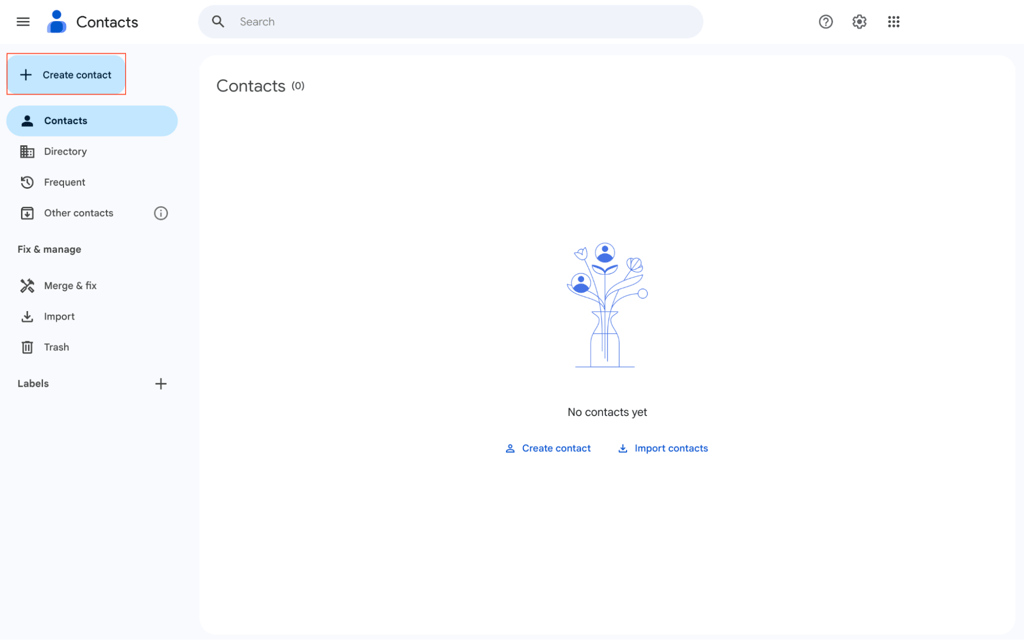
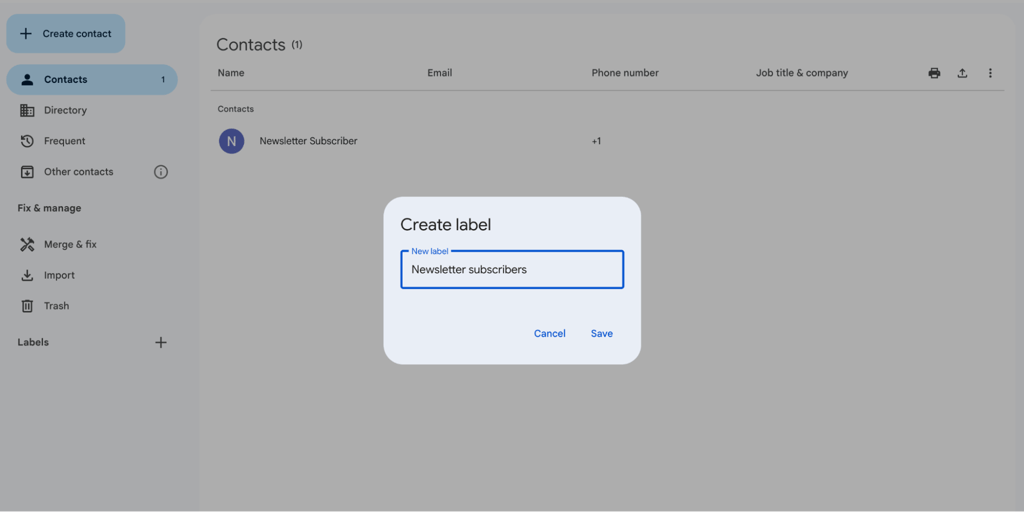
For CSV imports, open Google’s sample template, make a copy, fill in your subscriber details, then download the CSV and upload it through the Import screen. Select the contacts you want to add to your newsletter list, then click the Manage labels icon at the top of the page.
Choose an existing label or create a new one, such as “Newsletter subscribers,” and confirm that the contacts are added.
Split any CSV with more than 3,000 contacts into smaller files before importing. Google Contacts has trouble processing larger batches in a single upload.
Only add people who’ve given you permission to email them. Gmail suspends accounts that send bulk email to people who never signed up, and recipients marking your messages as spam hurts your ability to reach inboxes in the future.
Permission isn’t a one-time step, though. Your list needs regular upkeep to stay accurate as people lose interest or change their minds.
Good email list segmentation starts with a clean, consent-based list, so you’ll need to update your labels and remove people who unsubscribe manually.
4. Draft your newsletter content in Gmail
Open a new compose window in Gmail and build your newsletter around one clear purpose, such as sharing an update, announcing an event, or directing readers to a new resource. Keep these fundamentals in mind:
- Subject line. Put the most important information first, and keep the key message within 40 characters so it displays fully on mobile devices. Be specific: “March studio schedule” beats “Newsletter #4.” Avoid excessive capitalization, punctuation, and misleading claims. Strong email subject line best practices also help boost open rates.
- Body structure. Start with a short intro explaining the email’s purpose, then present the main content in short paragraphs. Add one prominent call-to-action link with clear text, like “View the full schedule” or “Register for the workshop.” End with your name, organization, and contact details.
- Unsubscribe option. BCC requires a manual unsubscribe line at the bottom, like “Reply UNSUBSCRIBE to be removed from this list.” Mail merge automatically adds an unsubscribe link.
- Formatting and layout. Use Gmail’s formatting toolbar for font sizes, bold text, links, and bulleted lists. Google Workspace Business Standard and higher plans include Gmail Layouts with headers, multi-column sections, buttons, and images in a drag-and-drop editor. Stick to a single-column structure and readable fonts for consistent results across devices. Solid email design best practices help keep your newsletter readable everywhere.
Pro tip
Write subject lines that tell recipients exactly what's inside. "March class schedule update" is more likely to get opened than "Newsletter #7" because the reader immediately knows why it matters to them.
5. Send your newsletter in Gmail
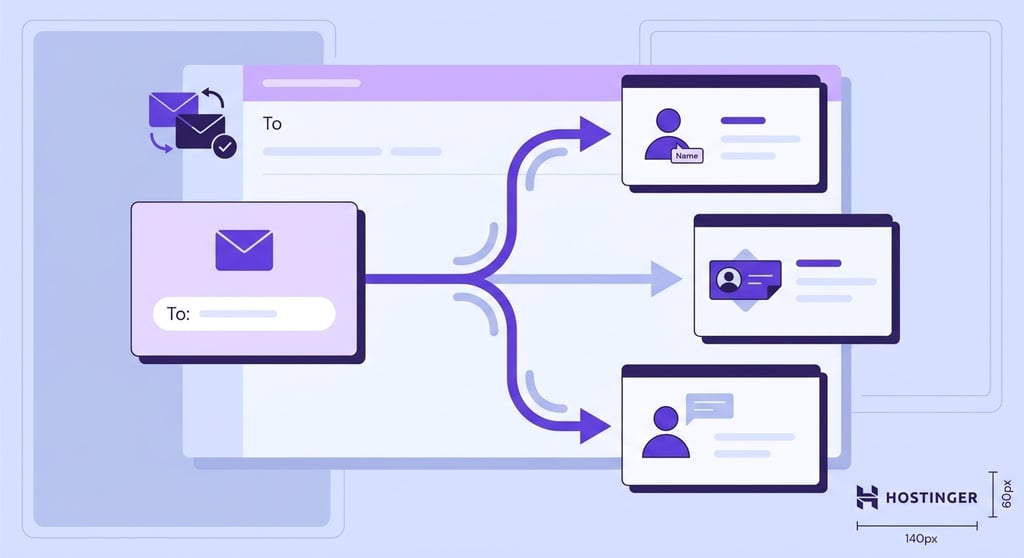
Gmail offers two sending methods: mail merge and BCC. Pick one based on your account type and what you need to send.
| Mail merge | BCC | |
| Personalization with merge tags | Yes | No |
| Automatic unsubscribe link | Yes | No, add manually |
| Hides recipient addresses | Yes | Yes |
| Daily send limit | 1,500 | 500 |
| Cost | Business Standard starts at $14/user/month on an annual billing plan. | Free |
| Best for | Monthly newsletters, client updates, professional sends | Occasional group emails, small hobby lists |
Send your newsletter using Gmail mail merge
Gmail mail merge sends each recipient a separate copy of your newsletter and lets you personalize the message with details such as their first name. It hides other recipients’ addresses and automatically adds an unsubscribe link.
Mail merge is available with Workspace Individual and selected Business, Enterprise, and Education plans, including Business Standard. It isn’t available with free Gmail or Business Starter accounts.
To send with mail merge:
- Open Gmail and click Compose to start a new email.
- On the right side of the To field, click the Use mail merge icon to turn on mail merge mode.
- In the To field, enter the Google Contacts label you set up for your subscribers. Gmail will add the contacts assigned to that label.
- Add your subject line and newsletter content.
- To personalize the email, type @ in the body. Select a tag from the dropdown, like @firstname, @lastname, @fullname, or @email. Each tag gets replaced with the recipient’s actual info when the email is sent. Merge tags don’t work in subject lines or hyperlinked text.
- Review the recipient list and save the message as a draft. Don’t send it until you’ve completed the testing step below.
For example, “Hi @firstname” becomes “Hi Sarah” or “Hi David” depending on the contact. If a first name is missing, Gmail flags an error before sending. You can set a fallback value, such as “friend,” or fix the missing fields in Google Contacts.
Mail merge automatically adds an unsubscribe link at the bottom of the email. See the compliance section for what else your newsletter needs to include.
Mail merge supports up to 1,500 recipients per day. This limit includes the regular emails you send before or during the mail merge process. If you regularly send to an audience near or above this limit, use a dedicated email marketing platform rather than splitting the campaign across multiple days.
Send your newsletter using BCC
BCC lets you send the same newsletter to a small group while hiding recipients’ email addresses from one another. Use it only for occasional sends to a very small, non-sensitive list because Gmail provides no personalization, automatic unsubscribe handling, or subscriber management.
One mistake to watch for is accidentally using the To or Cc field instead of BCC. Every recipient would then see every other recipient’s email address. In the EU, exposing subscriber emails to strangers is a GDPR violation. Anywhere else, it still destroys trust.
Google Workspace users should use mail merge instead. It personalizes each email and adds an automatic unsubscribe link.
To send with BCC:
- Open Gmail and click Compose.
- Click BCC and start typing the name of your contact label. Click the label when it appears in the suggestions to fill in all the addresses. Use a desktop or laptop for this step, as label autocomplete doesn’t work in the BCC field on the Gmail mobile app on either iOS or Android.
- In the To field, enter your own email address. This is optional, but it lets you see exactly what your recipients receive.
- Review the address list to make sure the right contacts are included.
- Paste your newsletter content from your draft.
- Add a manual unsubscribe line at the bottom, like “Reply UNSUBSCRIBE to be removed.”
- Click Send.
Free Gmail accounts can send up to 500 outgoing messages per day, and every recipient counts toward that limit. This is a technical maximum, not a recommended newsletter size.
BCC works for small, occasional updates. For recurring newsletters, a growing audience, branded designs, automated unsubscribe management, and campaign tracking, use a dedicated email marketing platform such as Hostinger Reach.
6. Send a test email before the real send
Send a test email before distributing the newsletter to your full list. This helps you catch broken links, incorrect personalization, missing images, and formatting problems while they can still be fixed.
Send the test to yourself and at least one colleague using the same sending method you’ll use for the final newsletter. If you’re using mail merge, use test contact details so you can confirm that the merge tags are replaced correctly.
Open your test email on your phone and on your desktop. Formatting that looks fine on a large screen can break on a smaller one.
Mobile email opens account for over 60% of all opens, and responsive design increases unique mobile clicks by 15%. A newsletter that doesn’t render correctly on a phone loses most of its audience before they read a word.
Apple Mail is the most widely used email client globally, with over 60% market share, so start your testing there. Then check Gmail desktop, the Gmail mobile app, and Outlook if your subscribers use it.
Check for these things in your test:
- All links point to the right pages and actually work.
- Images display inline, not as downloadable attachments.
- The subject line isn’t cut off on mobile.
- Merge tags display actual names in the preview.
- The unsubscribe line is visible at the bottom.
- The email doesn’t land in your spam folder.
- The email renders correctly in dark mode, especially on iPhone. Apple Mail and Gmail on iOS can invert colors, making light-background emails hard to read.
Check whether the test reaches the inbox or spam folder, but don’t treat one successful delivery as proof that the full campaign will reach every recipient.
Fix any problems in the draft and send another test. Continue only when the corrected version displays and functions as expected.
7. Send the newsletter and confirm delivery
After the test email works correctly, return to your final draft and review the subject line, content, recipient list, and sending method one last time. Then click Send.
The message appearing in your Sent folder confirms that Gmail submitted it for delivery, but it doesn’t guarantee that every recipient received it or that it reached their inbox.
After sending, check for:
- Sent folder: Mail merge shows individual sent emails, each marked with a “Sent with mail merge” banner. BCC shows one sent email.
- Monitor your inbox and spam folder. If Gmail can’t deliver a message, it sends a notification from the Mail Delivery Subsystem, often with the subject Delivery Status Notification (Failure). These notifications may take several hours to arrive.
- Remove invalid addresses. If the notification says the address or domain doesn’t exist, correct the address or remove the contact from your newsletter label.
- Review temporary failures. A full inbox, an unavailable server, or temporary rejection doesn’t always require immediate removal. Read the notification to see whether Gmail will retry delivery.
- Investigate repeated or widespread failures. If several messages are rejected, pause before sending again and check your list quality, sender authentication, sending limits, and spam-related issues.
Clean the list before your next send when more than a handful of your emails bounce. A high bounce rate signals to Gmail that your list isn’t well-maintained, which slows future sends.
Keep a simple note or spreadsheet with the send date, subject line, and list size. Tracking your send frequency prevents you from accidentally emailing your list too often and helps you notice when reply rates drop.
How to prevent your email from landing in the spam folder
Send only to subscribers who opted in, authenticate your domain with SPF, DKIM, and DMARC, and balance your text-to-image ratio. These basics improve email deliverability and determine whether your newsletter reaches the inbox or gets filtered to spam.
Only email people who subscribed. Purchased lists and unsolicited emails generate spam complaints that damage your sender’s reputation. Remove invalid addresses and honor unsubscribe requests promptly.
Custom domain senders on Google Workspace need SPF, DKIM, and DMARC configured in their DNS settings. Google requires at least SPF or DKIM, but senders delivering more than 5,000 messages per day to personal Gmail accounts must use all three. Free Gmail users don’t need to configure anything since Google handles authentication automatically.
Aim for at least 60% text in your email. Messages that are mostly images look suspicious to filters. Add alt text to every image, and write subject lines that describe what’s actually inside rather than using all-caps or words like “FREE!!!” and “ACT NOW.”
Start small with a new sender address. Try 50 recipients the first week, then increase gradually. Google tracks how often people mark your emails as spam, so keep your complaint rate below 0.10%. At 0.30%, Google blocks your emails entirely. Following email newsletter best practices helps you avoid spam folders and keep subscribers engaged over time.
How to ensure your Gmail newsletter complies with legal requirements
Every newsletter needs to meet email compliance requirements around consent, sender identification, and unsubscribe options. The specifics vary by region, but three laws most often come up for newsletter senders.
The CAN-SPAM Act (US) is an opt-out law. You can email people without prior consent, as long as each message includes a physical mailing address, a working unsubscribe option that is honored within 10 business days, accurate sender info, an honest subject line, and a clear disclosure that the message is an ad.
GDPR (EU) is stricter and requires explicit consent before you add someone to your list. Pre-checked opt-in boxes don’t count. Keep records of when and how each person subscribed in case you need to prove consent.
CASL (Canada) requires recipient consent, clear sender identification, and a working unsubscribe option honored within 10 business days. Implied consent from existing business relationships expires after two years for purchases and six months for inquiries.
Gmail mail merge adds an unsubscribe link and prevents unsubscribed recipients from receiving future mail merge sends from the same sender. BCC requires you to handle unsubscribe requests manually.
Both methods still leave you responsible for maintaining consent records, including the required sender and contact information, and following the laws that apply to your audience. Use a dedicated email marketing platform and get legal guidance for newsletters sent across multiple countries.
Common issues when sending newsletters in Gmail
Most Gmail newsletter problems have simple causes and quick fixes.
| Symptom | Cause | Fix |
| The Mail Merge icon is missing | You’re on a free Gmail account, an ineligible plan like Starter, replying to an existing thread, or your admin disabled the feature | Confirm your plan includes mail merge, open a new compose window, or ask your Workspace admin to enable it |
| Recipients say they didn’t get an email | Email landed in spam, the address bounced, or the contact wasn’t added to the label | Check your inbox for bounce-back emails from “Mail Delivery Subsystem,” confirm label membership, and ask the recipient to check their spam folder |
| Gmail shows a merge tag error before sending | One or more contacts are missing the info a tag needs, like a first name | Set a default fallback value in the merge tag prompt, or fill in the missing fields in Google Contacts |
| Gmail blocked my sending after a large send | You exceeded the daily sending cap | Wait for the rolling 24-hour window to reset, then send to smaller batches going forward |
| Emails keep getting blocked or landing in spam | Your spam complaint rate is too high | Clean your list, remove subscribers who don’t engage, and check Google Postmaster Tools for your complaint rate |
| Images show as attachments | You used the paperclip/attachment icon instead of inserting inline | Delete the image. Re-insert using the Insert photo icon at the bottom of the compose window and choose Inline. You can also drag and drop the image directly into the email body |
Can I track opens and clicks on a Gmail newsletter?
Gmail does not provide campaign-level open or click tracking for newsletters. Some Google Workspace accounts support read receipts, but recipients may need to approve them, and they do not show which links people clicked.
If you send newsletters regularly and want to understand what’s working, a dedicated email marketing tool is a better fit. Hostinger Reach tracks opens, clicks, unsubscribes, and individual subscriber engagement on a single dashboard.
When to move from Gmail to a dedicated email marketing tool
Move from Gmail when newsletters become a regular marketing activity rather than an occasional group update. You don’t need to wait until you reach Gmail’s sending limits. The need for subscriber management, automation, branded designs, and campaign tracking is usually a stronger signal.
Consider switching when:
- You regularly send public or business newsletters.
- You want sign-up forms that automatically add new subscribers.
- Managing contacts, segments, bounces, and unsubscribe requests manually is becoming difficult.
- You need branded templates with more design control.
- You want to automate welcome emails, follow-ups, or other sequences.
- You need to track opens, clicks, delivery results, and subscriber growth.
- Your audience is growing, and deliverability is becoming more important.
Gmail vs. Hostinger Reach
| Capability | Gmail | Hostinger Reach |
| Best for | Small, occasional updates | Marketing campaigns, newsletters, and audience engagement for SMBs and creators |
| Newsletter creation | Basic email editor and selected Workspace layouts | Branded and AI-generated campaign templates |
| Subscriber collection | Manual contacts and CSV imports | Sign-up forms, imports, integrations, and API connections |
| Subscriber management | Manual Google Contacts labels | Centralized subscriber and list management |
| Automation | Not available for newsletter campaigns | Automated sequences and follow-ups |
| Open and click tracking | Not available | Campaign performance tracking |
| Repeat campaigns | Mostly manual | Built for recurring campaigns |
| Audience growth | Limited | Designed to collect and grow subscribers |
Hostinger Reach lets you import an existing list, build branded campaigns with AI, create subscription forms, automate follow-up sequences, and track campaign performance from one place.
Gmail remains suitable for a small internal update or an occasional message to a very limited list. For public newsletters, business campaigns, audience growth, and repeat sending, Hostinger Reach is the more practical long-term option.
Next steps after sending your first Gmail newsletter
After your first send, clean your contact list, process unsubscribe requests, record the results, and schedule your next newsletter. During the next few days:
- Check for messages from Mail Delivery Subsystem and remove addresses that produced hard bounces.
- Process unsubscribe replies immediately and remove those contacts from your newsletter label. For US commercial emails, CAN-SPAM requires requests to be honored within 10 business days.
- Record the send date, subject line, recipient count, bounces, and unsubscribe requests in a spreadsheet.
- Add the next newsletter date to your calendar and choose a frequency you can maintain.
- Review whether Gmail still provides everything you need.
Gmail works well for getting a newsletter started, but its limitations become more noticeable as your subscriber list and sending needs grow. A dedicated email marketing platform like Hostinger Reach can help you scale with:
- Send campaigns regularly or to a growing audience.
- Segment contacts based on their interests or engagement.
- Track opens, clicks, deliveries, and unsubscribes.
- Manage unsubscribe requests automatically.
- Create automated sequences such as welcome or follow-up emails.
- Reduce the time spent maintaining contacts and recording results manually.
Hostinger Reach is designed specifically for email marketing and combines campaign creation, contact management, segmentation, automation, and performance reporting.
This article is a localized version of How to send a newsletter in Gmail: a step-by-step guide, originally published in English.

Justina is a Content Writer passionate about marketing, with a background in social media and customer success management. She also loves reading books, traveling and exploring new places as well as cooking, and trying out new recipes. Follow her on LinkedIn.