How to add Google Analytics to a WordPress website

Google Analytics is a web analytics service that tracks and reports website traffic, providing deep insights into how visitors interact with your content.
By connecting Google Analytics to your WordPress site, you can identify your most popular pages, understand where your traffic comes from, and track conversion goals like form submissions or product purchases.
These insights help you optimize your site’s user experience, improve your SEO strategy, and ultimately grow your online presence.
There are three ways to add Google Analytics to WordPress, ranging from beginner-friendly plugins to code-level tweaks:
- Using a WordPress plugin. Using plugins like Site Kit by Google is the easiest method to connect Google Analytics to a WordPress site. It also allows you to view your traffic data directly within your WordPress dashboard.
- Via Google Tag Manager. This advanced method uses a single “container” to manage multiple tracking scripts at once. It’s ideal for users who want to track complex interactions, such as button clicks or video engagement, without needing to edit code frequently.
- Adding a code snippet to the functions.php file. This method involves adding a PHP function to your child theme’s functions.php file to inject the tracking script. It is a lightweight, high-performance option that avoids the need for extra plugins.
Feel free to select a method that aligns with your technical comfort level and the amount of data you need to track.
How to create a Google Analytics 4 property
To start tracking data, you must first set up a Google Analytics 4 (GA4) property and obtain a Measurement ID. This ID tells Google which specific website the data belongs to, and you’ll need this code to connect Google Analytics to WordPress, no matter which method you choose.
Follow these steps to create a new Google Analytics property and find your Measurement ID:
- Go to the Google Analytics website and make sure you’re signed into your Google account.
- Click Start measuring on the initial landing page.
- Insert your account name in the provided field.
- Type in your property name, which represents your website name.
- Select your business industry from the drop-down and specify your business size.
- Select your business objectives and complete the process by clicking Create.
- When you see the Start collecting data page, choose Web.
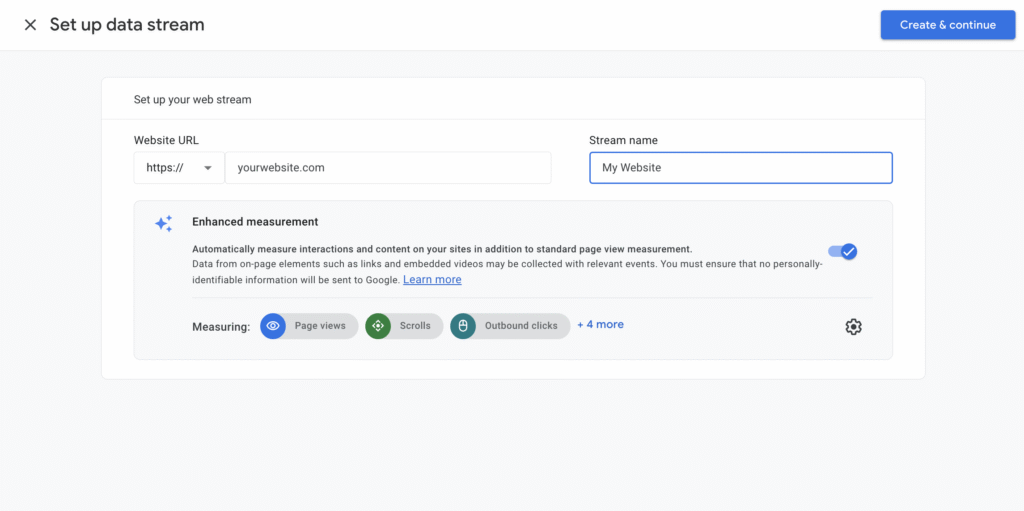
- Enter your Website URL and the Stream name in the respective fields. Click Create & continue.
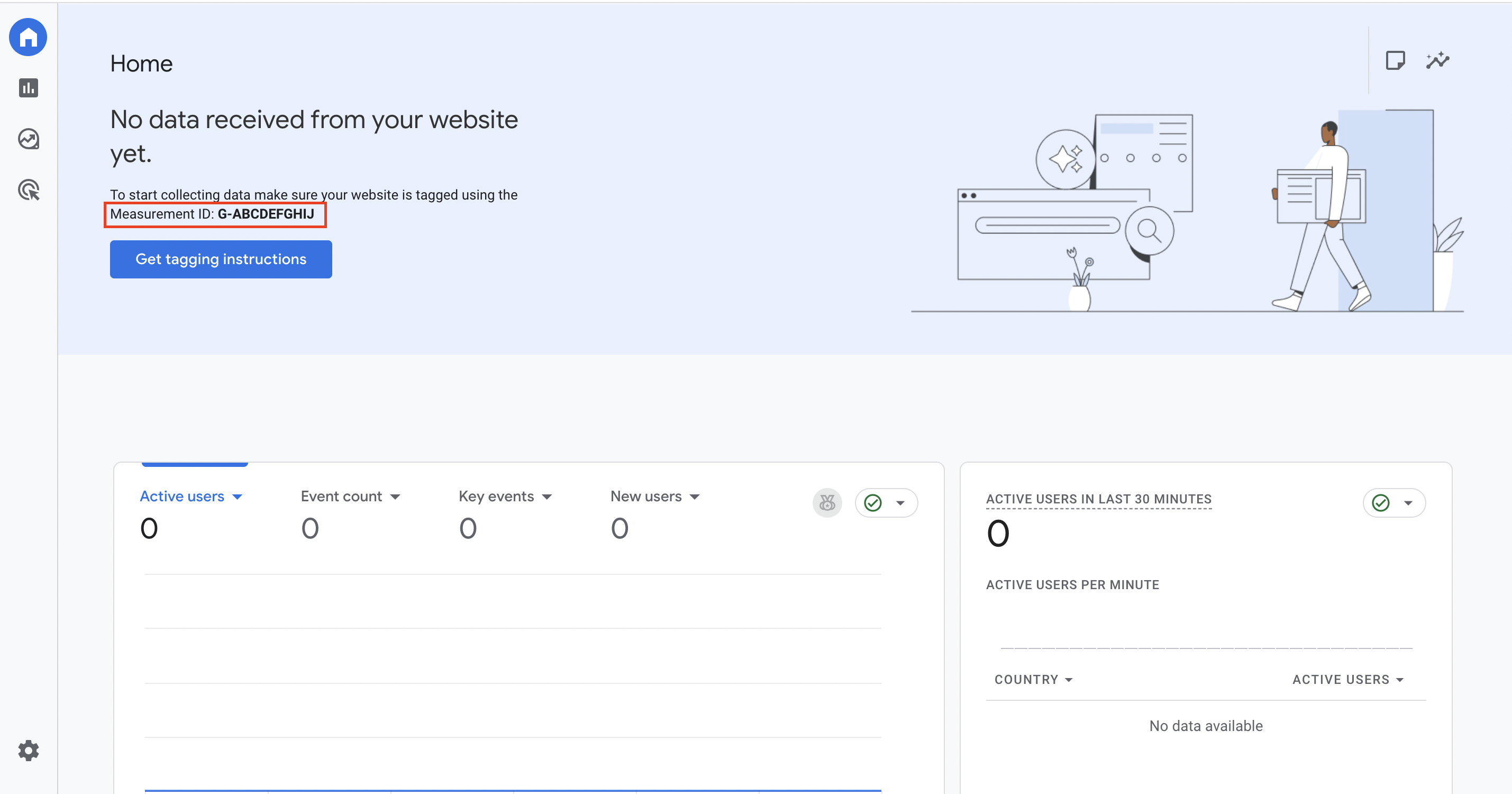
When you go to Home, you’ll see the Measurement ID, which starts with “G-“.
How to find Google Analytics Measurement ID in an existing property
Your Measurement ID is the unique identifier (starting with “G-“) that links your website to your specific data stream.
- Sign in to your Google Analytics account.
- Click Admin (the gear icon) in the bottom-left corner of your dashboard.
- Look for the Property Settings column (the middle column) and click on Data Collection and Modification → Data Streams.
- Select your existing website’s name.
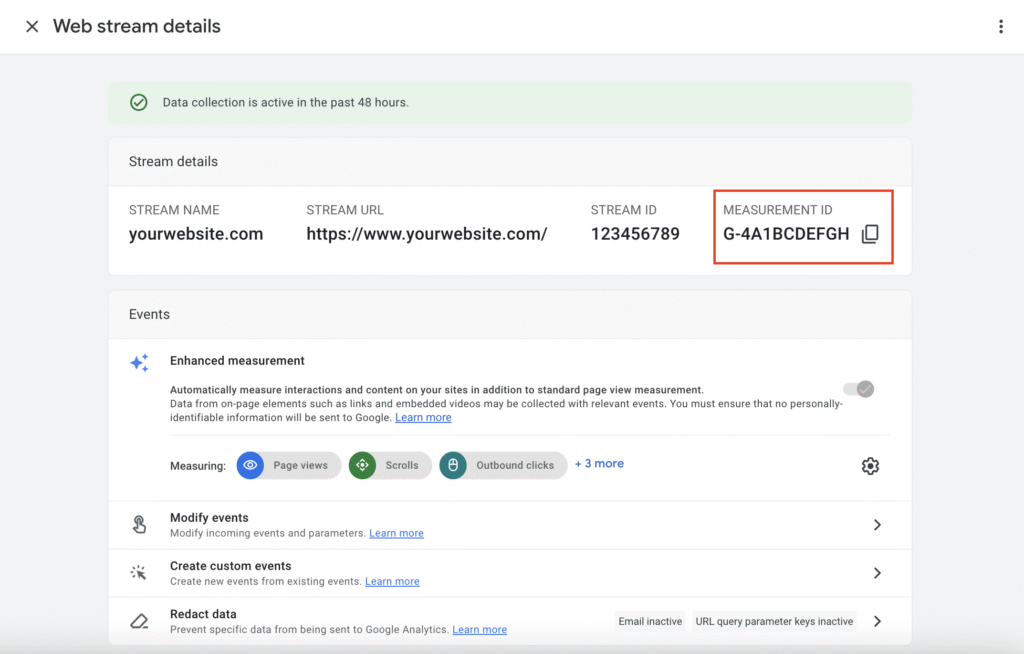
- Locate the Measurement ID in the top-right corner of the Web stream details window.
- Click the Copy icon next to the ID to connect Google Analytics to WordPress using your preferred method.
Important! If you see an ID starting with “UA-“, you are looking at an old Universal Analytics property. Google Analytics 4 IDs always start with “G-“. If you don’t have a “G-” ID, you need to create a new GA4 property.
After creating a property and getting the Measurement ID, connect your WordPress site to the Google Analytics servers. You can choose any of the three methods below.
How to add Google Analytics with a WordPress plugin
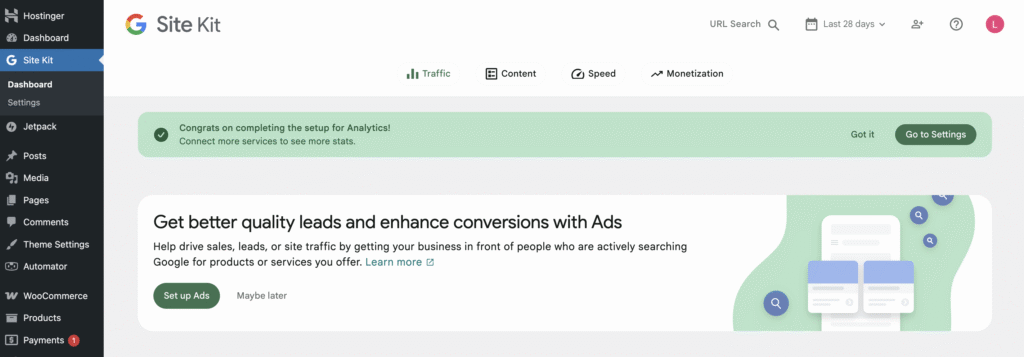
Using a Google Analytics WordPress plugin is the best method for users who want to view data directly inside their WordPress dashboard. We’re using the Site Kit by Google plugin to demonstrate, as it’s the official tool and integrates with other Google services automatically:
- Install the WordPress plugin on your site.
- Click the Start Setup button on the dashboard notification.
- Sign in to your Google account.
- Grant the necessary permissions for Site Kit to access your data.
- Follow the steps to verify your site ownership.
- Select your Account, Property, and Data Stream from the dropdown menus.
- Click Complete setup to finish.
How to add Google Analytics to WordPress using Google Tag Manager
Google Tag Manager (GTM) acts as a central hub for all your tracking scripts. Instead of adding separate code for Google Analytics, Facebook Pixel, and Google Ads, you can install a single GTM container only.
This method is ideal if you want to track specific user actions that standard Analytics might miss, such as button clicks, form submissions, or video engagement.
Connecting Google Analytics to WordPress via GTM requires multiple steps:
Set up your Google Tag Manager Container
- Sign in to Google Tag Manager and click Create Account.
- Enter your company name and select your country.
- In the Container Setup, enter your domain name (e.g., domain.tld) and select Web as the platform.
- Click Create and accept the terms. A pop-up will appear with two code snippets. Keep this open.
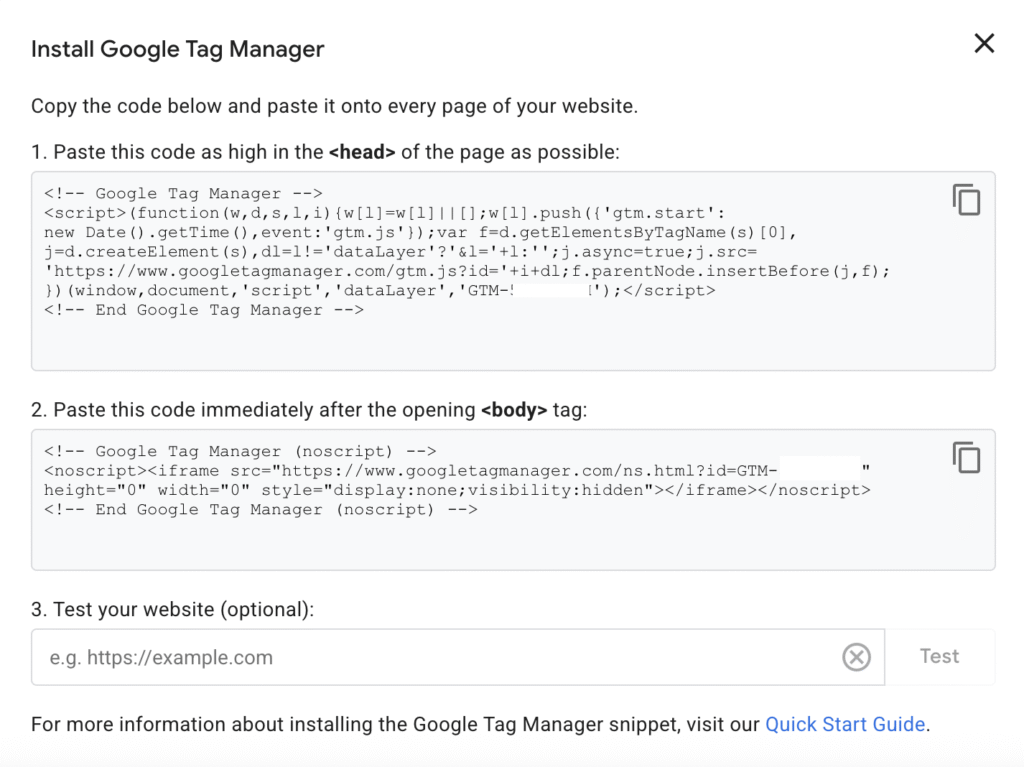
Install Google Tag Manager on WordPress
The easiest way to install these snippets safely is with the Code Snippets plugin.
- In your WordPress dashboard, install and activate the Code Snippets plugin.
- Navigate to Snippets → Add New.
- Title it “GTM Header” and paste the following code into the Code box:
add_action( 'wp_head', function () { ?>

<?php } );
- Paste your actual GTM script in the middle.
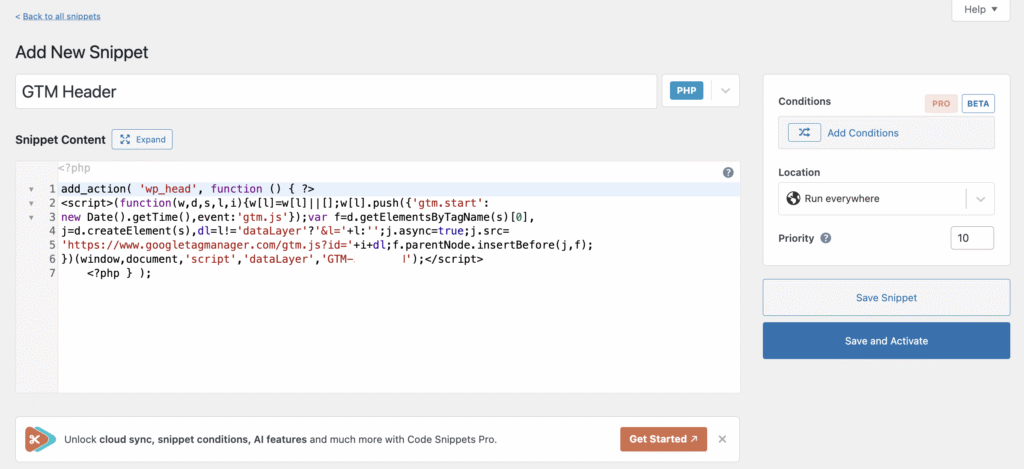
- On the Location menu, select Run everywhere and click Save and Activate.
- Click the Add New button again.
- Title it “GTM Body” and paste the following code into the Code box:
add_action( 'wp_body_open', function () { ?>

<?php } );
- Paste your actual GTM noscript code in the middle.
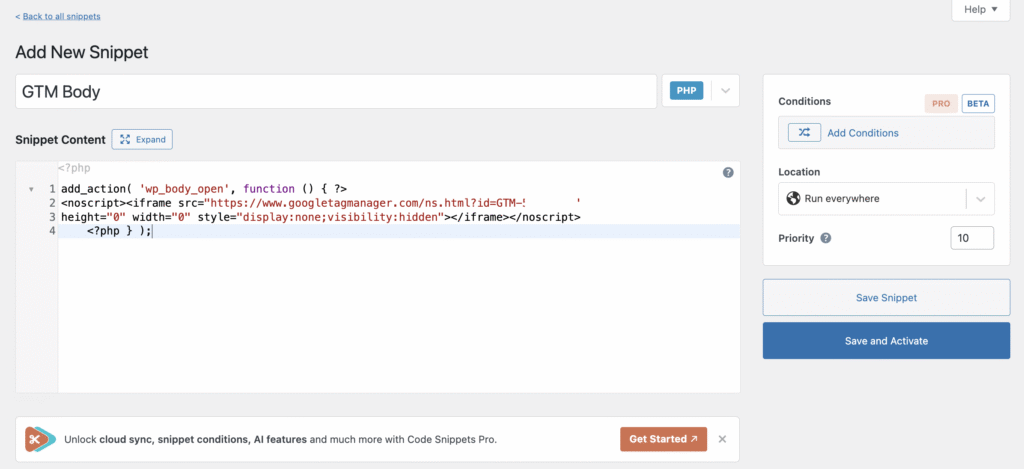
- On the Location menu, select Run everywhere and click Save and Activate.
Connect Google Analytics via Google Tag Manager
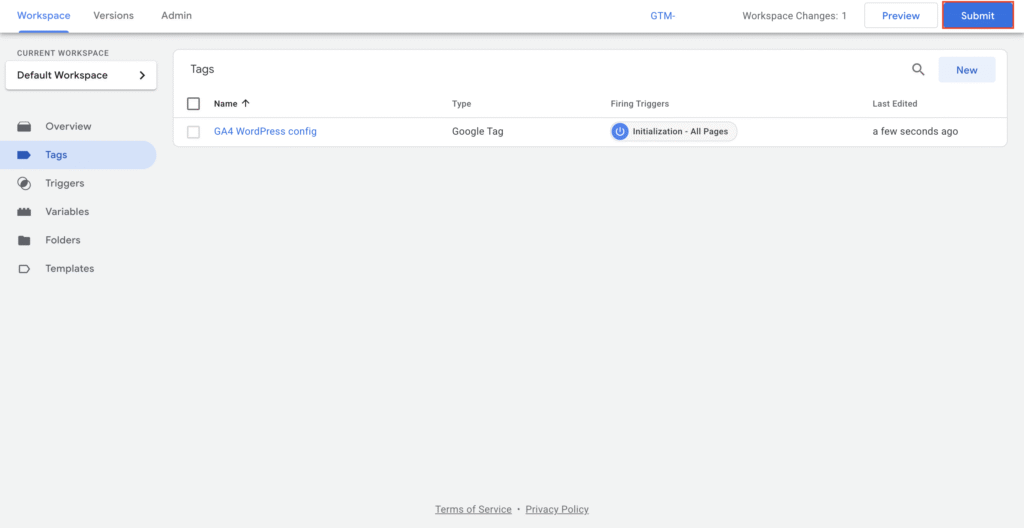
- In your GTM dashboard, go to Tags → New.
- Name the tag “GA4 WordPress configuration”.
- Click the pencil icon on the Tag Configuration menu, choose Google Analytics → Google Tag.
- Enter your Google Analytics Measurement ID in the Tag ID field.
- Click Save, then click the blue Submit button in the top-right corner to publish your changes.
How to add Google Analytics to WordPress using functions.php code
This method is preferred by developers who want to avoid extra plugins and keep the site’s code footprint small. The process involves adding a PHP function in conjunction with a WordPress hook.
If you wish to proceed with this step, ensure that you create a child theme and add the code to its functions.php file. This way, you’re keeping the tracking code intact even if the original theme files are going through version updates.
Follow these steps to add the Google Analytics script manually to your WordPress functions.php file:
- Go to your WordPress Theme File Editor. If you are using a block theme, select Tools → Theme File Editor in your WordPress dashboard. If the Theme File Editor isn’t available, you’ll need to access your site via FTP/SFTP and edit the file directly.
- Select your child theme from the Select theme to edit dropdown menu.
- Open the functions.php file from the list on the right.
- Paste the following code snippet at the very bottom of the file:
// Add Google Analytics 4 (GA4) Tracking Code to WordPress Header
add_action('wp_head', 'wp_custom_add_google_analytics');
function wp_custom_add_google_analytics() {
   ?>
   <script async src="https://www.googletagmanager.com/gtag/js?id=G-MEASUREMENT-ID"></script>
   <script>
     window.dataLayer = window.dataLayer || [];
     function gtag(){dataLayer.push(arguments);}
     gtag('js', new Date());

     gtag('config', 'G-MEASUREMENT-ID');
   </script>
   <?php
}
- Replace both instances of G-MEASUREMENT-ID with your actual Measurement ID.
- Click Update File.
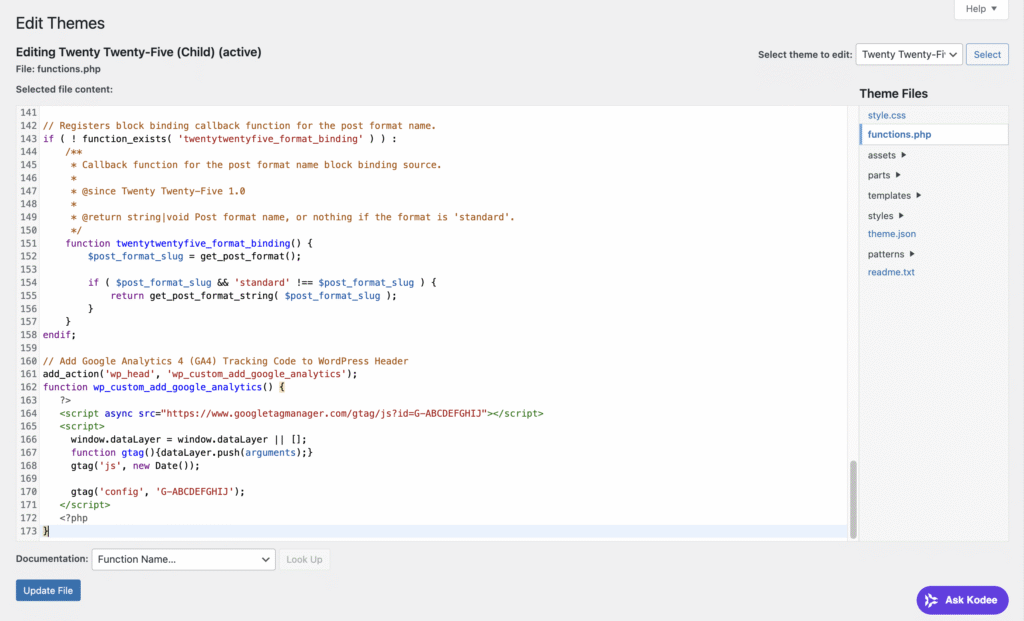
Note that after adding the code to your functions.php file, your WordPress dashboard won’t reflect any changes. Unlike using a plugin like Site Kit, manual code injection does not create a dashboard inside WordPress.
So, follow these steps to verify that the script is actually loading on your site:
- Open your website in a browser.
- Right-click anywhere on the page and select View Page Source.
- Press Ctrl + F (or Cmd + F on Mac) and search for your Measurement ID.
- If you see your code snippet in the source code, the tracking is active.
Why is Google Analytics important?
Here are the reasons why you should consider adding Google Analytics to your WordPress site:
- Traffic source visibility. Track traffic sources such as organic search, direct visits, referrals, and social media to understand what drives visitors to your site.
- Content performance insights. Identify pages that attract the most traffic and engagement, so you can update, expand, or replicate high-performing content.
- Navigation patterns and exit points. See how visitors navigate your site and where they leave, helping you improve page structure, content flow, and user experience.
- SEO strategy validation. Monitor organic traffic and landing page performance to evaluate whether your SEO efforts are increasing visibility and engagement.
- Impact measurement. Track changes in traffic and user behavior after content updates, technical fixes, or SEO improvements to confirm what works.
- Data-driven insights. Use real user data to improve content relevance, site usability, and long-term traffic growth instead of relying on assumptions.
Next steps: Drive traffic to your website
After connecting Google Analytics to WordPress, you’ll get to see more detailed data like where visitors come from, which pages attract organic traffic, and how users interact with your content.
These insights help you understand what already performs well in search and what needs improvement. And instead of guessing, you’re using real user behavior to guide your optimization efforts.
For example, you can identify pages with strong impressions but low engagement, spot content that generates organic traffic, and further optimize it. You can also pinpoint pages with high bounce rates that may require better structure or clearer alignment with search intent.
To consistently increase traffic, combine Google Analytics insights with proven WordPress SEO best practices, including enhancing content quality, implementing internal linking, optimizing site speed, and refining on-page optimization.
As you apply these SEO improvements, use Google Analytics to monitor the changes in organic traffic, engagement, and conversions. This ongoing measurement helps you validate what works, refine your strategy, and scale the SEO efforts that drive results.

All of the tutorial content on this website is subject to Hostinger's rigorous editorial standards and values.

Larassatti Dharma is a content writer with 4+ years of experience in the web hosting industry. Laras has populated the internet with over 100 YouTube scripts and articles around web hosting, digital marketing, and email marketing. When she's not writing, Laras enjoys solo traveling around the globe or trying new recipes in her kitchen. Follow her on LinkedIn


Comments
November 01 2017
Thank you for this post, it helped me choose the best method to add Google Analytics to my website. Option 1 – Using a Plugin seems most ideal, but I am curious about the disadvantages? They contradict the advantages for theme changes and updates.
September 29 2020
Thanks for providing the instructions to add the GA tracking code to the function.php file. The other site I tried didn't work but ours did!
November 18 2020
Happy to help Lydia.
October 24 2020
Thank you! I was trying to add my tracking code to the head but also had a google site kit plugin installed! So lesson learned, chose one method ONLY!
February 02 2021
Happy it worked out ;)
October 10 2021
I am Ready