To create a shortcode in WordPress, write a PHP callback function and register it with add_shortcode(). You can then insert the shortcode, such as[subscribe], into a post or page using the Shortcode block.
In this tutorial, you’ll store the code safely in a child theme, create and test a basic shortcode, add attributes, and turn it into an enclosing shortcode with custom link text. You’ll also see when shortcode functionality is better moved to a custom plugin.
What are WordPress shortcodes?
A WordPress shortcode is a tag in square brackets that WordPress replaces with predefined content or functionality. For example,
[subscribe] can run a PHP function that displays a subscription link wherever you add the shortcode.
Shortcodes can be self-closing, such as [subscribe], or enclosing, such as [subscribe]Facebook[/subscribe]
. They’re useful when you want to reuse the same custom output across multiple posts or pages without adding the underlying code each time.
WordPress plugins can also register their own shortcodes. For example, some WordPress contact form plugins use shortcodes to insert forms into posts and pages.


How to create a shortcode in WordPress
To create a custom WordPress shortcode, write a PHP callback function and register it with add_shortcode(). You can then insert the registered shortcode into posts or pages using the Shortcode block.
In the following steps, we’ll create a shortcode that outputs social media links. We’ll start by choosing where to add the PHP code, then register the shortcode, add attributes and enclosed content, and test the result in WordPress.
1. Choose where to add the shortcode code
Before creating the shortcode, choose a safe place for its PHP code. In this tutorial, we’ll add the code to the functions.php file of a WordPress child theme so a parent theme update doesn’t overwrite the customization.
If you don’t already use one, create a WordPress child theme before continuing. Also back up your WordPress site before editing PHP files.
You can open the child theme’s functions.php file through the WordPress Theme File Editor, your hosting provider’s File Manager, or an FTP client. The shortcode code is the same regardless of how you access the file.
For a detailed walkthrough of these options, see our guide on adding PHP code to WordPress.
2. Register the shortcode
Create a PHP callback function that returns the content WordPress should display when someone uses the shortcode. Then register that function with add_shortcode().
Add this code to the child theme’s functions.php file:
function subscribe_link() {
    return 'Follow us on Twitter';
}

add_shortcode( 'subscribe', 'subscribe_link' );
The subscribe_link() function returns the shortcode output. Shortcode callbacks should return their content rather than display it directly with echo.
The add_shortcode() function connects the subscribe tag to the subscribe_link() callback. Once registered, adding [subscribe] to WordPress runs the function and replaces the shortcode with Follow us on Twitter.
Use a unique shortcode tag if you adapt this example for your own site, as registering the same tag twice causes one shortcode handler to override the other.
3. Add and test the shortcode
Test the registered shortcode in a WordPress post or page to make sure the callback works correctly.
- Open the post or page where you want to display the shortcode.
- Add a Shortcode block. If you’re new to the editor, see our guide to the WordPress block editor.
- Enter the shortcode:
[subscribe]
- Preview or publish the page.
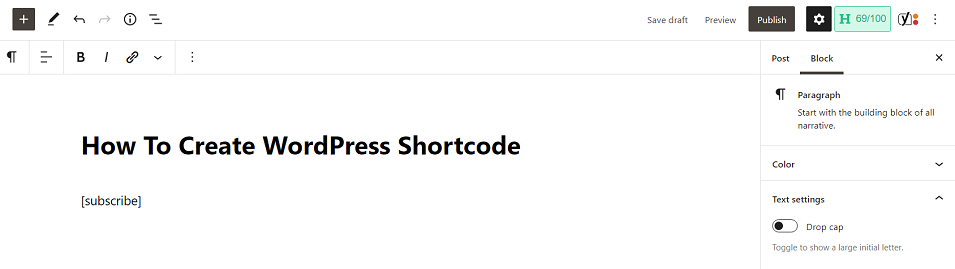
WordPress should replace [subscribe] with the text Follow us on Twitter returned by the subscribe_link() function.
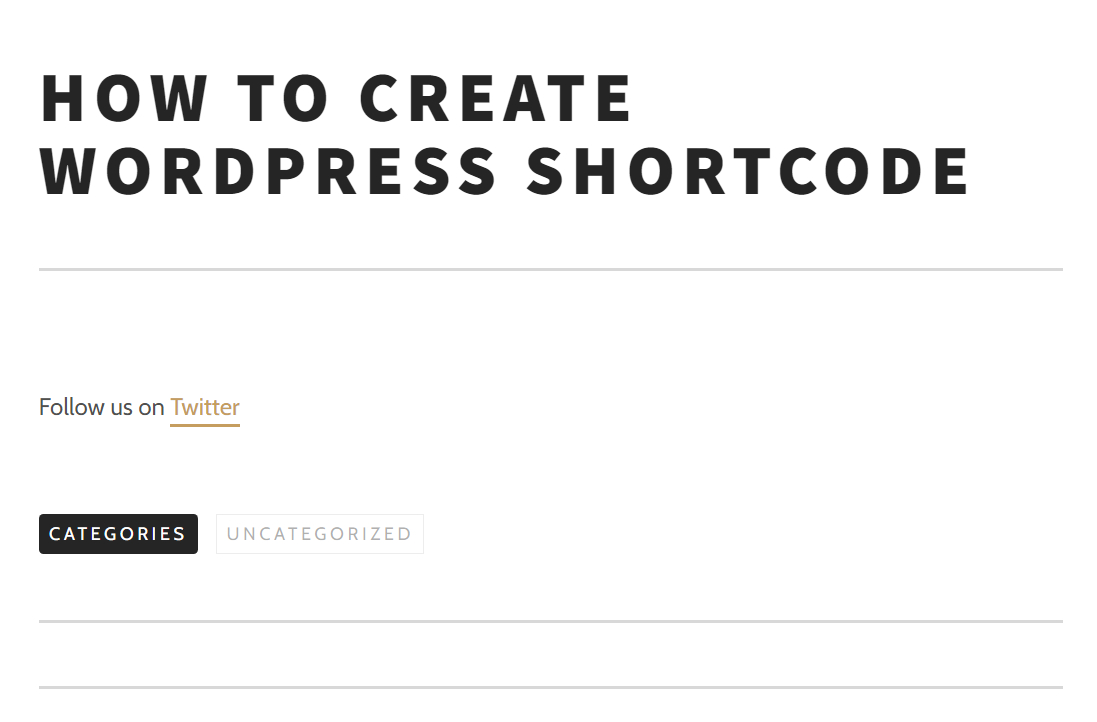
If the shortcode itself appears on the page instead of the expected text, check that the add_shortcode() line and callback function are both saved in the active child theme’s functions.php file.
4. Add an attribute to the shortcode
Add an attribute when you want the same shortcode to produce different output. For this example, we’ll add a link attribute so you can change the destination URL each time you use [subscribe].
Replace the shortcode function from Step 2 with:
function subscribe_link( $atts ) {
    $atts = shortcode_atts(
        array(
            'link' => '#',
        ),
        $atts,
        'subscribe'
    );

    return sprintf(
        '<a href="%s">Follow us</a>',
        esc_url( $atts['link'] )
    );
}

add_shortcode( 'subscribe', 'subscribe_link' );
The shortcode_atts() function combines the attributes entered in the shortcode with the defaults defined in the callback. Here, link defaults to # when no URL is provided.
The function then uses the link value as the destination of an HTML link. esc_url() escapes the URL before WordPress outputs it.
5. Test the shortcode attribute
Test the link attribute by adding the shortcode to a WordPress post or page with a destination URL.
For example:
[subscribe link="https://www.facebook.com/Hostinger/"]
Preview or publish the page. The shortcode should display Follow us as clickable text that links to the URL provided in the link attribute.
You can reuse the same shortcode with a different destination:
[subscribe link="https://x.com/Hostinger"]
Each shortcode uses the same PHP function while producing a link with a different destination.
6. Create an enclosing shortcode
Use an enclosing shortcode when you want to control the visible link text as well as the destination URL. WordPress passes the content between the opening and closing shortcode tags to the callback through the $content parameter.
Replace the function from Step 4 with:
function subscribe_link( $atts, $content = null ) {
    $atts = shortcode_atts(
        array(
            'link' => '#',
        ),
        $atts,
        'subscribe'
    );

    $link_text = $content ? $content : 'Follow us';

    return sprintf(
        '<a href="%s">%s</a>',
        esc_url( $atts['link'] ),
        esc_html( $link_text )
    );
}

add_shortcode( 'subscribe', 'subscribe_link' );
The $content parameter contains any text placed between
[subscribe] and [/subscribe]
. If you use the shortcode without enclosed content, the function falls back to Follow us.
For example, this shortcode uses Facebook as the visible link text:
[subscribe link="https://www.facebook.com/Hostinger/"]Facebook[/subscribe]
WordPress will display Facebook as a clickable link to the URL in the link attribute.
7. Test the enclosing shortcode
Test the enclosing shortcode by adding custom link text between the opening and closing tags.
For example:
[subscribe link="https://www.facebook.com/Hostinger/"]Facebook[/subscribe]
You can reuse the same shortcode with another URL and label:
[subscribe link="https://x.com/Hostinger"]X[/subscribe]
Preview or publish the page. WordPress should display Facebook and X as clickable links that point to the URLs defined in their link attributes.
You can now reuse the shortcode throughout your site by changing the destination URL and enclosed link text without editing the PHP function each time.
When should you move a shortcode to a custom plugin?
Keep a shortcode in your child theme’s functions.php when it only supports that theme’s design or layout. If the shortcode provides site-wide functionality that should keep working after you switch themes, move it to a custom plugin instead.
A custom plugin keeps the shortcode independent from the active theme and makes it easier to reuse or maintain. Follow our guide on creating a WordPress plugin if you want to turn your shortcode into standalone functionality.
All of the tutorial content on this website is subject to Hostinger's rigorous editorial standards and values.

Will Morris is a staff writer at WordCandy. When he's not writing about WordPress, he likes to gig his stand-up comedy routine on the local circuit.