Make your emails stand out with a personal touch! Personalization lets you automatically include each subscriber’s first name, last name, or email address in your messages — helping you build stronger connections and boost engagement effortlessly.
Why use personalization
Personalized emails feel more genuine and engaging. Instead of sending the same generic message to everyone, you can greet subscribers by name or include their details directly in your content. This simple touch can boost open rates, click-through rates, and customer loyalty.
Add personalization to a Hostinger Reach email template
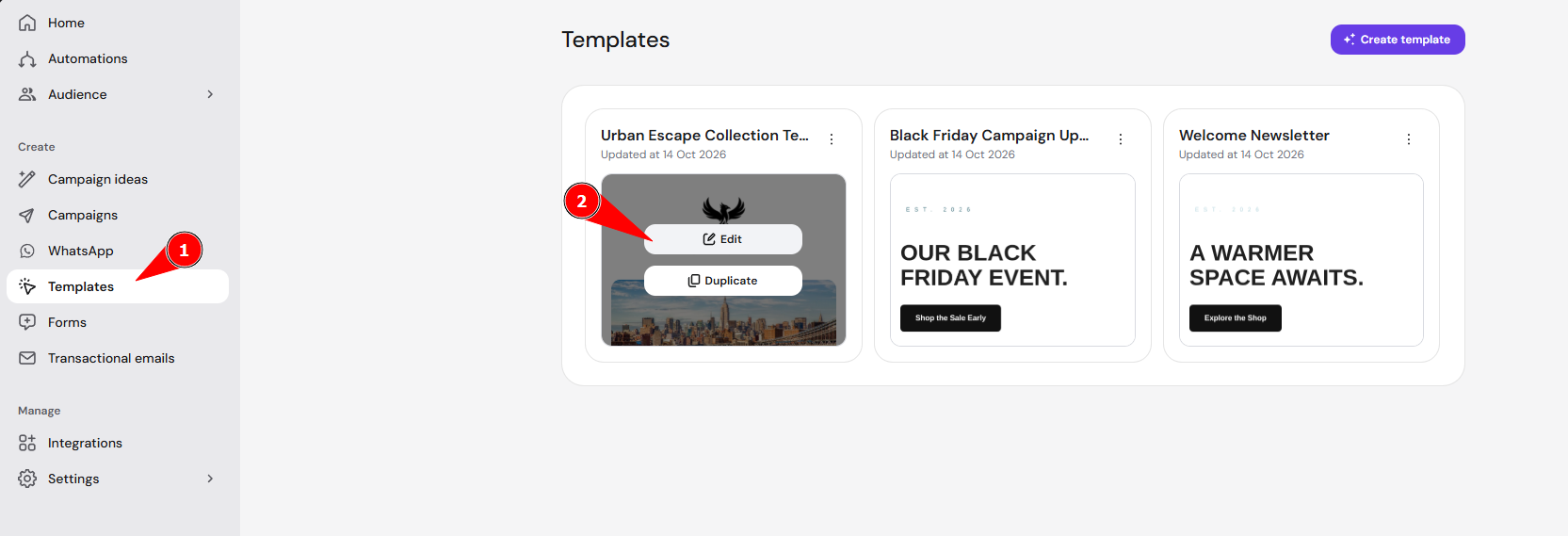
- Open your email template editor and select the Edit tab.

- Click the text block where you want to insert subscriber information.
- In the sidebar, expand Personalization and click the field to insert: First name, Last name, Email address, or Phone number.

- In the Default text field, keep or change the fallback text that appears when a subscriber’s data is missing. For example, with the default text There, a contact without a saved first name sees the word There instead.

- Click Save.


NOTES
- You’ll see text in your template that looks like {{name, There}}. Do not delete or modify this placeholder, as it’s essential for personalization to work correctly.
- You can preview your email before sending to ensure your personalization appears as expected.
Example of personalization
Before personalization:
Hello there, we’ve got something special for you!
After personalization:
Hello Anna, we’ve got something special for you!
Once you add personalization fields, each Hostinger Reach subscriber sees their own details in your email, or the fallback text when their data is missing.