A Cloudflare 520 error means Cloudflare could not get a valid response from your origin server. Common causes include a null-routed IP, an outage on Cloudflare’s side, a broken .htaccess file, overloaded hosting resources, or a mismatched SSL/TLS encryption mode.
Check for a null-routed IP or hosting downtime
Ping your website’s IP address. If it times out, the IP may be null-routed, which usually happens during a DDoS mitigation. See What is a DDoS attack and how to prevent it at Hostinger for what this means.
A null-routed IP or hosting-side downtime is not something you can confirm or resolve yourself. If you suspect either, skip ahead and contact Hostinger support directly so the team can confirm the status and give you an update, rather than continuing through the remaining steps below.
NOTE
- Find your hosting IP in How to find your Hostinger hosting IP address if you do not already know it.
Check Cloudflare’s own status
Visit Cloudflare’s status page to see if Cloudflare is reporting an active incident. If so, the 520 error is on their side, and you only need to wait for it to resolve.
Temporarily disable your .htaccess file
A broken or conflicting .htaccess file can prevent your origin server from responding correctly.
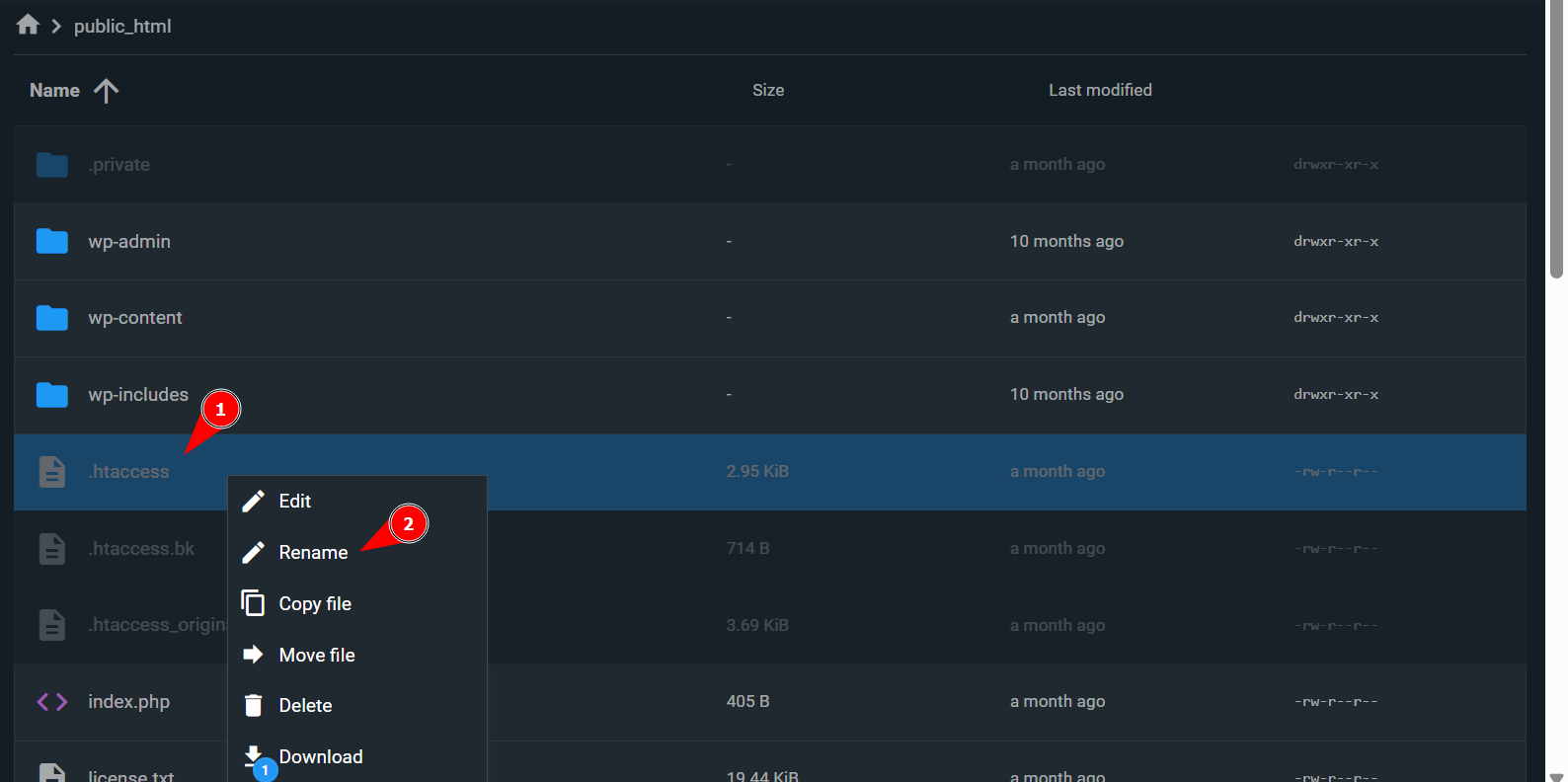
- Open File Manager from your Hostinger dashboard.
- Locate the .htaccess file in your website’s root folder.
- Rename it, for example to .htaccess-disabled, so it stops applying.

- Reload your website. If it loads normally, the original .htaccess file contained the issue. Review it for errors before restoring it.
Enable Cloudflare Development Mode to test
Cloudflare Development Mode temporarily bypasses Cloudflare’s cache so you can see your origin server’s actual response. Turn this on while troubleshooting, then turn it off once the issue is resolved. See How to enable Cloudflare development mode for a website on Hostinger.
Stop overloaded processes on your hosting
If your hosting resources are overloaded, your origin server may not respond in time.
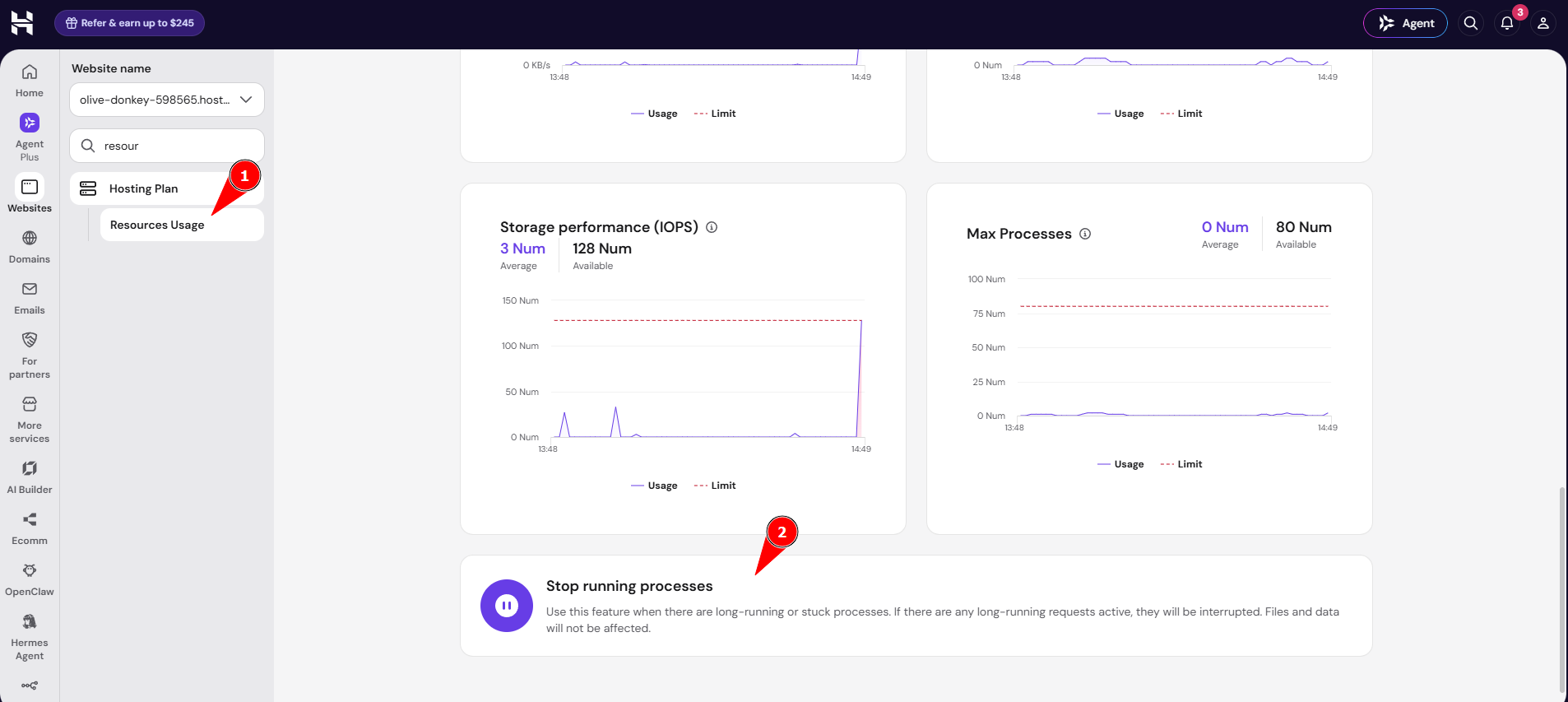
- On web or cloud hosting plan, go to the Websites page, click on Dashboard next to any website added to the hosting, on the sidebar click on Hosting plan → Resources Usage.
- Select Stop running processes.
Check your Cloudflare SSL/TLS encryption mode
If the steps above do not resolve the error, check for a mismatch between your Cloudflare SSL/TLS encryption mode and your origin’s actual SSL setup.
Open your Cloudflare dashboard, then go to SSL/TLS > Overview for your domain. Confirm which encryption mode is selected: Off, Flexible, Full, or Full (strict).
- Full and Full (strict) require your origin server to present a valid SSL certificate that Cloudflare can verify. If your hosting plan’s SSL is not set up the way Cloudflare expects, requests fail at the origin and Cloudflare returns a 520 error instead.
- Flexible only requires a working connection between Cloudflare and your origin over HTTP, without validating an origin certificate.
If you are using Full or Full (strict) and seeing intermittent 520 errors, switch to Flexible as a test. If the error stops, your origin SSL setup is the cause.
NOTE
- Flexible mode means traffic between Cloudflare and your origin server is not encrypted. Use Full or Full (strict) instead once your origin SSL certificate is confirmed working, rather than leaving Flexible mode in place long-term.
For broader Cloudflare SSL issues not specific to a 520 error, see Troubleshooting Cloudflare Universal SSL at Hostinger, Introduction to SSL at Hostinger, and Troubleshooting 5xx Errors at Hostinger.
If the error continues
If none of the steps above resolve the error, contact Hostinger support with what you have already checked, so the team can investigate further. For general 520 troubleshooting beyond these Hostinger-specific steps, see How to Fix Error 520.
Once you find and resolve the specific cause, your website loads normally through Cloudflare again.