Hostinger Connector lets you manage Hostinger Reach by asking your AI assistant, through one Model Context Protocol (MCP) connection that gives ChatGPT, Claude, Cursor, and other AI tools access to your Reach contacts, tags, and segments. To set it up, install Hostinger Connector in your code editor or enable the Hostinger app in ChatGPT, sign in once, then ask for what you need in plain language.
Open Hostinger Connector in Hostinger Reach
- In the Reach dashboard, click Integrations in the left sidebar.
- On the Hostinger Connector card, click Learn more.
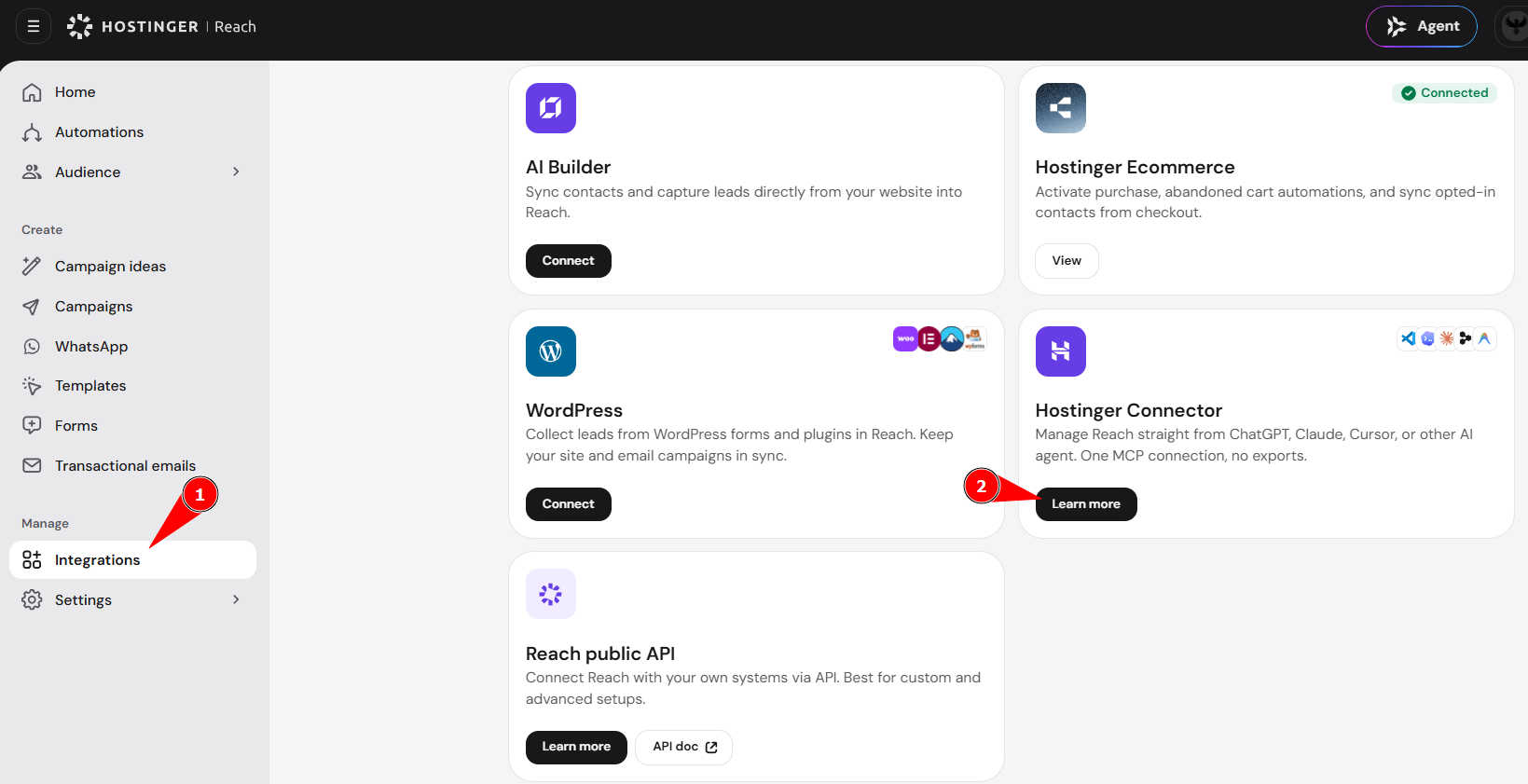
The Hostinger Connector page opens with setup options for code editors and ChatGPT, plus example requests.
Set up Hostinger Connector in a code editor
Hostinger Connector is an MCP server, so it works with any MCP client, including VS Code, Cursor, Claude Code, Codex, Antigravity, and Devin.
- Click Set up Connector. The API page of the Hostinger dashboard opens in a new tab.

- On the Connect your tools tab, select your editor and click Install.
- Approve the Hostinger sign-in when your browser asks to confirm access. Access is scoped to your Hostinger account.
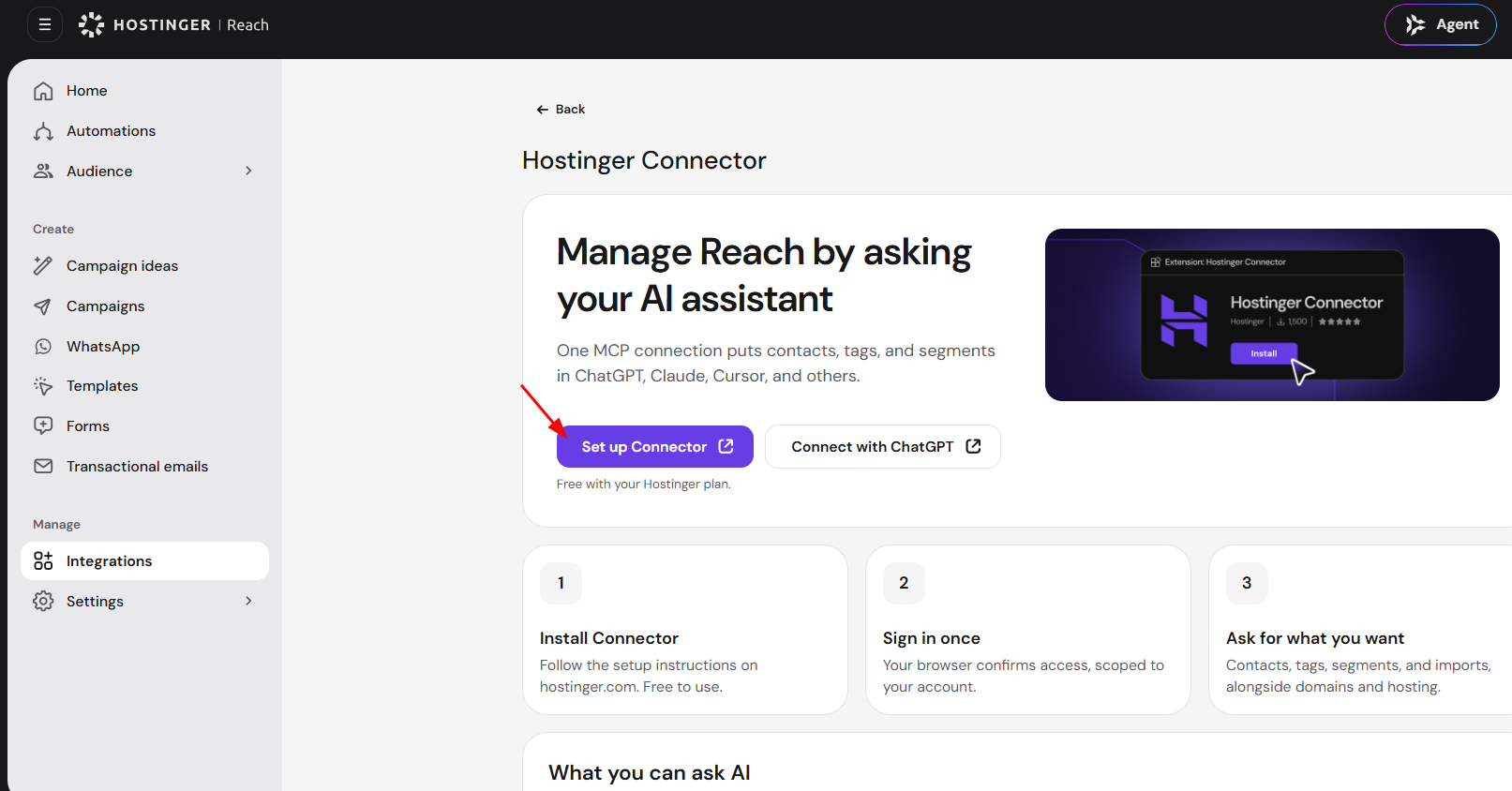
Click Follow setup instructions on the Hostinger Connector page for installation steps on hostinger.com. For manual setup and editor-specific details, see How to set up web hosting MCP on Local IDEs.
NOTES
- Most AI tools sign in with your Hostinger account and don’t need an API token.
- Create an API token only for manual setups, such as connecting a generic MCP client.
Set up Hostinger Connector in ChatGPT
- On the Hostinger Connector page in Hostinger Reach, click Connect with ChatGPT. The Hostinger Connector plugin page opens in ChatGPT.

- Sign in with your Hostinger account in your browser when prompted.
- Click Install plugin.

- Click Try in chat to start a new chat with Hostinger Connector selected.

- Type your request after Hostinger Connector in the message field and send it.

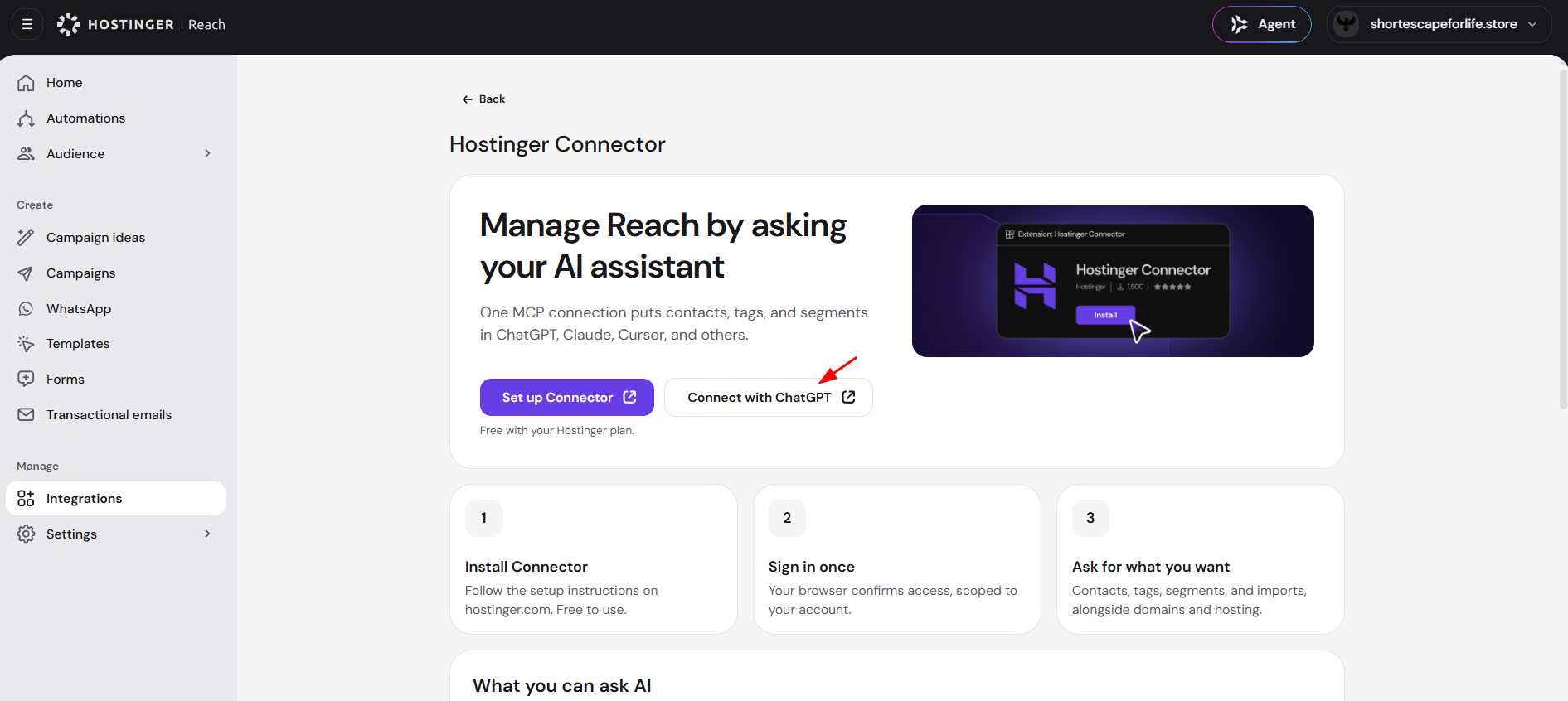
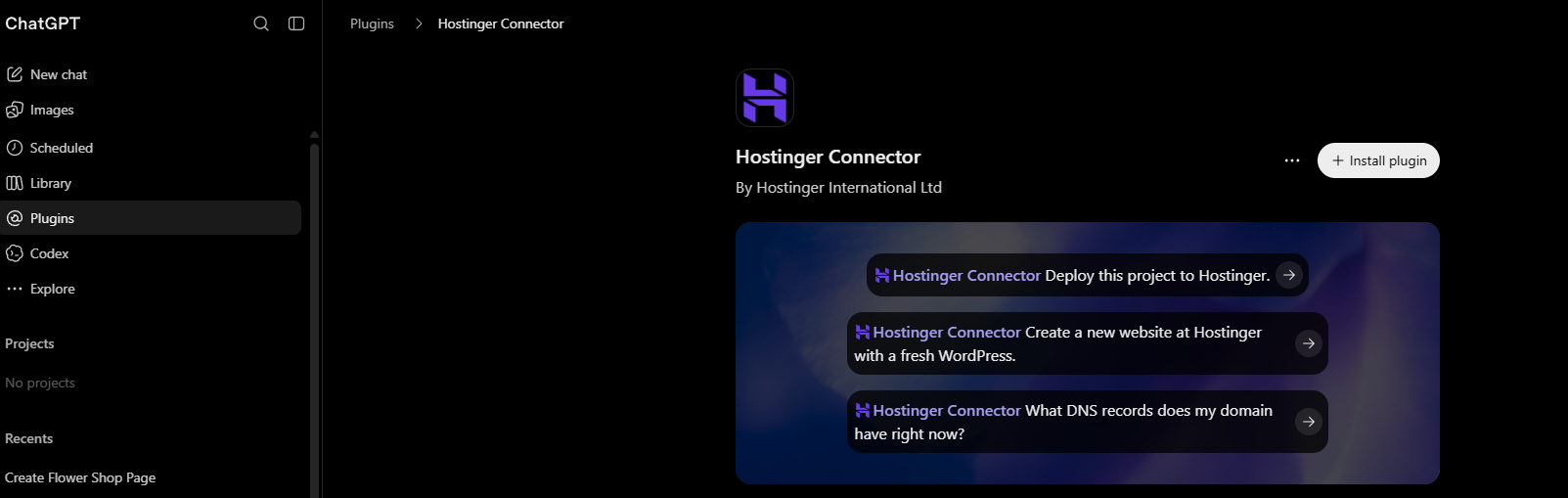
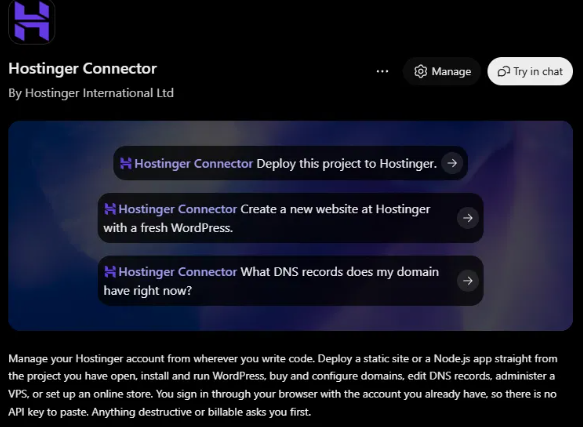
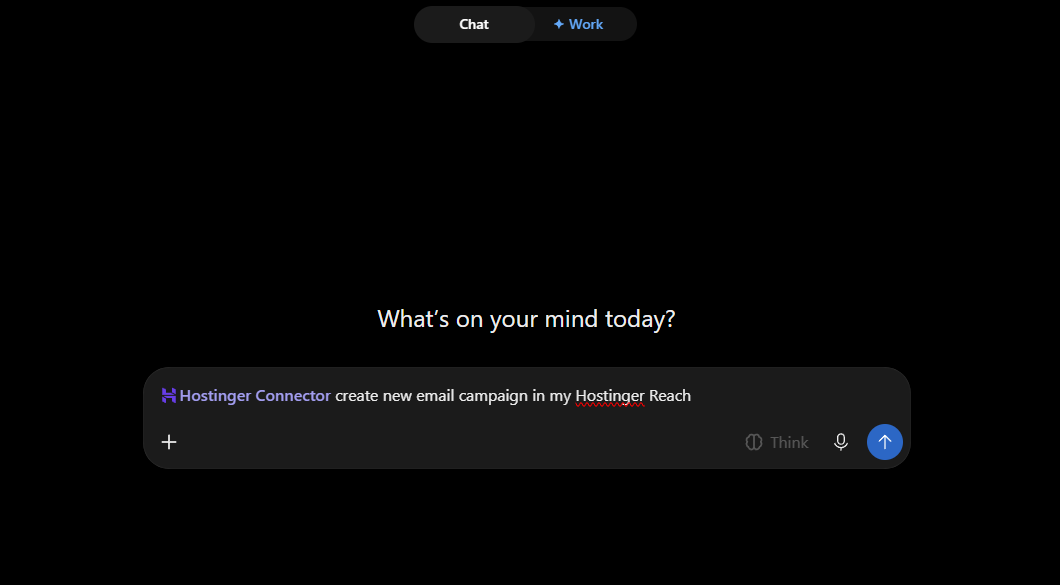
After installation, the plugin page shows a Manage button for the plugin’s settings. Hostinger Connector asks for your confirmation before any destructive or billable action.
Manage Hostinger Reach contacts with your AI assistant
After setup, ask your AI assistant to manage Hostinger Reach contacts, tags, segments, and imports, alongside your Hostinger domains and hosting. Example requests include:
- Show me contacts added this week.
- Create a contact and tag it Webinar.
- Rename the segment Winter leads to Q1 leads.
- Import these contacts from my CSV.
- Add a custom field called Plan tier.
- How many contacts do I have in total?
With Hostinger Connector set up, you manage Hostinger Reach contacts, tags, and segments from your AI assistant without exporting data or opening the Reach dashboard.