The Hostinger CDN browser verification page, shown as “Checking your browser”, appears when the Content Delivery Network (CDN) checks a visitor’s browser before allowing access to the website. The check protects your website from DDoS (Distributed Denial of Service) attacks, scrapers, and malicious bots. It runs automatically, takes a few seconds, and regular visitors pass without any action.
What the Hostinger CDN browser verification does
The verification page runs a short JavaScript check that evaluates browser capabilities and risk signals. A successful check stores a verification cookie, and the visitor continues to the website without seeing the page again for the duration of the verification. Clients that cannot complete the check, such as most automated bots, remain on the verification page and do not reach your website content.
Verified search engine crawlers, such as Googlebot and Bingbot, are identified separately and are not shown the browser verification page under normal settings, so the check does not affect SEO (Search Engine Optimization).
When Hostinger CDN shows the browser verification page
There are four common triggers for the browser verification page:
- Under Attack mode is enabled — visitors without a valid verification cookie are challenged while the mode is active.
- A high security level is set — stricter levels challenge visitors with a higher threat score.
- Automatic attack protection — unusually high rates of requests that must be fetched from your website can enable verification temporarily to protect it.
- The visitor’s network reputation — a history of abuse from an IP address raises its threat score. Some VPN (Virtual Private Network) and data center
IP ranges carry higher threat scores, which makes a challenge more likely at stricter security levels.
How to reduce browser verification for your visitors
Adjust two settings if real visitors report seeing the verification page frequently:
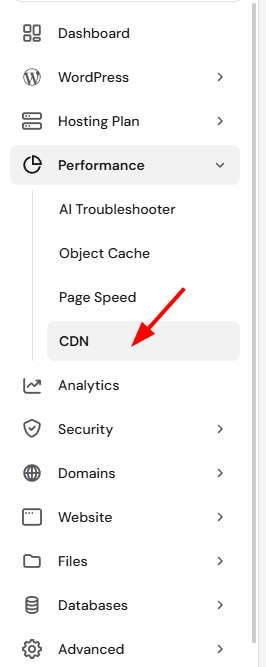
- Go to Hostinger dashboard → Websites → Dashboard → Performance → CDN.
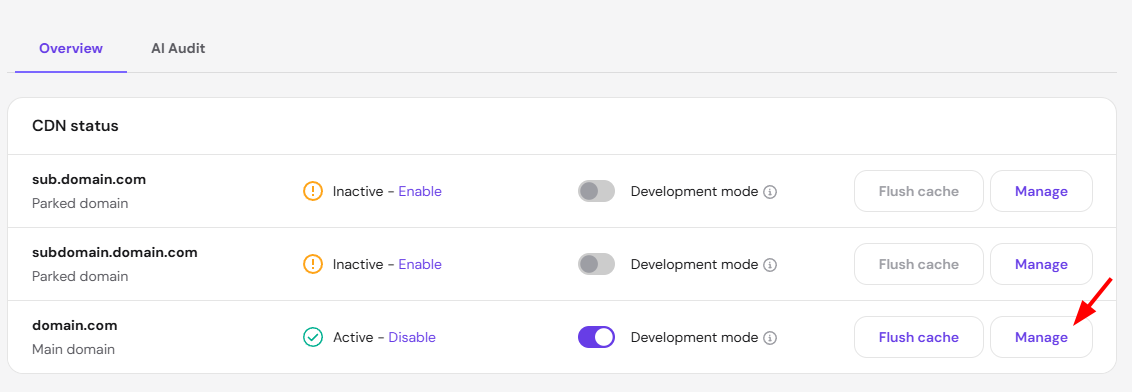
- Click Manage beside the domain you want to configure.
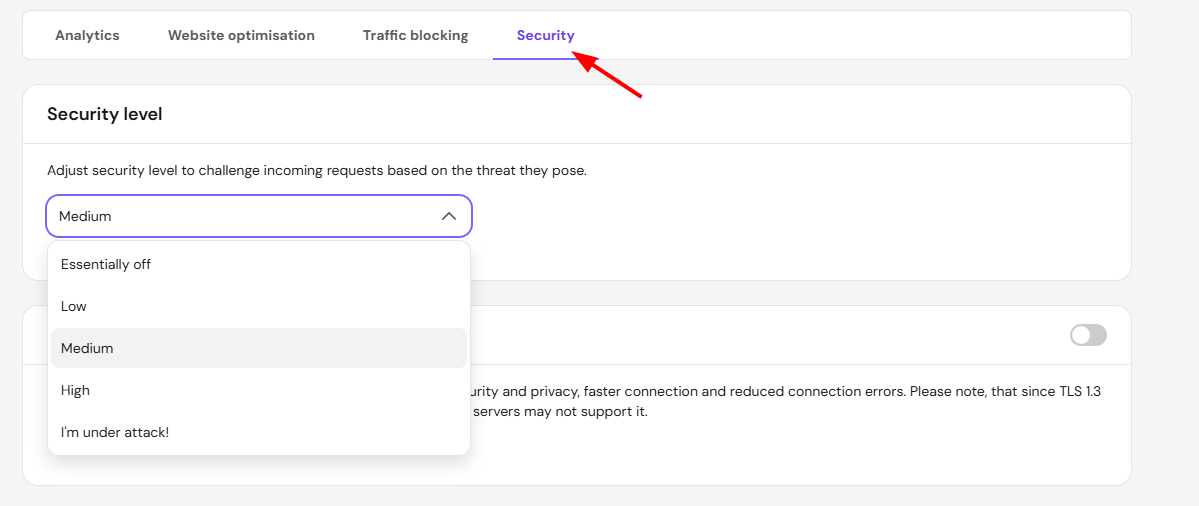
- Open the Security tab.
- Select a lower option such as Medium or Low in the Security level dropdown, then monitor the website for a day.
- Select Under Attack mode only during an active attack.
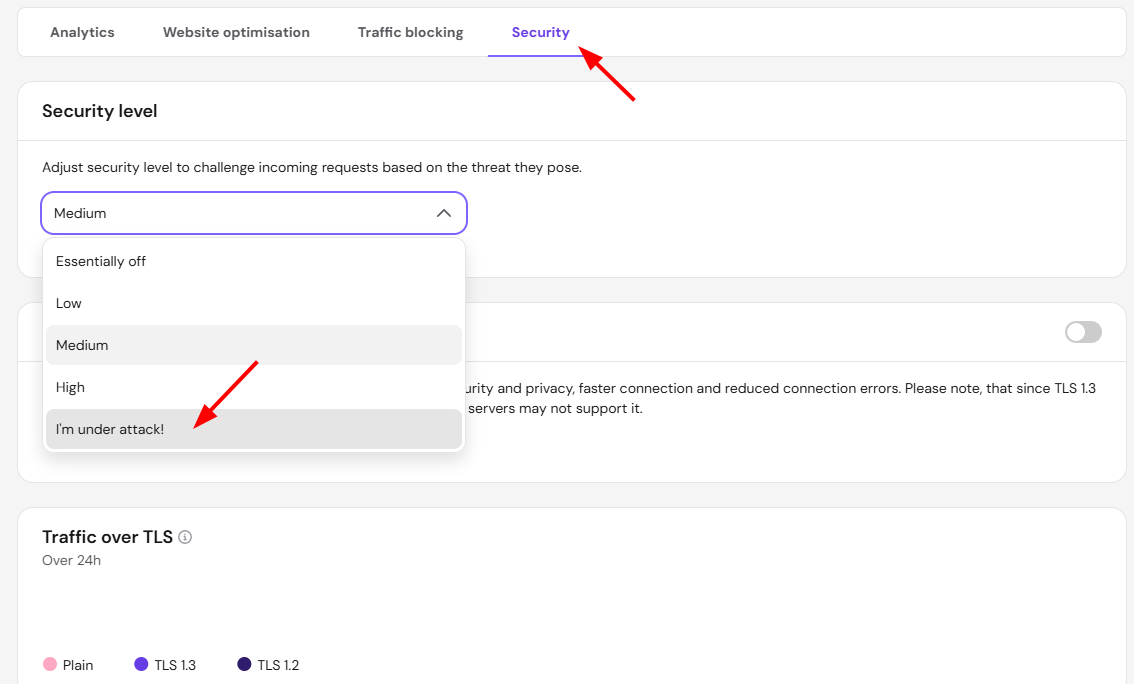
Run ad campaigns with Under Attack mode disabled. Ad clicks arriving in large bursts can be challenged while the mode is active, which loses paid traffic.
NOTE
- The verification page appearing during a traffic spike is expected behavior — it can indicate that Hostinger CDN is filtering suspicious traffic before it reaches your website. Review the Security tab in the CDN dashboard to confirm the active settings.
What visitors can do when the verification page appears
A visitor stuck on the browser verification page can start with three checks: enable JavaScript, allow cookies for the website, and reload the page.
Browsers with strict privacy extensions may need the website added as an exception. If the verification page keeps reappearing, try another browser or network, and contact the website owner if the issue continues.
With the security level matched to your audience and Under Attack mode reserved for real attacks, visitors see the verification page rarely, while suspicious traffic keeps being filtered by Hostinger CDN.