The OpenClaw Terminal is a command-line tool that lets you manage and control your OpenClaw setup directly from a terminal. Instead of using a visual interface, you type commands.
NOTE
- The Terminal provides full command-line access within your OpenClaw environment, not just a limited set of OpenClaw-specific commands. Access is contained within your environment’s isolated storage boundary, and does not extend to the underlying host server. If you need root-level access, consider our OpenClaw on VPS plans. If your OpenClaw app is listed under Managed apps, use its Web console for root access, as explained in how to set up and manage OpenClaw in Hostinger Managed apps.
Access the Terminal
To access Managed OpenClaw instance you will need to go to Hostinger dashboard first:
- Access your OpenClaw instance.
- Navigate to your OpenClaw dashboard by clicking the Manage button next to your application.
- Click on Dashboard.
- Click on Terminal button.

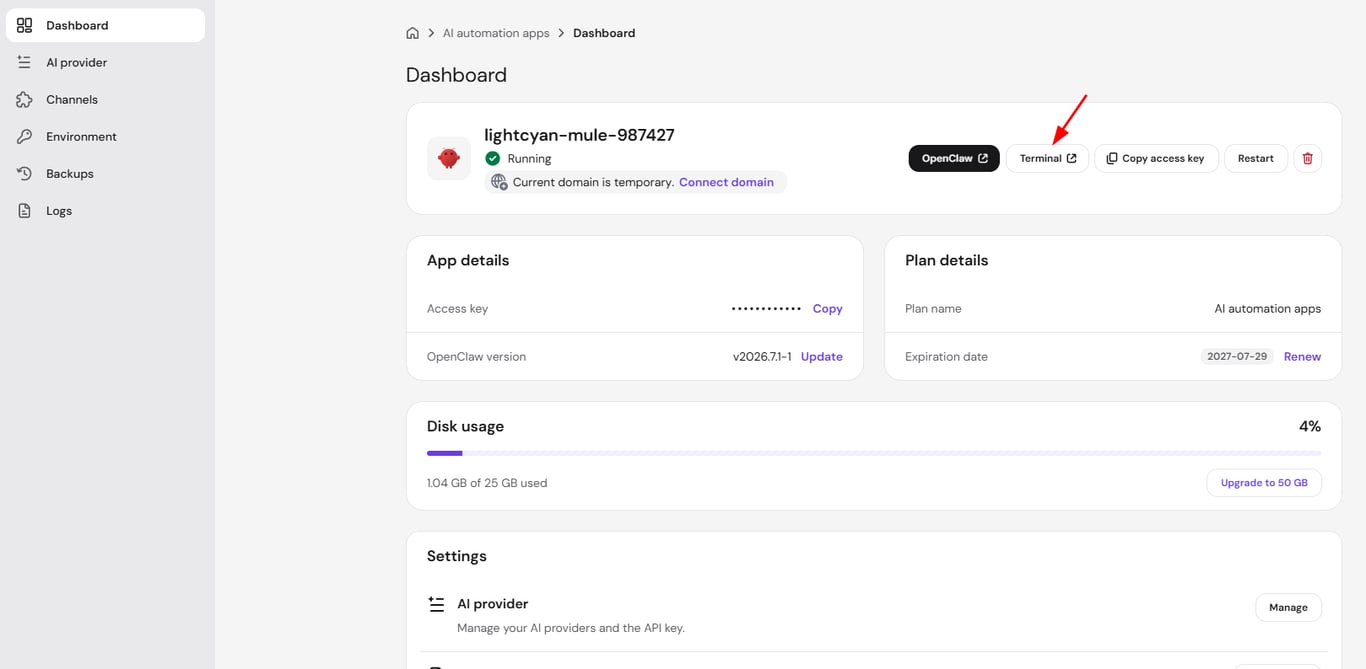
Your Terminal window will open in the browser. If the button appears unavailable, make sure your OpenClaw instance is active and running.
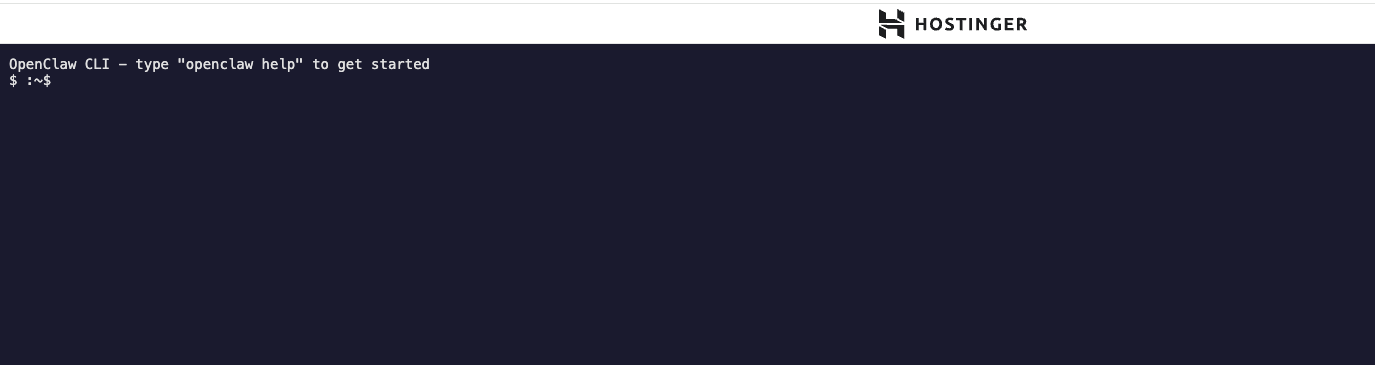
To explore all available commands, refer to the official CLI Reference in the OpenClaw documentation.