The Updates option of the WordPress Overview allows you to manage your WordPress version, themes, and plugins without accessing the WordPress Admin area. It also provides important security information that will help keep your site always secure and up to date.
You can reach it by opening Websites → Dashboard, searching for Updates on the left sidebar, and clicking on it:
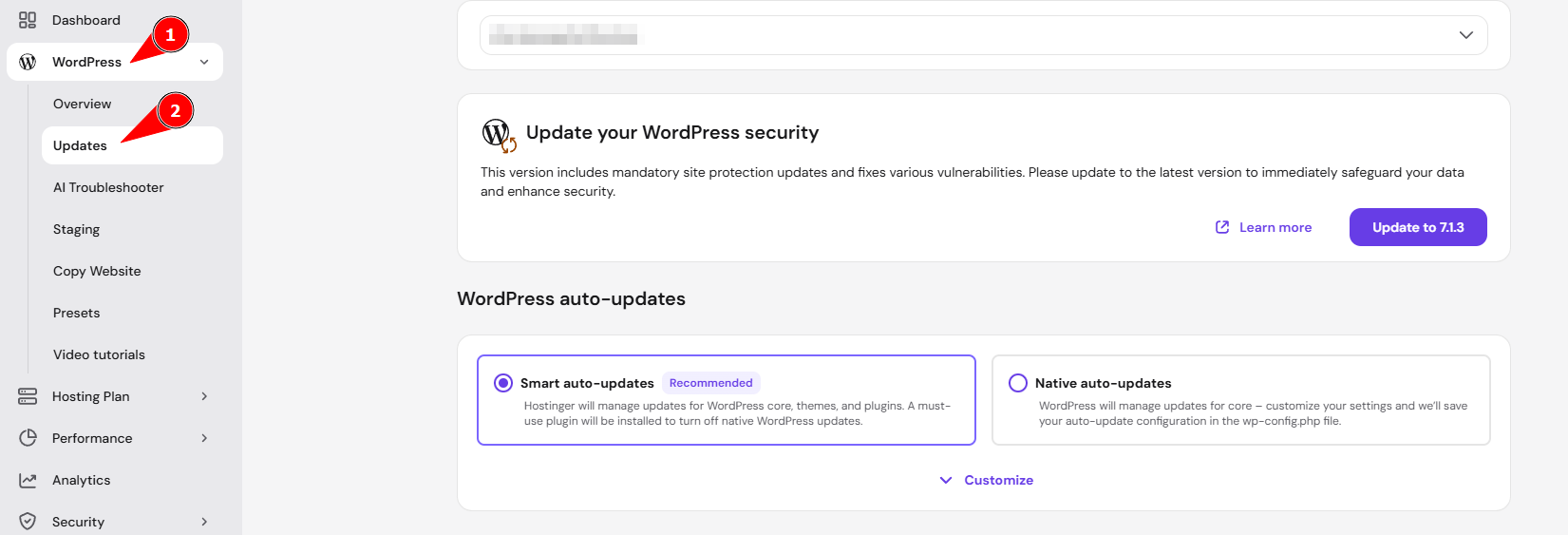
You will be presented with three sections with information and options to manage.
NOTES
- Agency Hosting plans do not have a separate WordPress Overview or Updates page.
- To change or install a theme, use the WordPress Admin area instead: change a WordPress theme, or install a new WordPress theme.
- To install a plugin, use the WordPress Admin area instead: install a WordPress plugin.
WordPress version
If you have the latest WordPress version, it will appear marked marked with a green checkmark. In case your core files need to be updated, you will have the option to do so with a single click:

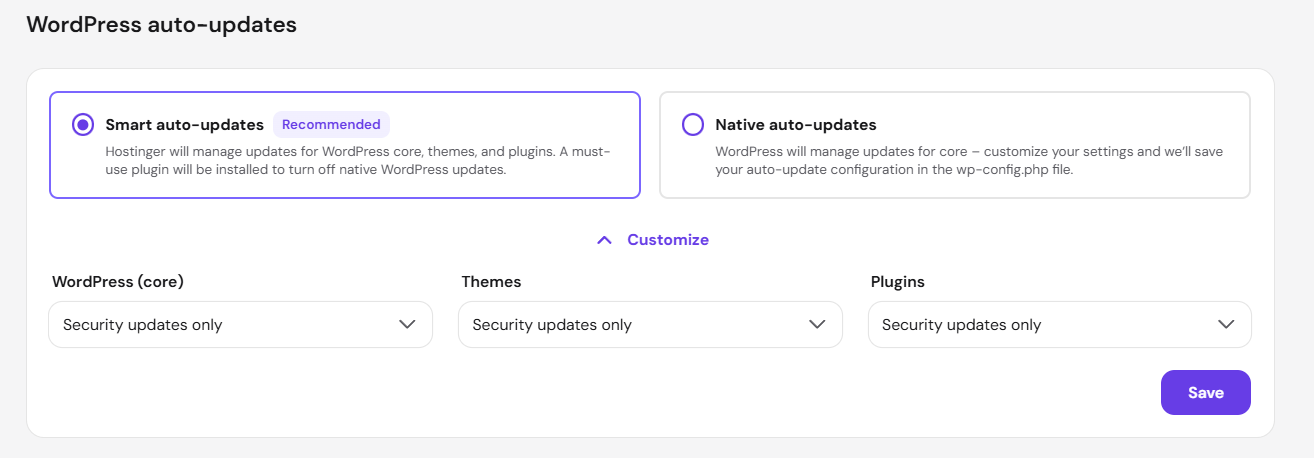
WordPress auto-updates
Choose between Smart auto-updates and Native auto-updates, then customize the update behavior for WordPress core, themes, and plugins separately. For each, select No updates, Security updates only, or All updates. For setup steps, see how to enable automatic WordPress updates in Hostinger.
Installed themes
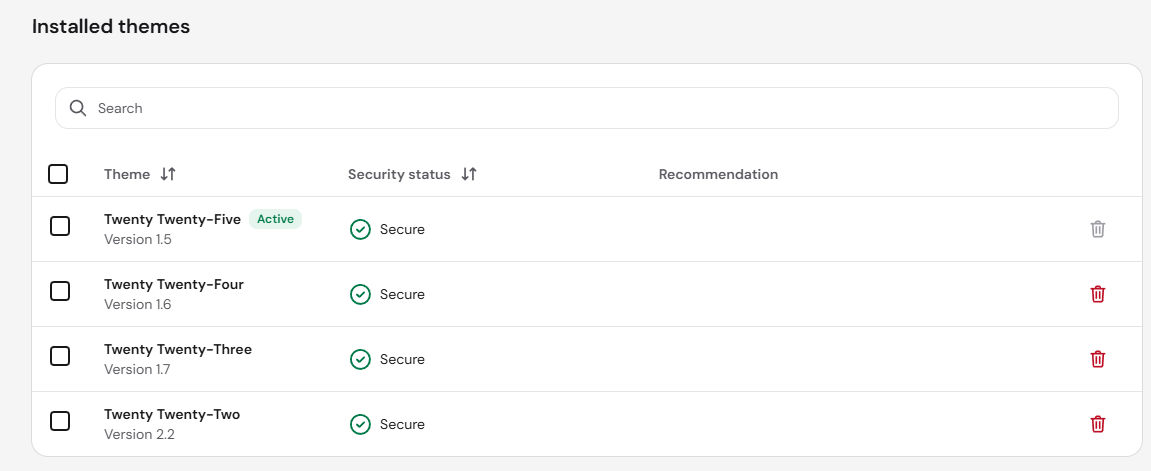
Scroll down to find a list of all the themes installed on your website. Here, you can see which ones are active and whether they are secure:
The following tutorial, How to Install a WordPress Theme, explains how to install WordPress themes.
Installed plugins
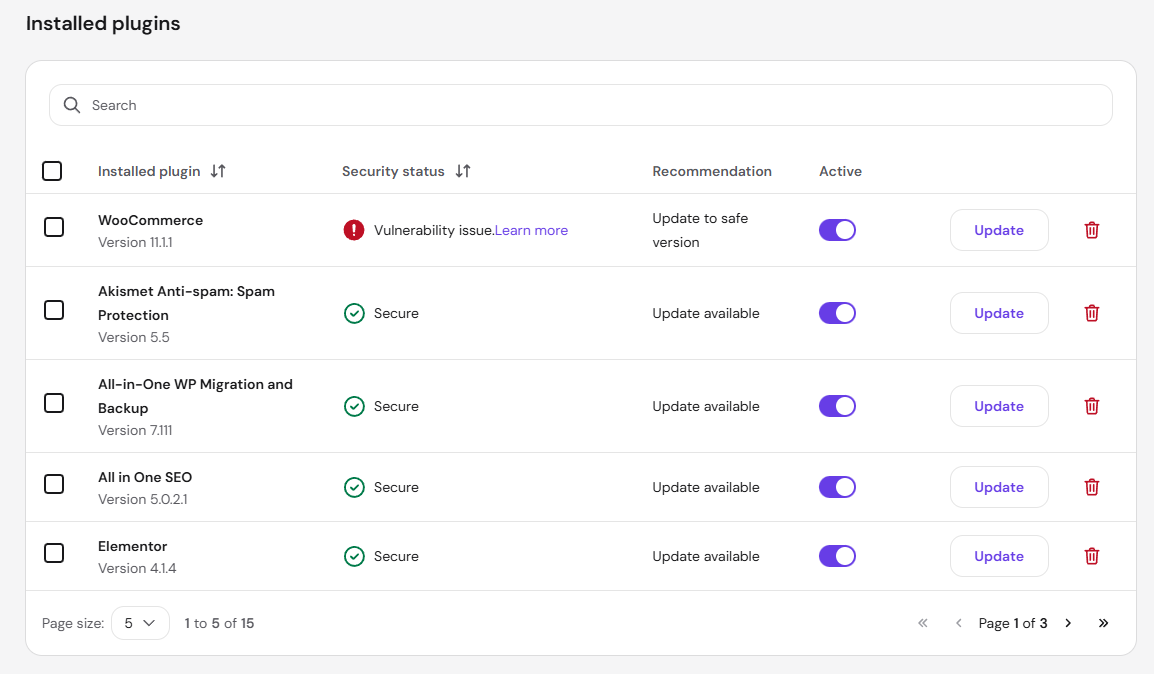
After the installed themes table, you will find the installed plugins:
-
Installed plugin – name of the plugin.
-
Security – shows whether the theme/plugin is secure or if Patchstack has detected a vulnerability.
-
Recommendation – suggestions to improve the website security by taking action on the plugin or theme.
-
Activation toggle – easily enable or disable plugins without accessing the WordPress admin area.
-
Update – easily Update the theme or plugin.
-
Trash bin – if you need to Delete the theme or plugin.
For information on how to install WordPress plugins, check this tutorial: How to install WordPress plugins.
If you want to test any changes in plugins and your hosting plan is Web Business or above, you can create a staging environment.
Patchstack promotion
At the bottom of the Updates page, you’ll find a banner from Patchstack, the vulnerability database that powers the Security status shown above. It links to Patchstack’s managed security service for WordPress, which adds virtual patching on top of Hostinger’s built-in vulnerability monitoring.

NOTE
- Inactive websites can also be affected by vulnerabilities. A vulnerability on one website can put other websites on the same plan at risk, even if that website isn’t in active use.