The AlmaLinux 9 with AdminBolt VPS template comes with AdminBolt pre-installed, providing a modern web hosting control panel for managing websites, domains, databases, and server resources. AdminBolt requires a separate license, which is not included in your Hostinger VPS plan and must be purchased directly from AdminBolt. AdminBolt is designed to simplify server administration through an intuitive interface, allowing you to deploy and manage hosting environments without relying heavily on the command line.
Accessing your VPS
After deploying the template, you need to access your VPS using the browser terminal available in your VPS dashboard. Click the Web Console button to open a direct session to your server. This terminal allows you to run the initial command required to access the AdminBolt control panel.
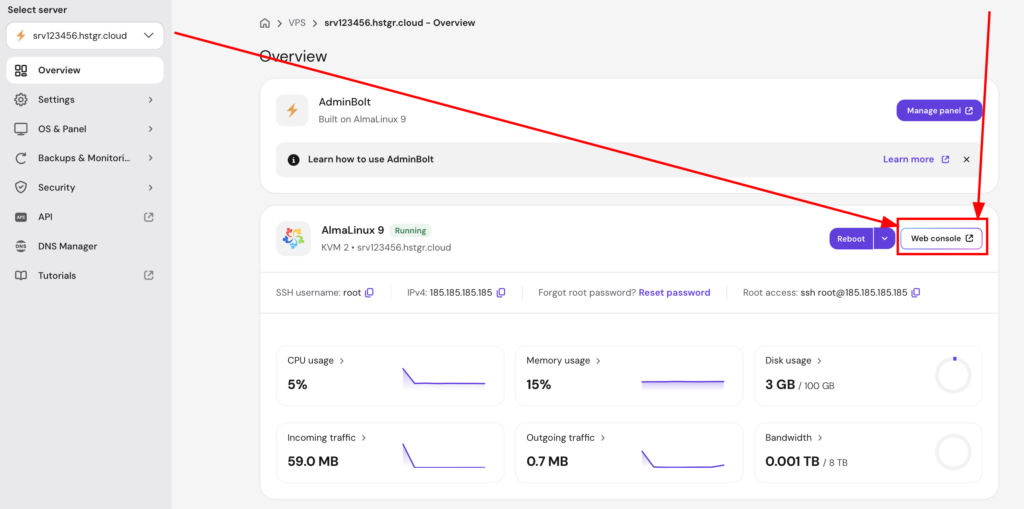
Generating AdminBolt login link
To access the AdminBolt dashboard for the first time, you must generate a secure single sign-on (SSO) login link. In the browser terminal, run the following command:
bolt-cli admin-sso-generateAfter running the command, the terminal will display a unique login URL. Copy this URL and open it in your browser to proceed to the AdminBolt interface.
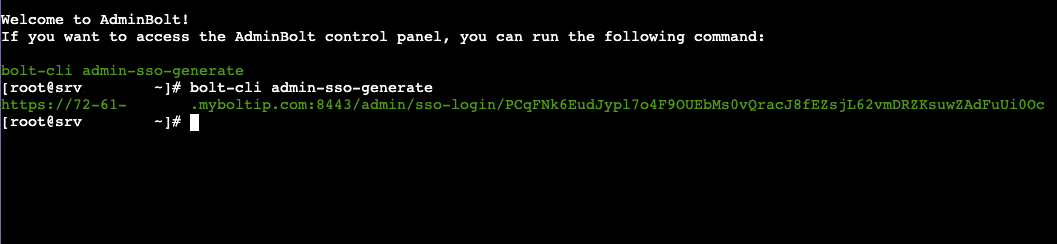
Changing the admin password
When you open the generated SSO link, you will be prompted to change the password for the default admin user. This is a required security step that ensures your control panel is protected. Enter a strong password and confirm it to continue.
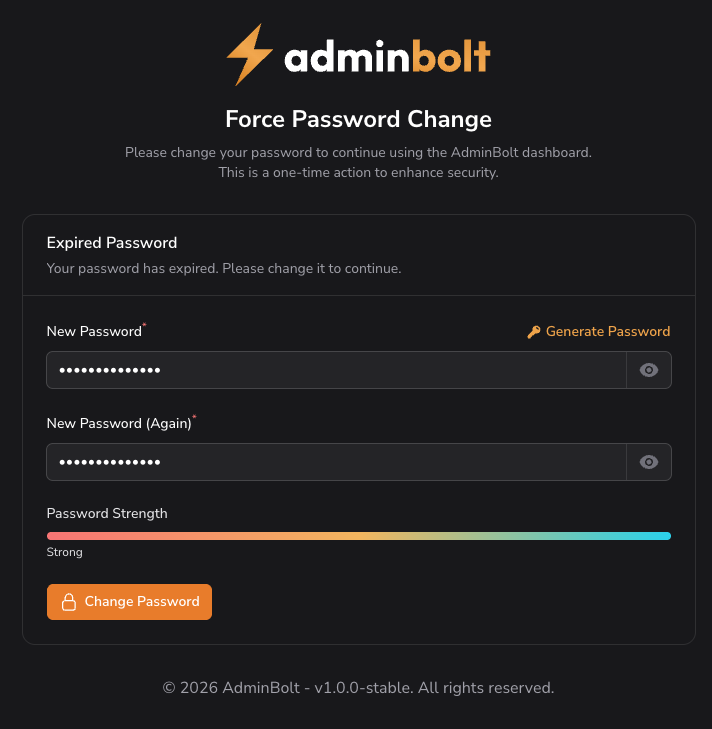
Using AdminBolt dashboard
Once the password is updated, you will be redirected to the AdminBolt dashboard. From here, you can begin managing your server and hosting environment. The dashboard provides access to key features such as creating hosting accounts, managing domains, configuring DNS records, setting up SSL certificates, and monitoring server metrics.
AdminBolt also includes tools for managing databases, tracking system performance, and organizing reseller accounts, making it suitable for both individual users and hosting providers.
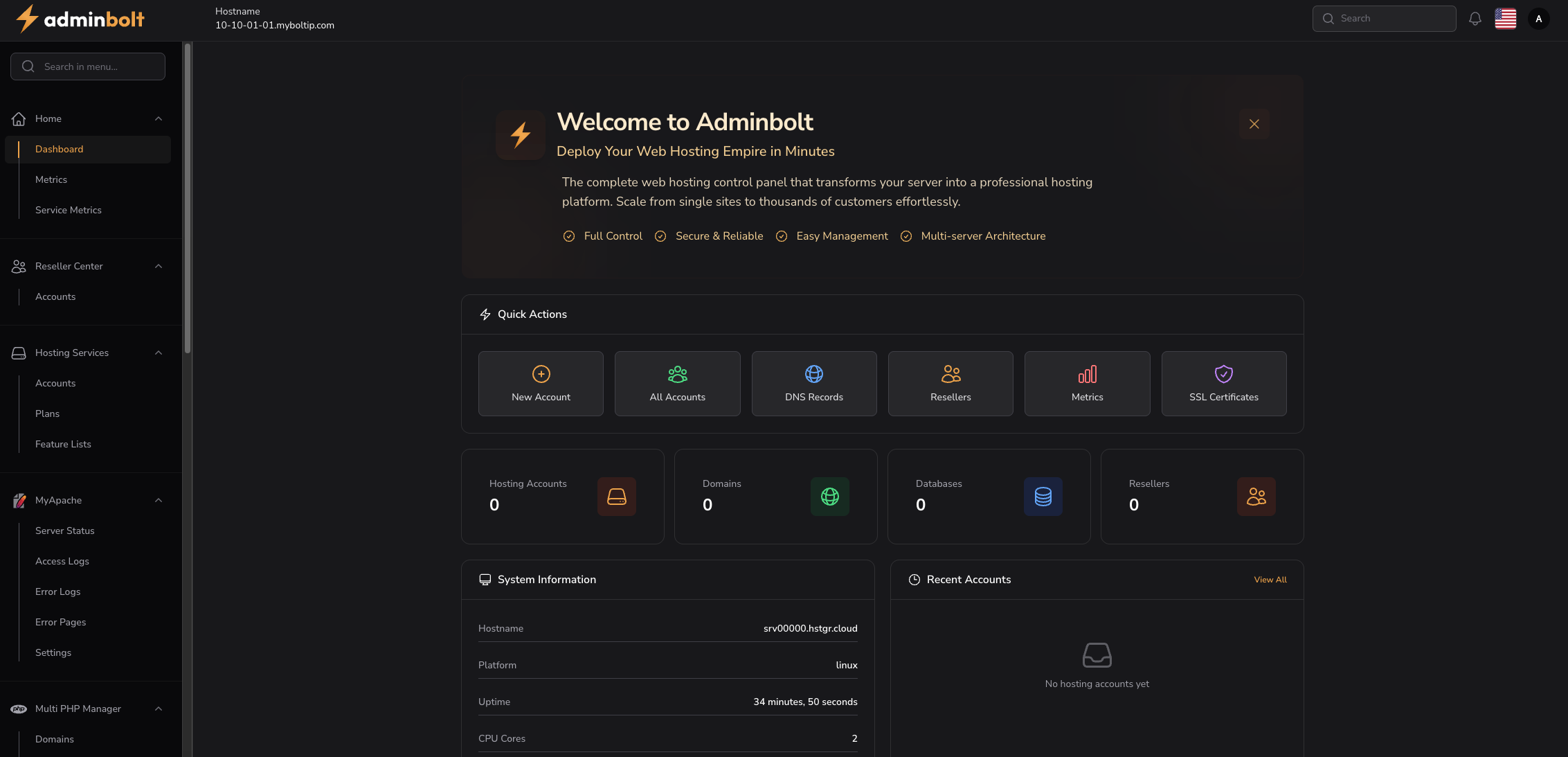
Next steps
After logging in, you can start configuring your hosting environment by adding domains, creating accounts, and setting up services. Depending on your needs, you may also configure SSL certificates, DNS settings, and resource limits for hosting accounts. AdminBolt provides a centralized interface for all these tasks, allowing you to manage your server efficiently.
Conclusion
The AlmaLinux 9 with AdminBolt VPS template offers a fast and convenient way to deploy a full-featured hosting control panel. By generating the SSO login link and completing the initial password setup, you can quickly access the AdminBolt dashboard and begin managing your server with ease. For more advanced configuration and features, refer to the official AdminBolt documentation.