To delete VPS logs at Hostinger, open Settings in the VPS dashboard, scroll to Delete unnecessary logs, confirm the removal, and click Delete logs. Deleting logs frees disk space on your VPS.
What are file system logs?
File system logs are records of file system events and activities, such as when files were created, modified, or deleted, as well as information about file permissions, ownership, and access.
While useful for identifying issues that may impact the performance or integrity of your server, over time, these logs can add up to vast amounts of data that you may no longer need. If you want to have more disk space available on your VPS, you can delete these logs.
How to delete VPS logs
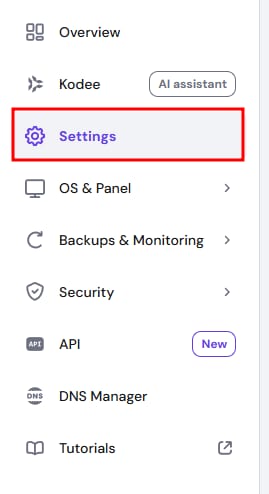
Choose Settings on the left sidebar in VPS dashboard.
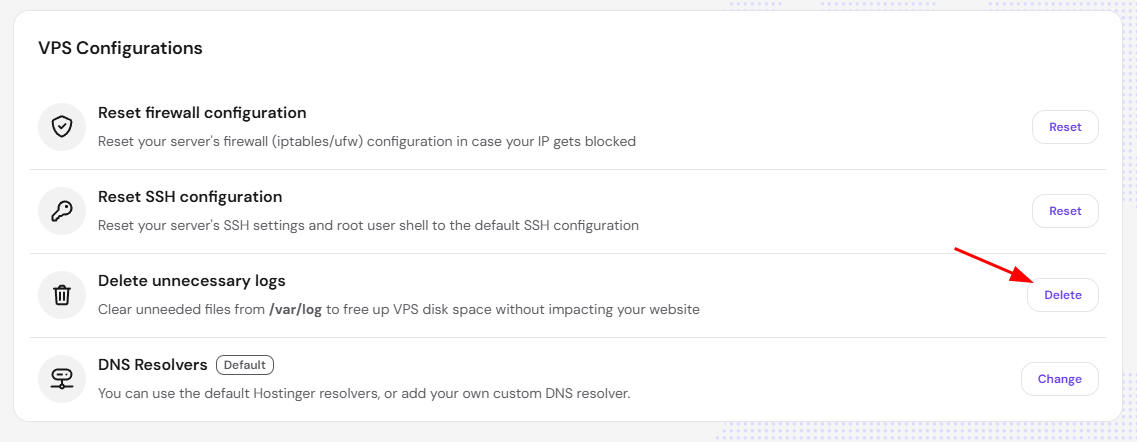
And scroll down to find Delete unnecessary logs:
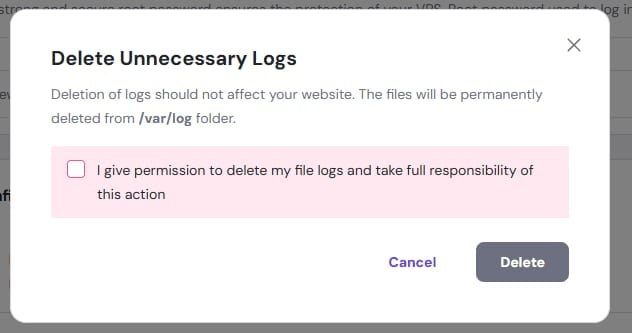
Mark the option to allow the log file removal and click on Delete logs. Your log files will be permanently deleted, freeing up disk space on your VPS.
Your log files are now permanently deleted, and the disk space is available again on your VPS.