LLMs.txt is a file that helps AI tools, such as ChatGPT, understand your website’s structure and most important content. To enable LLMs.txt, turn on Create LLMs.txt file in the Hostinger Tools plugin for WordPress, or turn on Web2Agent (Beta) and Enable LLMS.txt in Hostinger AI Builder manual mode. Hostinger AI Builder agentic mode creates the file automatically when you publish.
Enabling this feature can help AI tools navigate your site and represent your content more accurately when people ask about it.
What is LLMs.txt?
Think of LLMs.txt as a companion to robots.txt and sitemap.xml:
- robots.txt tells crawlers which pages they can or cannot access.
- sitemap.xml lists all your pages for search engines.
- llms.txt provides a curated guide for AI systems, highlighting your key pages and describing what they’re about.
Why should you enable it?
Here are the main benefits:
- More accurate AI answers – AI assistants can pull the right content from your site, instead of random or outdated pages.
- Highlight key pages – You highlight what matters most (product pages, about info, guides).
- Future-proofing – While still a proposed standard, more AI tools are expected to adopt llms.txt. Enabling it now puts you ahead.
- Safe and lightweight – It doesn’t change your public site; it just adds an extra metadata file.
How to enable LLMs.txt
In Hostinger AI Builder manual mode
- In the Hostinger AI Builder editor, click More on the left sidebar.
- Open General Settings.
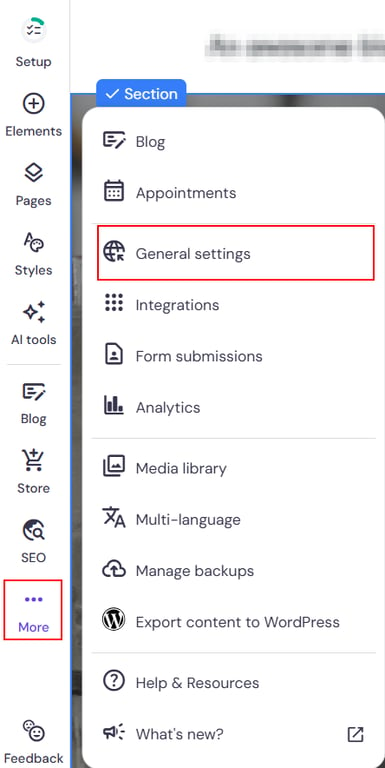
- Toggle on Web2Agent (Beta), then toggle on Enable LLMS.txt. The Enable LLMS.txt toggle is available only when Web2Agent (Beta) is on. To learn what Web2Agent does, see Web2Agent in Hostinger.
- Publish your site.
domain.tld/llms.txt. The file may take some time to become available after publishing.In Hostinger AI Builder agentic mode
Hostinger AI Builder agentic mode creates an llms.txt file automatically every time you publish, so no setup is needed. See Hostinger AI Builder: GEO settings in agentic mode for details.
In WordPress
See how to enable llms.txt automatically using the Hostinger Tools plugin — no manual file editing needed.
- Go to your WordPress Admin Dashboard.
- Open Hostinger → Tools.
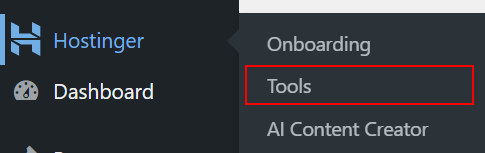
- Make sure the LLM Optimization toggle is on, then toggle on Create LLMs.txt file. Click LLMS.txt to open your file.
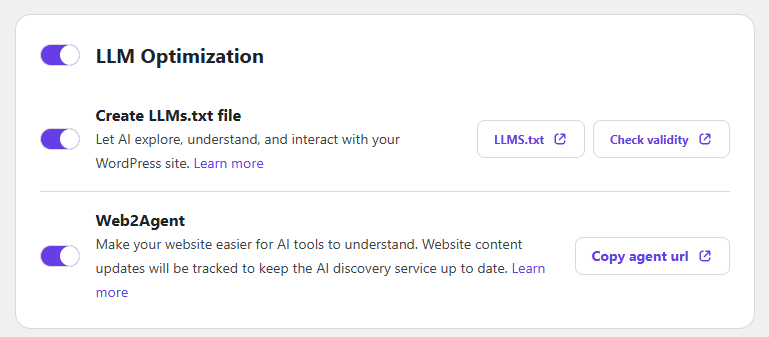
Check your LLMs.txt file
Scan your website with the Hostinger AI Visibility Checker to confirm your llms.txt file works. The llms.txt is served and llms.txt is well-formed checks pass when the file is available and valid.
Once both checks pass, AI tools can read your llms.txt file to understand your website’s structure and key pages.