To set up Laravel Forge on a Hostinger VPS, install Ubuntu 24.04, add your VPS to Laravel Forge as a Custom VPS, run the provisioning command over SSH, and create your site. Once provisioning finishes, you can manage your server and deploy PHP applications from Laravel Forge.
Step 1 – VPS installation
Install Ubuntu 24.04 on Hostinger’s VPS.
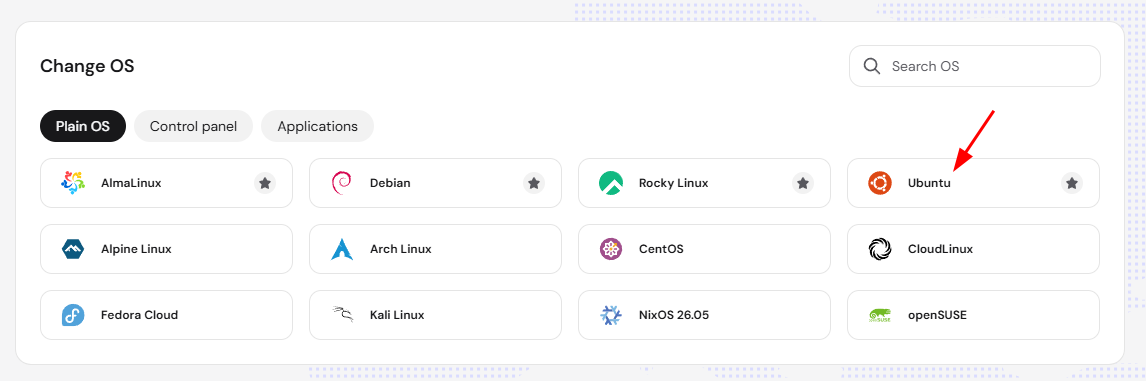
After installation, head to the VPS Hostinger dashboard overview page, and copy your IP address.
Step 2 – Forge configuration
-
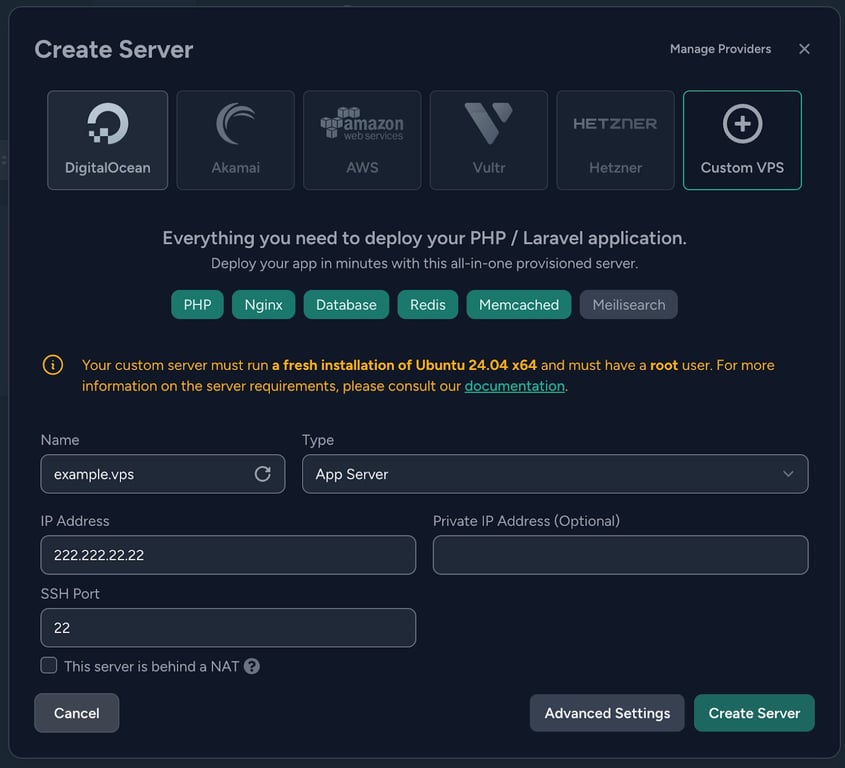
Log in to Laravel Forge and navigate to the Create Server section.
-
Select Custom VPS as your provider (shown in the screenshot).
-
Fill in the following details:
-
Name: Give your server a name, e.g., example.vps
-
Type: Choose your application type, based on your needs.
-
IP Address: Enter your VPS public IP address, e.g., 222.222.22.22.
-
SSH Port: Default port is 22 unless otherwise specified.
-
-
Once the details are filled, click on Create Server to proceed.
Step 3 – Server configuration
You will see the server’s provisioning command and server credentials. Write them down for later use. For now, copy the provisioning command.
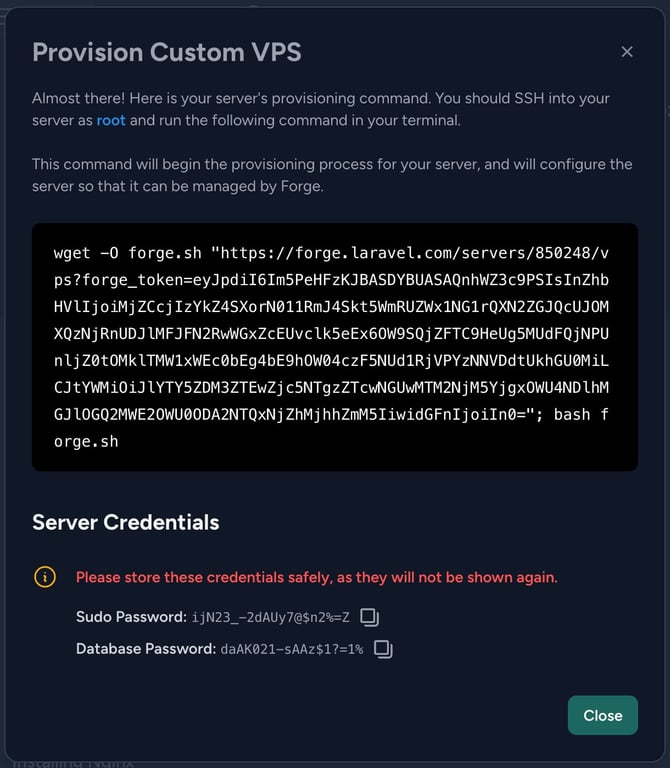
Open SSH client (terminal, PuTTY, or web console in Hostinger dashboard) and connect to the server using ssh root@your-ip-address replacing your-ip-address with your server’s IP address found in your Hostinger dashboard.
Once logged in, paste and run the server’s provisioning command from Laravel Forge. This command will install all the necessary dependencies and configure your server for Laravel Forge management.
Step 4 – Monitor the Provisioning Process
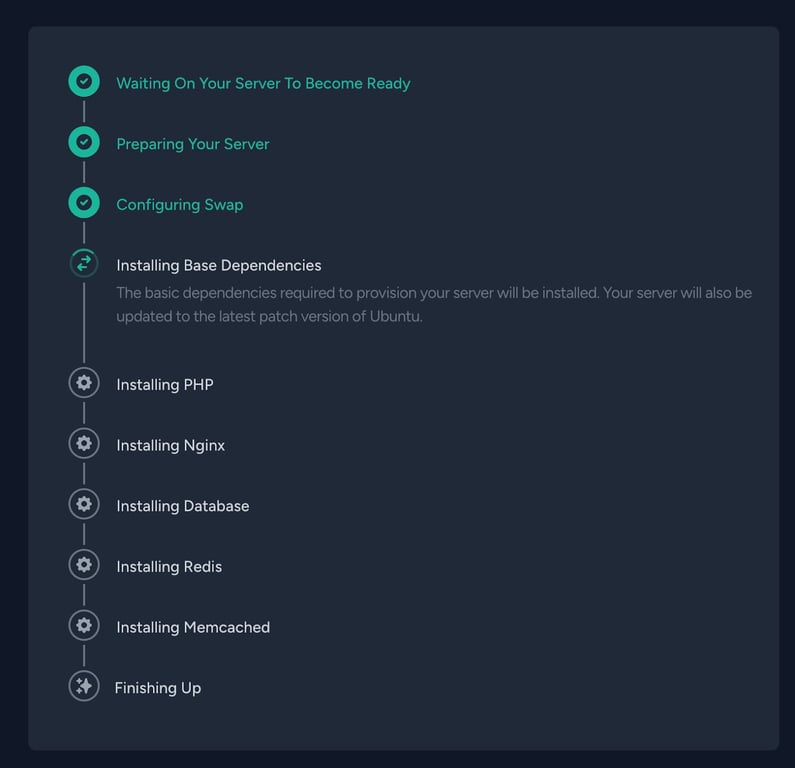
After running the command, Laravel Forge will automatically handle the following steps:
-
Preparing the server
-
Configuring swap
-
Installing base dependencies (e.g., Ubuntu updates)
-
Installing PHP, Nginx, Database, Redis, and Memcached (based on your chosen type).
Wait for Forge to complete the installation, which may take several minutes.
Step 5 – Create a new site
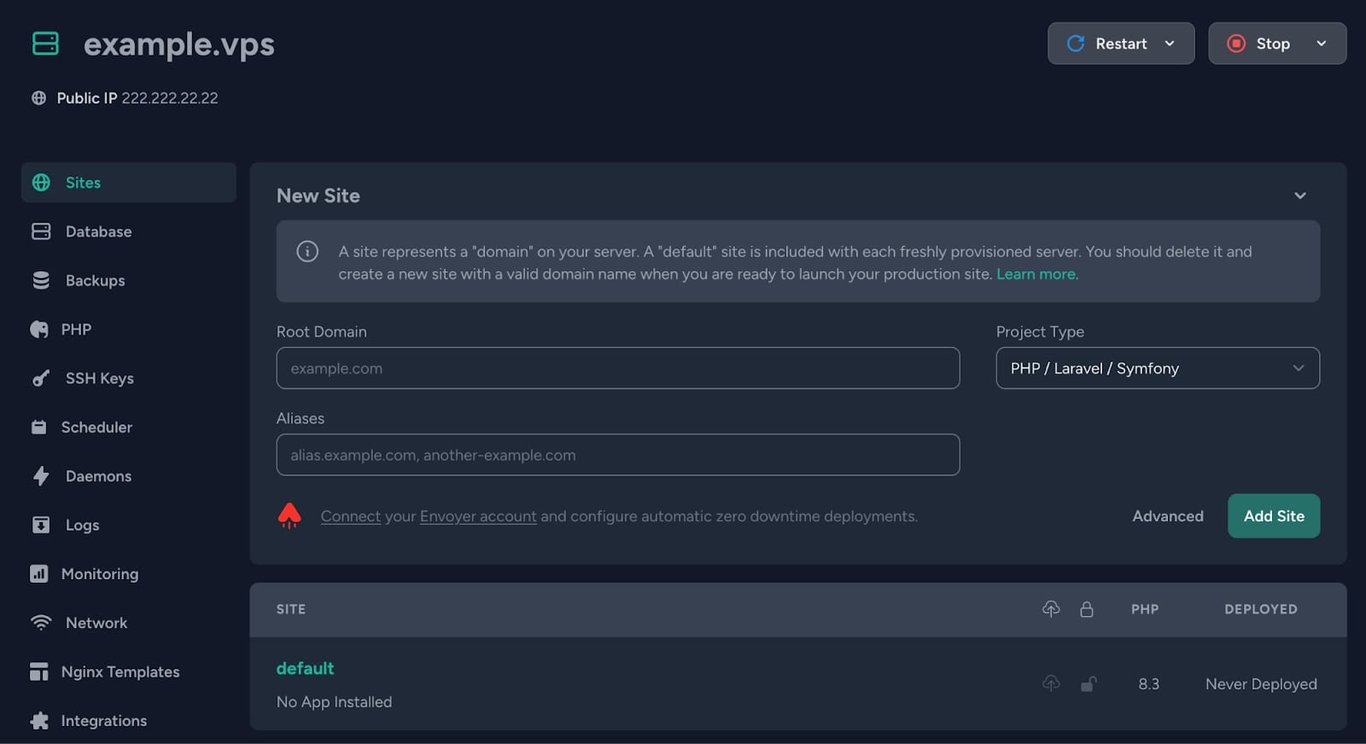
Enter all the necessary information (domain, aliases) and press “Add Site”.
Step 6 – Access your domain
Your Hostinger VPS is now successfully configured to run Laravel Forge. You can manage your server via Laravel Forge, deploy PHP applications, and use additional services like Redis, Memcached, and databases.
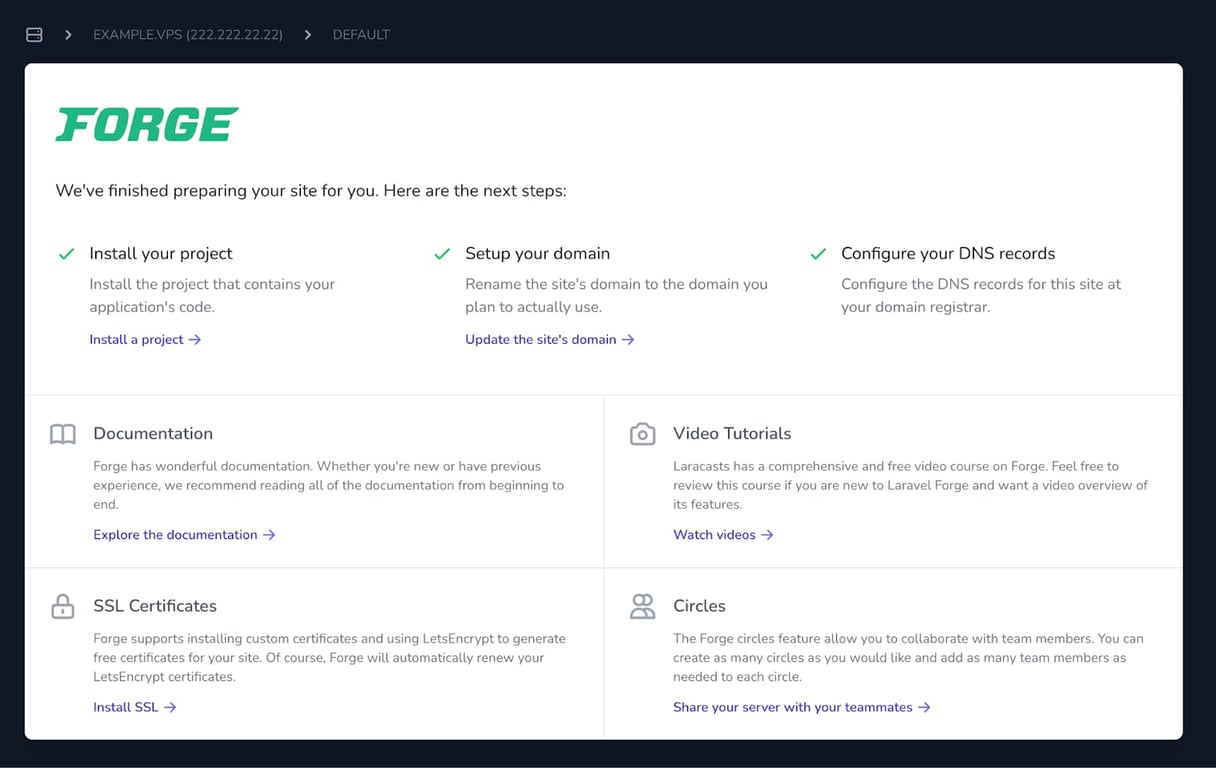
For further development, visit Laravel Forge docs. See How to use the Laravel VPS template at Hostinger for other details about running Laravel on Hostinger VPS.