Ubuntu 24.04, with a desktop environment, can be accessed remotely using VNC (Virtual Network Computing). VNC allows users to connect to their VPS from any operating system, providing a graphical interface similar to what you would experience if you were sitting in front of the machine.
Before you start
- Ubuntu 24.04 with Remote Desktop template requires a KVM 2 plan or higher
Apply Remote Desktop template in VPS
To apply this OS template to your server, go to the VPS section on Hostinger dashboard and click on the server you want to manage.
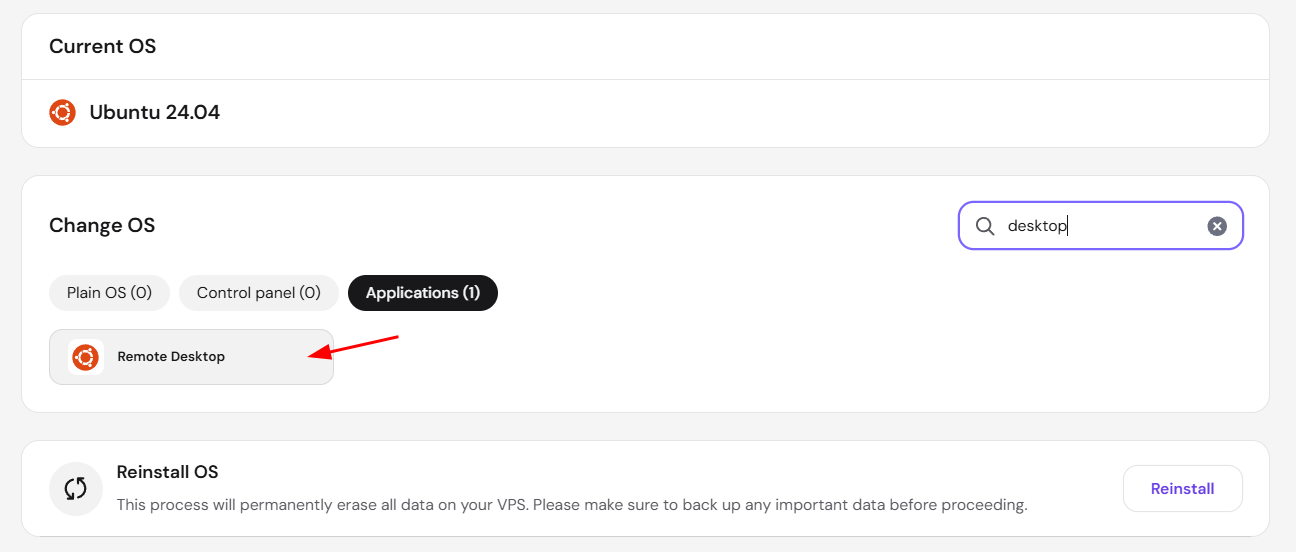
Then, navigate to OS & Panel → Operating System from the left sidebar. Scroll down to the Change OS section:
-
Use the search bar to find Desktop
-
On the Application tab, select Remote Desktop

-
Click on Change OS
Changing the operating system on your VPS will permanently delete all your current data. If you wish to keep your information, make sure to download a backup via FTP beforehand.
NOTE
- For a broader overview of remote desktop options on Hostinger VPS beyond VNC, see how to set up an Ubuntu 24.04 remote desktop on Hostinger VPS.
Setting up VNC
-
Set VNC Password:
-
Open a terminal on your VPS.
-
Run the command:
vncpasswd /etc/vncpasswd -
Follow the prompts to set a secure password for VNC access.
-
Managing users
-
Add a new user:
-
To add a new user, use the command:
adduser <username> -
Follow the prompts to set up the new user account.
-
-
Reset password for existing user:
-
To reset the password for an existing user (e.g., the default ‘ubuntu’ user), use the command:
passwd ubuntu -
Enter the new password when prompted.
-
To connect to your VPS using VNC, you will need a VNC client installed on your local computer. Below are instructions for different operating systems:
Windows
- Install VNC Viewer:
- Visit the RealVNC website and download the VNC Viewer for Windows.
- Run the installer and follow the on-screen instructions to complete the installation.
- Connect to VPS:
- Launch VNC Viewer.
- Enter the IP address of the VPS and use port 5900.
- Enter the VNC server’s password when prompted.
- Click Connect to establish a VNC connection to the remote machine.
Linux
- Install VNC Viewer:
- Follow the instructions on the RealVNC website to install the package.
- Connect to VPS:
- Open a terminal and type
vncviewer. - Enter the IP address of the VPS and use port 5900.
- Enter the VNC server’s password when prompted.
- Open a terminal and type
macOS
- Use Built-in VNC Client:
- Open Finder, click on the menu Go, then select Connect to Server.
- Enter the VPS’s IP address and use port 5900.
- Install Custom VNC Client (Optional):
- You can also install a custom client, such as RealVNC Viewer for macOS.