Hermes in Hostinger Managed apps runs Hermes, a self-improving AI agent from Nous Research, on its own dedicated microVM managed by Hostinger. You choose between Hermes WebUI and Hermes Agent during setup, then pick an AI provider and, optionally, connect Telegram. After setup, you log in to the Hermes Agent dashboard with a username and password from the Hostinger dashboard.
Before you start
- You need a Hostinger Managed apps plan. See Hostinger Managed apps: What it is and how to get started for plans and how to add an app.
- If your Hermes app is listed under AI agents → Hermes Agent, follow Hostinger Managed Hermes: Overview and setup instead.
How to set up Hermes in Hostinger Managed apps
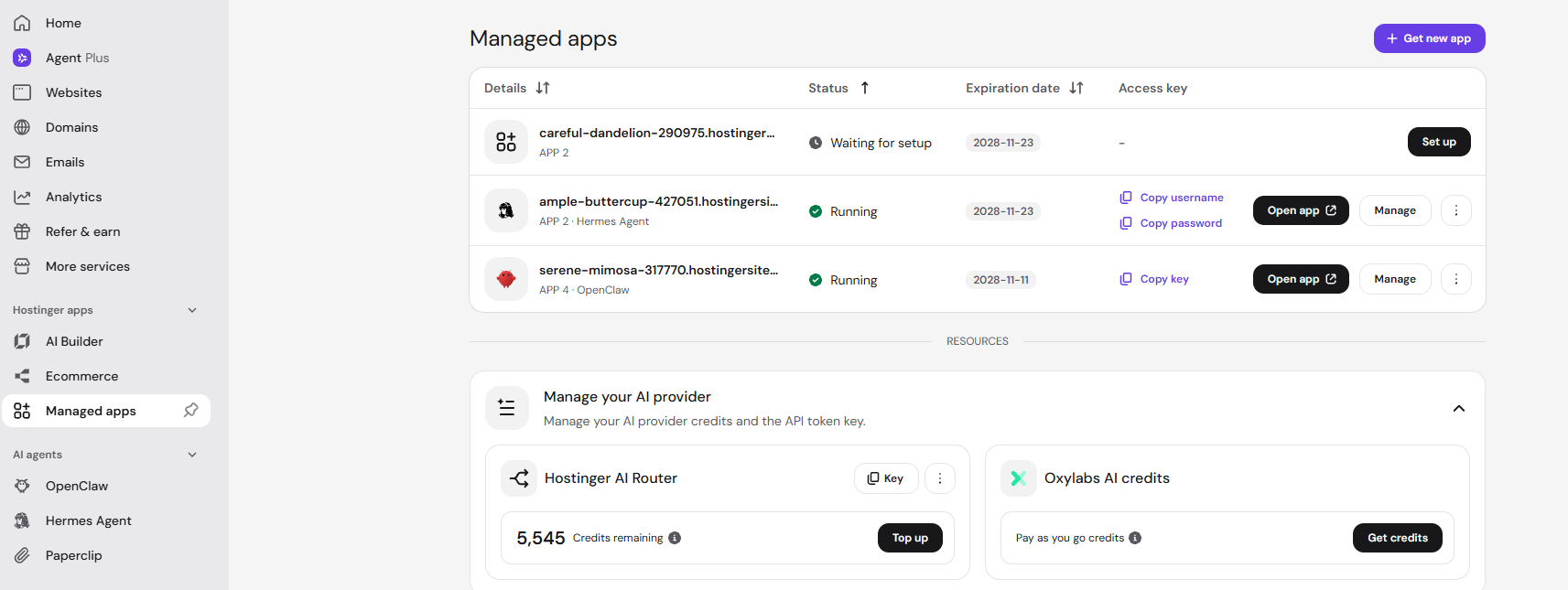
Step 1 – Start the setup
- In the Hostinger dashboard, go to Managed apps in the left sidebar.
- Click Set up next to a plan with the status Waiting for setup, and select Hermes. To buy a new plan for Hermes, click Get new app instead. After you pay, the Hermes setup starts right away.

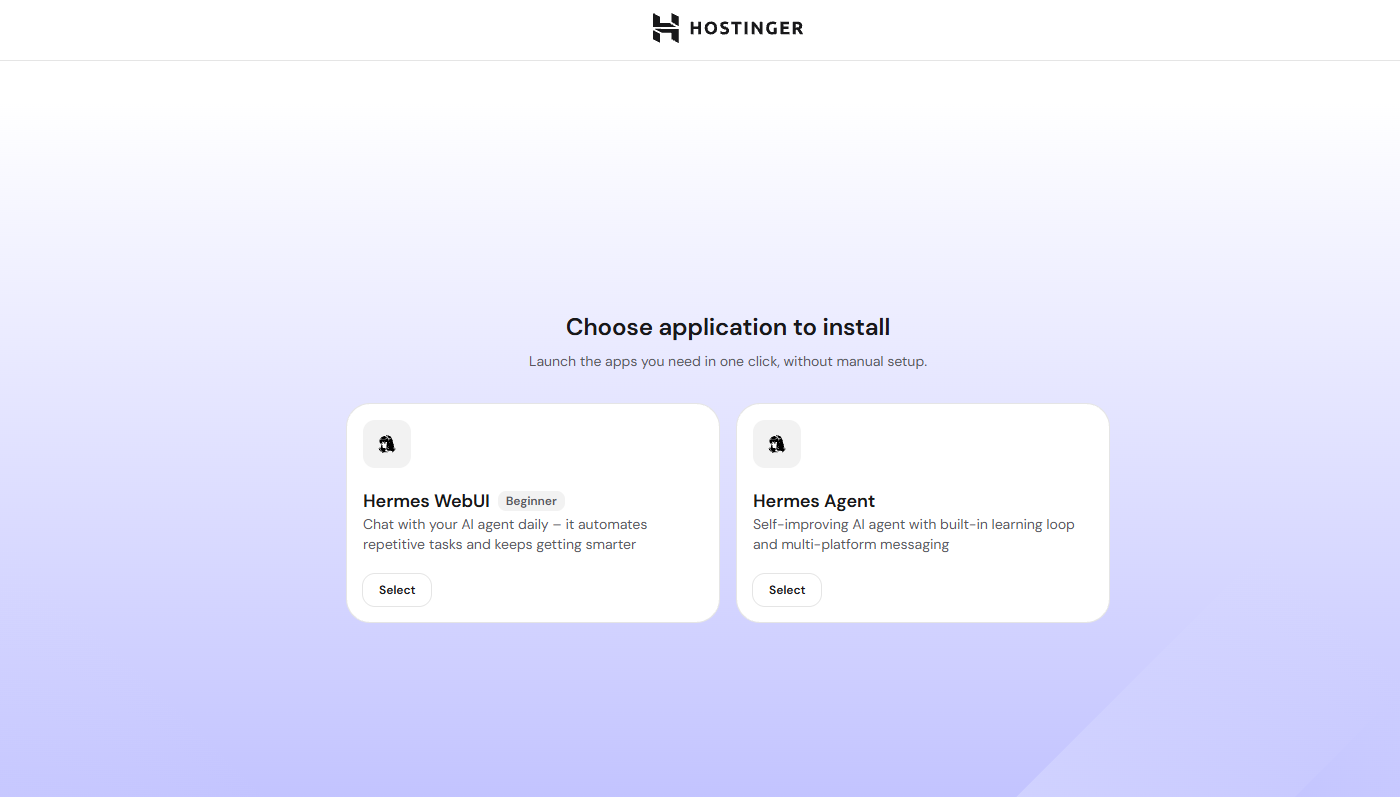
Step 2 – Choose Hermes WebUI or Hermes Agent
Click Select under the Hermes version you want:
- Hermes WebUI (Beginner): a chat interface for working with your AI agent every day.
- Hermes Agent: the full self-improving AI agent with a built-in learning loop and multi-platform messaging.
Step 3 – Choose an AI provider
Select the AI provider that powers Hermes. You can change it later.
- Hostinger AI Router: uses your Hostinger credits, with no separate account needed. Select an existing AI Router API key or click New key.
- OpenAI, Anthropic, xAI, or Gemini: enter an API key from that provider.
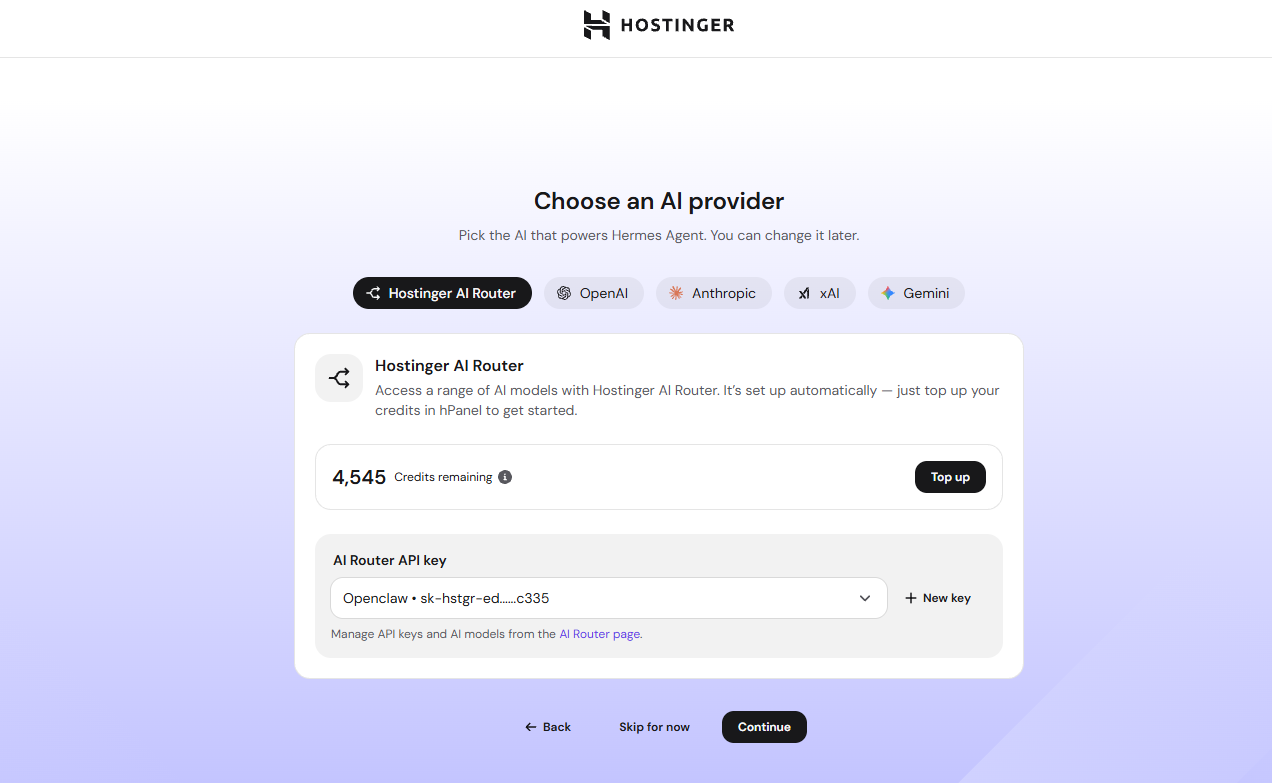
Click Continue, or Skip for now to set the AI provider later. Hermes setup starts and takes a few minutes. You can leave the page, and the setup will keep going.
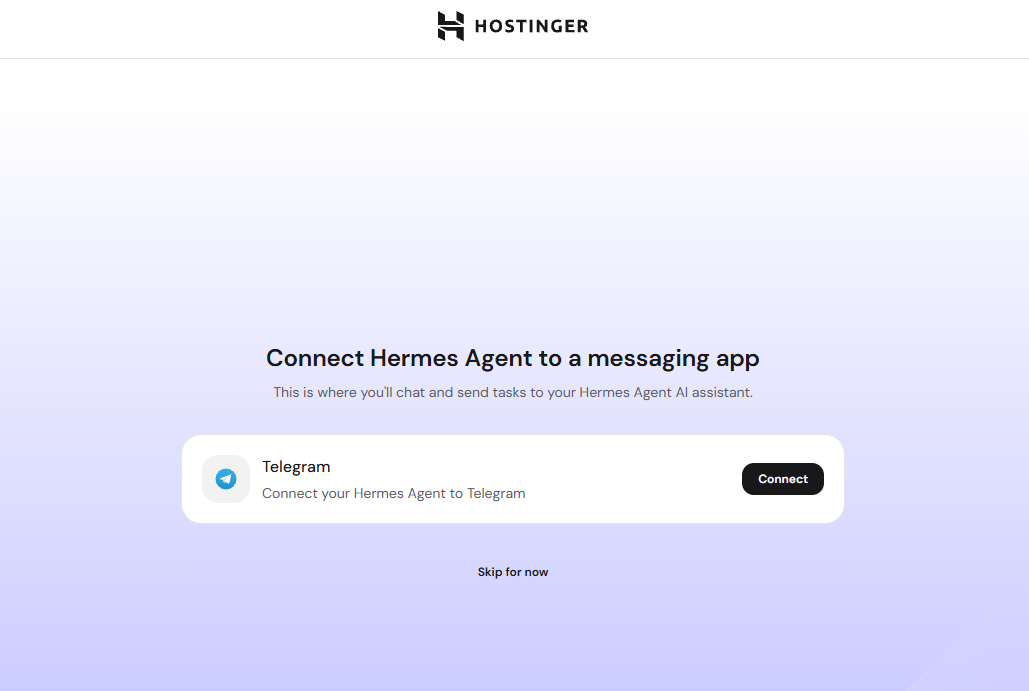
Step 4 – Connect Telegram
Telegram is where you chat with Hermes and send it tasks. Click Connect next to Telegram and follow the steps in Connect Telegram to Hermes, or click Skip for now to do this later.
Step 5 – Log in to Hermes
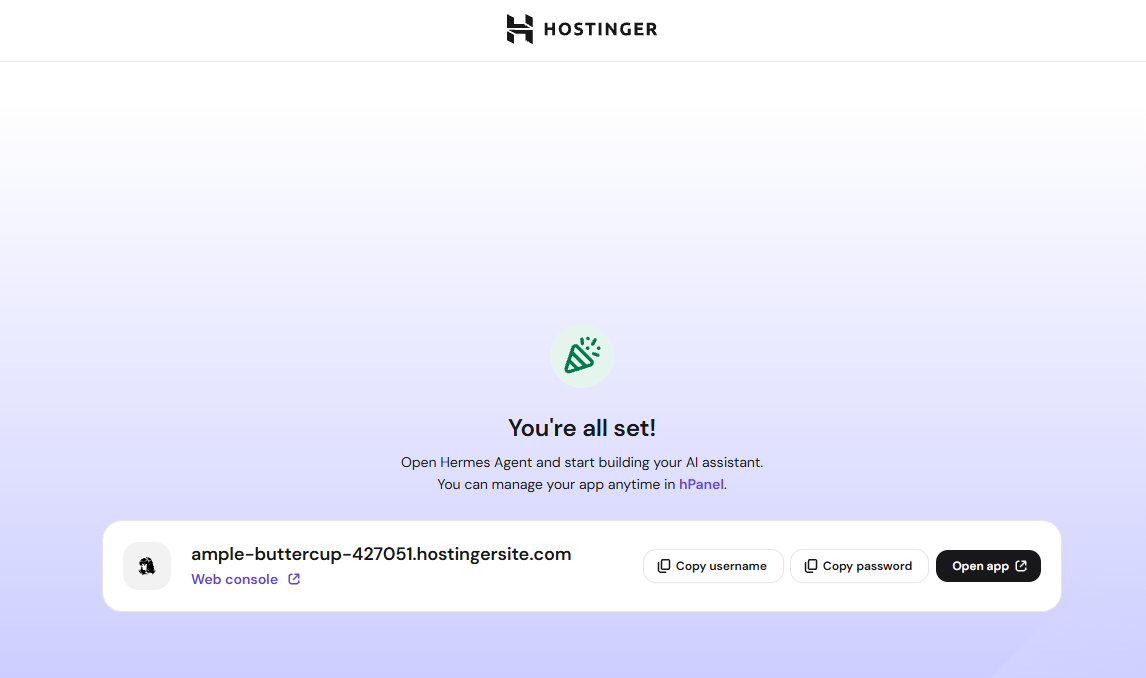
- When setup finishes, click Copy username and Copy password.
- Click Open app.

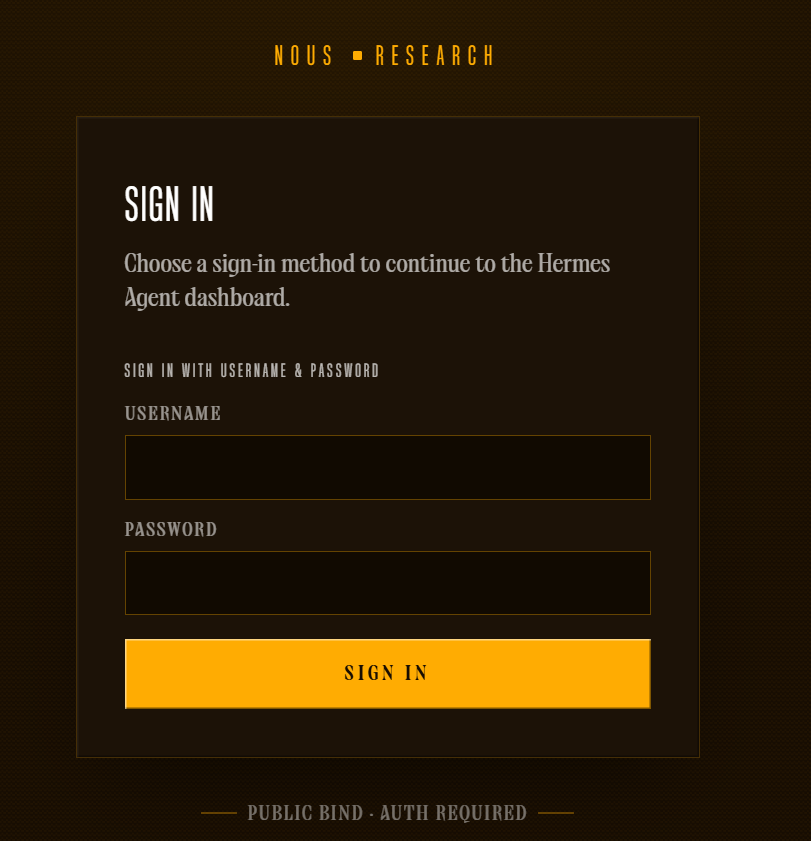
- On the Hermes Agent sign-in page, enter the username and password, and click Sign in.

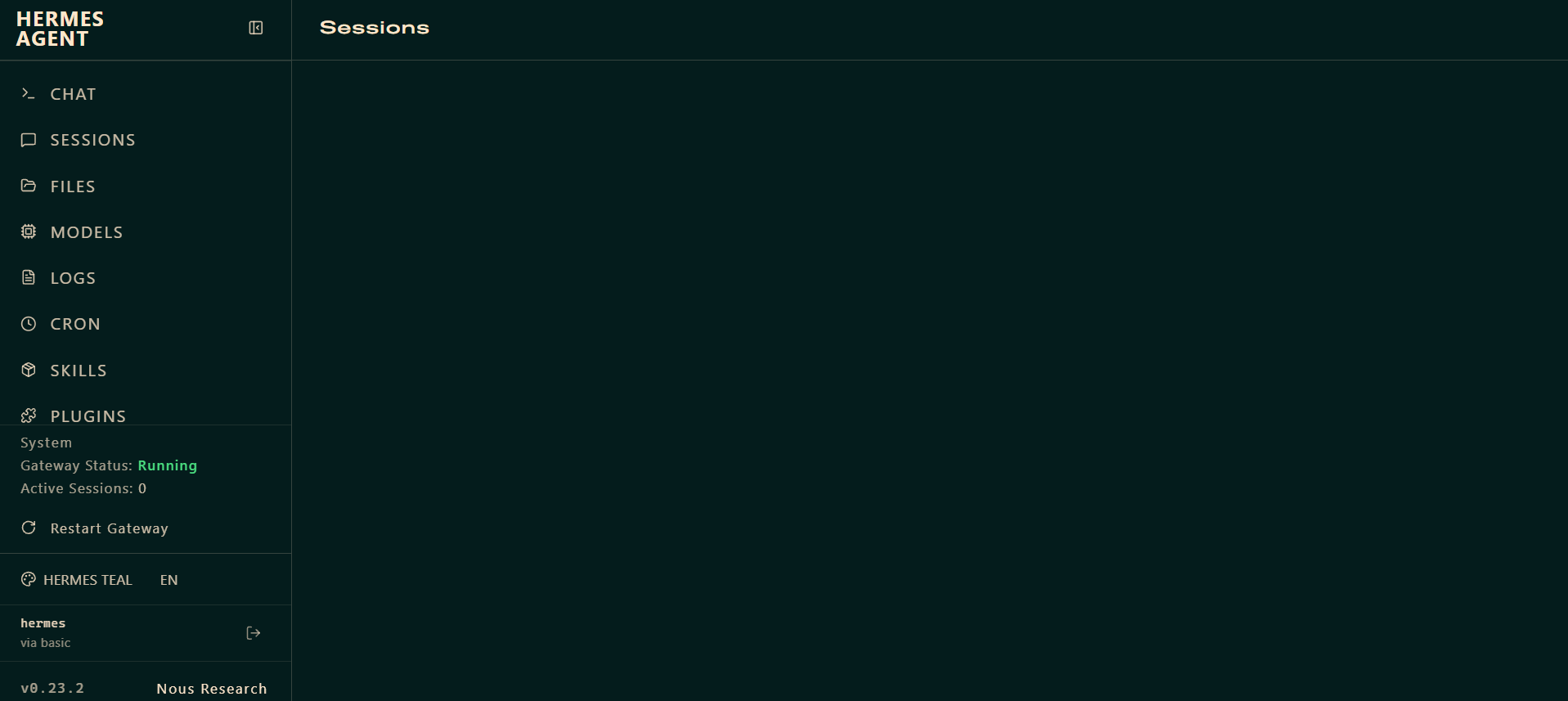
The Hermes Agent dashboard opens. Its menu includes Chat, Sessions, Files, Models, Logs, Cron, Skills, and Plugins, plus a Restart Gateway option.
How to manage Hermes in Hostinger Managed apps
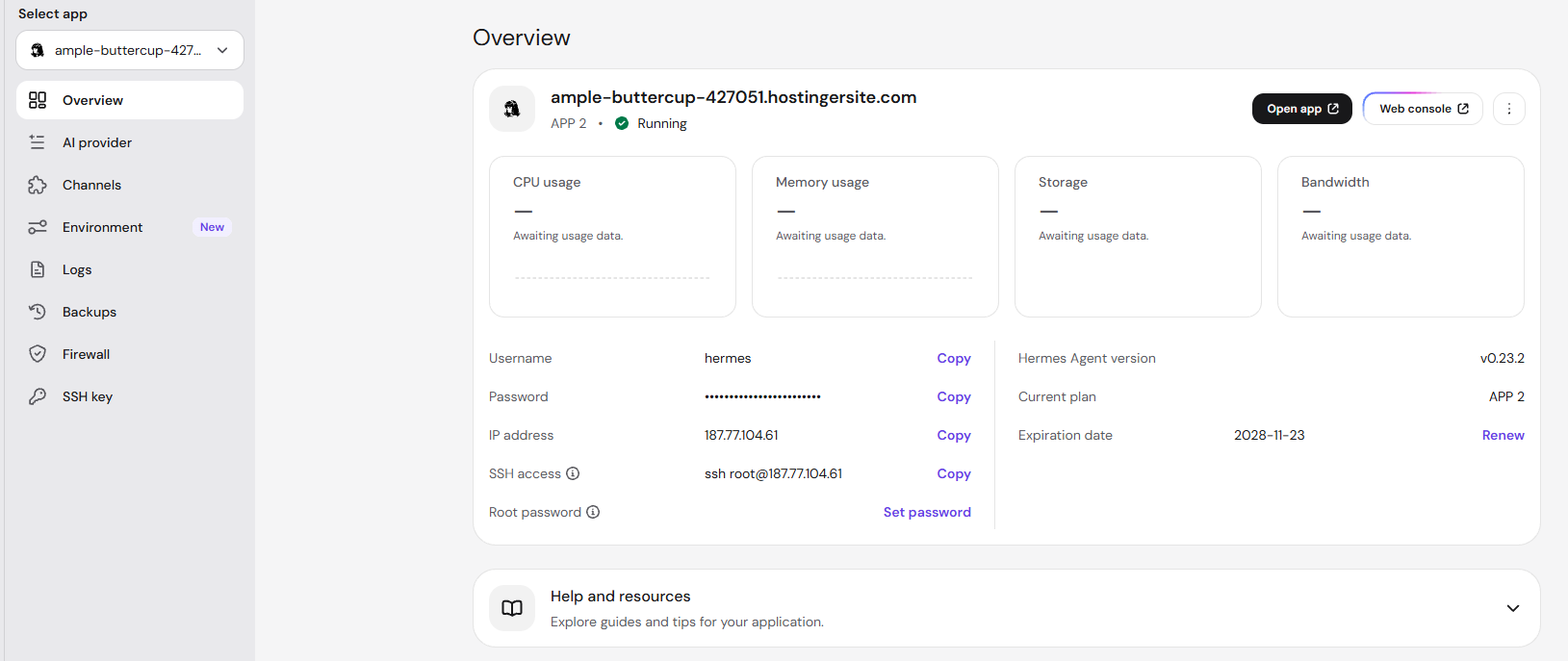
Go to Managed apps and click Manage next to your Hermes app to open its Overview page. Besides the usage tiles and plan details, the page shows the Hermes login details:
- Username and Password: your Hermes Agent dashboard login. Click Copy to copy either one.
- Hermes Agent version: the version installed on your app.
To connect with SSH or the Web console, manage environment variables, or stop, restart, or delete Hermes, see Hostinger Managed apps: What it is and how to get started.
How to change the AI provider for Hermes in Hostinger Managed apps
- On your Hermes app’s page, select AI provider in the left menu.
- Select Hostinger AI Router, OpenAI, Anthropic, xAI, or Gemini.
- For Hostinger AI Router, select an AI Router API key. For other providers, enter your API key.
- Click Save changes.
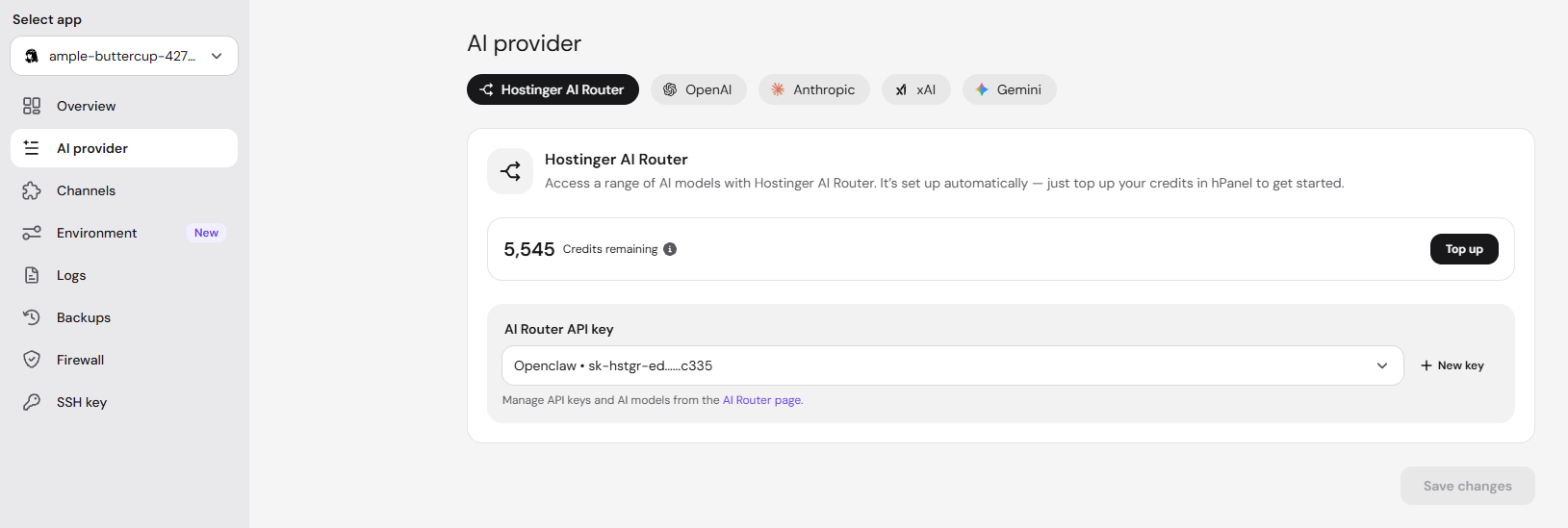
You can get API keys from platform.openai.com (OpenAI), console.anthropic.com (Anthropic), console.x.ai (xAI), and aistudio.google.com (Gemini). To use Hostinger credits instead, see What is Hostinger AI Router and how to get started.
How to connect Telegram to Hermes in Hostinger Managed apps
On your Hermes app’s page, select Channels in the left menu and click Connect next to Telegram.
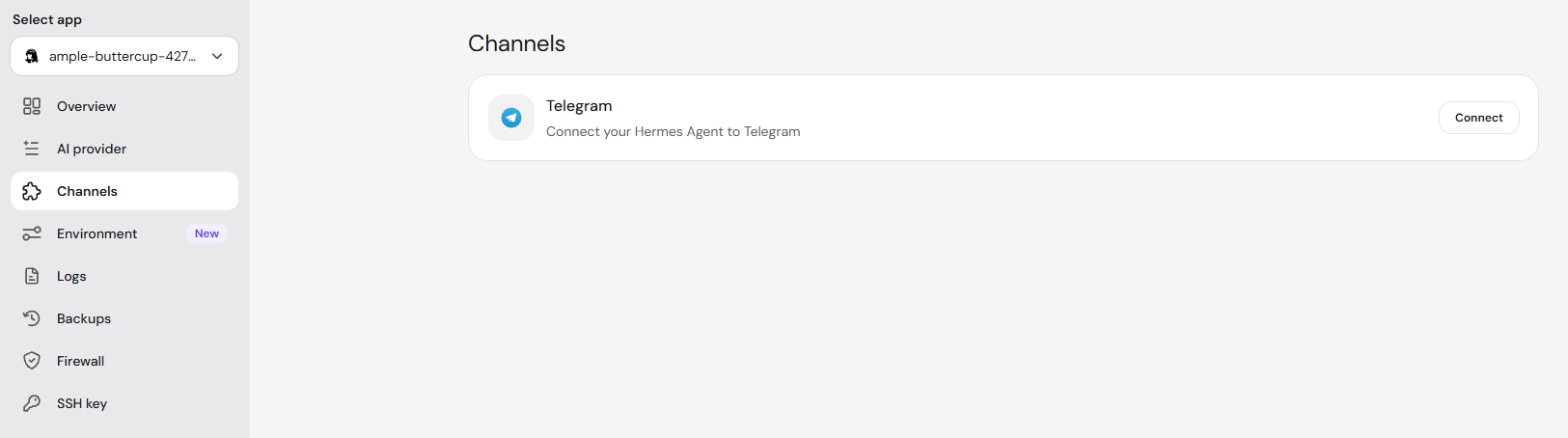
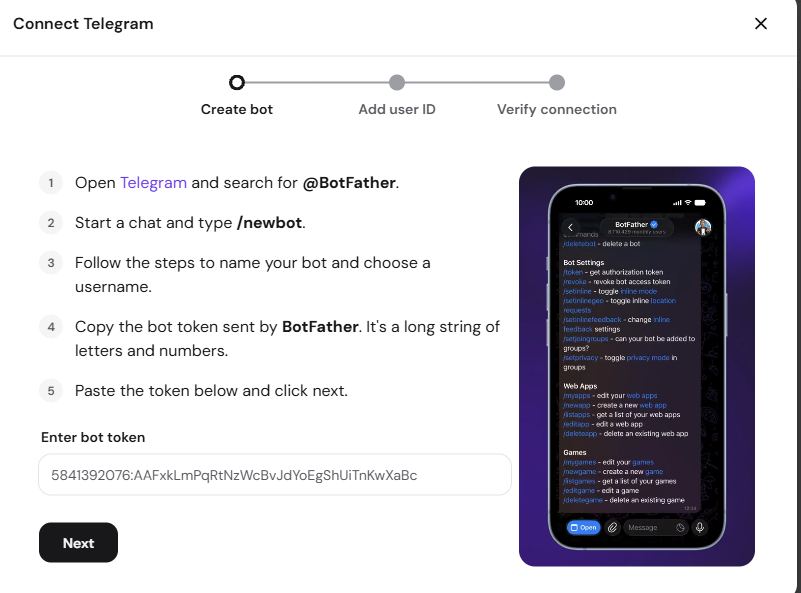
Connecting Telegram takes three stages: Create bot, Add user ID, and Verify connection.
- Open Telegram and search for @BotFather.
- Start a chat and type
/newbot. - Follow the steps to name your bot and choose a username.
- Copy the bot token that BotFather sends you.
- In the Hostinger dashboard, paste the token into Enter bot token and click Next.
- Complete the Add user ID and Verify connection steps.
Hermes environment variables in Hostinger Managed apps
Hostinger creates the Hermes environment variables during setup, including HERMES_DASHBOARD_BASIC_AUTH_PASSWORD and HERMES_DASHBOARD_BASIC_AUTH_SECRET for the Hermes Agent dashboard login, HERMES_PUBLIC_HOST for your app’s address, and AI_ROUTER_API_KEY and AI_ROUTER_BASE_URL for Hostinger AI Router. To view, add, or edit variables, select Environment in the left menu. See Hostinger Managed apps: What it is and how to get started for the steps.
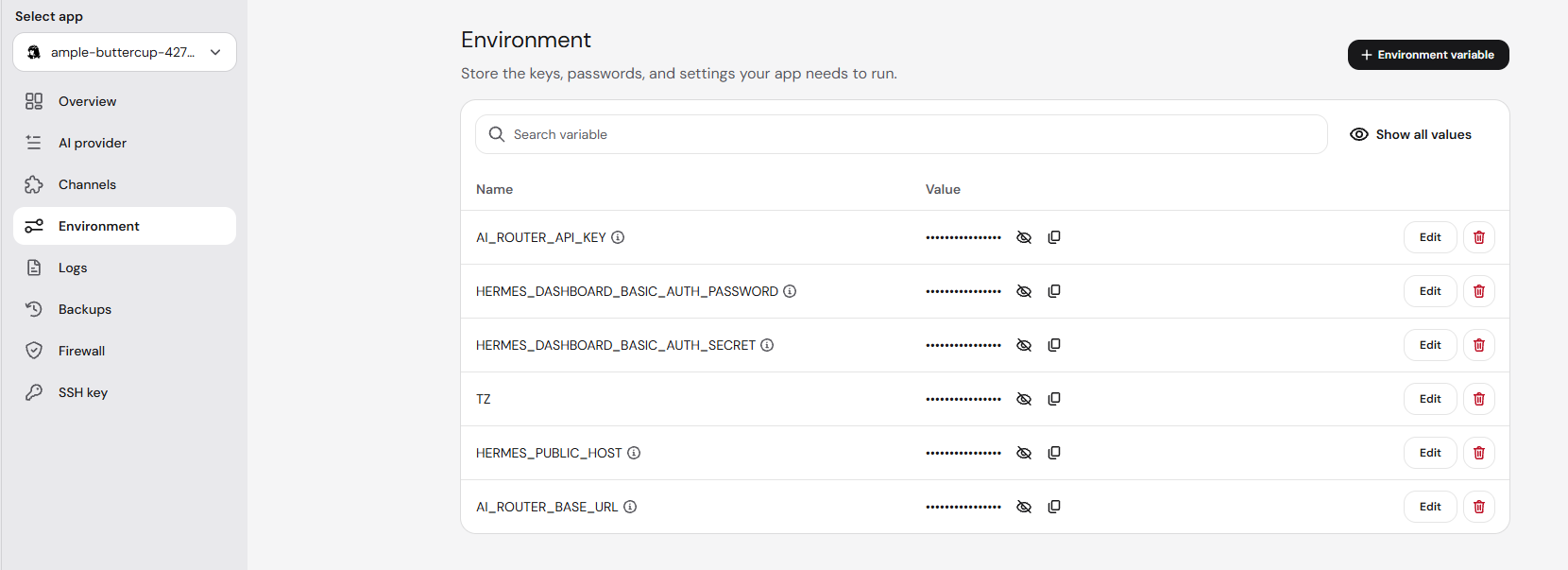
Editing the Hermes dashboard variables can change or block your Hermes Agent dashboard login.
Your Hermes app is now set up in Hostinger Managed apps. You can chat with it from Telegram or the Hermes Agent dashboard, and change its AI provider at any time.