The n8n 3.0 version upgrade introduces breaking changes that require you to prepare your Hostinger Virtual Private Server (VPS) before updating. The update removes older nodes and changes default settings. Your VPS only updates when you initiate the process. To prepare, take a snapshot, identify broken workflows, replace unsupported nodes, and run the update safely.
Before you start
- Active Hostinger VPS plan running n8n version 2.x.
Step 1 – Take a snapshot of your n8n VPS
Create a snapshot of your VPS in Hostinger dashboard before you change any settings. A snapshot saves your entire server state, including all workflows and credentials. n8n database upgrades are permanent and prevent downgrading to version 2. Restore this snapshot to recover your old setup if the upgrade fails.
Step 2 – Find the n8n workflows that need changes
Check your workflows using the built-in Migration Report. Open n8n, navigate to Settings, and select Migration Report. This report lists every workflow that uses a component n8n 3.0 removes or modifies.
NOTE
- Update to the latest n8n 2.x version first if the Migration Report option is missing from your settings.

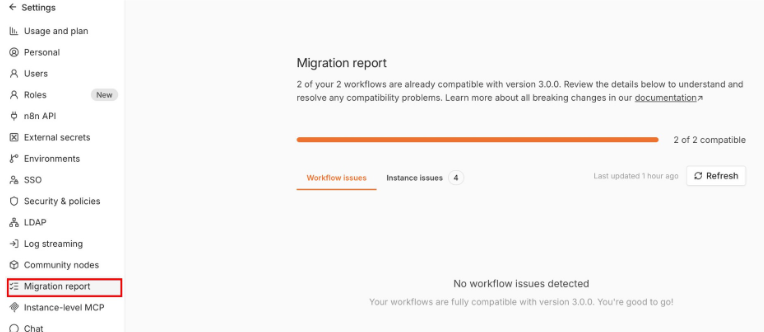
Step 3 – Replace n8n nodes that are being removed
Workflows containing removed nodes fail after the n8n 3.0 upgrade. Replace these outdated nodes to keep your automations running, especially if you imported workflows from templates.
|
Removed node |
Replace with |
|
Function, Function Item |
Code |
|
Item Lists |
Split Out, Aggregate, Sort, Limit, Remove Duplicates or Summarize, depending on what the node did |
|
Cron, Interval |
Schedule Trigger |
|
Read PDF |
Extract from File |
|
Read Binary File, Write Binary File |
Read/Write Files from Disk |
|
Older OpenAI nodes |
The current OpenAI node |
|
AI Agent version 1 |
The latest AI Agent node |
Run the workflow once to verify functionality after replacing a node. Publish the workflow again to save the changes. n8n 3.0 removes additional nodes, primarily older AI and vector store components. Consult the n8n 3.0 breaking changes page for the complete list of removals and their replacements.
Step 4 – Check other n8n 3.0 behavior changes
Several nodes remain in n8n 3.0 but behave differently. Review these three common changes before upgrading:
- The Slack Trigger requires a signing secret in your Slack credential to receive events.
- Code nodes stop executing after one minute instead of five minutes.
- Unverified community nodes stop loading entirely.
Step 5 – Upgrade to n8n 3.0
Update n8n after your workflows are fully prepared. Take a new snapshot of your VPS to save your prepared state.
To upgrade with Docker Manager in Hostinger dashboard, open your n8n project, click the options button ⋮, and select Update.
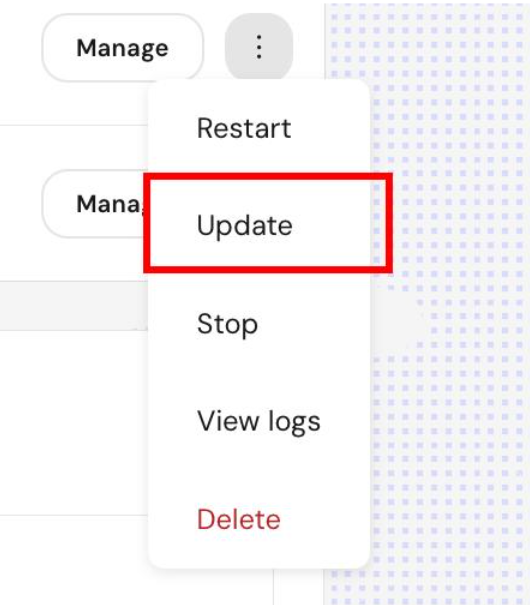
To upgrade over SSH, navigate to the folder containing your docker-compose.yml file and run these commands:
docker compose pull
docker compose down
docker compose up -d
Our guide on how to update n8n at Hostinger provides full steps for both update methods. Log in after the update completes to verify your workflows exist and run properly.
Restore a VPS snapshot if the n8n 3.0 upgrade fails
Restore your VPS snapshot in Hostinger dashboard if n8n fails to start or workflows disappear after upgrading. A snapshot restoration reverts your entire server to its previous state. Any changes made after taking the snapshot are permanently lost.
Contact n8n support if the platform runs but specific workflows fail. Hostinger provides the VPS infrastructure, but Hostinger support does not modify n8n or fix workflow errors. Post workflow questions on the n8n community forum or contact n8n directly if you have a paid license. Hostinger support can assist with server-side issues, such as restoring snapshots or restoring server access.
By following these preparation steps and replacing outdated nodes, your n8n automations will continue running smoothly on your Hostinger VPS after the upgrade.
Additional resources